
AFK B0FDQN2HTM
AFK Wireless Charging Station with Bluetooth Speaker and Alarm Clock User Manual
Model: B0FDQN2HTM
1. Introduction
The AFK Wireless Charging Station is a versatile device designed to simplify your daily routine. It integrates a wireless phone charger, a Bluetooth speaker for audio playback, a digital alarm clock, and hands-free calling capabilities into a single compact unit. This manual provides detailed instructions for setup, operation, and maintenance to ensure optimal performance.

Image 1.1: The AFK Wireless Charging Station in use, showing a smartphone charging and the time displayed on the clock.
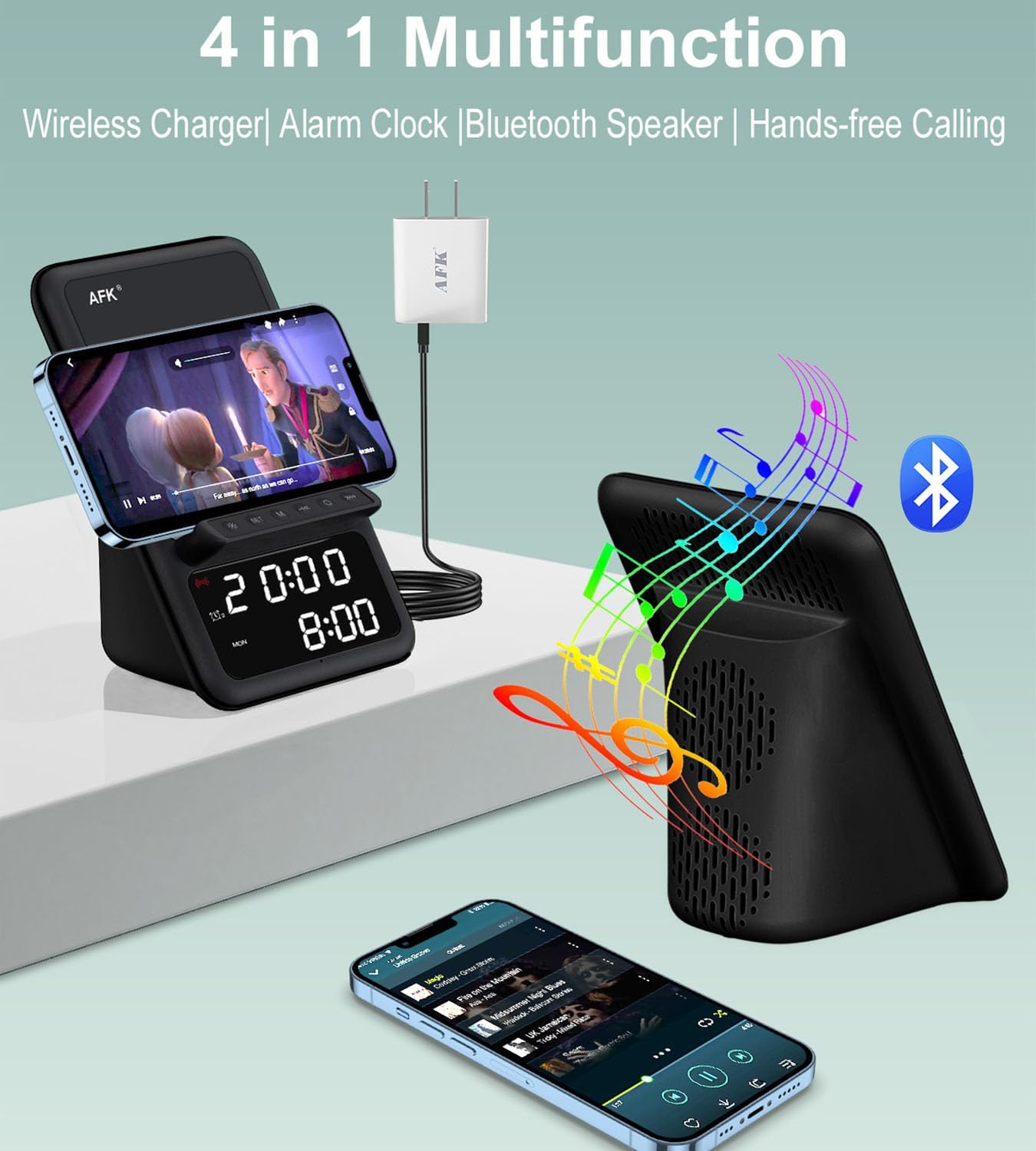
Image 1.2: Overview of the product's four main functions: wireless charging, alarm clock, Bluetooth speaker, and hands-free calling.
2. Safety Information
- Do not expose the device to extreme temperatures, direct sunlight, or high humidity.
- Avoid dropping or subjecting the device to strong impacts.
- Keep the device away from water or other liquids.
- Do not attempt to disassemble or repair the device yourself. Contact qualified service personnel.
- Use only the provided power adapter or a certified equivalent.
- Ensure proper ventilation around the device during operation.
3. Package Contents
Please check the package for the following items:
- AFK Wireless Charging Station
- Power Adapter
4. Product Overview
Familiarize yourself with the various components of your AFK Wireless Charging Station.
Front Panel
- Digital Display: Shows time, alarm status, and other indicators.
- Control Buttons: For setting time, alarms, and controlling speaker functions.
Top Panel
- Wireless Charging Pad: Place your compatible smartphone here for wireless charging.
Rear Panel
- Power Input Port: Connect the provided power adapter.
- Speaker Grille: For audio output.
5. Setup
5.1 Power Connection
- Connect the USB Type-C end of the power adapter cable to the Power Input Port on the back of the charging station.
- Plug the other end of the power adapter into a standard wall outlet.
- The digital display will light up, indicating the device is powered on.
5.2 Initial Time Setting
Upon first power-up, you may need to set the correct time.
- Press and hold the 'Time Set' button (refer to product diagram for exact button location).
- Use the '+' and '-' buttons to adjust the hour. Press 'Time Set' again to confirm.
- Use the '+' and '-' buttons to adjust the minute. Press 'Time Set' again to confirm.
- The time is now set.
6. Operating Instructions
6.1 Wireless Charging
The charging station supports wireless charging for compatible smartphones.
- Ensure your smartphone supports wireless charging.
- Place your smartphone directly onto the wireless charging pad on the top of the station.
- The charging indicator on your phone or the station (if available) will confirm charging has begun.
- Note: The charging station can charge through phone cases up to 5mm thick. Magnetic, metal accessories, or other foreign objects on the back of your phone may interfere with charging and should be removed.
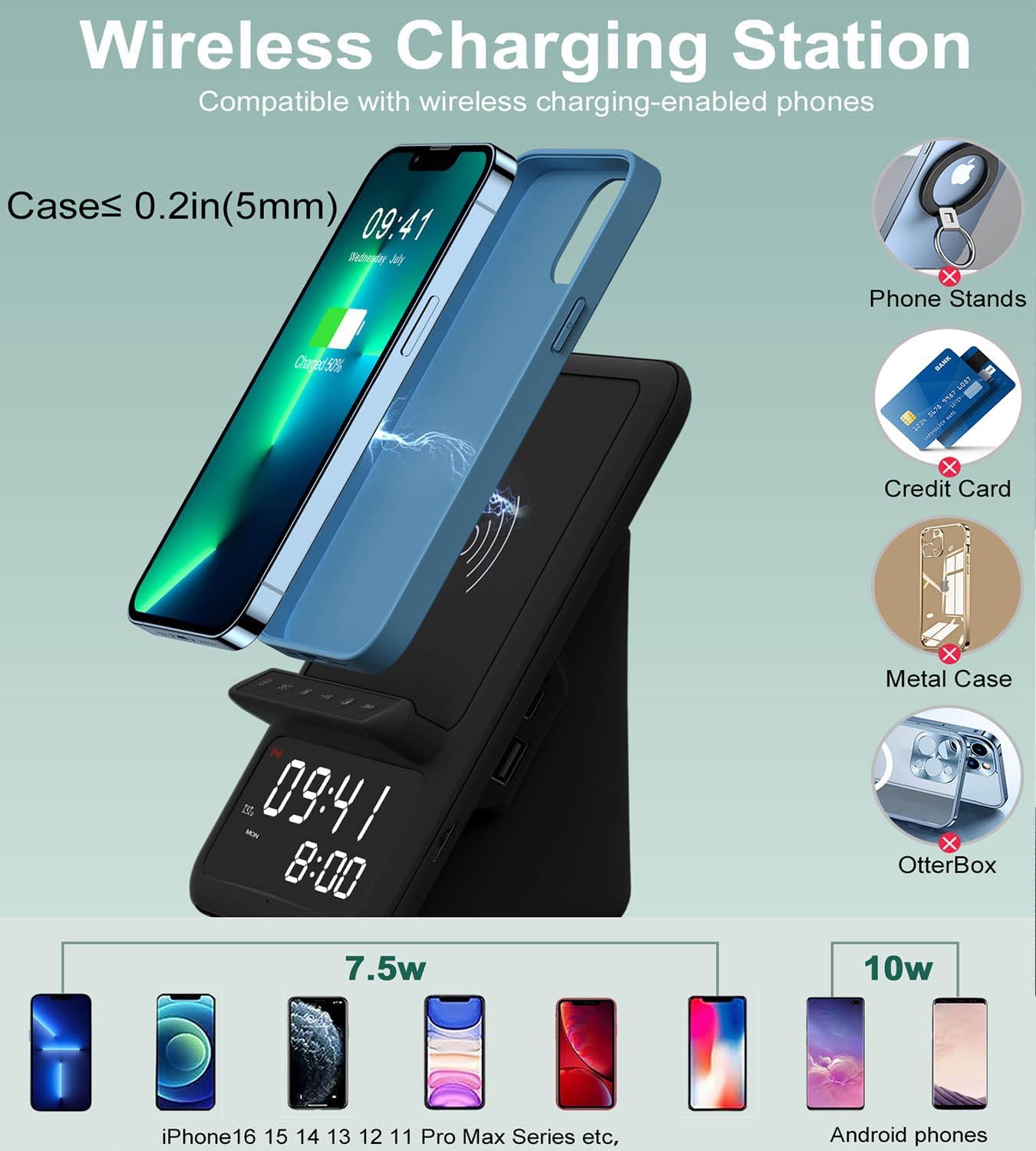
Image 6.1: Illustration of wireless charging, indicating compatibility with various phone models and the maximum case thickness for effective charging.
6.2 Bluetooth Speaker
Connect your device via Bluetooth to play audio through the integrated speaker.
- Press the 'Bluetooth' button on the charging station to enter pairing mode. The Bluetooth indicator will flash.
- On your smartphone, tablet, or laptop, enable Bluetooth and search for available devices.
- Select "AFK Charging Station" (or similar name) from the list of devices to pair.
- Once paired, the Bluetooth indicator will become solid, and you can now play audio through the speaker.
- Use the volume buttons on the charging station or your connected device to adjust the sound level.

Image 6.2: The AFK Charging Station functioning as a Bluetooth speaker, connected to a laptop for audio playback.
6.3 Alarm Clock
Set up to two independent alarms.
- Setting Alarm 1: Press and hold the 'Alarm 1' button. Use '+' and '-' to set the hour, then press 'Alarm 1' to confirm. Use '+' and '-' to set the minute, then press 'Alarm 1' to confirm.
- Setting Alarm 2: Repeat the process using the 'Alarm 2' button.
- Activating/Deactivating Alarms: Briefly press the 'Alarm 1' or 'Alarm 2' button to toggle the respective alarm on or off. An icon on the display will indicate active alarms.
- Snooze Function: When an alarm sounds, press any button (except 'Off') to activate snooze. The alarm will sound again after a set interval (e.g., 9 minutes).
- Stopping Alarm: To turn off an alarm completely, press the designated 'Alarm Off' button (refer to product diagram).

Image 6.3: The charging station positioned on a bedside table, illustrating the dual alarm functionality with two distinct alarm times displayed.
6.4 Hands-free Calling
Utilize the built-in microphone for hands-free communication when connected via Bluetooth.
- Ensure your phone is paired with the charging station via Bluetooth.
- When a call comes in, the speaker will ring. Press the 'Call Answer' button (refer to product diagram) to answer the call.
- Speak towards the device's microphone for clear communication.
- To end a call, press the 'Call End' button.

Image 6.4: The charging station facilitating a hands-free video conference call, showcasing its integrated microphone and speaker capabilities.
7. Specifications
| Feature | Description |
|---|---|
| Brand | AFK |
| Connector Type | USB Type C |
| Compatible Devices | Phones that support wireless charging |
| Special Feature | Wireless Charger, Bluetooth Speaker, Alarm Clock, Hands-Free Calling |
| Color | Black |
| Material | Acrylonitrile Butadiene Styrene |
| Power Source | USB |
8. Maintenance
To ensure the longevity and optimal performance of your AFK Wireless Charging Station, follow these maintenance guidelines:
- Cleaning: Use a soft, dry cloth to wipe the surface of the device. Do not use abrasive cleaners, solvents, or chemical sprays.
- Storage: When not in use for extended periods, store the device in a cool, dry place away from direct sunlight.
- Avoid Obstructions: Ensure the speaker grille and charging pad are free from dust and debris.
9. Troubleshooting
If you encounter issues with your device, refer to the following common problems and solutions:
| Problem | Possible Solution |
|---|---|
| Device does not power on. | Ensure the power adapter is securely connected to both the device and a working power outlet. Try a different outlet. |
| Wireless charging is not working. | Verify your phone supports wireless charging. Remove any metal objects, magnetic accessories, or overly thick cases (over 5mm) from your phone. Ensure the phone is centered on the charging pad. |
| Bluetooth speaker cannot pair. | Ensure the charging station is in Bluetooth pairing mode (indicator flashing). Make sure Bluetooth is enabled on your device and it's within range. Try restarting both devices. |
| Alarm does not sound. | Check if the alarm is activated (icon visible on display). Ensure the volume is not set to minimum. Verify the time is set correctly. |
| Poor sound quality from speaker. | Ensure the device is within Bluetooth range. Check for obstructions around the speaker grille. Adjust volume on both the station and your connected device. |
10. Warranty and Support
This product comes with a standard manufacturer's warranty. For specific warranty details, please refer to the documentation included with your purchase or contact AFK customer support.
If you require further assistance or have questions not covered in this manual, please contact AFK customer support through the retailer's platform or the official AFK website.
Ask a question about this manual
Ask about setup, troubleshooting, compatibility, parts, safety, or missing instructions. Manuals+ will review the question and use this page’s manual context to help answer it.