
HAPPRUN J7 Pro
HAPPRUN J7 Pro Smart Projector User Manual
Model: J7 Pro
1. Introduction
This manual provides essential instructions for the safe and efficient operation of your HAPPRUN J7 Pro Smart Projector. Please read this manual thoroughly before using the product and retain it for future reference.

Figure 1: HAPPRUN J7 Pro Smart Projector Overview
2. Safety Information
Observe the following safety precautions to prevent damage to the projector and ensure user safety:
- Do not block ventilation openings.
- Use only attachments/accessories specified by the manufacturer.
- Refer all servicing to qualified service personnel.
- Avoid direct eye exposure to the projector lens.
- Do not expose the projector to rain or moisture.
3. Package Contents
Verify that all items are present upon unpacking:
- HDMI Cable
- Power Cord
- Remote
- User Manual
- Cleaning Kit
4. Product Overview
The HAPPRUN J7 Pro is a smart projector featuring Google TV, designed for versatile home theater and outdoor use. Key features include:
- Officially Licensed Google TV: Access streaming apps like Netflix, Prime Video, YouTube, and Hulu directly.
- Google Voice Assistant: Control the projector with voice commands via the remote.
- Visionary Picture Quality: Native 1080P resolution with 1500 ANSI lumens, supporting 4K input and HDR10+ for sharp, vibrant images.
- Automatic Adjustments: 3-second auto focus and auto keystone correction for effortless setup.
- Dolby Audio & Hi-Fi Speakers: Integrated dual speakers with Dolby certification for immersive sound.
- Advanced Connectivity: Dual-band Wi-Fi 6 for lag-free screen mirroring (iOS, Android, Windows) and Bluetooth 5.2 for external audio devices.
- Large Screen Projection: Adjustable display size from 40 to 200 inches with 50%-100% digital zoom.
- Multi-Device Compatibility: HDMI, USB, and 3.5mm audio jack for connecting phones, laptops, PCs, TV sticks, gaming consoles, and more.
- Versatile Installation: Supports desktop, tripod, wall, or ceiling mounting.

Figure 2: Google TV Interface with various streaming apps.
Video 1: Overview of HAPPRUN 1500ANSI Official Licensed Google TV Smart Projector features.
5. Setup Instructions
5.1 Initial Power-On and Remote Pairing
- Connect the power cord to the projector and a power outlet.
- Press the power button on the projector or remote control to turn it on.
- Follow the on-screen instructions to pair the remote control. Typically, this involves holding specific buttons (e.g., Back and Home) for 3 seconds while moving the remote closer to the projector.
5.2 Network Connection
- Navigate to the Settings menu on the Google TV interface.
- Select Network & Internet.
- Choose your Wi-Fi network and enter the password to connect.
5.3 Placement and Image Adjustment
The projector offers flexible placement options:
- Desktop/Tabletop: Place the projector on a flat, stable surface.
- Tripod Mount: Use the standard threaded hole on the bottom to attach a camera tripod.
- Ceiling Mount: Secure the projector to the ceiling using a compatible mount. Adjust projection mode in settings if mounted upside down.
- Wall Projection: Project directly onto a smooth, light-colored wall.

Figure 3: Versatile installation methods for the projector.
The projector features automatic focus and keystone correction. For manual adjustments:
- Auto Focus: The projector automatically adjusts focus upon startup or movement.
- Manual Focus: Use the remote control's focus buttons (often +/- or dedicated focus buttons) to fine-tune the image clarity.
- Auto Keystone Correction: Automatically adjusts the image to a rectangular shape.
- Manual Keystone Correction: Access this option in Settings > Projector > Image Correction to manually adjust the four corners of the projected image.
- Zoom & Shift: Adjust the screen size proportionally and reposition the image within the display area via Settings > Projector > Image Correction.
6. Operating Instructions
6.1 Google TV Interface
The projector's main interface is Google TV, providing access to a wide range of streaming services and apps. Navigate using the remote control:
- Home Screen: Displays recommended content and your installed apps.
- Apps: Access the Google Play Store to download additional applications.
- Live: View free live TV channels provided by Google TV Freeplay.
- Library: Find your purchased, rented, or watchlisted content.
6.2 Google Voice Assistant
Press the microphone button on your remote control and speak your commands to control the projector, search for content, or adjust settings.
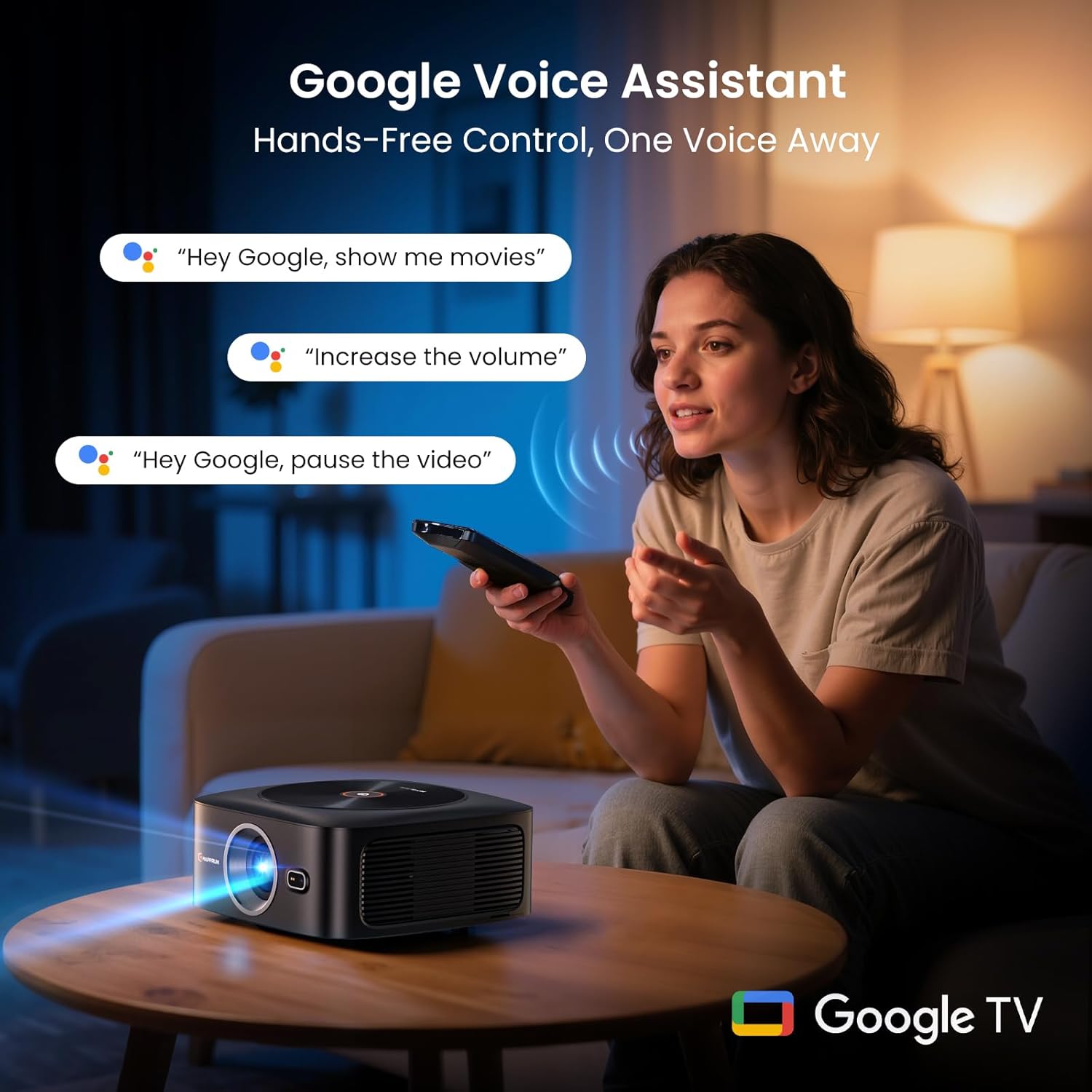
Figure 4: Using the Google Voice Assistant for hands-free control.
6.3 Screen Mirroring
Utilize Wi-Fi 6 technology for seamless screen mirroring from your iOS, Android, or Windows devices. Access casting options in the system settings.

Figure 5: Lag-free wireless casting via Wi-Fi 6.
6.4 External Device Connectivity
Connect various devices using the available ports:
- HDMI: Connect laptops, gaming consoles (PS5, Switch), TV sticks, etc.
- USB: Play media files directly from USB drives.
- 3.5mm Audio Jack: Connect external headphones or speakers.
- Bluetooth 5.2: Wirelessly connect to Bluetooth speakers or headphones for enhanced audio.
Video 2: Short demonstration of the projector's high-quality display.
6.5 Picture and Sound Settings
Adjust display and audio preferences via the Settings menu:
- Picture Mode: Choose from Standard, Vivid, Movie, Game, or Custom modes. Custom allows adjustment of contrast, saturation, sharpness, color temperature, and gamma.
- Sound Mode: Select from Standard, Movie, Music, Sport, or Custom. Enable Surround Sound or adjust expert settings.
- Projection Mode: Adjust for Front, Front Ceiling, Rear, or Rear Ceiling projection based on installation.
7. Maintenance
7.1 Cleaning
- Lens: Use the provided cleaning kit or a soft, lint-free cloth specifically designed for optical lenses. Do not use abrasive cleaners.
- Exterior: Wipe the projector's exterior with a soft, dry cloth. Avoid using harsh chemicals.
- Ventilation: Regularly check and clean the air inlet to ensure proper airflow and prevent overheating.
7.2 Lamp Life
The HAPPRUN J7 Pro uses a durable LED light source with an estimated lamp life of 10,000 hours. No user-replaceable lamp is required.
8. Troubleshooting
| Problem | Possible Cause | Solution |
|---|---|---|
| No image or blurry image | Loose cable connection, incorrect focus, keystone distortion. | Check HDMI/USB connections. Use auto or manual focus. Adjust keystone correction in settings. |
| No sound | Volume too low, incorrect audio output, external device issue. | Increase volume. Check sound settings for correct output. Ensure external audio devices are properly connected and powered. |
| Remote control not responding | Low battery, remote not paired, obstruction. | Replace batteries. Re-pair the remote control (refer to Initial Power-On). Ensure no objects block the signal path. |
| Wi-Fi/Bluetooth connectivity issues | Out of range, interference, incorrect password. | Ensure projector is within range of router/device. Check for interference. Verify Wi-Fi password. Re-pair Bluetooth devices. |
9. Specifications
| Feature | Detail |
|---|---|
| Brand | HAPPRUN |
| Model Number | J7 Pro |
| Brightness | 1500 ANSI Lumens (38,000 Lumens) |
| Native Resolution | 1920 x 1080 (Full HD) |
| Supported Input Resolution | Up to 4K |
| Contrast Ratio | 2000:1 with HDR10+ |
| Projection Size | 50"–200" |
| Zoom | 50%–100% Digital Zoom |
| Smart Adjustment | Auto Focus & Auto Keystone Correction |
| Wireless Connectivity | Dual-band 5G/2.4G Wi-Fi 6 |
| Bluetooth | Two-way Bluetooth 5.2 |
| Casting | Google Cast, AirPlay & Google Phone Mirroring |
| Audio | Hi-Fi Speakers with Dolby Audio |
| Cooling System | Advanced Low-Noise Cooling System |
| Lamp Life | 10,000 hours durable LED light source |
| Connectivity Technology | 3.5mm Jack, Bluetooth, HDMI, USB, Wi-Fi |
| Item Weight | 3.43 pounds |
| Product Dimensions | 7.8 x 7.8 x 3.85 inches |
10. Warranty and Support
For any questions or support regarding your HAPPRUN J7 Pro Smart Projector, please contact customer service:
- US Phone: 1-888-986-2646
- US Email: service@happrunlife.com
- EU Email: service.eu@happrunlife.com
- UK Email: service.uk@happrunlife.com
Please refer to the product packaging or official HAPPRUN website for detailed warranty information.
Related documentsJ7 Pro


Ask a question about this manual
Ask about setup, troubleshooting, compatibility, parts, safety, or missing instructions. Manuals+ will review the question and use this page’s manual context to help answer it.