
SABLUTE Wireless Keyboard and Mouse Combo with Trackball Mouse
SABLUTE Wireless Keyboard and Mouse Combo User Manual
Model: Wireless Keyboard and Mouse Combo with Trackball Mouse
Introduction
This manual provides detailed instructions for the setup, operation, maintenance, and troubleshooting of your SABLUTE Wireless Keyboard and Mouse Combo, which includes an ergonomic wave keyboard and a wireless trackball mouse. Please read this manual thoroughly before using the product to ensure optimal performance and longevity.
Package Contents
- SABLUTE Ergonomic Wave Wireless Keyboard
- SABLUTE Wireless Trackball Mouse
- SABLUTE Wireless Ergonomic Mouse
- USB-A Receiver
- USB-C Adapter
- Charging Cable (for rechargeable devices)
- User Manual (this document)

Image: The SABLUTE ergonomic wave keyboard, a standard wireless mouse, and the USB-A receiver with a USB-C adapter, indicating the components included in the combo.
Setup Guide
1. Charging the Devices
Before first use, ensure both the keyboard and the trackball mouse are fully charged. Connect the provided charging cable to the charging port on each device and to a USB power source. An indicator light will typically show charging status and turn off when fully charged.
2. Connecting via USB Receiver (2.4GHz Wireless)
- Locate the USB-A receiver. If your computer only has USB-C ports, attach the USB-C adapter to the USB-A receiver.
- Insert the USB receiver into an available USB port on your computer.
- Turn on the power switch on both the keyboard and the mouse. The devices should automatically connect to your computer.

Image: Illustration showing the USB-A receiver and the USB-C adapter, highlighting the compatibility with various computer ports.
3. Connecting via Bluetooth (Trackball Mouse Only)
The trackball mouse supports multi-device Bluetooth connection.
- Turn on the trackball mouse.
- Press the Bluetooth pairing button (often located on the bottom or side of the mouse) until the indicator light flashes, indicating it's in pairing mode.
- On your computer or device, go to Bluetooth settings and search for new devices.
- Select "SABLUTE Trackball Mouse" (or similar name) from the list of available devices to pair.
- Repeat for up to two additional devices, using different Bluetooth channels if available on the mouse.
Operating Instructions
Keyboard Usage
The SABLUTE ergonomic wave keyboard is designed for a natural and relaxed typing posture. The integrated palm rest provides continuous wrist support.
- Adjustable Leg Stands: Flip out the leg stands on the underside of the keyboard to adjust the typing angle for personalized comfort.
- Integrated Palm Rest: Rest your wrists on the cushioned palm rest to reduce strain during extended typing sessions.

Image: A top-down view of the SABLUTE ergonomic wave keyboard, highlighting its curved design and integrated palm rest.

Image: An exploded diagram illustrating the layers of the keyboard's palm rest, showing the Togo-style leather, high-density foam support, and sturdy plastic bottom.
Trackball Mouse Usage
The trackball mouse allows cursor control without moving the entire mouse, reducing arm and wrist fatigue.
- Trackball Control: Use your thumb to move the trackball to control the cursor on the screen.
- Adjustable Angle: The trackball mouse features an adjustable base. You can set it to a 0° flat angle or an 18° elevated angle for improved wrist posture. The 18° angle is often preferred for long-term use to align with the natural wrist position.
- Multi-Device Switching: If connected to multiple devices via Bluetooth, use the dedicated switch button (usually on the bottom or side) to seamlessly switch between connected computers or tablets.
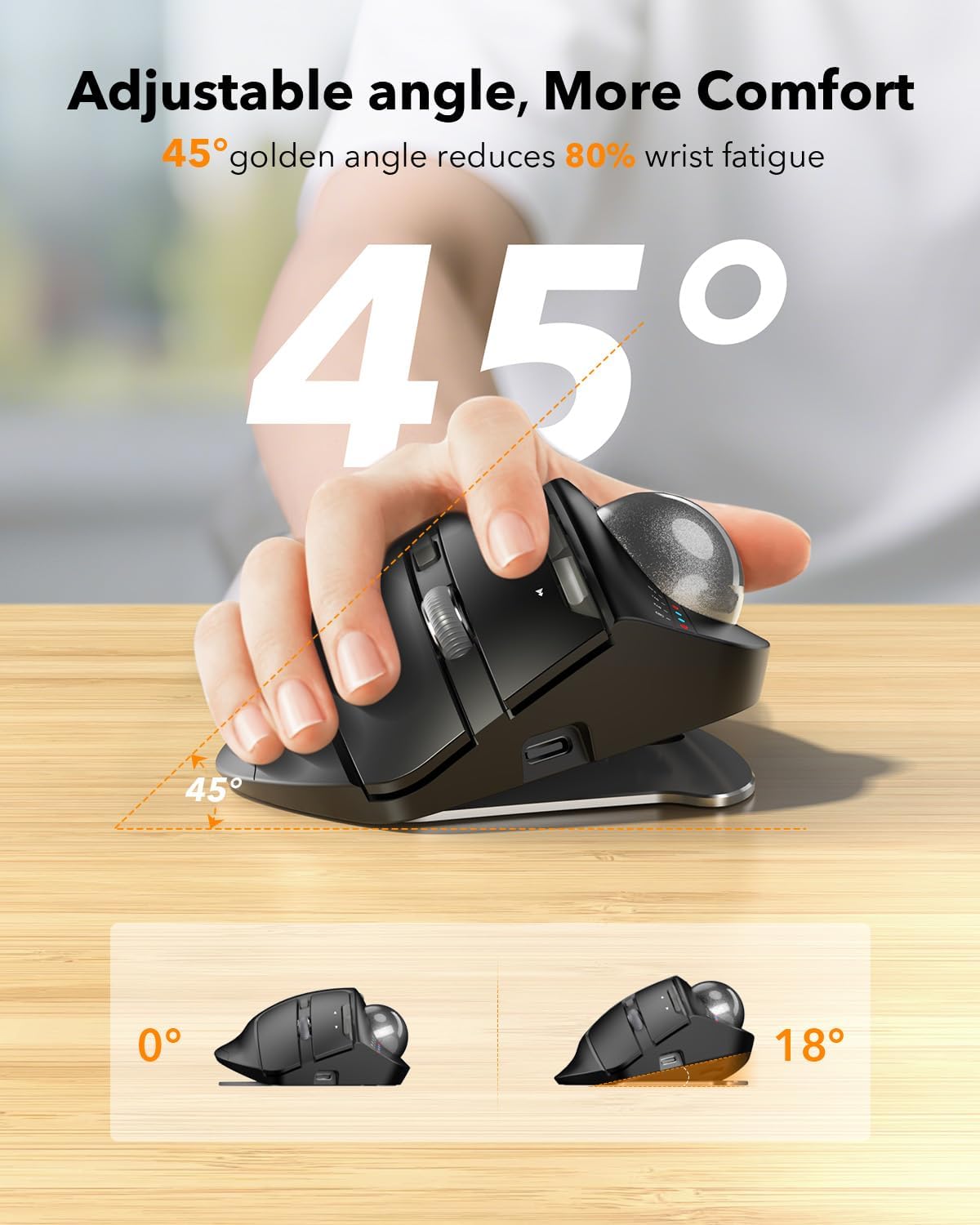
Image: A visual representation of the trackball mouse with its base adjusted to 0° and 18° angles, demonstrating its ergonomic flexibility.

Image: A side-by-side comparison showing a hand using a normal mouse (requiring arm movement and causing wrist fatigue) versus a hand using the ergonomic trackball mouse (reducing wrist fatigue and saving space).

Image: The trackball mouse positioned on a desk, with visual cues indicating its ability to switch between multiple devices like a desktop computer, laptop, and tablet with a single click.
Maintenance
- Cleaning: Use a soft, dry, lint-free cloth to clean the surfaces of the keyboard and mouse. For stubborn dirt, a slightly damp cloth can be used, but ensure no moisture enters the device. Do not use harsh chemicals or abrasive cleaners.
- Trackball Cleaning: Periodically remove the trackball from the mouse (refer to the device's specific instructions for removal, usually by pushing it out from the bottom) and clean the trackball and the inside cavity, especially the small rollers, with a cotton swab to remove dust and debris.
- Battery Care: Recharge the devices when the low battery indicator appears. Avoid completely draining the battery frequently to prolong its lifespan. If storing for a long period, charge the devices to about 50% and turn them off.
- Storage: Store the devices in a cool, dry place away from direct sunlight and extreme temperatures.
Troubleshooting
| Problem | Possible Cause | Solution |
|---|---|---|
| Keyboard/Mouse not responding (2.4GHz) | Low battery; Receiver not properly connected; Device turned off; Interference. | Charge devices; Re-insert USB receiver; Ensure devices are turned on; Move closer to receiver; Try a different USB port. |
| Trackball mouse not connecting (Bluetooth) | Not in pairing mode; Bluetooth off on host device; Already connected to max devices. | Put mouse in pairing mode; Enable Bluetooth on host device; Disconnect from another device if necessary. |
| Cursor movement is erratic or sticky | Trackball or internal rollers are dirty. | Remove and clean the trackball and its cavity, especially the small rollers. |
| Keys/Buttons not working | Low battery; Software issue; Physical damage. | Charge devices; Restart computer; Check for physical obstructions; Contact support if issue persists. |
Specifications
- Model: SABLUTE Wireless Keyboard and Mouse Combo
- Connectivity: 2.4GHz Wireless (USB Receiver), Bluetooth (Trackball Mouse)
- Keyboard Type: Ergonomic Wave Keyboard with Integrated Palm Rest
- Mouse Type: Wireless Trackball Mouse, Wireless Ergonomic Mouse
- Trackball Mouse Angle: Adjustable (0°, 18°)
- Compatibility: Windows, Android, Mac OS PC laptops, desktops, iPad
- Power: Rechargeable (Internal Battery)
- ASIN: B0FDQ75HT8
- Date First Available: June 17, 2025
Warranty and Support
SABLUTE products are designed for reliability and performance. For warranty information, technical support, or customer service inquiries, please refer to the contact information provided on the product packaging or visit the official SABLUTE website.
Online Support: Visit the SABLUTE Store on Amazon
Related documentsWireless Keyboard and Mouse Combo with Trackball Mouse


Ask a question about this manual
Ask about setup, troubleshooting, compatibility, parts, safety, or missing instructions. Manuals+ will review the question and use this page’s manual context to help answer it.