
BOAVISION Battery Camera
BOAVISION 2K Wireless Outdoor Security Camera User Manual
Model: Battery Camera
1. Introduction
Thank you for choosing the BOAVISION 2K Wireless Outdoor Security Camera. This manual provides detailed instructions for the setup, operation, and maintenance of your new security camera. Please read this manual thoroughly before use to ensure proper installation and functionality. This camera is designed for both indoor and outdoor use, offering 2K FHD clarity, color night vision, AI motion detection, and two-way audio for enhanced home security.

Image 1.1: BOAVISION Wireless 2K Smart Battery Camera overview, highlighting key features like long battery life, 2K FHD, color night vision, AI motion detection, multi-user sharing, IP65 weatherproof, two-way talk, magnetic base, cloud/SD storage, and siren alarm.
2. Package Contents
Please check the package contents carefully. If any items are missing or damaged, please contact customer support.
- BOAVISION 2K Wireless Outdoor Security Camera
- Magnetic Mount / Wall Mount Plate
- Mounting Screws and Anchors
- Charging Cable (USB-C)
- User Manual
3. Product Overview
Familiarize yourself with the components of your BOAVISION security camera.

Image 3.1: Front view of the BOAVISION 2K Wireless Outdoor Security Camera, showing the lens, spotlight LEDs, and PIR motion sensor.
Key Features:
- 2K FHD Clarity: Provides high-definition live video and images.
- Color & Infrared Night Vision: Offers clear visibility up to 33ft in low light conditions.
- 100% Wire-Free & Battery Powered: No power cords or network cables needed for installation.
- IP65 Weatherproof: Designed to withstand various weather conditions for outdoor use.
- Smart AI Motion Detection: PIR sensor detects movement and sends instant alerts. Subscription available for advanced AI detection (people, vehicles, pets, packages).
- Two-Way Talk: Communicate with visitors or deter intruders via the mobile app.
- Smart Siren & Spotlight: Deter unwanted visitors with an audible siren and flashing light.
- Flexible Installation: Magnetic base for easy setup or traditional wall mount.
- Cloud & SD Card Storage: Supports free rolling cloud storage and local SD card storage (up to 128GB, not included).
4. Setup
4.1 Charging the Camera
Before first use, fully charge the camera using the provided USB-C charging cable. The charging port is typically located under a weatherproof cover on the camera body.
4.2 App Installation and Account Creation
- Download the Kiwibit app from your smartphone's app store (Google Play Store for Android or Apple App Store for iOS).
- Open the app and follow the on-screen instructions to create a new account or log in if you already have one.
4.3 Connecting to Wi-Fi
The camera only supports 2.4GHz Wi-Fi networks. It is not compatible with 5GHz Wi-Fi.
- In the Kiwibit app, tap the "Add Device" or "+" icon.
- Select your camera model or scan the QR code on the camera if prompted.
- Follow the app's instructions to connect the camera to your 2.4GHz Wi-Fi network. This usually involves entering your Wi-Fi password and presenting a QR code generated by the app to the camera's lens.
- Listen for audio prompts from the camera confirming successful connection.
4.4 Installation Options
The camera offers flexible installation with both magnetic and wall mount options.
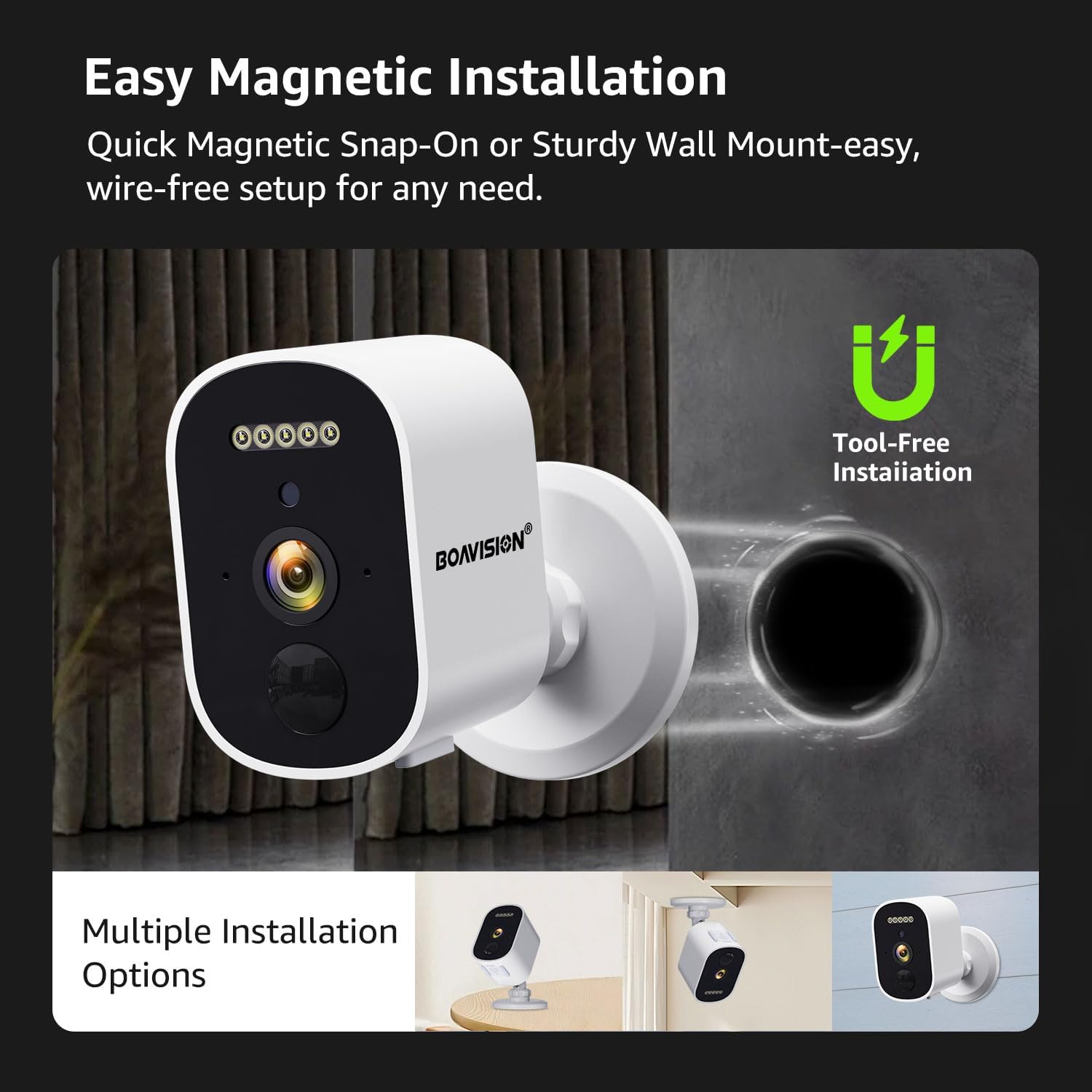
Image 4.1: Illustration of the easy magnetic snap-on installation and the sturdy wall mount option, providing tool-free setup for various needs.
- Magnetic Mount: The camera has a built-in magnetic base allowing for instant, tool-free setup on any ferromagnetic surface. Ensure the surface is stable and can support the camera's weight.
- Wall Mount: For a more permanent installation, use the included screws and wall mount plate.
- Choose a suitable location for your camera, considering Wi-Fi signal strength and desired viewing angle.
- If using the wall mount, mark the drilling points using the mount plate as a template.
- Drill holes, insert wall anchors (if necessary), and secure the mount plate with screws.
- Attach the camera to the magnetic base or the wall mount plate and adjust the angle as needed.
5. Operating the Camera
5.1 Live View and Playback
Access live video feed and recorded footage through the Kiwibit app.
- Open the Kiwibit app and select your camera from the device list to view the live feed.
- Use the playback function to review recorded events stored on the SD card or cloud.

Image 5.1: Comparison illustrating the enhanced detail captured by 2K FHD resolution compared to 1080P.
5.2 Night Vision Modes
The camera supports two night vision modes: full color and infrared.

Image 5.2: Demonstrates the difference between Color Night Vision, which provides a clearer, more detailed view in low light, and traditional Infrared Night Vision, which offers a black and white image.
- The camera automatically switches between day and night modes.
- You can configure night vision settings (e.g., force color night vision) within the app.
5.3 Motion Detection and Alerts
The camera's PIR sensor detects motion and sends instant notifications to your phone.

Image 5.3: Illustrates the PIR motion detection feature, showing an alert notification on a smartphone and the camera's spotlight activating to deter an intruder.
- Enable motion detection and customize sensitivity settings in the app.
- Receive instant alerts on your smartphone when motion is detected.
- Consider a subscription for AI motion detection to differentiate between people, vehicles, pets, and packages.
5.4 Two-Way Audio and Siren
Communicate through the camera and activate the siren/spotlight.

Image 5.4: Shows the two-way audio functionality, allowing clear communication between the user via the app and someone at the camera's location, such as a delivery person.
- Tap the microphone icon in the live view to speak through the camera.
- Activate the smart siren and flashing light from the app to deter intruders.
5.5 Storage Options
The camera supports both cloud storage and local SD card storage.

Image 5.5: Depicts the flexible storage solutions, including permanent free 3-day cycle cloud storage and support for local SD card storage up to 128GB (SD card not included).
- Cloud Storage: Enjoy free rolling cloud storage for a specified period (e.g., 3-day cycle). Check app for details on subscription plans for extended storage.
- SD Card Storage: Insert a microSD card (up to 128GB, not included) into the camera's SD card slot for local recording.
6. Maintenance
6.1 Battery Management
The camera is battery-powered. Monitor battery levels in the app and recharge as needed using the USB-C cable. For continuous power, consider a compatible solar panel (sold separately).
6.2 Cleaning
Wipe the camera lens and body with a soft, damp cloth. Do not use harsh chemicals or abrasive cleaners.
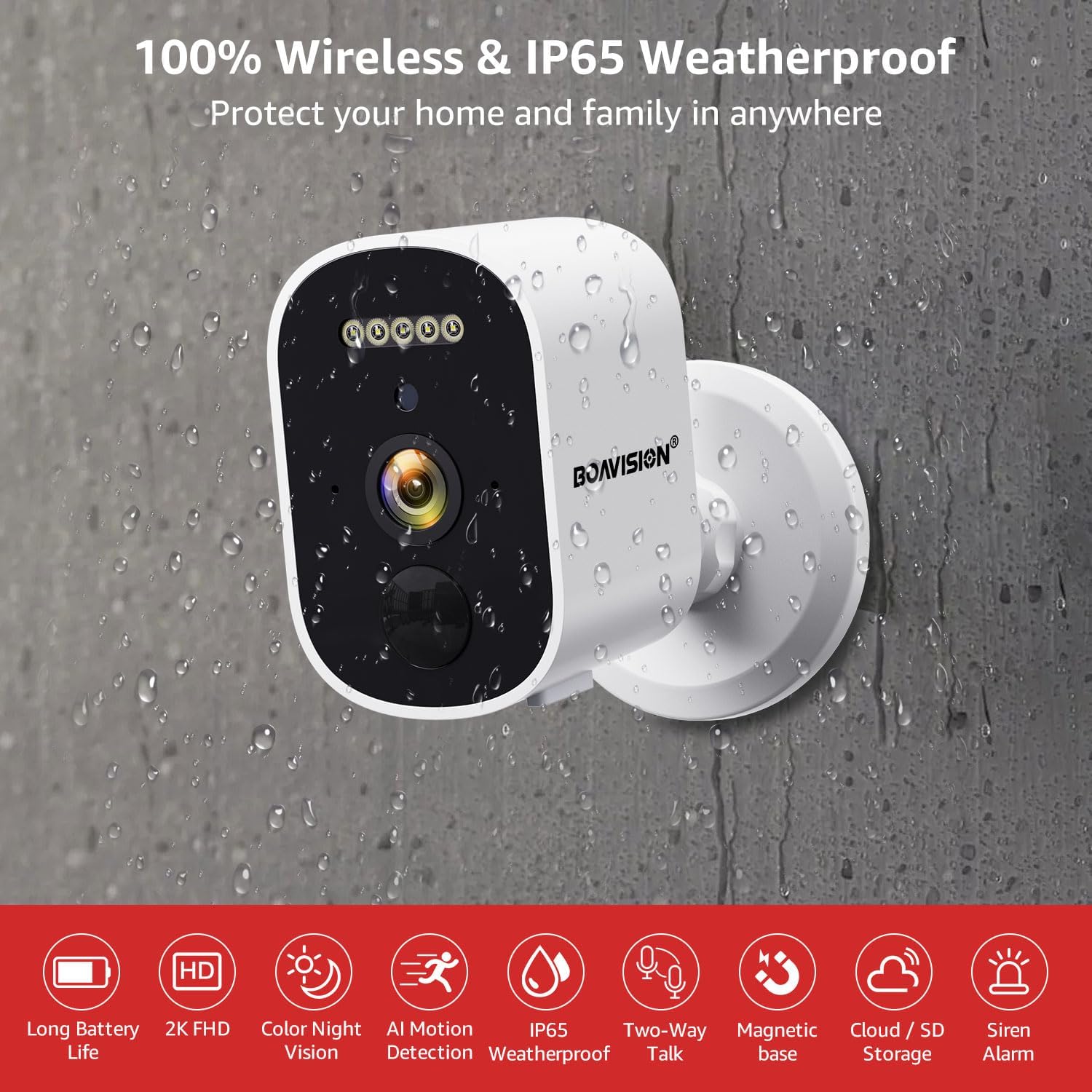
Image 6.1: The camera is shown being exposed to water, emphasizing its 100% wireless design and IP65 weatherproof rating for protection in various environments.
7. Troubleshooting
| Problem | Possible Cause | Solution |
|---|---|---|
| Camera won't connect to Wi-Fi | Incorrect Wi-Fi password; 5GHz Wi-Fi network; Camera too far from router; Weak signal. | Ensure correct 2.4GHz Wi-Fi password. Move camera closer to router. Check router settings. |
| No motion detection alerts | Motion detection disabled; Sensitivity too low; App notifications off. | Enable motion detection in app. Increase sensitivity. Check phone notification settings for Kiwibit app. |
| Poor image quality | Dirty lens; Low light conditions; Network bandwidth issues. | Clean the camera lens. Ensure adequate lighting or proper night vision mode. Check Wi-Fi signal strength. |
| Battery drains quickly | Frequent motion detection; Live view used often; Extreme temperatures. | Adjust motion detection sensitivity. Reduce live view usage. Consider a solar panel for continuous charging. |
8. Specifications
| Feature | Detail |
|---|---|
| Model Name | Battery Camera |
| Video Capture Resolution | 2K |
| Connectivity Technology | Wireless (2.4GHz Wi-Fi only) |
| Power Source | Battery Powered (4 x 12V batteries included) |
| Indoor/Outdoor Usage | Indoor, Outdoor |
| Weatherproof Rating | IP65 |
| Storage Options | Cloud Storage, SD Card (up to 128GB, not included) |
| Special Features | 2-Way Audio, Color Night Vision, AI Motion Detection, Spotlight, Siren |
| Mounting Type | Wall Mount, Magnetic Mount |
| Product Dimensions | 4.13 x 2.16 x 3.34 inches |
| Item Weight | 13.1 ounces |
9. Warranty and Support
For warranty information and technical support, please refer to the BOAVISION official website or contact their customer service directly. Keep your purchase receipt as proof of purchase.
Manufacturer: BOAVISION
Date First Available: June 19, 2025
Related Documents - Battery Camera
 |
Boavision W54F5MP-WP Quick Start Guide A quick start guide for the Boavision W54F5MP-WP Wireless Pan/Tilt Home Security Camera, covering setup, wall mounting, and troubleshooting. |
 |
BOAVISION HD22M102M Quick Start Guide: Setup and Troubleshooting Comprehensive quick start guide for the BOAVISION HD22M102M Wireless Pan/Tilt Home Security Camera. Includes setup instructions, product details, troubleshooting tips, and warranty information. |
 |
Boavision 360 Security Camera Corner Mount (HD22M102M) - 3D Printable Design Downloadable 3D printable corner mount design for the Boavision 360 security camera (HD22M102M 1080p pan/tilt). Optimized for outdoor use with PETG, this mount attaches to house frieze boards. Includes STL and FCSTD files. |
 |
Smart Battery Camera Operation Instructions and Setup Guide Comprehensive guide for setting up and operating the Smart Battery Camera, including product appearance, quick start, setup procedures, troubleshooting, and specifications. |
 |
GMK Smart Battery Camera: Setup, Installation, and Operation Guide Comprehensive guide for the GMK Smart Battery Camera, covering packing list, product appearance, quick start, setup, installation, sharing, charging, specifications, firmware upgrades, FCC warnings, and FAQs. |
 |
Uniter 2K Wireless Security Camera Outdoor - Features and Specifications Explore the features of the Uniter 2K Wireless Security Camera Outdoor, including its 100% wire-free design, IP66 waterproof rating, AI motion detection, 1296P color night vision, cloud/SD storage, and multi-user sharing capabilities. Learn about its PIR technology, two-way audio, and offline recording. |