
1. Product Overview
This manual provides essential instructions for the safe operation and maintenance of your X-shop HC018 4K GPS Drone. Please read it thoroughly before first use.
Package Contents
- X-shop HC018 4K GPS Drone
- Remote Control with 4.5-inch HD Screen
- 2 x 7.4V 1600mAh Batteries
- 4 x Spare Propellers
- SD Card (4GB)
- USB Charging Cable
- Screwdriver
- Storage Bag
- Instruction Manual

2. Initial Setup
2.1 Battery Installation and Charging
Drone Battery: Insert the fully charged 7.4V 1600mAh battery into the drone's battery compartment until it clicks securely into place. Ensure the battery is oriented correctly.
Remote Control Battery: The remote control has a built-in rechargeable battery. Use the provided USB charging cable to charge the remote control. The charging indicator will show its status.
Charging Procedure: Connect the USB charging cable to the drone battery (or remote) and a suitable USB power adapter (not included). Charging typically takes 3-4 hours per drone battery. Ensure batteries are fully charged before each flight.

2.2 Propeller Installation
Each propeller is marked with 'A' or 'B'. Match the propeller to the corresponding motor arm. Use the provided screwdriver to secure the propellers firmly. Ensure all propellers are installed correctly and are free from damage before flight.
2.3 SD Card Insertion
Locate the SD card slot on the drone. Insert the provided 4GB SD card with the metal contacts facing down until it clicks into place. This card is used for storing 4K photos and videos captured by the drone's camera.
3. Operating Instructions
3.1 Powering On and Pairing
- Place the drone on a flat, level surface.
- Press and hold the power button on the drone until the indicator lights turn on.
- Turn on the remote control. The remote will automatically attempt to pair with the drone. A successful connection is indicated by a solid light on both the drone and remote.
3.2 Calibration
Before each flight, especially in a new location, perform compass and gyroscope calibration for stable flight. Refer to the remote control's screen prompts for detailed steps.
3.3 Basic Flight Controls
- One-Key Takeoff/Landing: Press the dedicated button on the remote for automatic takeoff or landing.
- Throttle (Left Stick Up/Down): Controls altitude.
- Yaw (Left Stick Left/Right): Rotates the drone horizontally.
- Forward/Backward (Right Stick Up/Down): Moves the drone forward or backward.
- Left/Right Sideways Flight (Right Stick Left/Right): Moves the drone left or right.
- 3 Speed Modes: Adjust flight speed (low, medium, high) using the speed button on the remote.
3.4 Advanced Flight Modes and Features

- GPS Intelligent Positioning: Utilizes GPS and optical flow for stable hovering and precise positioning.
- Auto Return to Home (RTH): The drone will automatically return to its takeoff point in cases of low battery, signal loss, or manual activation via the RTH button.
- Follow Me Mode: The drone will automatically follow the remote controller or the connected smartphone (requires app).
- Waypoint Navigation: Plan a flight path by tapping points on the map within the smartphone app, and the drone will fly along the designated route.
- Point of Interest (POI): The drone will circle a designated point at a set radius and altitude (requires app).
- Headless Mode: Eliminates the need to adjust the drone's position before flight, as the forward direction is relative to the pilot.
3.5 Camera Operation
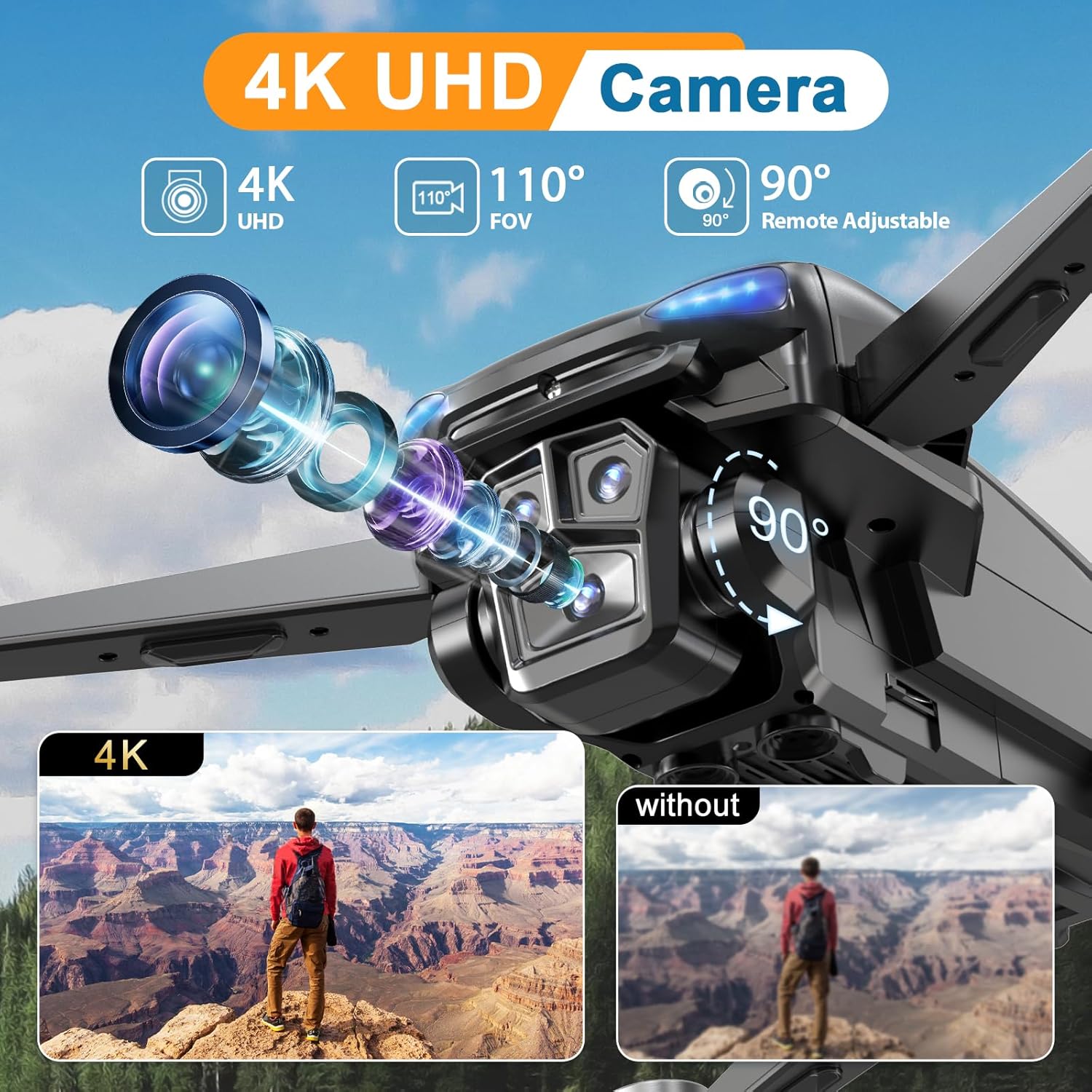
- 4K UHD Camera: Capture high-resolution photos and videos.
- Remote Adjustable Angle: Adjust the camera's vertical angle (up to 90 degrees) directly from the remote control.
- Gesture Control: Perform specific hand gestures in front of the camera to initiate photo or video recording (refer to the app for specific gestures).
- Live View: The 4.5-inch HD screen on the remote control provides a real-time feed from the drone's camera.

4. Care and Maintenance
4.1 Cleaning
Regularly clean the drone and remote control with a soft, dry cloth. Avoid using harsh chemicals or solvents. Ensure the camera lens is clean for optimal image quality.
4.2 Propeller Replacement
Inspect propellers for cracks or damage before each flight. Replace any damaged propellers immediately using the spare propellers and screwdriver provided. Ensure correct 'A' and 'B' propeller placement.
4.3 Battery Care
- Do not overcharge or over-discharge batteries.
- Store batteries in a cool, dry place away from direct sunlight and extreme temperatures.
- If storing for extended periods, charge batteries to approximately 50-60% capacity.
4.4 Storage
When not in use, fold the drone and store it along with the remote control and accessories in the provided storage bag to protect it from dust and damage.

5. Troubleshooting Guide
| Problem | Possible Cause | Solution |
|---|---|---|
| Drone does not power on | Battery not installed correctly or discharged. | Ensure battery is fully charged and inserted securely. |
| Remote control does not pair | Drone or remote not powered on, or out of range. | Ensure both devices are on and within pairing range. Re-attempt pairing process. |
| Unstable flight/Drifting | Improper calibration, strong winds, or damaged propellers. | Perform compass and gyroscope calibration. Check propellers for damage and replace if necessary. Avoid flying in strong winds. |
| No GPS signal | Flying indoors or in an area with obstructions. | Fly in an open outdoor area with a clear view of the sky. Wait for sufficient GPS satellites to connect. |
| Poor camera image quality | Dirty lens, insufficient lighting, or SD card issue. | Clean the camera lens. Ensure adequate lighting conditions. Check if the SD card is inserted correctly and has sufficient space. |
| Drone does not respond to controls | Out of range, low battery on remote or drone, or interference. | Ensure drone is within operational range. Check battery levels. Avoid areas with strong electromagnetic interference. |
6. Technical Specifications
| Feature | Specification |
|---|---|
| Brand | X-shop |
| Model Name | 4K GPS Drone with Camera |
| Model Number | HC018 |
| Video Capture Resolution | 4K (3840 pixels) |
| Connectivity Technology | Wi-Fi, RF |
| Skill Level | Beginner |
| Item Weight | 220 Grams (7.8 ounces) |
| Battery Capacity | 1600 Milliamp Hours (7.4V) |
| Max Flight Time | Up to 60 minutes (with 2 batteries) |
| Video Capture Format | MP4 |
| Remote Control Screen | 4.5-inch HD Screen |
| Motor Type | Brushless Motor |
| Optical Sensor Technology | Optical Flow |
| Product Dimensions | 12.28"L x 8.27"W x 3.15"H (unfolded) |
7. Warranty and Support Information
For warranty details and customer support, please refer to the documentation included with your purchase or contact the seller directly through the platform where the product was acquired. Keep your proof of purchase for warranty claims.
For technical assistance or inquiries, please visit the X-shop store page on Amazon: X-shop Store
