
1. Introduction
The Quntis 32.5" Architect Desk Lamp (Model HT8885) is designed to provide versatile and eye-friendly illumination for various workspaces. Featuring a 3-stage adjustable light bar, ambient backlight, radar sensing technology, and dual control options, this lamp enhances productivity and visual comfort for tasks such as working, drafting, reading, and video conferencing.

Image: The Quntis 32.5" Architect Desk Lamp providing wide illumination over a multi-monitor workstation.
2. What's in the Box
- Desk Lamp
- Remote Control
- User Manual
- Adapter
- Desktop Stand
3. Setup and Installation
Follow these steps to set up your Quntis Architect Desk Lamp:
- Attach the Clamp: Securely attach the desk clamp to your desk. The clamp is compatible with desks up to 2.8 inches thick.
- Connect the Lamp Post: Insert the lamp post into the clamp. Ensure it is firmly seated.
- Assemble the Light Bar: Connect the adjustable light bar sections to the lamp post. The modular design allows for flexible positioning.
- Connect Power: Plug the supplied AC adapter into the lamp's power port, then plug the adapter into a power socket.
- Insert Remote Batteries: Open the remote control's battery compartment and insert the provided AAA batteries.
- Adjust Position: Adjust the light bars and pivot points to your desired angle and height for optimal illumination.

Image: Step-by-step visual guide for clamping the desk lamp to a surface.
Video: A demonstration of the Quntis Desk Lamp's wide front and back lighting capabilities, highlighting its adjustable features for relaxed vision.
4. Operating Instructions
The Quntis Architect Desk Lamp offers both touch controls on the lamp itself and a wireless remote for convenient operation.
4.1. Touch Panel Controls (on lamp)
- ON/OFF & 2H Timer: Press briefly to turn the light on/off. Long press for 3 seconds to activate the 2-hour auto-off timer.
- Sectional Lighting Switch: Press to cycle through lighting modes: all sections on, both end sections on, or middle section on.
- Brightness Button: Short press to cycle through 5 brightness levels (5%, 15%, 40%, 70%, 100%). Long press for continuous dimming.
- Color Temperature Button: Short press to switch between preset color temperatures (3000K/4000K/5000K/6500K). Long press to adjust smoothly.
- Backlight Switch: Short press to turn the ambient backlight on/off. Long press to continuously adjust backlight brightness.
- Radar Indicator: A blue indicator light shows when the radar sensing function is active.
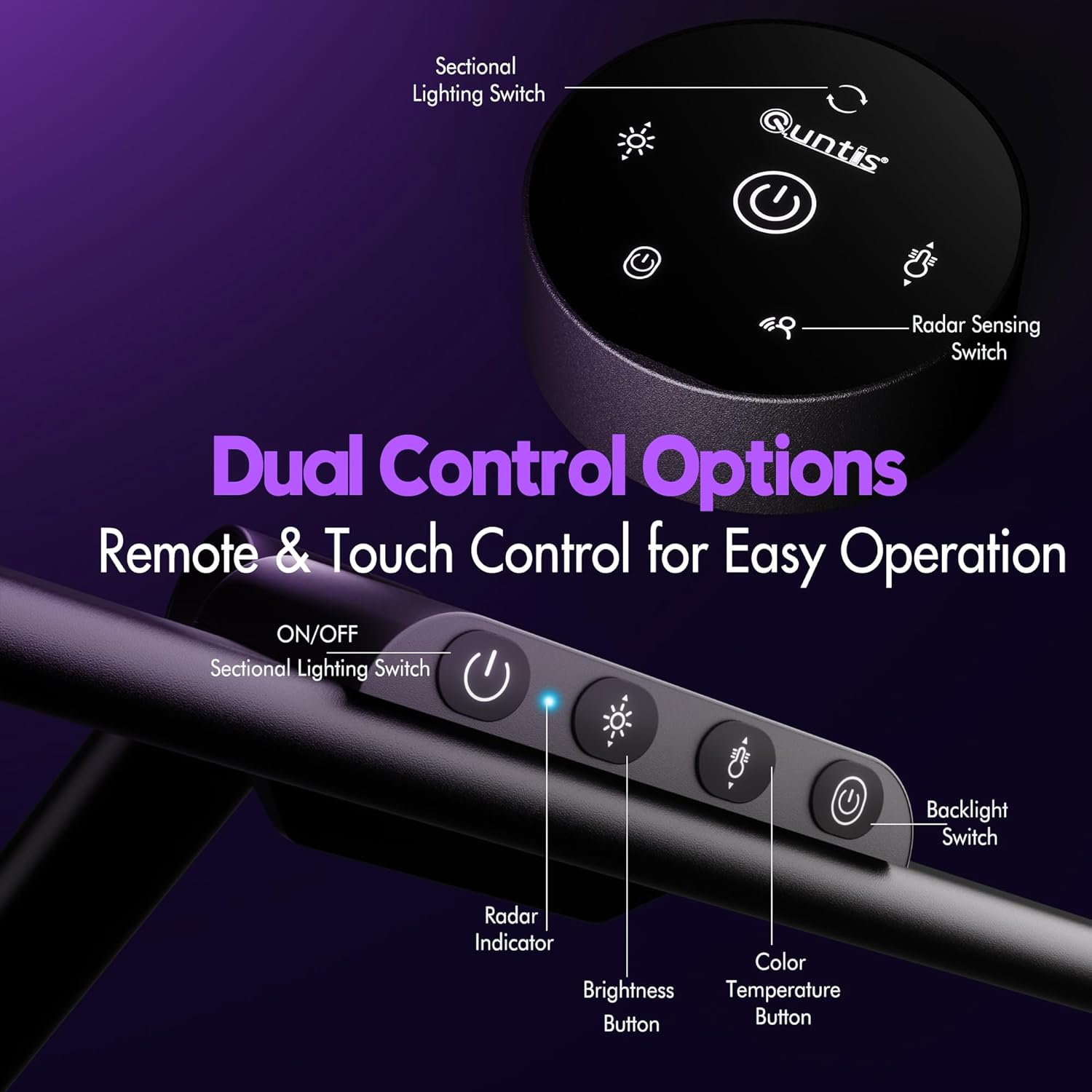
Image: Detailed view of the touch control panel located on the lamp's main bar.
4.2. Remote Control
The wireless remote control provides all the functionalities of the touch panel from a distance.
- Power Button: Turns the lamp on/off. Long press for 2-hour auto-off timer.
- Brightness Control: Adjusts the front light brightness.
- Color Temperature Control: Changes the color temperature of the front light.
- Backlight Control: Turns the ambient backlight on/off and adjusts its brightness.
- Sectional Lighting: Cycles through different lighting configurations (all, ends, middle).
- Radar Sensing Switch: Activates or deactivates the radar motion sensor.

Image: The wireless remote control for the Quntis desk lamp, showing buttons for brightness, color temperature, and other functions.
Video: A full demonstration of the Quntis Desk Lamp's features and controls in action, including brightness, color temperature, and adjustability.
4.3. Radar Sensing Function
The sensitive radar sensor detects motion within 29.5 ± 3.9 inches. The lamp automatically turns on when you sit down and turns off after 5 minutes of no detected motion, promoting energy efficiency.

Image: Visual representation of the radar sensing feature, showing automatic light activation upon user presence and deactivation after absence.
Video: An in-depth look at the radar sensor functionality of the Quntis Desk Lamp, demonstrating its automatic on/off capabilities.
5. Key Features
- Versatile Precision Lighting: 3-stage adjustable light bar with five pivot points for vertical and horizontal rotation. Dual side bars extend to 32.5" for uniform lighting of large workspaces (39.37" × 70.87") or pivot inward for concentrated 1100 LM task lighting.
- Ambient Backlight: Wide, dimmable ambient backlight reduces screen-to-surroundings contrast, enhancing visual comfort and reducing eye strain.
- Smart Radar Sensing: Automatically turns the light on when motion is detected within 29.5 ± 3.9 inches and off after 5 minutes of inactivity.
- Dual Control Options: Intuitive touch panel on the lamp and a wireless remote control for adjusting brightness, color temperature (3000K–6500K), and lighting modes.
- Eye-Care, Glare-Free Front Light: 182 precision LEDs with a 45° anti-glare design and PC diffusion cover deliver soft, shadow-free light without screen reflection or direct eye glare. High CRI of 95 ensures accurate color rendering.
- 2-Hour Timer: A built-in timer gently reminds users to rest their eyes.
- Space-Saving Design: Clamps to most desks up to 2.8 inches thick, freeing up valuable desk space.

Image: The Quntis desk lamp demonstrating its 3-way foldable design, allowing for adjustable angles to direct light precisely where needed.
Video: A review of the Quntis 32.5" Desk Lamp, highlighting its backlight feature and overall design.
6. Specifications
| Feature | Specification |
|---|---|
| Model Number | HT8885 |
| Brand | Quntis |
| Product Dimensions | 32.5"D x 1.1"W x 30.7"H |
| Wattage | 24 watts |
| Light Source Type | LED (182 sources) |
| Brightness | 1100 LM (Max) |
| Color Temperature | 3000K–6500K (Adjustable) |
| Control Method | Touch, Remote Control, Radar Sensor |
| Mounting Type | Clip On (up to 2.8" thick desks) |
| Material Type | Acrylonitrile Butadiene Styrene, Aluminum |
| Finish Type | Glossy |
| Room Type | Office Home, Workspace, Dorm Room, Study Room, Bedroom, Dim Room, Living Room |
| Recommended Uses | Working, Drafting, Reading, Video Calls, Streaming, Gaming, Movie, Programming, Studying, Drawing, Painting |
7. Maintenance
To ensure the longevity and optimal performance of your Quntis Desk Lamp, follow these maintenance guidelines:
- Cleaning: Use a soft, dry cloth to wipe the lamp's surface. Avoid abrasive cleaners or solvents that may damage the finish.
- Dust Removal: Regularly dust the light bars and control panel to prevent accumulation that could affect performance.
- Power Cord: Inspect the power cord periodically for any signs of damage. If damaged, discontinue use and contact customer support.
- Storage: If storing the lamp for an extended period, ensure it is clean, dry, and stored in a safe place to prevent damage.
8. Troubleshooting
If you encounter any issues with your Quntis Desk Lamp, refer to the following common troubleshooting steps:
- Light Not Turning On:
- Ensure the power adapter is securely plugged into both the lamp and a working power outlet.
- Check if the power outlet is functional by plugging in another device.
- Verify that the remote control batteries are correctly inserted and not depleted.
- Remote Control Not Responding:
- Replace the remote control batteries.
- Ensure there are no obstructions between the remote and the lamp's sensor.
- Radar Sensor Malfunction:
- Ensure the radar sensing function is activated via the remote or touch panel.
- Clear any obstructions around the sensor area on the lamp.
- Flickering Light:
- Check the power connection for stability.
- If flickering persists, contact customer support.
For further assistance, please refer to the warranty and support information.
9. Warranty and Support
The Quntis 32.5" Architect Desk Lamp is covered by a manufacturer's warranty. Please refer to the warranty card included in your packaging for specific terms and conditions.
For technical support, product inquiries, or warranty claims, please contact Quntis customer service through their official website or the contact information provided in your product documentation.
Please retain your proof of purchase for any warranty-related services.
