
1. Introduction
This manual provides detailed instructions for setting up, operating, and maintaining your KPKUE Smart WiFi Digital Picture Frame (Model DP-10A). Please read this manual thoroughly before using the device to ensure optimal performance and longevity.
The KPKUE DP-10A is a 15.6-inch Full HD touchscreen digital picture frame designed to display photos and videos, share memories via the Frameo app, and offer additional features like time and weather widgets. It includes 64GB of internal storage and supports external USB and SD cards.
2. Setup
2.1 Unboxing and Components
Upon opening the package, ensure all components are present:
- KPKUE Smart WiFi Digital Picture Frame (DP-10A)
- Power Adapter (Length 5 feet)
- Removable Frame Stand
- User Manual
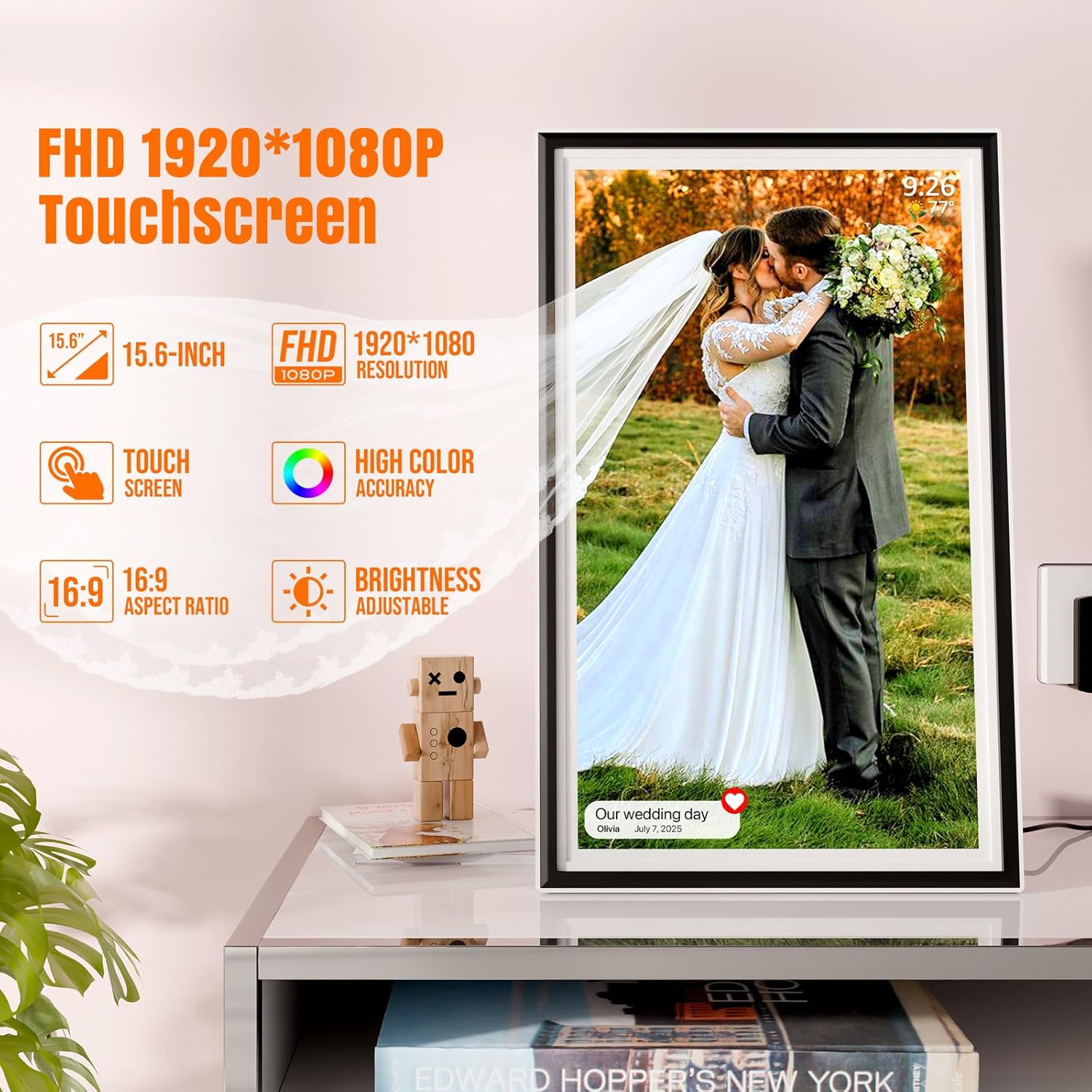
Image: The 15.6-inch Full HD touchscreen digital picture frame, highlighting its display features.
2.2 Physical Placement
The frame can be placed on a flat surface using the included removable stand or mounted on a wall. The frame features two hanging holes and four anchor points for wall mounting.
- Using the Stand: Insert the removable stand into the designated slot on the back of the frame. Ensure it is securely in place.
- Wall Mounting: Use appropriate wall anchors and screws (not included) for the two hanging holes on the back of the frame. Ensure the wall can support the frame's weight (approximately 3.4 pounds).

Image: The digital picture frame demonstrating its auto-rotation and wall-mounting capabilities.
2.3 Power Connection
Connect the secure power adapter to the DC barrel jack on the back of the frame and plug it into a standard electrical outlet. The frame will power on automatically.

Image: Rear view of the frame, detailing the SD card slot, 3.5mm headphone jack, USB-A data port, Type-C data port, and 4.0mm DC barrel jack.
2.4 Initial Configuration (Wi-Fi & Frameo App)
Follow the on-screen prompts to complete the initial setup:
- Language Selection: Choose your preferred language.
- Wi-Fi Connection: Connect the frame to a 2.4GHz Wi-Fi network.
- Time Zone & Date: Set the correct time zone and date.
- Frameo App: Download the Frameo app on your smartphone (available on iOS & Android).
- Generate Code: On the frame, navigate to 'Add Friend' to generate a unique code.
- Connect App: In the Frameo app, enter the generated code to link your smartphone to the frame.
Video: A demonstration of the digital picture frame's functions and initial setup process, including connecting to Wi-Fi and linking with the Frameo app.
Video: This video illustrates the setup process and various features of the smart frame, including how to connect and begin sharing memories.
3. Operating Instructions
3.1 Touchscreen Navigation
The 15.6-inch IPS LCD touchscreen allows for intuitive navigation. Swipe left or right to browse photos, tap to access menus, and pinch to zoom. The responsive touchscreen ensures smooth interaction.
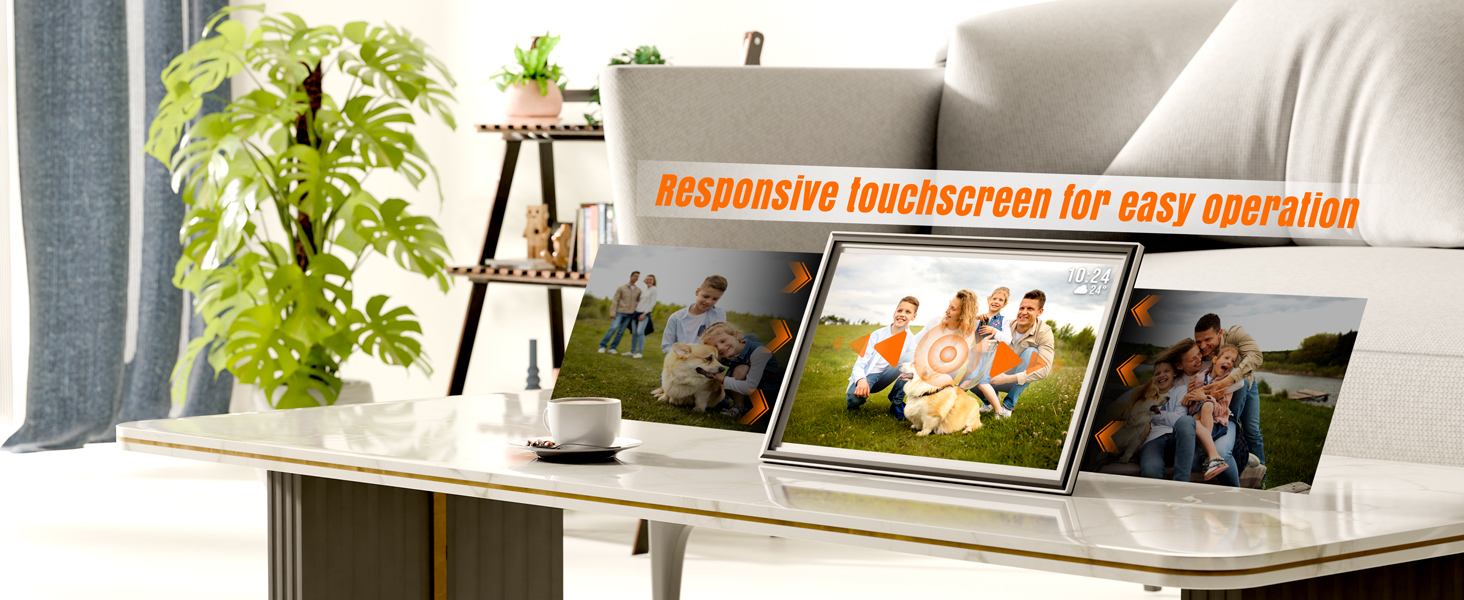
Image: The responsive touchscreen interface, demonstrating ease of operation for browsing photos.
3.2 Adding Photos and Videos
There are multiple ways to transfer photos and micro-videos to your frame:
- Frameo App: Use the encrypted Frameo app on your smartphone to send photos and micro-videos directly to the frame from anywhere. You can add friends to share photos with your frame.
- USB Drive: Insert a USB flash drive (up to 128GB) into the USB-A port to import or export photos and videos.
- SD Card: Insert an SD card (up to 128GB) into the SD card slot to import or export photos and videos.
- Computer Transfer: Connect the frame to a computer via USB cable to transfer files.

Image: Visual representation of the four methods for adding photos to the frame: USB, computer, Frameo app, and SD card.

Image: Illustrates the long-distance photo transmission capability using the Frameo app.
3.3 Album Management
Organize your photos and videos into custom albums. You can create personalized slideshows by category or hide specific photos. The frame also supports auto-collages from photos and videos.
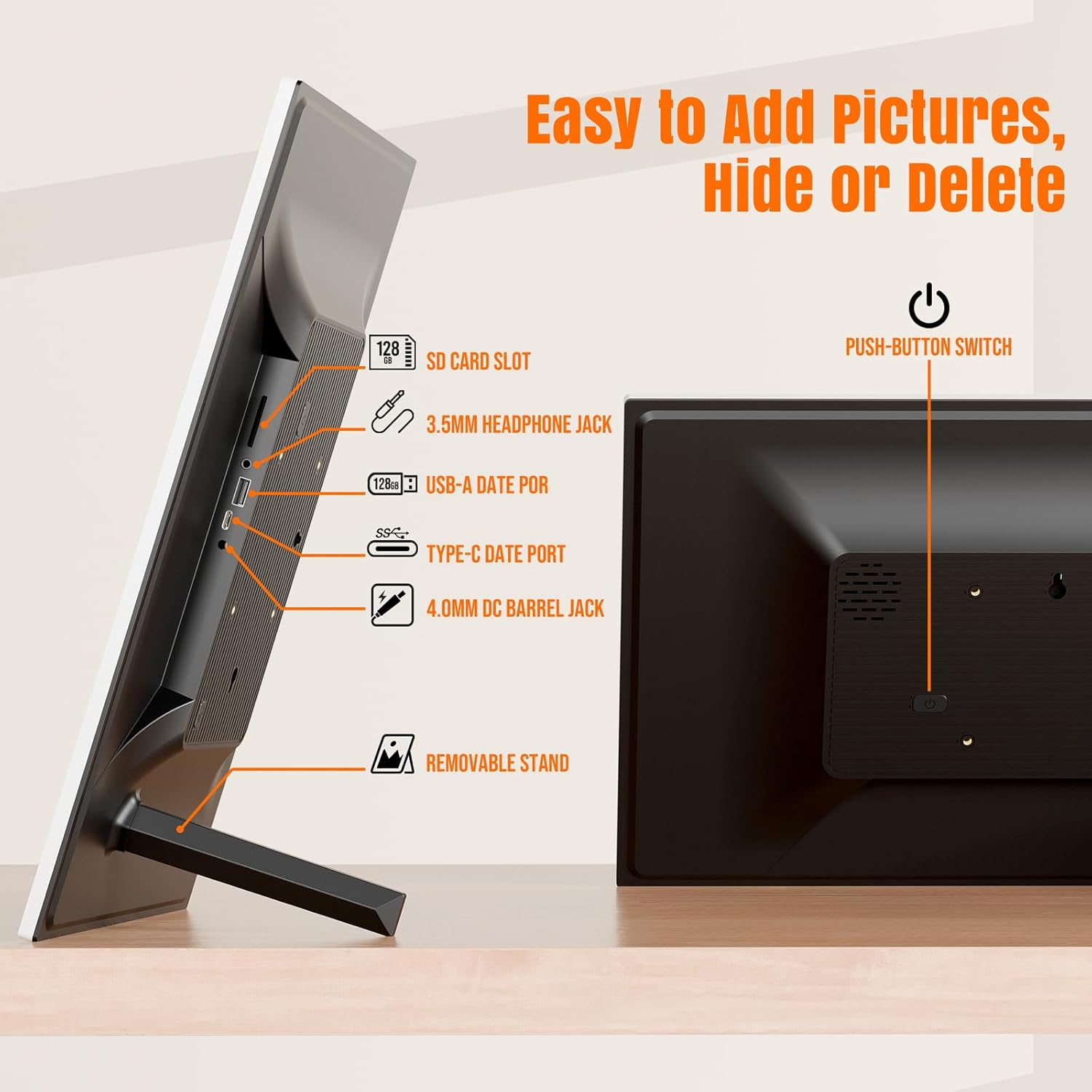
Image: The frame's interface showing options for personalized management and image playback.

Image: The Album Management screen, allowing users to select and create new albums for their photos.
3.4 Slideshow Settings
Adjust the duration each photo is displayed in the slideshow, choose transition effects, and enable or disable auto-rotate for photos based on frame orientation.
3.5 Widgets (Time & Weather)
Enable live widgets such as time, weather, and temperature via Wi-Fi to display useful information alongside your photos.

Image: The frame showing integrated time and weather widgets on the display.
3.6 Sleep Mode
Set specific hours for Sleep Mode to save energy. The frame will intelligently rest during these periods but will still receive photos. It will auto-wake during non-sleep periods to resume slideshows.

Image: The frame illustrating its auto-wake feature during non-sleep periods and the settings for Sleep Mode.
4. Maintenance
4.1 Cleaning the Screen
To clean the scratch-resistant 1080p FHD screen, gently wipe it with a soft, lint-free cloth. For stubborn smudges, use a screen-cleaning solution specifically designed for electronic displays. Avoid abrasive materials or harsh chemicals.
4.2 Software Updates
The frame may receive periodic software updates to improve performance and add new features. Ensure your frame is connected to Wi-Fi to receive these updates. You will be notified on-screen when an update is available.
4.3 Backup and Restore
Regularly back up your photos and videos to an external SD card or USB drive to prevent data loss. The frame's settings menu provides options for backup and restore functionality.
5. Troubleshooting
If you encounter any issues with your KPKUE Smart WiFi Digital Picture Frame, refer to the following common solutions:
| Issue | Solution |
|---|---|
| Frame not powering on | Ensure the power adapter is securely connected to both the frame and a working electrical outlet. Try a different outlet. |
| Unable to connect to Wi-Fi | Verify your Wi-Fi password. Ensure the frame is within range of a 2.4GHz Wi-Fi network. Restart your router and the frame. |
| Photos not displaying | Check if photos have been successfully uploaded via the Frameo app or external storage. Ensure the slideshow is enabled in settings. |
| Touchscreen unresponsive | Restart the frame by holding down the power button. Ensure the screen is clean and free of debris. |
For further assistance, please contact customer support.
6. Specifications
- Model Number: DP-10A
- Screen Size: 15.6 Inches
- Resolution: 1920x1080 (Full HD)
- Internal Storage: 64GB (7GB system-used)
- Expandable Storage: Supports USB/SD cards up to 128GB
- Connectivity: 2.4GHz Wi-Fi
- Ports: SD Card Slot, 3.5mm Headphone Jack, USB-A Data Port, Type-C Data Port, 4.0mm DC Barrel Jack
- Product Dimensions: 15.67 x 9.84 x 0.99 inches
- Item Weight: 3.4 pounds
- Material: Impact-resistant ABS frame
7. Warranty and Support
Your KPKUE Smart WiFi Digital Picture Frame (Model DP-10A) includes 365-day support from the manufacturer. For specific warranty details, please refer to the product packaging or contact KPKUE customer service directly.
For technical assistance, troubleshooting, or any questions regarding your product, please visit the KPKUE Store on Amazon or contact their customer support channels.