1. Introduction
This manual provides essential information for the setup, operation, and maintenance of your Samsung UN50U8000F 50" Crystal UHD 4K Smart TV. Please read this manual thoroughly before using your TV to ensure safe and correct usage. Keep this manual for future reference.

Image 1.1: Front view of the Samsung UN50U8000F 50-inch Crystal UHD 4K Smart TV. The screen displays a vibrant purple and blue abstract image, and the Samsung logo is visible on the bottom bezel.
2. Package Contents
Verify that all items are present in your product packaging. If any items are missing or damaged, contact your retailer.
- Samsung Crystal UHD U8000F 4K Smart TV (2025)
- Remote Control (Model: IR SIMPLE REMOTE TM2240A)
- Power Cable
- User Manual (this document)
- Limited Protection Information
Note: Additional items such as HDMI cables, streaming cards, and extended protection plans may be included if purchased as part of a bundle. These are not standard inclusions for the TV unit itself.

Image 2.1: The Samsung UN50U8000F TV shown with various bundled accessories, including a box for extended protection, a beginner's guide, streaming service cards, and HDMI cables.
3. Setup Instructions
3.1. Unpacking and Placement
Carefully remove the TV from its packaging. It is recommended that two people handle the TV to prevent damage. Place the TV on a stable, level surface or mount it on a wall using a compatible VESA wall mount (sold separately). Ensure adequate ventilation around the TV.
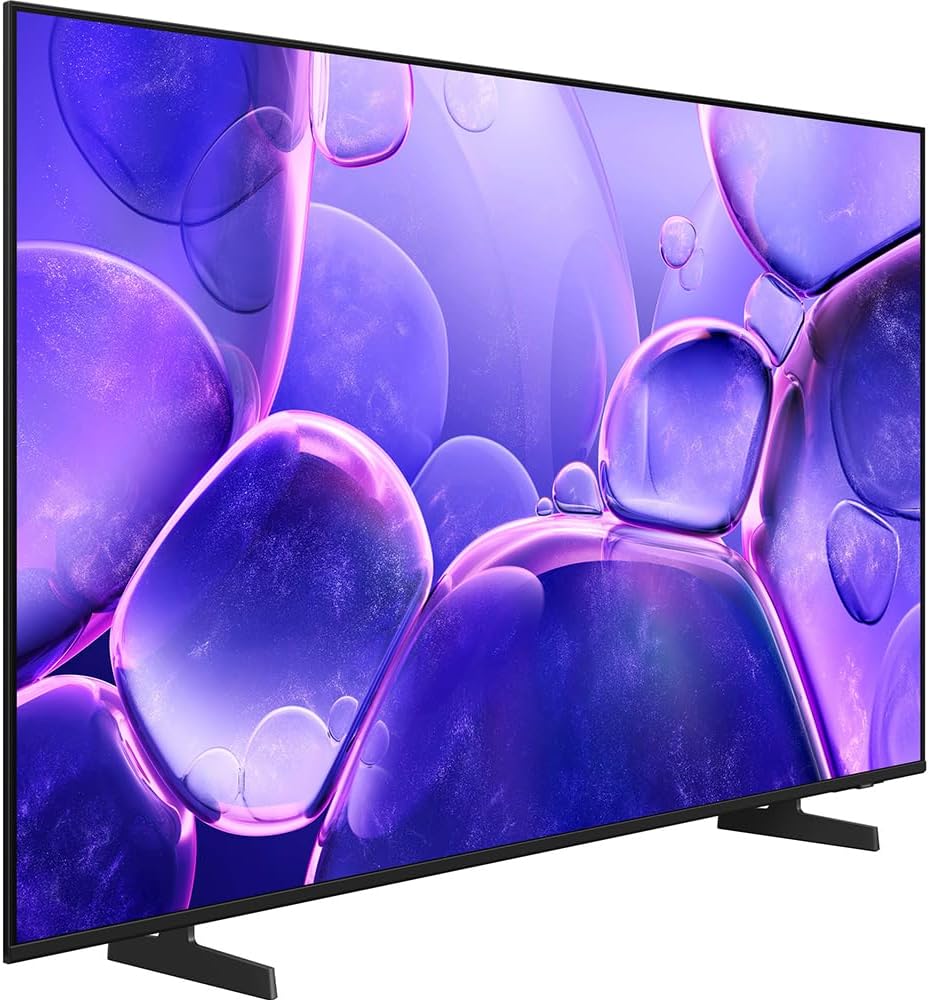
Image 3.1: Side view of the Samsung UN50U8000F TV, highlighting its slim design and the included stand feet.
3.2. Attaching the Stand (Optional)
If you are not wall-mounting the TV, attach the included stand feet. Refer to the quick setup guide provided in the box for detailed instructions on stand assembly. Ensure all screws are securely fastened.
3.3. Connecting Power
Connect the power cable to the TV's power input and then plug the other end into a wall outlet. Do not plug in the TV until all other connections are made.
3.4. Connecting External Devices
Use HDMI cables to connect devices such as Blu-ray players, game consoles, or soundbars to the HDMI ports on the back of the TV. Ensure cables are inserted firmly.
- HDMI Ports: For high-definition video and audio.
- USB Ports: For connecting USB storage devices.
- Ethernet Port: For a wired internet connection.
4. Operating Instructions
4.1. Remote Control Overview
The included remote control (TM2240A) allows you to navigate the TV's functions. Insert two AAA batteries (not included) into the remote control, observing polarity.
- Power Button: Turns the TV on or off.
- Source Button: Selects input sources (HDMI 1, HDMI 2, TV, etc.).
- Volume Buttons: Adjusts the volume level.
- Channel Buttons: Changes TV channels.
- Navigation Pad: Moves cursor through menus.
- Smart Hub Button: Accesses the Smart Hub for apps and streaming services.
4.2. Initial Setup and Smart Hub
Upon first power-on, the TV will guide you through an initial setup process. This includes connecting to your Wi-Fi network, agreeing to terms and conditions, and setting up your Samsung Account. A Samsung Account is required for network-based smart services, including streaming apps and other smart features.
The Smart Hub provides access to a wide range of applications, streaming services, and Samsung TV Plus, which offers over 2700 free channels.
4.3. Picture and Sound Settings
Access the TV's menu to adjust picture and sound settings. You can customize brightness, contrast, color, and various sound modes to suit your preferences.
5. Key Features
5.1. Crystal Processor 4K
The Crystal Processor 4K enhances picture quality, delivering vibrant colors and rich contrast in 4K resolution. It also performs powerful 4K upscaling to improve the clarity of lower-resolution content.
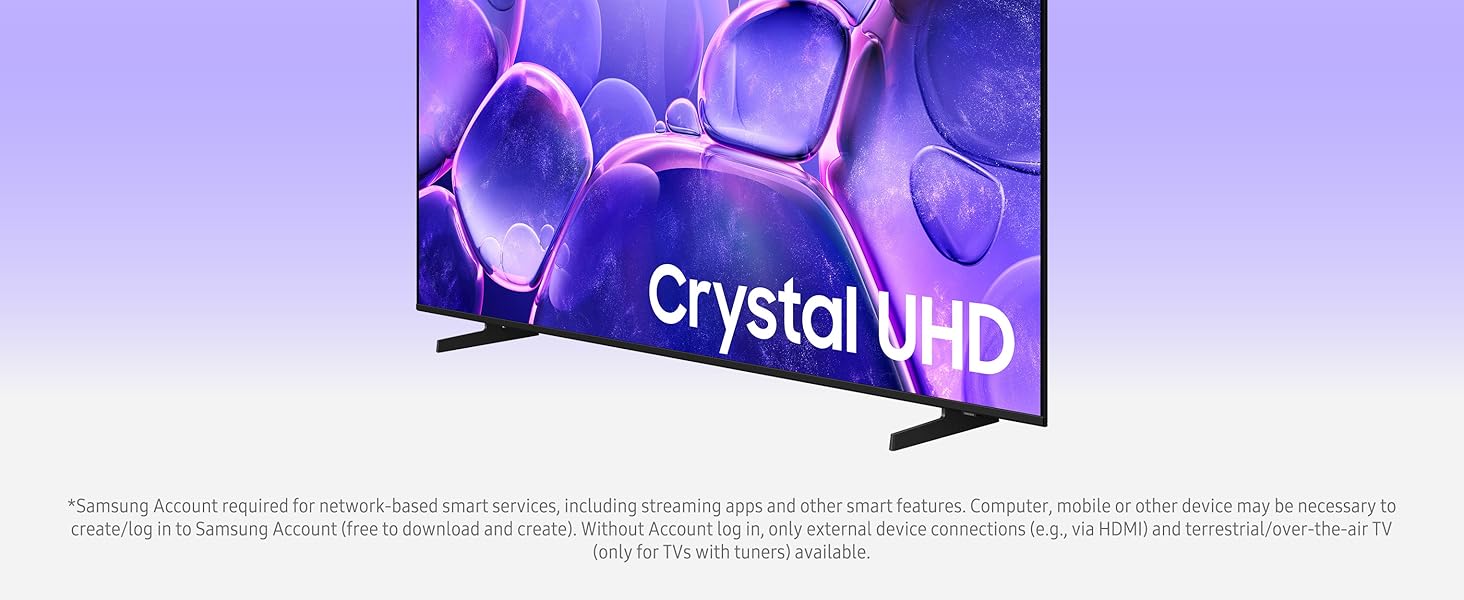
Image 5.1: The Samsung Crystal UHD TV showcasing its display capabilities with a colorful, abstract image and the 'Crystal UHD' branding.
5.2. 4K Upscaling
This feature upgrades lower-resolution content to near 4K quality, allowing you to enjoy enhanced detail and clarity across all your favorite movies, TV shows, and sports.

Image 5.2: An image depicting a person relaxing on autumn leaves, used to illustrate the clarity provided by 4K Upscaling.
5.3. MetalStream Design
The TV features a sleek design crafted from a single sheet of metal with a slim bezel, offering a modern aesthetic that minimizes distractions and enhances your viewing experience.
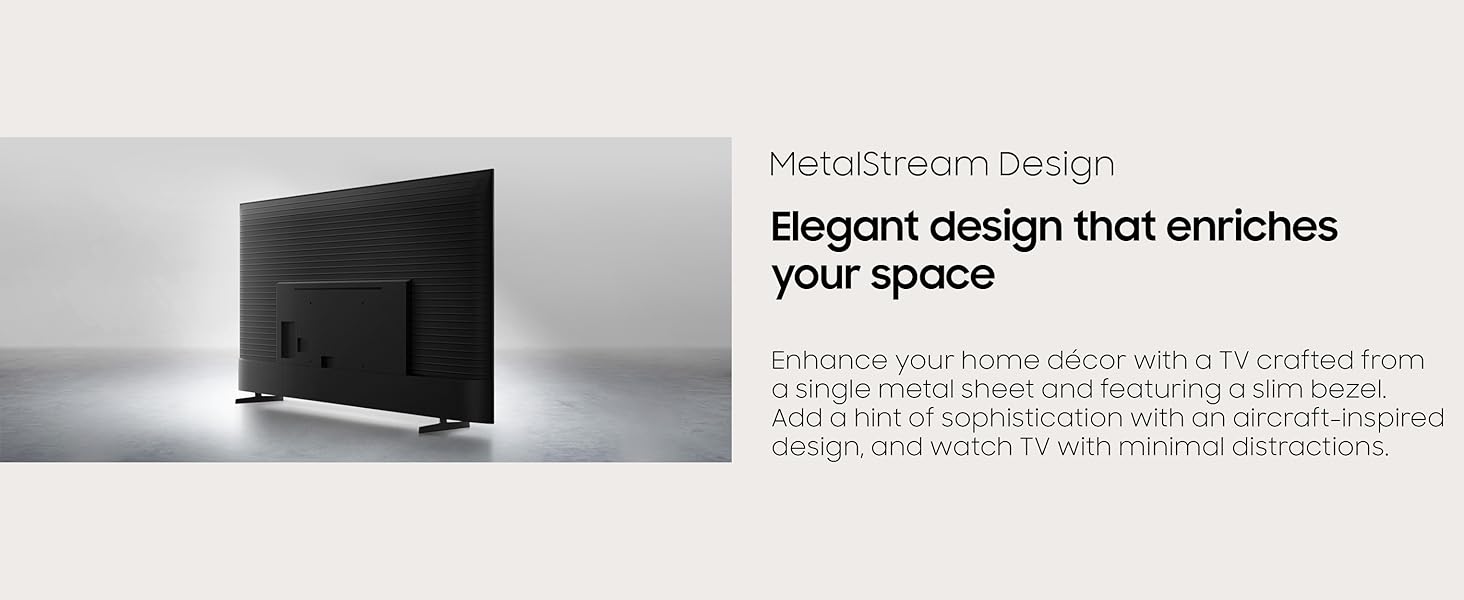
Image 5.3: Rear view of the Samsung TV, highlighting its elegant MetalStream Design and slim profile.
5.4. Samsung Knox Security
Samsung Knox Security provides triple-layer protection for your TV and connected IoT devices. It safeguards against unauthorized apps, phishing websites, and protects sensitive personal data like PINs and passwords through regular updates.
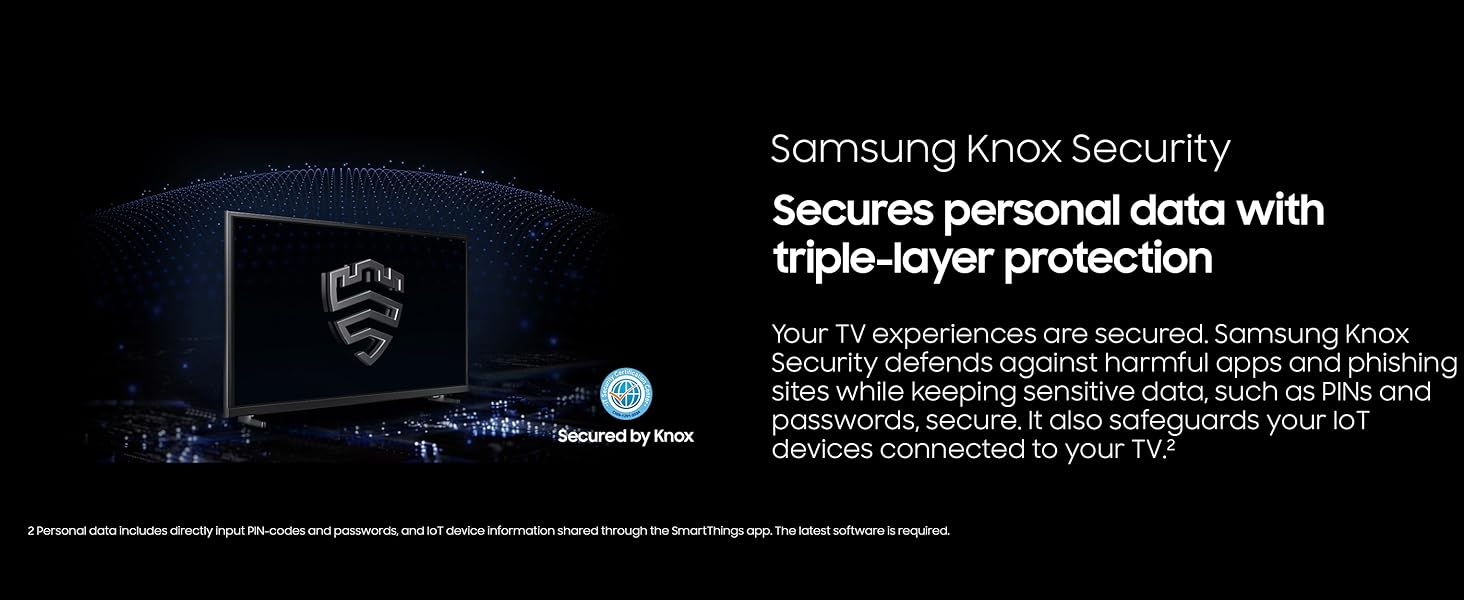
Image 5.4: A graphic illustrating Samsung Knox Security, with a shield icon on a TV screen, representing data protection.
5.5. Motion Xcelerator 60Hz
This technology predicts and smooths movement between frames, providing clear picture and smooth motion, particularly beneficial for fast-paced content like sports and video games, at up to 60Hz.
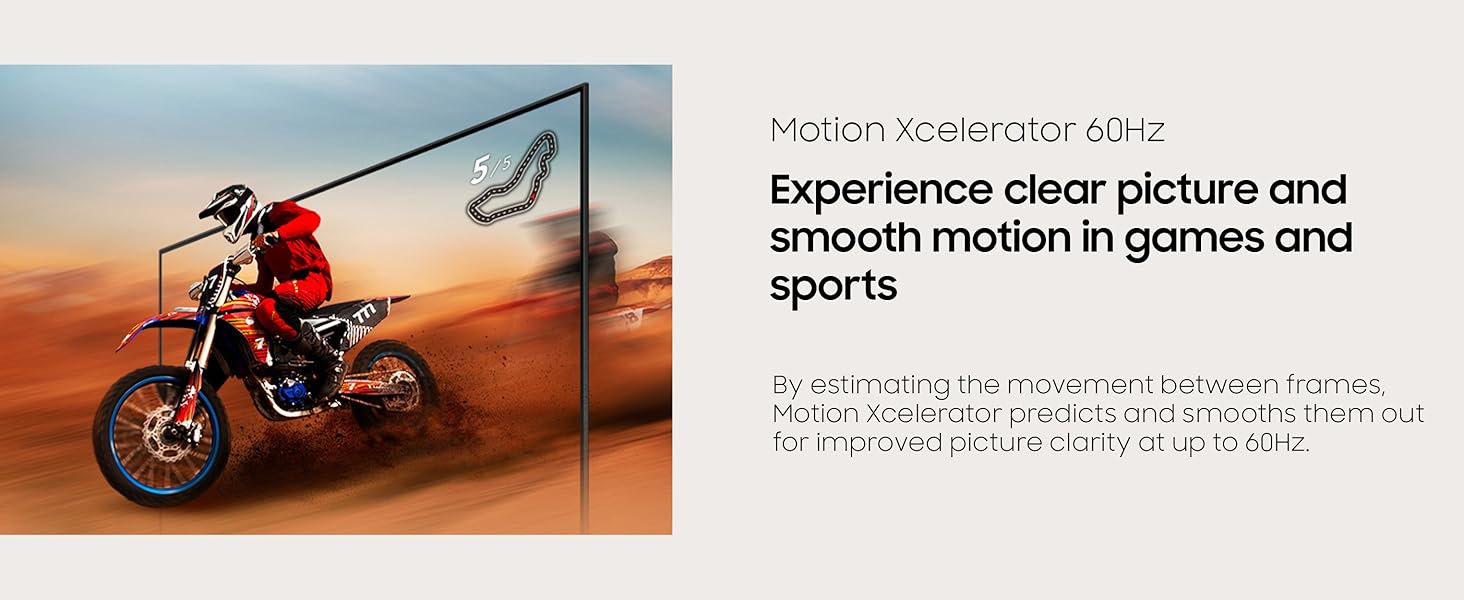
Image 5.5: A dynamic image of a motorcycle racer, demonstrating the smooth motion provided by Motion Xcelerator 60Hz.
5.6. HDR (High Dynamic Range)
HDR expands the contrast range between the lightest and darkest parts of a scene, enhancing visual detail, depth, and a wider spectrum of colors.
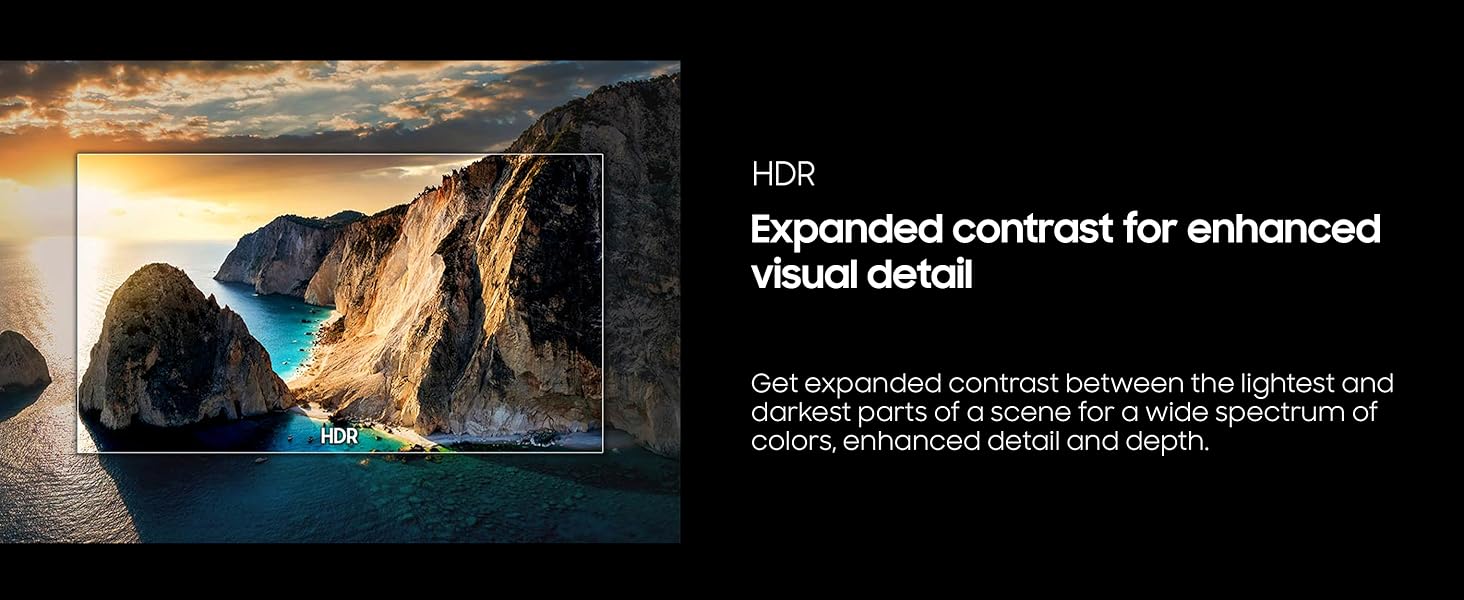
Image 5.6: A landscape image of cliffs by the ocean, demonstrating the enhanced contrast and detail provided by HDR technology.
5.7. Color Booster
Color Booster technology enhances color expression, adding brilliance and vibrancy to your content. It optimizes hues, purity, and intensity for a more vivid viewing experience.
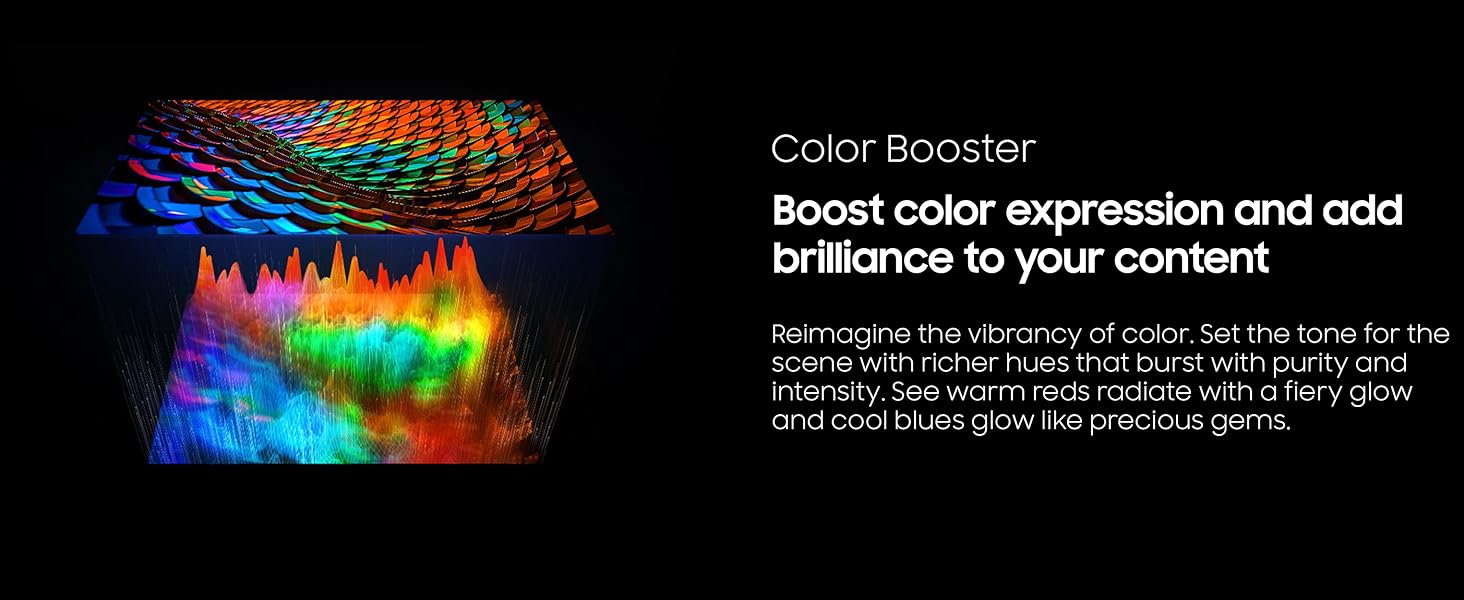
Image 5.7: An abstract image with a wide spectrum of colors, illustrating the effect of Color Booster technology.
5.8. Q-Symphony
When paired with a compatible Samsung soundbar (sold separately), Q-Symphony allows the TV speakers and soundbar to operate simultaneously, creating a more robust and immersive audio experience without muting the TV's internal speakers.
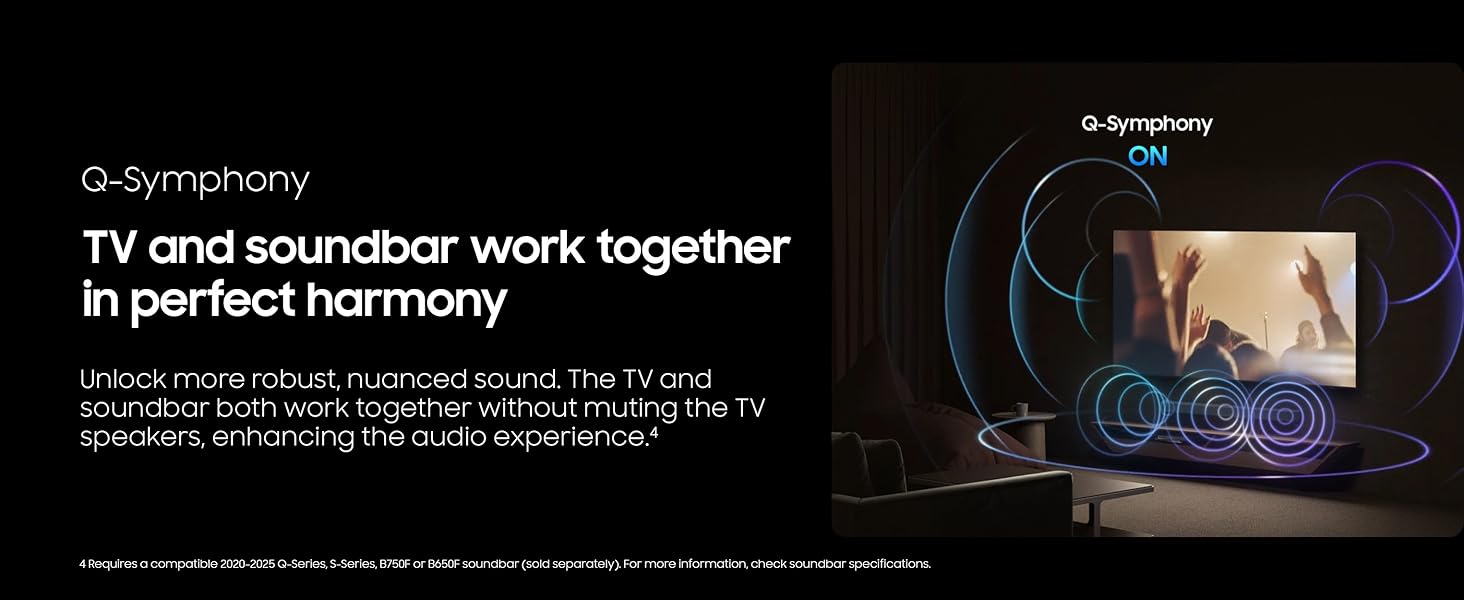
Image 5.8: A visual representation of Q-Symphony, showing sound waves emanating from both a TV and a soundbar, indicating synchronized audio output.
6. Maintenance
6.1. Cleaning the TV
- Screen: Gently wipe the screen with a soft, dry microfiber cloth. For stubborn marks, lightly dampen the cloth with distilled water. Avoid using harsh chemicals or abrasive materials.
- Body: Wipe the TV frame and stand with a soft, dry cloth.
- Always unplug the TV before cleaning.
6.2. Software Updates
Ensure your TV's software is up to date for optimal performance and security. You can check for and install updates through the TV's settings menu (Settings > Support > Software Update).
7. Troubleshooting
If you encounter issues with your TV, refer to the following common problems and solutions before contacting support.
| Problem | Possible Solution |
|---|---|
| No power | Ensure the power cable is securely connected to the TV and the wall outlet. Test the outlet with another device. |
| No picture, but sound is present | Check the input source. Ensure external devices are powered on and connected correctly. Try restarting the TV. |
| No sound, but picture is present | Check the volume level and mute status. Verify audio output settings in the TV menu. If using external audio, check its connections and power. |
| Remote control not working | Replace the batteries. Ensure there are no obstructions between the remote and the TV's IR sensor. |
| Cannot connect to Wi-Fi | Restart your router and modem. Check Wi-Fi password. Ensure the TV is within range of your router. Try a wired Ethernet connection if available. |
8. Specifications
| Feature | Detail |
|---|---|
| Model Number | UN50U8000F |
| Screen Size (Diagonal) | 50 inches (49.5 inches visible) |
| Display Technology | LED |
| Resolution | 4K UHD (3840 x 2160) |
| Refresh Rate | 60 Hz |
| Aspect Ratio | 16:9 |
| Connectivity | Wi-Fi, Bluetooth, HDMI (quantity not specified in provided data, typically 2-4), USB |
| Product Dimensions (W x H x D) | 43.7" x 27.4" x 7.8" (with stand) |
| Item Weight | 18.3 pounds |
| On-mode Power Consumption | 89 watts |
9. Warranty and Support
9.1. Limited Protection
Your Samsung UN50U8000F TV comes with a standard limited protection plan. For detailed terms, conditions, and duration of this protection, please refer to the documentation included in your TV's packaging or visit the official Samsung support website.
Note: Any extended protection plans, such as the "26 Months Extended Protection" mentioned in product bundles, are additional services provided by third parties and are separate from Samsung's standard limited protection.
9.2. Customer Support
For further assistance, technical support, or warranty claims, please contact Samsung Customer Service. You can find contact information and additional resources on the official Samsung website:


