
1. Initial Setup
1.1 Unboxing and First Steps
Carefully remove all components from the packaging. Ensure all items listed below are present:
- GIGABYTE AERO X16 Laptop
- Power Adapter
- User Manual (this document)
To power on your laptop for the first time, connect the power adapter to the laptop's DC-in port and then to a power outlet. Press the power button, typically located on the keyboard or side of the chassis, to initiate the boot process.

Image: Front view of the GIGABYTE AERO X16 laptop.
2. Operating Your AERO X16
2.1 Key Features Overview
The GIGABYTE AERO X16 is engineered for high performance and visual fidelity. Below are its primary features:
- Processor: Equipped with an AMD Ryzen AI 7 350 Processor (Zen 5 Architecture) with a boost clock up to 5.0 GHz, providing robust performance for demanding tasks.
- Graphics: Features an NVIDIA GeForce RTX 5060 Laptop GPU with 8GB GDDR7, delivering exceptional visual processing for gaming and creative applications.
- Memory & Storage: Comes with 16GB DDR5 5600MHz RAM and a 1TB Gen4 M.2 SSD. The system supports expansion up to 64GB of DDR5 RAM and up to 4TB of SSD storage via additional expansion slots.
- Display: A 16-inch IPS WQGXA display (2560x1600) with a 165Hz refresh rate, 100% sRGB coverage, Pantone Validated color accuracy, and TÜV Rheinland Certification for eye comfort. Includes a MUX Switch for optimized graphics performance.
- Operating System: Pre-installed with Windows 11 Home, offering a modern and intuitive user experience.
- Connectivity: Features Intel Wi-Fi 6E for high-speed wireless internet and Bluetooth V5.2 for connecting wireless peripherals.
- Audio: Enhanced with Dolby Atmos Technology, a built-in microphone, and dual 2W speakers for immersive sound.

Image: Front view of the GIGABYTE AERO X16, highlighting its sleek design.
2.2 Connecting Peripherals (I/O Ports)
The AERO X16 offers a comprehensive set of input/output ports for connecting various devices:
- DC-in: For connecting the power adapter.
- RJ-45: Ethernet port for wired network connections.
- HDMI 2.1: For connecting to external displays or projectors.
- Type-A (USB 3.2 Gen1) x2: High-speed USB ports for peripherals.
- Type-A (USB 2.0) x1: Standard USB port for general use.
- Type-C USB4 (support DisplayPort 1.4/Power Delivery 3.0) x1: Versatile port for data transfer, video output, and charging compatible devices.
- 3.5mm Audio Combo Jack: For connecting headphones or headsets with a microphone.
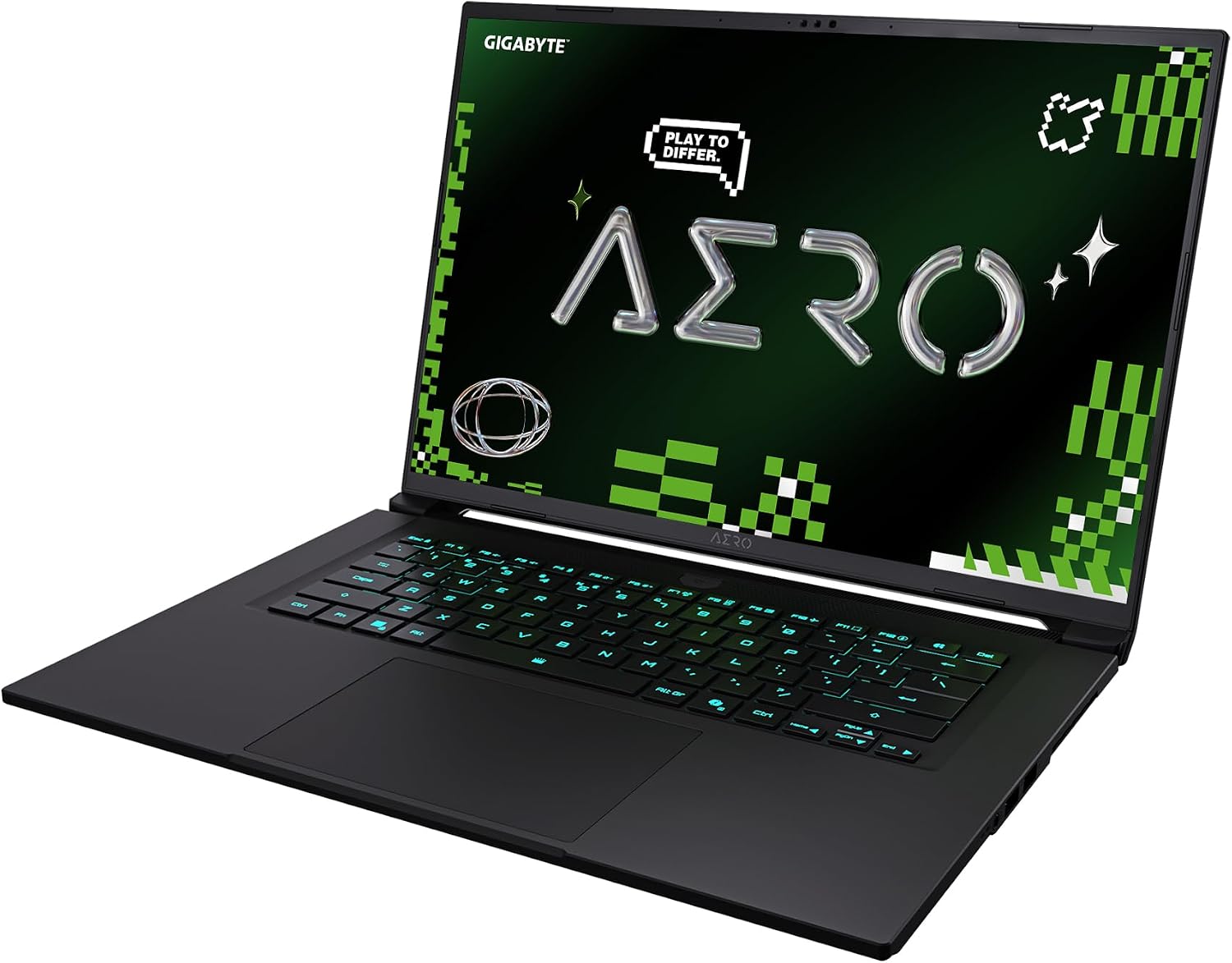
Image: Diagram illustrating the various input/output ports on the GIGABYTE AERO X16.
3. Maintenance and Care
3.1 Cleaning Your Laptop
To maintain optimal performance and appearance, regularly clean your AERO X16. Use a soft, lint-free cloth slightly dampened with water or a specialized screen cleaner for the display. For the keyboard and chassis, a dry microfiber cloth is recommended. Avoid harsh chemicals or abrasive materials.
3.2 Battery Care
To prolong battery life, avoid extreme temperatures. For long-term storage, charge the battery to approximately 50% and store the laptop in a cool, dry place. Periodically discharge and recharge the battery to maintain its health.
3.3 Software Updates
Regularly check for and install operating system updates (Windows Update) and GIGABYTE driver updates. These updates often include performance improvements, security patches, and bug fixes that are crucial for your laptop's stability and security.
4. Troubleshooting Common Issues
This section provides solutions for common problems you might encounter.
4.1 Power Issues
- Laptop does not turn on: Ensure the power adapter is securely connected to both the laptop and a working power outlet. Check if the power outlet is functional. Try a different power adapter if available.
- Battery not charging: Verify the power adapter connection. Check the battery status indicator. If the issue persists, contact support.
4.2 Display Problems
- No display on screen: Connect an external monitor to check if the issue is with the laptop's internal display. Press Fn + F3 (or the appropriate function key with a display icon) to cycle through display modes.
- Flickering or distorted display: Update your graphics drivers. Reduce the display refresh rate in Windows settings to see if it resolves the issue.
4.3 Connectivity Issues
- Wi-Fi not connecting: Ensure Wi-Fi is enabled (check keyboard function keys or Windows settings). Restart your router and laptop. Update Wi-Fi drivers.
- Bluetooth device not pairing: Ensure Bluetooth is enabled on both the laptop and the device. Make sure the device is in pairing mode. Remove and re-add the device in Bluetooth settings.
5. Technical Specifications
| Feature | Specification |
|---|---|
| Brand | GIGABYTE |
| Model Name | GIGABYTE AERO X16 1VH93USC94AH |
| Screen Size | 16 Inches |
| Screen Resolution | 2560 x 1600 pixels (WQXGA) |
| Processor | AMD Ryzen AI 7 350 (5 GHz ryzen_ai) |
| RAM | 16 GB DDR5 (5600 MHz) |
| Hard Drive | 1000 GB SSD (Gen4 M.2) |
| Graphics Coprocessor | NVIDIA GeForce RTX 5060 (8 GB GDDR7) |
| Operating System | Windows 11 Home |
| Wireless Type | Intel Wi-Fi 6E, Bluetooth V5.2 |
| Item Weight | 4.19 pounds |
| Product Dimensions | 13.98 x 0.79 x 9.87 inches |
| Color | Black |
| Batteries | 1 12V battery (included) |
6. Warranty and Support
6.1 Product Warranty
Your GIGABYTE AERO X16 laptop comes with a standard manufacturer's warranty. Please refer to the warranty card included in your product packaging for specific terms, conditions, and duration. Keep your proof of purchase for warranty claims.
6.2 Technical Support
For technical assistance, driver downloads, or further support, please visit the official GIGABYTE support website. You may also find helpful resources and FAQs there.
GIGABYTE Support Website: www.gigabyte.com/support