
1. Introduction
The GIGABYTE AERO X16 Copilot+ PC is designed for high-performance computing, blending powerful components with a sleek, portable design. This manual provides essential information for setting up, operating, maintaining, and troubleshooting your new laptop. It features an AMD Ryzen AI 9 HX 370 processor, NVIDIA GeForce RTX 5070 Laptop GPU, a 16-inch 2560x1600 WQXGA 165Hz display, and runs on Windows 11 Home. Its lightweight chassis and advanced cooling system ensure optimal performance for demanding tasks.
Official GIGABYTE AERO X16 Trailer: This video showcases the design and key features of the GIGABYTE AERO X16 laptop.
2. What's in the Box
Verify that all items are present in the packaging:
- GIGABYTE AERO X16 Laptop
- Power Adapter
- User Manual (this document)
3. Product Overview and Key Features
The AERO X16 is engineered for peak performance and user experience. Below are some of its core features:
- GIGABYTE GiMATE: An intelligent AI agent that personalizes performance to your workflow, adapting system operations to your unique needs.
- AMD Ryzen AI 9 HX 370 Processor: Delivers best-in-class CPU and NPU performance for demanding productivity tasks and AI PC experiences.
- NVIDIA GeForce RTX 5070 Laptop GPU: Powered by NVIDIA Blackwell, offering next-generation graphics capabilities for gaming and creative pursuits, with AI horsepower for NVIDIA DLSS 4 and NVIDIA Studio.
- Windows 11 Home (Copilot+ PC): Provides a fast, intelligent, and secure operating system experience, enhancing productivity and creativity.
- Thin and Lightweight Design: Measures only 16.75 mm (0.65 inches) and weighs 1.9 kg (4.18 lbs), ensuring portability without compromising performance.
- 16-inch WQXGA (2560x1600) 165Hz Display: Features an IPS panel with 3ms response time, 100% sRGB, and 400 nits brightness for a superior visual experience.
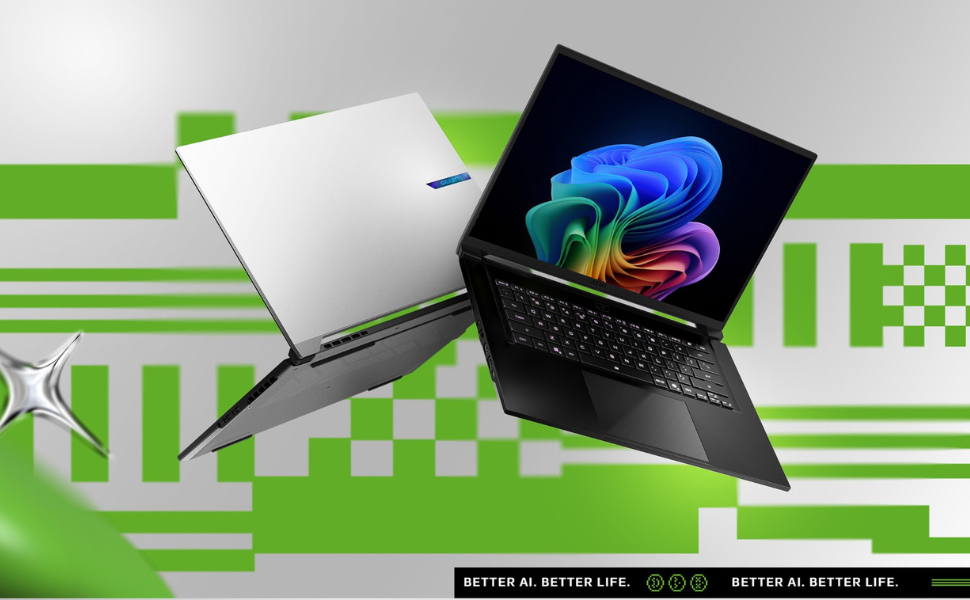
Image: Ultimate Processing Power. This graphic highlights the laptop's CPU capabilities, including core count, thread count, boost clock speed, and thermal design power.
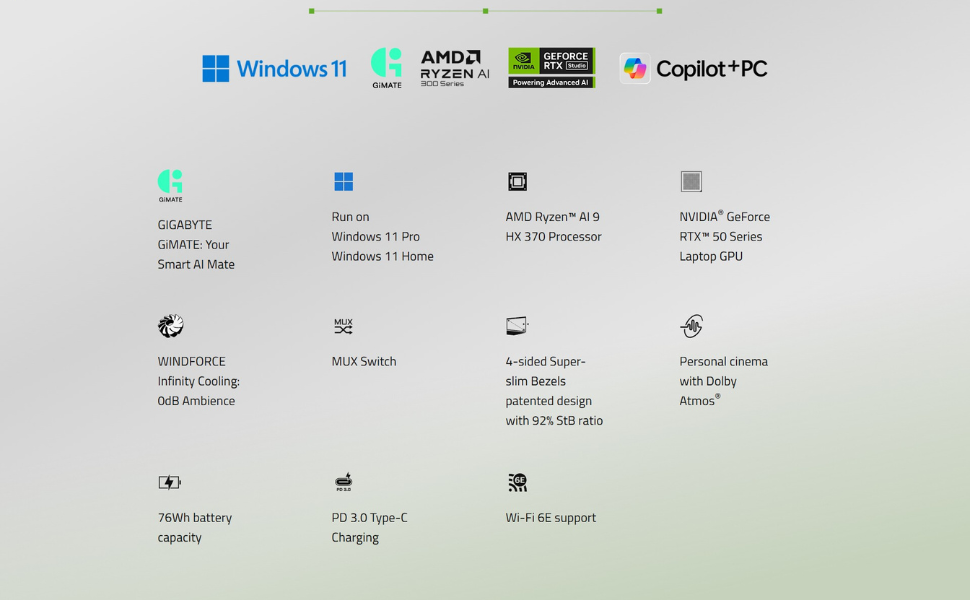
Image: Game Changer. This image emphasizes the NVIDIA GeForce RTX 50 Series GPU, powered by Blackwell and AI, for advanced gaming and creative tasks.
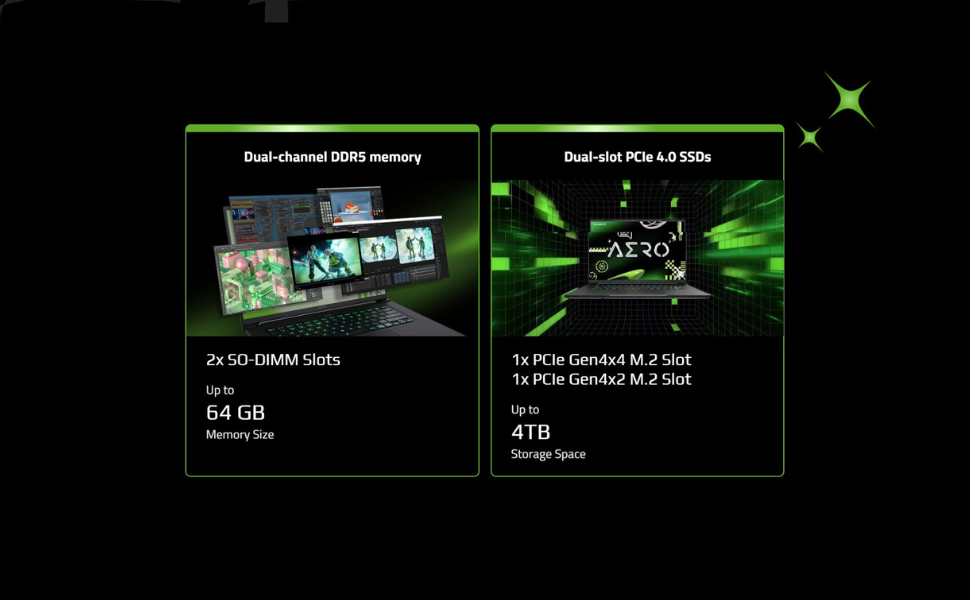
Image: Cinema Experience. This graphic details the high-quality display features of the AERO X16, including resolution, refresh rate, and color accuracy.
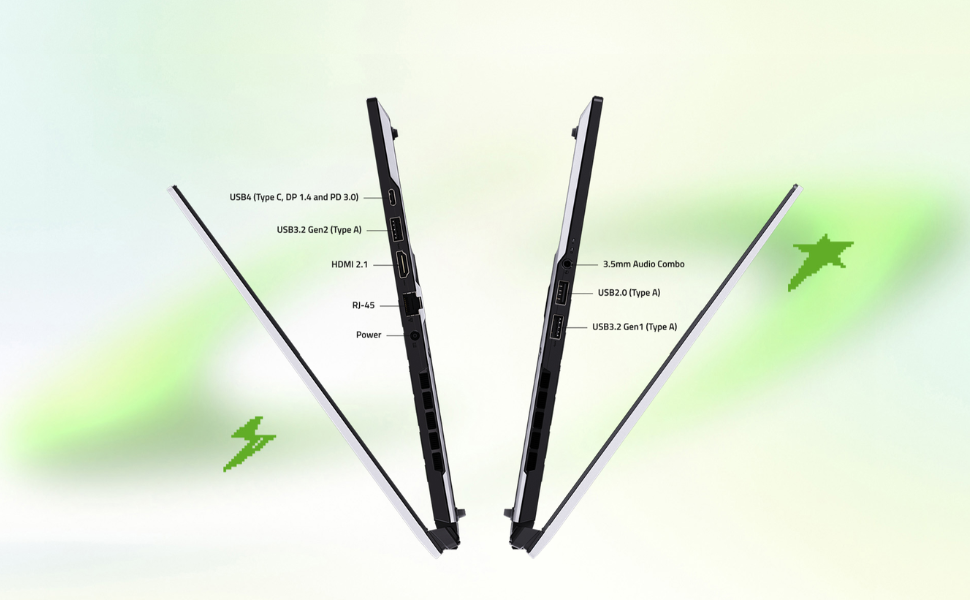
Image: Key Specifications. This image summarizes the core components and operating system of the AERO X16, including upgrade potential.
4. Setup Guide
4.1 Unpacking and Initial Inspection
- Carefully remove the laptop and all accessories from the packaging.
- Inspect the laptop for any physical damage. If damage is found, contact your retailer immediately.
- Place the laptop on a stable, flat surface.
4.2 Connecting the Power Adapter
- Connect the power adapter to the DC-in port on the laptop.
- Plug the power cord into an electrical outlet.
- Allow the battery to charge for at least 30 minutes before initial use, or until the battery indicator shows a full charge.

Image: Front view of the GIGABYTE AERO X16 laptop.

Image: Side view of the GIGABYTE AERO X16, illustrating port locations.
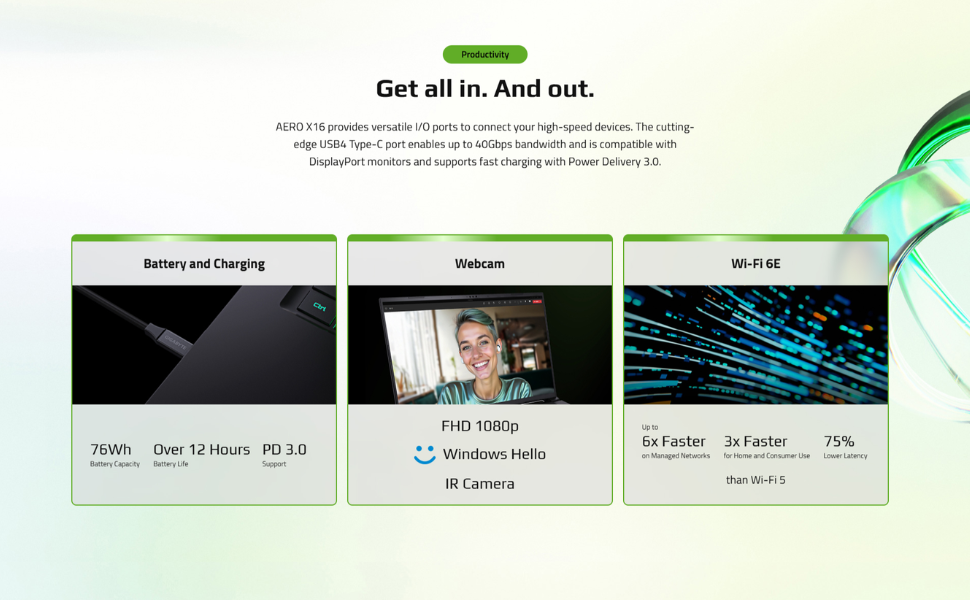
Image: All-Round Versatility. This diagram labels the various input/output ports on the laptop for easy identification.
4.3 Initial Boot and Windows Setup
- Open the laptop lid and press the power button.
- Follow the on-screen instructions to complete the Windows 11 Home setup, including language, region, network connection, and user account creation.
- Ensure your laptop is connected to the internet to download necessary updates during setup.
5. Operating Your Laptop
5.1 Keyboard and Touchpad
The AERO X16 features a full-sized keyboard and a responsive touchpad for navigation and input.
- Keyboard Backlight: Adjust the keyboard backlight brightness using the dedicated function keys (Fn + F3/F4).
- Touchpad Gestures: Utilize multi-touch gestures for scrolling, zooming, and switching applications. Refer to Windows settings for customization.

Image: Top-down view of the GIGABYTE AERO X16, highlighting the keyboard and touchpad layout.
5.2 Display Settings
Your laptop's 165Hz WQXGA display offers vibrant visuals. You can adjust display settings via Windows settings:
- Resolution: Set to 2560x1600 for optimal clarity.
- Refresh Rate: Ensure 165Hz is selected for the smoothest visual experience.
- Brightness: Adjust as needed for comfortable viewing.
5.3 GIGABYTE GiMATE AI Software
GIGABYTE GiMATE is an intelligent AI agent designed to optimize your laptop's performance based on your usage patterns. It can adjust power settings, fan speeds, and other parameters to enhance efficiency and user experience. Explore the GiMATE application to customize its settings and modes.
6. Maintenance
6.1 Cleaning Your Laptop
- Screen: Use a soft, lint-free cloth lightly dampened with water or a screen cleaner. Avoid harsh chemicals.
- Keyboard and Chassis: Use a soft cloth. For stubborn dirt, a slightly damp cloth is acceptable. Compressed air can be used to clear dust from between keys.
- Vents: Regularly clean the air vents to prevent dust buildup, which can affect cooling performance. Use compressed air to gently clear dust.

Image: Bottom view of the GIGABYTE AERO X16, showing the cooling vents.
6.2 Software Updates
Keep your operating system, drivers, and GIGABYTE software updated to ensure optimal performance, security, and compatibility.
- Windows Updates: Regularly check for and install updates via Windows Settings > Windows Update.
- Driver Updates: Visit the official GIGABYTE support website for the latest drivers for your AERO X16 model.
6.3 Battery Care
- Avoid fully discharging the battery frequently.
- If storing the laptop for an extended period, charge the battery to approximately 50-70% and store it in a cool, dry place.
- Avoid exposing the laptop to extreme temperatures.
7. Troubleshooting
7.1 Power Issues
- Laptop does not turn on: Ensure the power adapter is securely connected and the outlet is functional. Try a different outlet. If the battery is completely drained, allow it to charge for a while before attempting to power on.
- Battery not charging: Check the power adapter and cable for damage. Ensure the DC-in port is clean. Try restarting the laptop.
7.2 Display Issues
- No display: Connect an external monitor to check if the issue is with the laptop's screen. If the external monitor works, the laptop's display or its connection may be faulty.
- Flickering screen: Update your graphics drivers. Check display cable connections if using an external monitor.
7.3 Performance Issues
- Slow performance: Close unnecessary applications. Check for background processes consuming high CPU/RAM. Ensure sufficient free storage space. Update drivers and Windows.
- Overheating: Ensure vents are clear of obstructions. Use the GIGABYTE GiMATE software to adjust fan profiles. Consider using a cooling pad.
8. Specifications
| Feature | Specification |
|---|---|
| Standing Screen Display Size | 16 Inches |
| Screen Resolution | 2560 x 1600 pixels (WQXGA) |
| Max Screen Resolution | 2560x1600 Pixels |
| Processor | AMD Ryzen AI 9 HX 370 (5.1 GHz ryzen_ai) |
| RAM | 32 GB DDR5 RAM (5600 MHz) |
| Hard Drive | 1000 GB SSD (PCIe Gen4 NVMe™ M.2 SSD) |
| Graphics Coprocessor | NVIDIA GeForce RTX 5070 |
| Graphics Card Ram Size | 8 GB |
| Operating System | Windows 11 Home |
| Wireless Type | Bluetooth, Wi-Fi 6E |
| Number of USB 2.0 Ports | 1 |
| Number of USB 3.0 Ports | 3 |
| Average Battery Life | 14 Hours (up to) |
| Item Weight | 4.19 pounds |
| Product Dimensions | 13.98 x 0.79 x 9.87 inches |
| Color | Space Gray |
9. Warranty and Support
Your GIGABYTE AERO X16 laptop comes with a manufacturer's warranty. Please refer to the warranty card included in your product packaging for specific terms and conditions, including warranty period and coverage details.
For technical support, driver downloads, and further assistance, please visit the official GIGABYTE support website. You can also find FAQs and troubleshooting guides there.
GIGABYTE Support Website: www.gigabyte.com/support


