
waveshare ESP32-S3 1.8inch Knob Display Development Board
waveshare ESP32-S3 1.8inch Knob Display Development Board User Manual
Model: ESP32-S3 1.8inch Knob Display Development Board
1. Introduction
This manual provides detailed instructions for the setup, operation, and maintenance of the waveshare ESP32-S3 1.8inch Knob Display Development Board. This high-performance, highly integrated MCU board is designed for various interactive applications, featuring an ESP32-S3 dual-core processor, a 1.8-inch capacitive touch display, and extensive wireless connectivity options.

Image 1.1: Front view of the waveshare ESP32-S3 1.8inch Knob Display Development Board, showcasing its circular display and blue textured knob.
2. Package Contents
Verify that all items listed below are included in your package. If any items are missing or damaged, please contact customer support.
- ESP32-S3-Knob-Touch-LCD-1.8-EN × 1
- Back cover × 1
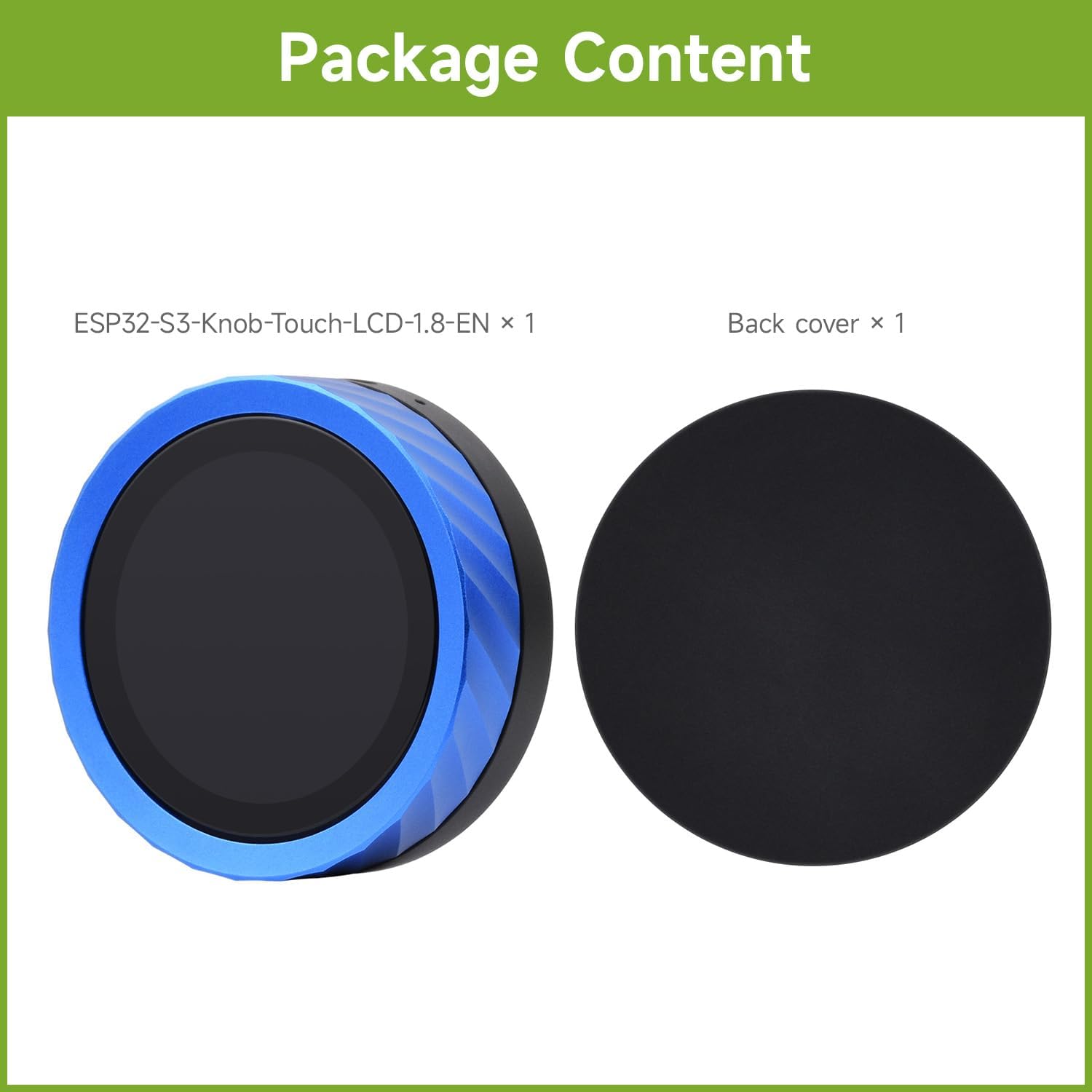
Image 2.1: The package includes the ESP32-S3 Knob Display Development Board and a separate back cover.
3. Key Features
The waveshare ESP32-S3 1.8inch Knob Display Development Board offers a range of advanced features:
- 1.8-inch Capacitive Touchscreen: Provides excellent touch sensitivity for interactive applications.
- ESP32-S3 Chip: High-performance dual-core processing with hardware support for AI and machine learning tasks.
- Dual Wireless Connectivity: Integrated Wi-Fi and Bluetooth 5.0 for seamless IoT and remote control applications.
- Audio and Voice Integration: Equipped with an audio decoder and microphone for voice recognition and audio playback.
- Flexible Power Supply: Can be powered via USB Type-C or a 3.7V lithium battery.
- CNC Process Metal Case: Durable and aesthetically pleasing enclosure.

Image 3.1: Visual representation of the board highlighting its multi-functional knob screen, wireless connection, and CNC metal case, along with icons for Pomodoro Timer, Bluetooth, Volume Control, Video Playback, Digital Photo Frame, AIDA64 Wireless Aux Display, Audio Spectrum, E-book, and CNC Process.
4. Technical Specifications
Detailed technical specifications for the ESP32-S3 1.8inch Knob Display Development Board:
| Feature | Detail |
|---|---|
| Display Panel | IPS |
| Display Size | 1.8 inch |
| Resolution | 360 × 360 |
| Display Color | 262K |
| Brightness | 600cd/m² |
| Contrast Ratio | 1200:1 |
| Communication Interface | QSPI |
| Driver IC | ST77916 |
| Touch Type | Capacitive |
| Touch IC | CST816 |
| Wireless Connectivity | 2.4GHz Wi-Fi (802.11 b/g/n) and Bluetooth 5 (LE) |
| Flash Memory | 16MB |
| PSRAM | 8MB |
| Audio | Audio decoder chip, microphone |
| Power Supply | USB Type-C or 3.7V Lithium Battery |

Image 4.1: A visual table detailing the LCD specifications and examples of application scenarios for the development board.
5. Application Scenarios
The versatility of the ESP32-S3 Knob Display Development Board allows for a wide range of applications:
- Multiple Outputs: Can function as an information output unit for both display and audio, enabling rich interaction in image and sound.
- Human-machine Interface (HMI): Serves as a medium for interaction and information exchange between the system and the user.
- Multiple Inputs: Supports touch and voice recognition, allowing for custom equipment control projects.
- LVGL GUI Development: Utilizes the LVGL open-source graphics library for creating embedded GUIs with visual effects and low memory requirements.
6. Initial Setup
To begin using your waveshare ESP32-S3 1.8inch Knob Display Development Board, follow these general steps:
- Power Connection: Connect the board to a power source using a USB Type-C cable. Alternatively, if using a 3.7V lithium battery, ensure it is properly connected to the battery header.
- Software Environment: Set up your development environment. This typically involves installing the ESP-IDF (Espressif IoT Development Framework) or Arduino IDE with ESP32 board support.
- Driver Installation: Install necessary USB-to-UART drivers for your operating system to enable communication with the board.
- Firmware Upload: Upload your desired firmware or example code to the board via the USB Type-C port. Refer to the official Waveshare Wiki for detailed programming guides and examples.
- Initial Test: After uploading, the display should power on and show the programmed interface. Test the knob and touch functionalities.
For detailed programming instructions and resources, please visit the Waveshare Wiki.
7. Operating Instructions
The ESP32-S3 Knob Display Development Board is designed for intuitive interaction. Its primary control mechanisms include the rotary knob and the capacitive touchscreen.
7.1. Smart Rotary Knob and Touch Display
The integrated rotary knob and touch display allow for versatile control and interaction:
- Intuitive Control: Rotate the knob to navigate menus, adjust values, or scroll through content. The capacitive touch screen allows for direct interaction with on-screen elements.
- Pomodoro Timer Themes: Supports various Pomodoro Timer themes for productivity and playful applications.

Image 7.1: Demonstrates the smart rotary knob display in use, showing different interface themes and intuitive control with fingertips.
7.2. Media Playback and Display Functions
- Smartphone Bluetooth Connection for Music Playback: Connect your smartphone via Bluetooth to play music. The board supports audio output via a 3.5mm jack. You can upload lyrics and covers, and control volume by sliding the knob.
Note: The product does not have a built-in speaker. An external speaker must be connected via the 3.5mm audio jack for music playback.
- Seamless Left-Right Swipe: Utilize swipe gestures to switch between photos or videos, functioning as a digital photo frame or video player.
- E-book Reading: Supports TXT file reading, allowing you to swipe through stories directly on the display.
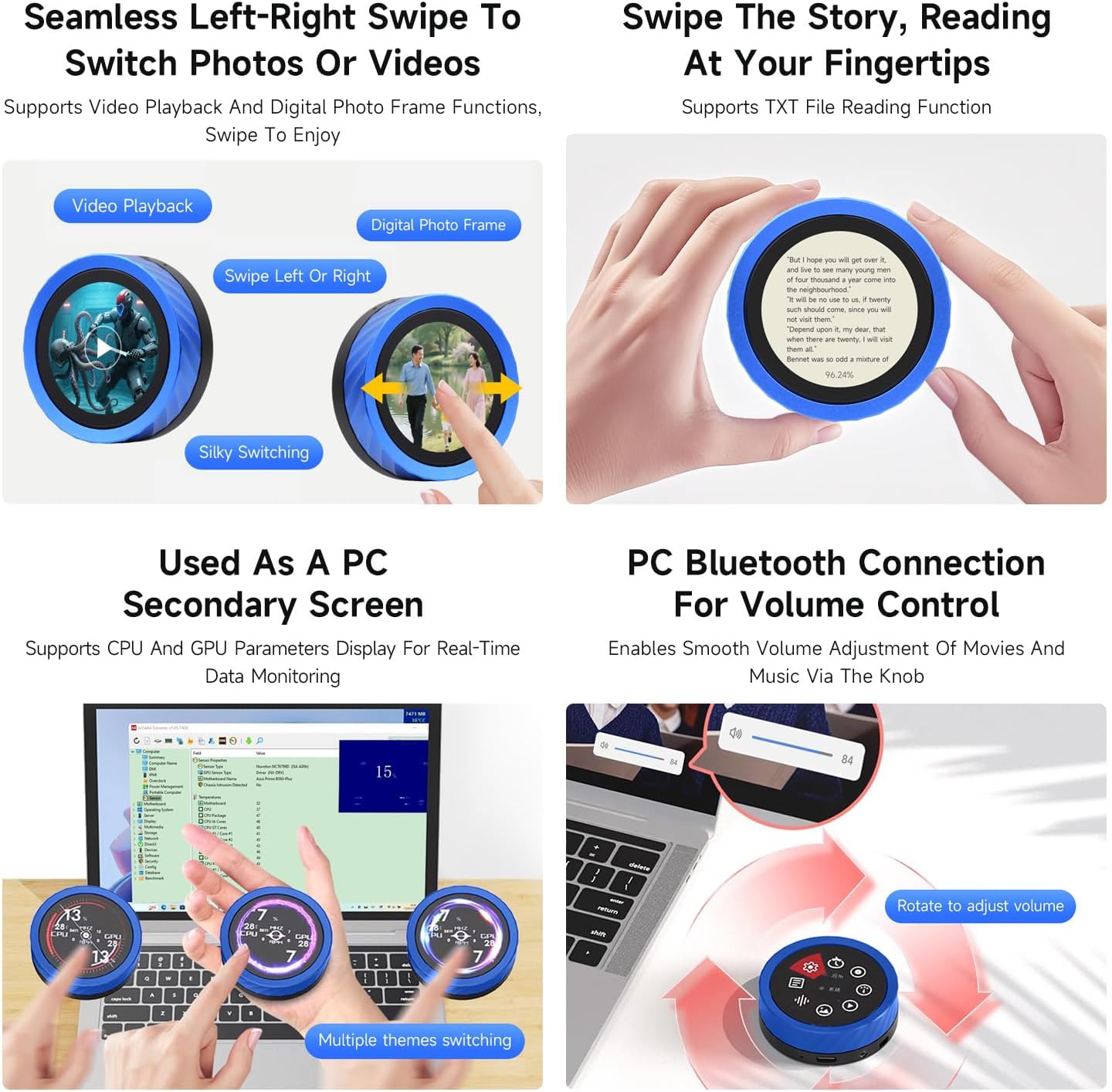
Image 7.2: Illustrates the precision-machined CNC metal case and the board's capability to connect to a smartphone via Bluetooth for music playback, requiring an external speaker.
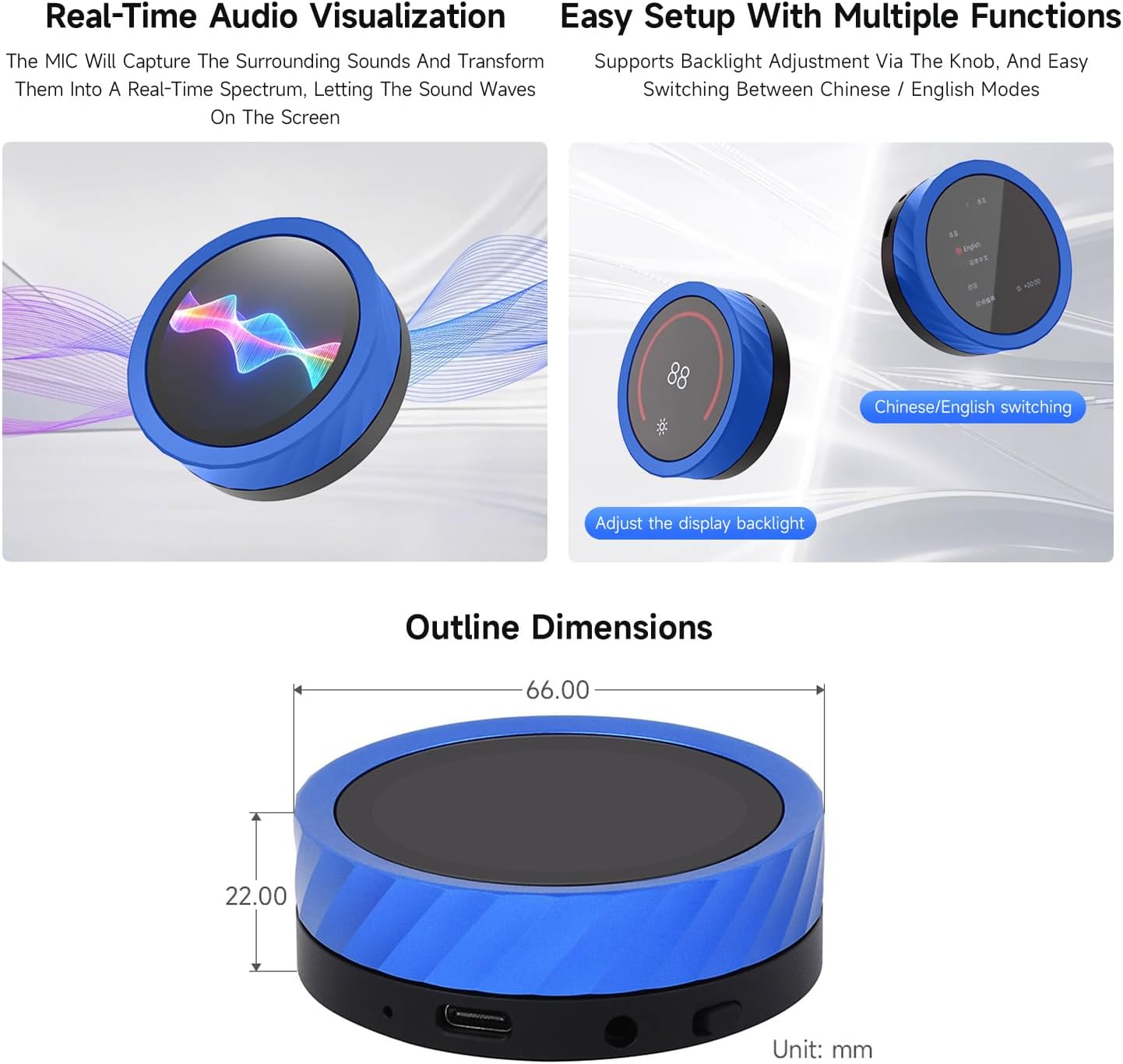
Image 7.3: Shows the left-right swipe functionality for switching between video playback and digital photo frames, and the display reading a text file.
7.3. PC Integration
- PC Secondary Screen: Can be used to display CPU and GPU parameters for real-time data monitoring.
- PC Bluetooth Volume Control: Connect to your PC via Bluetooth to smoothly adjust movie and music volume using the rotary knob.
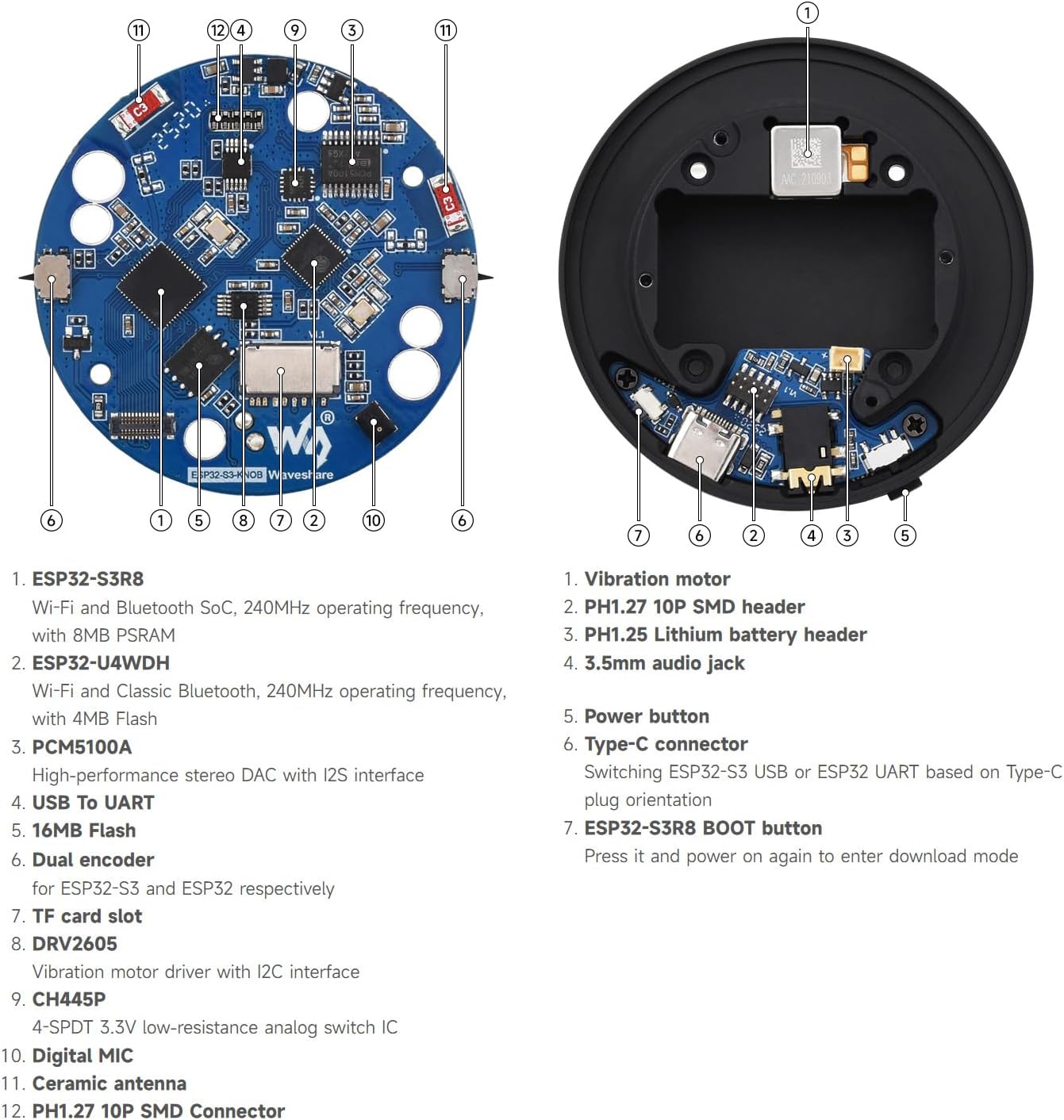
Image 7.4: Depicts the board functioning as a secondary PC screen for monitoring system parameters and controlling PC volume via Bluetooth.
7.4. Audio Visualization and Setup
- Real-Time Audio Visualization: The built-in microphone captures surrounding sounds and transforms them into a real-time spectrum displayed on the screen.
- Easy Setup with Multiple Functions: Supports backlight adjustment via the knob and easy switching between Chinese and English display modes.

Image 7.5: Shows the real-time audio spectrum visualization feature and the ease of adjusting backlight and switching languages using the knob.
8. Board Components Overview
Understanding the components of the development board is crucial for advanced usage and troubleshooting.

Image 8.1: An annotated diagram showing the internal components of the board, including the ESP32-S3R8, ESP32-U4WDH, PCM5100A, USB to UART, 16MB Flash, Dual encoder, TF card slot, DRV2605, CH445P, Digital MIC, Ceramic antenna, and PH1.27 10P SMD Connector.
Key components and their functions:
- Vibration motor: Provides haptic feedback.
- PH1.27 10P SMD header: Connector for external components.
- PH1.25 Lithium battery header: For connecting a 3.7V lithium battery.
- 3.5mm audio jack: For connecting external speakers or headphones.
- Power button: Controls power on/off.
- Type-C connector: Used for power supply, data transfer (USB to UART), and firmware uploading. Supports switching between ESP32-S3 USB or ESP32 UART based on Type-C plug orientation.
- ESP32-S3R8 BOOT button: Press and power on again to enter download mode for firmware updates.
- ESP32-S3R8: Wi-Fi and Bluetooth SoC, 240MHz operating frequency, with 8MB PSRAM.
- ESP32-U4WDH: Wi-Fi and Classic Bluetooth, 240MHz operating frequency, with 4MB Flash.
- PCM5100A: High-performance stereo DAC with I2S interface.
- USB To UART: For serial communication.
- 16MB Flash: Storage for firmware and data.
- Dual encoder: For ESP32-S3 and ESP32 respectively, likely referring to the rotary knob's encoder.
- TF card slot: For expandable storage.
- DRV2605: Vibration motor driver with I2C interface.
- CH445P: 4-SPDT 3.3V low-resistance analog switch IC.
- Digital MIC: For audio input and voice recognition.
- Ceramic antenna: For wireless communication.
9. Outline Dimensions
The physical dimensions of the waveshare ESP32-S3 1.8inch Knob Display Development Board are as follows:

Image 9.1: Technical drawing showing the top and side view dimensions of the board, with a diameter of 66.00 mm and a height of 22.00 mm.
- Diameter: 66.00 mm
- Height: 22.00 mm
10. Maintenance
Proper maintenance ensures the longevity and optimal performance of your development board:
- Cleaning: Use a soft, dry cloth to clean the display and casing. Avoid abrasive cleaners or solvents.
- Storage: Store the board in a cool, dry environment, away from direct sunlight and extreme temperatures.
- Handling: Handle the board with care to avoid physical damage to components or the display.
- Firmware Updates: Regularly check the Waveshare Wiki for firmware updates to ensure you have the latest features and bug fixes.
11. Troubleshooting
If you encounter issues with your ESP32-S3 Knob Display Development Board, refer to the following common problems and solutions:
| Problem | Possible Cause / Solution |
|---|---|
| Board does not power on. |
|
| Display is blank or unresponsive. |
|
| Cannot upload firmware. |
|
| Bluetooth or Wi-Fi not connecting. |
|
| Knob or touch input not working. |
|
For more advanced troubleshooting and community support, please refer to the official Waveshare Wiki or contact Waveshare technical support.
12. Warranty and Support
Waveshare products typically come with a standard manufacturer's warranty. For specific warranty terms and conditions, please refer to the documentation included with your purchase or visit the official Waveshare website.
For technical support, additional resources, and community forums, please visit the official Waveshare Wiki:
https://www.waveshare.com/wiki/ESP32-S3-Knob-Touch-LCD-1.8-EN
You can also contact Waveshare customer service directly through their official website for assistance.
Ask a question about this manual
Ask about setup, troubleshooting, compatibility, parts, safety, or missing instructions. Manuals+ will review the question and use this page’s manual context to help answer it.