
1. Introduction
The ARZOPA Z3FC is a 16.1-inch portable monitor designed to enhance your productivity and entertainment experience. Featuring a 2.5K QHD (2560x1440) display with a 180Hz refresh rate, it delivers vibrant visuals and smooth motion. Its ultra-slim design, integrated kickstand, and multiple connectivity options make it an ideal external screen for laptops, PCs, gaming consoles (PS5, Xbox), and mobile devices.

Image 1.1: The ARZOPA Z3FC 16.1-inch portable monitor with its integrated kickstand, displaying a vibrant gaming scene.
2. What's in the Box
Verify that all items are present in the package:
- 1 x ARZOPA 16.1" 180Hz Portable Monitor
- 1 x 16.1" Portable Monitor Sleeve Bag
- 2 x USB-C to USB-C Cable (Full-functioned & Power Supply)
- 1 x Mini HDMI to HDMI Cable (Data transfer only)
- 1 x User Guide

Image 2.1: An illustration showing the ARZOPA portable monitor, sleeve bag, two USB-C to USB-C cables, and one Mini HDMI to HDMI cable, representing the contents of the product box.
3. Product Overview
Familiarize yourself with the monitor's ports and controls:
- Power/Return Button: Used to power the monitor on/off and navigate back in the OSD menu.
- Brightness Adjustment: Adjusts screen brightness.
- Volume Adjustment: Controls audio output volume.
- OSD Menu: Accesses the On-Screen Display menu for advanced settings.
- Speaker: Integrated audio output.
- Mini HDMI Port: For video input from devices with HDMI output.
- USB Type-C Port 1 (Full-functioned): Supports video, audio, data, and power delivery.
- USB Type-C Port 2 (Full-functioned): Supports video, audio, data, and power delivery.

Image 3.1: A diagram illustrating the dimensions and labeled ports and buttons on the side of the ARZOPA Z3FC portable monitor.
4. Setup and Connection
The ARZOPA Z3FC monitor offers versatile connectivity options. Ensure your device supports video output via USB-C (DisplayPort Alternate Mode) or HDMI.
4.1. Powering the Monitor
- Via USB-C (Single Cable): If your device (laptop, smartphone, tablet) has a full-functioned USB-C port that supports power delivery and video output, you can connect it to either USB Type-C Port 1 or 2 on the monitor using one of the provided USB-C to USB-C cables. This single cable will provide both power and display signal.
- Via USB-C (Separate Power): If your device's USB-C port does not provide sufficient power, or if you are connecting via HDMI, you will need an external power source. Connect a USB-C power adapter (not included, 65W recommended for optimal performance) to one of the monitor's USB Type-C ports.
- Note: For optimal brightness and performance, especially when using HDR or with power-intensive devices like gaming consoles, an external power adapter (minimum 65W) connected to the monitor is highly recommended.
4.2. Connecting to Devices
Choose the appropriate connection method based on your source device:
- USB Type-C Connection (Full-functioned):
Connect one end of the USB-C to USB-C cable to your device's full-functioned USB-C port and the other end to either USB Type-C Port 1 or 2 on the monitor. This connection supports laptops, MacBooks, compatible smartphones, and tablets. - HDMI & USB Type-C Connection:
If your device has an HDMI output (e.g., PC, PS5, Xbox, Nintendo Switch via dock), connect the Mini HDMI to HDMI cable from your device to the Mini HDMI port on the monitor. Then, connect a USB-C power adapter to one of the monitor's USB Type-C ports for power.

Image 4.1: A visual guide demonstrating the wide compatibility of the ARZOPA Z3FC monitor, showing connections to a Nintendo Switch, mobile phone, tablet, laptop via USB-C, and Mini PC, Xbox, PS3/4/5, and PC via HDMI and USB-C for power.
5. Operating the Monitor
5.1. On-Screen Display (OSD) Menu
Use the control buttons on the side of the monitor to navigate the OSD menu and adjust settings such as brightness, contrast, color temperature, input source, and HDR mode.
- Press the OSD Menu button to open the menu.
- Use the Brightness/Volume buttons to navigate through options.
- Press the OSD Menu button again to select an option.
- Press the Power/Return button to go back or exit the menu.
5.2. Display Orientation
The monitor supports both landscape and portrait modes. You can switch the display orientation through your connected device's operating system settings.
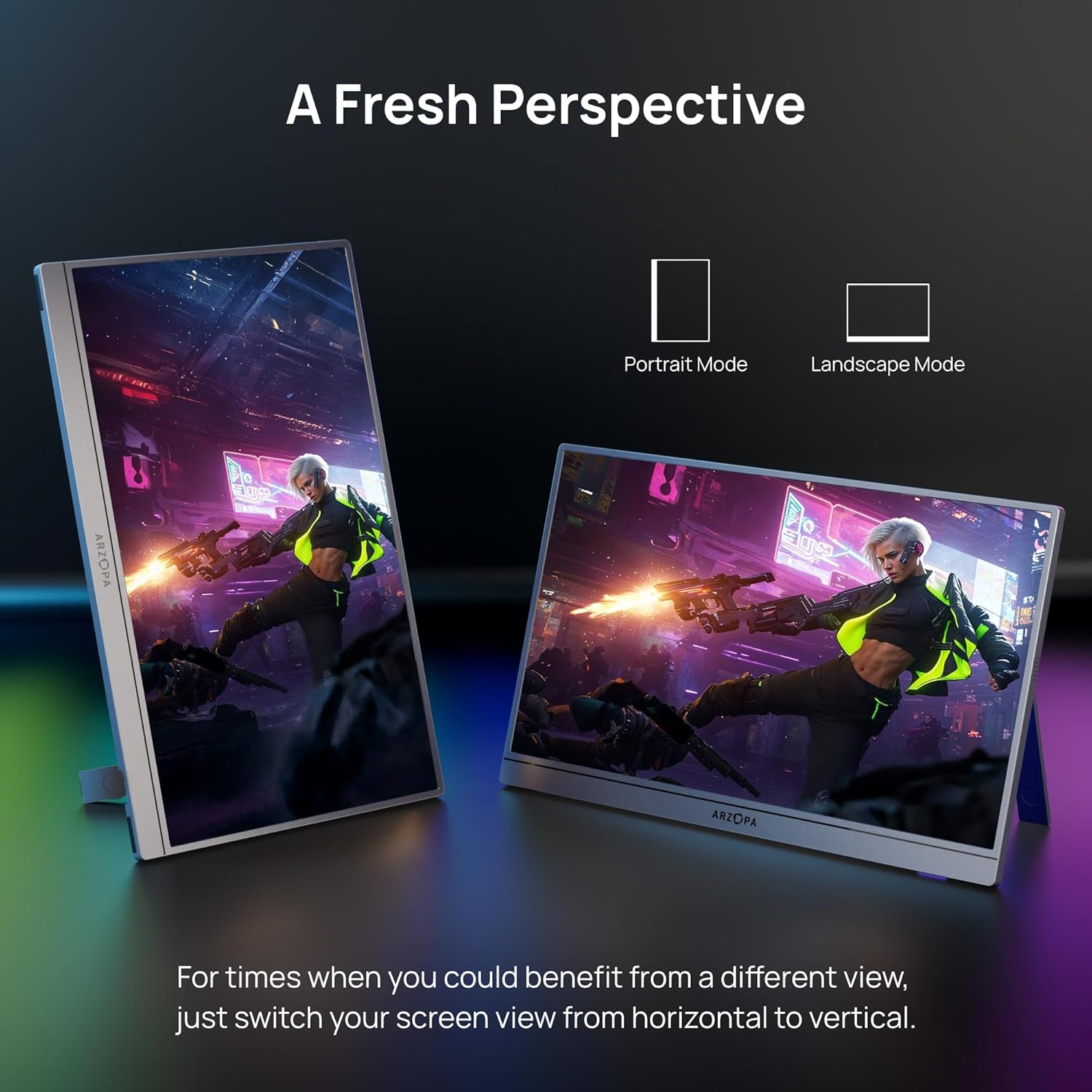
Image 5.1: The ARZOPA Z3FC monitor displayed in both portrait and landscape orientations, illustrating its flexible viewing options.
5.3. Audio Output
The monitor features dual built-in speakers for audio output. You can adjust the volume using the dedicated buttons on the monitor or through your connected device's audio settings. For a more immersive experience, external headphones or speakers can be connected to your source device.
6. Maintenance
Proper care ensures the longevity and performance of your ARZOPA Z3FC monitor.
- Cleaning the Screen: Gently wipe the screen with a soft, lint-free cloth. For stubborn marks, lightly dampen the cloth with water or a screen-cleaning solution. Avoid harsh chemicals or abrasive materials.
- Cleaning the Casing: Use a soft, dry cloth to clean the monitor's casing.
- Storage: When not in use, store the monitor in its provided sleeve bag to protect it from dust and scratches. Avoid placing heavy objects on top of the monitor.
- Environmental Conditions: Operate and store the monitor in a dry environment, away from extreme temperatures, direct sunlight, and high humidity.
7. Troubleshooting
If you encounter issues with your ARZOPA Z3FC monitor, refer to the following common problems and solutions:
- No Signal / Black Screen:
- Ensure all cables are securely connected.
- Verify that your source device is powered on and configured to output video.
- If using USB-C, confirm your device's USB-C port supports DisplayPort Alternate Mode.
- Try connecting an external power adapter (minimum 65W) to the monitor, especially if your source device cannot provide sufficient power. - Flickering / Unstable Display:
- Check cable connections for looseness.
- Ensure the monitor is receiving adequate power. An external power adapter may resolve this.
- Reduce the refresh rate or resolution on your source device to see if the issue persists. - No Sound:
- Check the monitor's volume settings and your source device's audio output settings.
- Ensure the correct audio output device is selected on your source device.
- If using HDMI, ensure your source device is sending audio over HDMI. - Monitor Not Turning On:
- Confirm the monitor is connected to a power source.
- Press and hold the Power button for a few seconds to ensure it's not in standby mode. - Image Quality Issues (e.g., blurry, incorrect colors):
- Adjust brightness, contrast, and color settings via the OSD menu.
- Ensure the display resolution on your source device matches the monitor's native resolution (2560x1440).
8. Specifications
Detailed technical specifications for the ARZOPA Z3FC Portable Monitor:
| Feature | Specification |
|---|---|
| Model Number | Z3FC |
| Screen Size | 16.1 Inches |
| Resolution | 2560 x 1440 Pixels (QHD Wide 1440p) |
| Refresh Rate | 180Hz |
| Aspect Ratio | 16:9 |
| Image Brightness | 400 Candela per Square Meter (nits) |
| Contrast Ratio | 1000:1 |
| Color Gamut | 107% sRGB |
| Screen Surface Description | Matte |
| Total USB Ports | 2 (USB Type-C) |
| Video Input Ports | 2 x USB Type-C (Full-functioned), 1 x Mini HDMI |
| Product Dimensions | 0.39 x 13 x 8 inches |
| Item Weight | 1.72 pounds |
| Features | HDR, Ultra Slim, Eye Care, Integrated Kickstand |
9. Warranty and Support
9.1. Warranty Information
The ARZOPA Z3FC Portable Monitor comes with a standard 1-year warranty. This warranty can typically be extended to 2 years upon product registration or through specific purchase options. For any issues encountered within 30 days of purchase, a full refund may be available. Please refer to your purchase documentation or contact ARZOPA customer service for specific terms and conditions regarding warranty claims and extensions.
9.2. Customer Support
For technical assistance, troubleshooting beyond this manual, or warranty inquiries, please contact ARZOPA customer support through the official ARZOPA website or the retailer where the product was purchased. Have your product model number (Z3FC) and purchase details ready when contacting support.


