
1. Introduction
This manual provides detailed instructions for the installation, configuration, and operation of your Wiflyer Z8102AX 5G WiFi 6 AX3000 Router. This device is designed to provide high-speed internet connectivity through 5G cellular networks and distribute it via Wi-Fi 6 and Gigabit Ethernet, suitable for home and office environments.
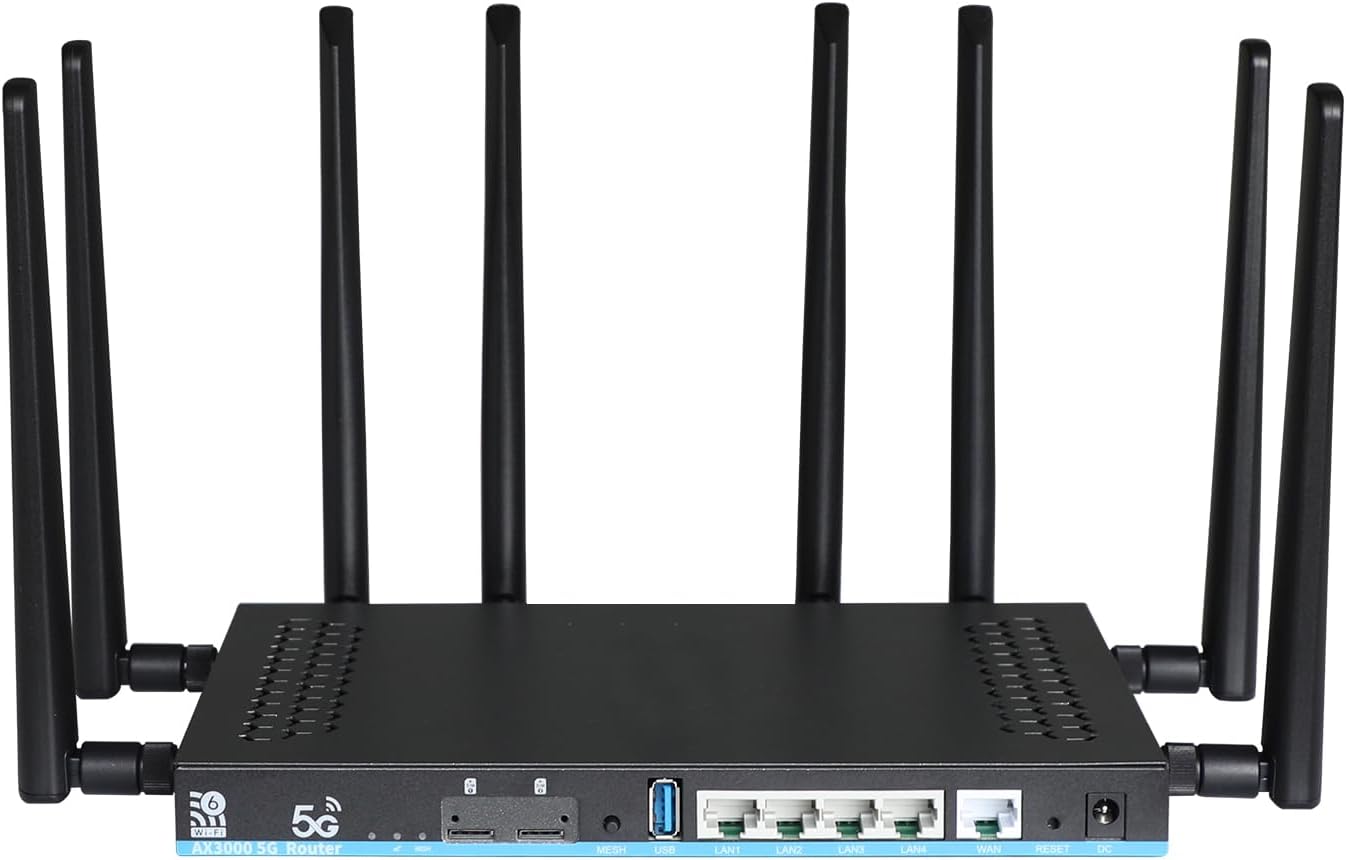
The Wiflyer Z8102AX router integrates 5G and WiFi 6 technologies, offering dual-band AX3000 speeds. It features dual SIM slots for network redundancy, multiple Gigabit Ethernet ports, and a USB 3.0 port for expanded functionality. Its robust design supports operation in various environments.

2. Product Overview
2.1 Package Contents
- Wiflyer Z8102AX 5G WiFi 6 AX3000 Router
- Power Adapter
- Ethernet Cable
- Antennas (pre-attached or included separately)
2.2 Key Features
- 5G + WiFi 6 Dual-Band Speed: Supports M.2 slot for 5G module (NSA/SA modes) and WiFi 6 AX3000 technology, offering combined speeds up to 3,000Mbps (574Mbps@2.4GHz + 2,400Mbps@5.8GHz).
- High-Performance Hardware: Equipped with MT7981B dual-core 1.3GHz CPU and MT7976CN WiFi 6 chip, 1GB DDR4 RAM, and 128MB flash storage.
- Extensive Coverage: Features four 5dBi 5G antennas and four dual-band WiFi antennas for 360° signal coverage. Supports one-touch MESH for extended range.
- Dual SIM Flexibility: Includes two Nano SIM slots and support for two eSIMs for carrier redundancy.
- Industrial Design: Wide voltage input (8.5V-36V) and broad operating temperature range (-35°C to 75°C).
- Enterprise-Grade Reliability: Hardware watchdog for automatic system reboot if frozen.
- Connectivity: One WAN port, four LAN ports (Gigabit), and one USB 3.0 port for NAS/print sharing.

3. Setup Guide
3.1 Physical Installation
- Connect Antennas: If not pre-attached, screw all eight antennas securely onto their respective connectors on the router. Ensure they are oriented vertically for optimal signal reception.
- Power Connection: Connect the provided power adapter to the DC IN port on the router and then plug it into a power outlet. The router will power on automatically.
- Ethernet Connections:
- WAN Port: If you are using a wired internet connection (e.g., from a cable modem or fiber optic terminal), connect an Ethernet cable from your modem to the WAN port on the router.
- LAN Ports: For wired devices like computers, gaming consoles, or smart TVs, connect an Ethernet cable from the device to any of the LAN1-LAN4 ports on the router.

3.2 SIM Card Installation (for 5G/4G connectivity)
- Locate the Nano SIM slots on the router.
- Insert your Nano SIM card(s) into the designated slot(s) until you hear a click, indicating it is securely in place. Ensure the SIM card is oriented correctly according to the diagram near the slot.
- If the SIM card does not register, try removing it, flipping it over, and reinserting it. To remove a SIM card, gently push it in until it clicks and then releases.

3.3 Initial Configuration
- Connect to the Router: Connect your computer or smartphone to the router via Wi-Fi (using the default SSID and password found on the router's label) or via an Ethernet cable to one of the LAN ports.
- Access Web Interface: Open a web browser and enter the default IP address (e.g.,
192.168.1.1) into the address bar. Press Enter. - Login: Enter the default username and password (usually
adminfor both, or as specified on the router's label). - Follow Setup Wizard: The router's web interface will guide you through the initial setup, including:
- Changing the default login password for security.
- Configuring Wi-Fi network name (SSID) and password.
- Setting up 5G/WAN internet connection parameters.
4. Operating Instructions
4.1 Connecting Devices
- Wi-Fi Connection: On your wireless devices (smartphones, tablets, laptops), search for the Wi-Fi network name (SSID) you configured during setup. Select it and enter your Wi-Fi password.
- Ethernet Connection: For wired devices, ensure an Ethernet cable is connected from the device to one of the router's LAN ports. The connection should be established automatically.

4.2 Mesh Network Setup
The Wiflyer Z8102AX supports one-touch MESH functionality to extend Wi-Fi coverage. If you have multiple compatible Wiflyer mesh devices:
- Ensure your primary Z8102AX router is set up and functioning.
- Place the additional mesh unit(s) within range of the primary router.
- Press the MESH button on both the primary router and the mesh unit(s). Refer to the specific mesh unit's manual for its MESH button location.
- The devices will automatically connect and form a seamless mesh network, extending your Wi-Fi coverage.

4.3 Dual SIM / WAN Failover
The router supports dual SIM cards and WAN failover to ensure continuous internet connectivity.
- Dual SIM: If two SIM cards are inserted, the router can be configured to use one as primary and the other as a backup. In case the primary SIM's network fails, the router will automatically switch to the secondary SIM.
- WAN Failover: If both a wired WAN connection and a 5G SIM connection are active, you can configure the router to prioritize one connection (e.g., wired WAN) and use the other (5G SIM) as a backup in case of primary connection failure. This ensures uninterrupted internet access.
Configuration for dual SIM and WAN failover is performed within the router's web management interface under the 'Network' or 'WAN Settings' section.
5. Maintenance
- Firmware Updates: Regularly check the Wiflyer official website for firmware updates. Updating the firmware can improve performance, add new features, and enhance security. Follow the instructions provided with the firmware update package carefully.
- Cleaning: Keep the router clean and free from dust. Use a soft, dry cloth to wipe the exterior. Do not use liquid cleaners or aerosols. Ensure ventilation holes are not obstructed.
- Placement: Place the router in a central location, away from obstructions, large metal objects, and other electronic devices that may cause interference.
- Restart: If you experience network issues, try restarting the router by unplugging the power adapter, waiting 10 seconds, and then plugging it back in.
6. Troubleshooting
6.1 No Internet Connection
- Check Cables: Ensure all Ethernet cables (WAN, LAN) are securely connected.
- Check SIM Card: Verify the SIM card is correctly inserted and activated with your mobile carrier. Check the router's web interface for SIM status and signal strength.
- Router Status: Check the LED indicators on the router. Refer to the user manual for LED status meanings.
- Restart Devices: Restart the router, modem (if applicable), and your connected devices.
- ISP/Carrier Issue: Contact your Internet Service Provider or mobile carrier to confirm there are no service outages in your area.
6.2 Slow Wi-Fi Speed
- Signal Strength: Ensure your device is within good Wi-Fi range. Move closer to the router or consider using mesh units.
- Interference: Reduce interference from other electronic devices (cordless phones, microwaves) or neighboring Wi-Fi networks. Try changing the Wi-Fi channel in the router settings.
- Band Selection: Connect to the 5GHz Wi-Fi band for higher speeds if your device supports it, as it generally has less interference.
- Device Load: Too many devices or high-bandwidth activities (streaming, gaming) can slow down the network.
6.3 Cannot Access Router Web Interface
- IP Address: Ensure you are using the correct IP address (default is usually
192.168.1.1). - Connection: Verify your device is connected to the router's network (Wi-Fi or Ethernet).
- Browser Cache: Clear your web browser's cache and cookies, or try a different browser.
- Firewall/Antivirus: Temporarily disable any firewall or antivirus software on your computer that might be blocking access.
6.4 Router Freezes or Becomes Unresponsive
- Restart: Power cycle the router by unplugging it for 10 seconds and plugging it back in.
- Hardware Watchdog: The router has a hardware watchdog that automatically reboots the system within 120 seconds if it detects a freeze. Allow time for this process.
- Reset to Factory Defaults: If issues persist, press and hold the RESET button on the back of the router for more than 5 seconds until the lights flash. This will restore the router to its factory settings. Warning: This will erase all your custom configurations.
7. Specifications
| Feature | Detail |
|---|---|
| Product Dimensions | 9.8 x 6.3 x 1.65 inches |
| Item Weight | 3.05 pounds |
| Model Number | Z8102AX (5G WiFi 6) |
| Brand | Wiflyer |
| Special Feature | 5G Connectivity |
| Frequency Band Class | Dual-Band (2.4GHz, 5GHz) |
| Wireless Communication Standard | 802.11a, 802.11ac, 802.11ax (Wi-Fi 6), 802.11b, 802.11g |
| Compatible Devices | Smartphones, Computers, Gaming Consoles, etc. |
| Recommended Uses | Business, Gaming, Home |
| Connectivity Technology | Ethernet, Wireless |
| Operating System | Linux (internal) |
| Control Method | App, Web Interface, Push Button |
| CPU | MT7981B dual-core 1.3GHz |
| RAM | 1GB DDR4 |
| Flash Storage | 128MB |
| Ports | 1x WAN, 4x LAN (Gigabit), 1x USB 3.0 |
| SIM Slots | 2x Nano SIM, 2x eSIM support |
| Operating Temperature | -35°C to 75°C |
8. Warranty and Support
8.1 Warranty Information
Please refer to the warranty card included with your product or visit the official Wiflyer website for detailed warranty terms and conditions. Typically, products come with a limited manufacturer's warranty covering defects in materials and workmanship.
8.2 Technical Support
For technical assistance, troubleshooting, or further inquiries, please contact Wiflyer customer support through their official website or the contact information provided in your product packaging. When contacting support, please have your product model (Z8102AX) and serial number ready.


