
1. Introduction
Thank you for purchasing the HOYOVERSE Honkai: Star Rail Firefly Elite Gaming Controller. This high-performance controller is designed to provide an immersive gaming experience across multiple platforms. This manual provides essential information for setting up, operating, maintaining, and troubleshooting your new controller. Please read it thoroughly before use and retain it for future reference.
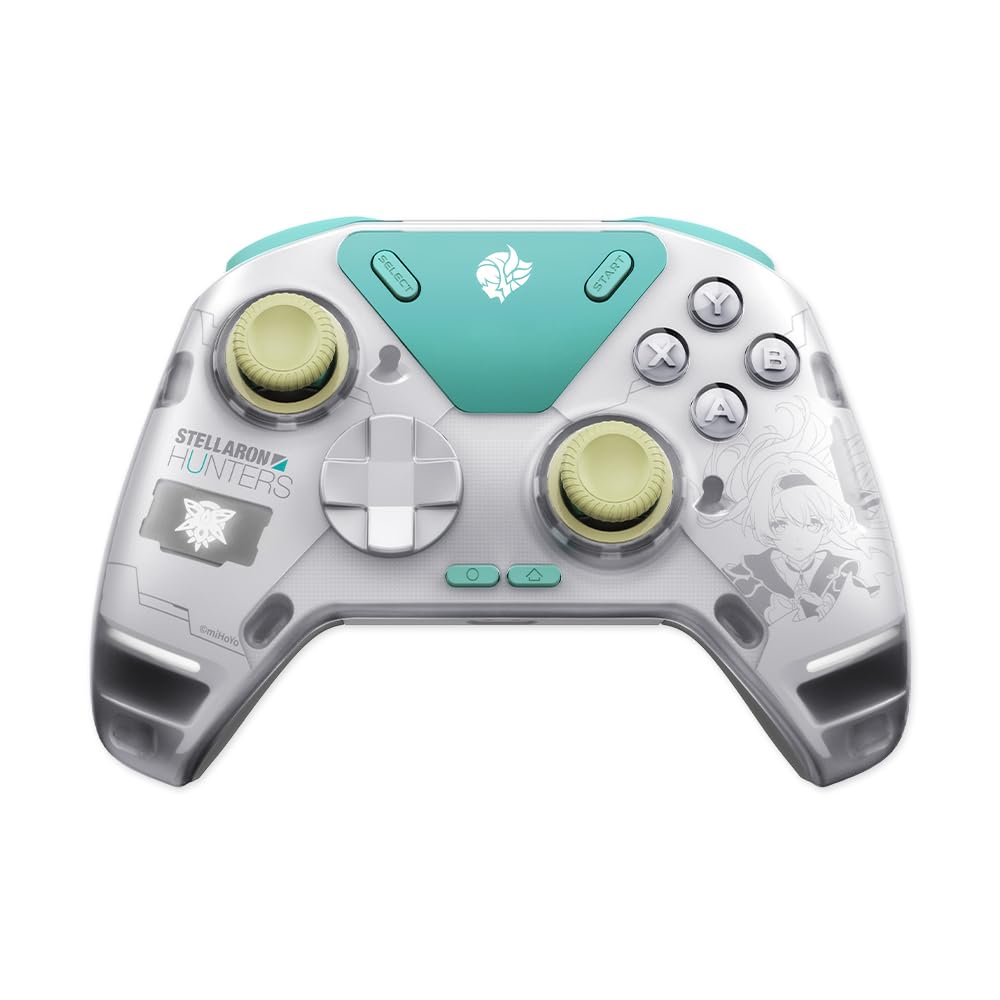
Figure 1.1: Front view of the Firefly Elite Gaming Controller.
2. Package Contents
Please check the package contents upon unboxing to ensure all items are present. The standard package (Selection A) includes:
- Custom-designed Firefly Elite Gaming Controller
- Carrying Case
- Complimentary Metal Badge
- Connection Cable (USB)
- Wireless USB Receiver
Note: Some variants may include a Charging Dock (Selection B), which is packaged separately. This manual primarily covers the controller itself.

Figure 2.1: Included items in the standard package (Controller, Carrying Case, Metal Badge).
3. Product Overview
3.1 Controller Layout

Figure 3.1: Top view of the controller, highlighting key buttons and joysticks.

Figure 3.2: Back view of the controller.
3.2 Key Features
- Force Adjustable Alloy Joystick: Features stepless damping adjustment for precise control.
- Force Feedback Triggers: Provides immersive haptic feedback for enhanced gaming.
- Smart Interactive Screen: Customizable display for GIFs, mode switching, and turbo functions.
- 1000Hz Polling Rate: Ensures ultra-low latency for responsive gameplay.
- Customizable Sign: Personalize your controller with unique designs.
- Hybrid 8-Direction D-Pad: Offers smooth and agile rotation for complex commands.
- Asymmetric Motor: Delivers response fidelity with enhanced vibration details.
- 4 Macro Back Buttons: Programmable buttons to prevent accidental presses and execute complex actions.
- S-shaped Shoulder Buttons: Ergonomically designed for finger-friendly triggers.
- Micro Switch Face Buttons: Lighter and faster actuation for quick responses.
- 6-Axis Motion Sensing: Provides intuitive aim-and-shoot capabilities.
- Mecha-Tactile ABXY 2.0: Enhanced trigger speed (0.3mm) and feather-like touch sensation (80g) with strong consistency.

Figure 3.3: Key features of the Firefly Elite Gaming Controller.

Figure 3.4: Detailed view of the Force Feedback Trigger mechanism and Hybrid D-Pad.

Figure 3.5: Explanation of Mecha-Tactile ABXY 2.0 and Smart Interactive Screen features.
4. Setup
4.1 Charging the Controller
Before initial use, fully charge the controller. Connect the provided USB connection cable to the controller's charging port and to a USB power source (e.g., computer, USB wall adapter). The controller's indicator light will show charging status and turn off or change color when fully charged.
4.2 Connecting to Devices
The Firefly Elite Gaming Controller supports Bluetooth 2.4 connectivity and is compatible with Android, iOS, PC, PlayStation 5, Xbox Series X, and Valve Steam Deck.
- Power On: Press and hold the power button on the controller until the indicator light turns on.
- Pairing Mode: Refer to your controller's specific instructions for entering Bluetooth pairing mode. This usually involves holding a dedicated pairing button or a combination of buttons until the indicator light flashes rapidly.
- Device Pairing:
- For PC/Android/iOS: Go to your device's Bluetooth settings, search for new devices, and select "Firefly Controller" (or similar name) from the list.
- For Consoles (PS5, Xbox Series X, Steam Deck): Follow the console's peripheral pairing instructions. You may need to use the wireless USB receiver for some platforms. Plug the USB receiver into an available USB port on your console or PC, then ensure the controller is in the correct pairing mode for the receiver.
- Connection Confirmation: Once successfully paired, the controller's indicator light will typically become solid, indicating a stable connection.
5. Operating Instructions
5.1 Basic Controls
- Analog Joysticks: Used for movement and camera control. The force-adjustable feature allows customization of resistance.
- D-Pad: For directional input, especially in fighting games or menu navigation.
- ABXY Buttons: Standard action buttons.
- Shoulder Buttons (L1/R1) & Triggers (L2/R2): For various in-game actions, with force feedback on triggers.
- Select/Start Buttons: For menu access, pausing, or specific game functions.
5.2 Advanced Features
Macro Back Buttons: The 4 macro buttons on the back of the controller can be programmed for custom commands. Refer to the controller's companion software (if available) or specific button combinations for programming instructions.
Smart Interactive Screen:
- DIY GIFs: Upload and display custom GIFs on the screen.
- Mode Switch: Quickly switch between different controller profiles or modes.
- Turbo Function: Enable rapid firing for specific buttons.
Access and customize these screen functions through the controller's dedicated buttons or companion application.
6. Maintenance
Proper care will extend the life of your controller.
- Cleaning: Do not clean with water or expose to corrosive or chemical liquids. Use a dry, soft cloth to wipe the surface. For stubborn dirt, a slightly damp cloth with mild soap may be used, ensuring no liquid enters openings.
- Storage: Keep the controller away from direct sunlight, extreme heat sources, and open flames. Store it in a cool, dry place, preferably in its carrying case when not in use.
- Surface Protection: Avoid scratching the surface with metal objects or sharp implements to prevent damage and wear.
- Disassembly: Do not attempt to disassemble or repair the controller yourself. This can void the warranty and cause safety hazards. If the product becomes damaged, contact the manufacturer's authorized service personnel for repairs.
7. Troubleshooting
| Problem | Possible Solution |
|---|---|
| Controller does not power on. | Ensure the controller is fully charged. Connect it to a power source using the USB cable. |
| Cannot connect via Bluetooth. | Make sure the controller is in pairing mode. Check your device's Bluetooth settings and ensure Bluetooth is enabled. Try restarting both the controller and your device. Ensure no other devices are interfering with the connection. |
| Controller disconnects frequently. | Ensure the controller is within range of your device. Check for low battery. Avoid sources of wireless interference. Update controller firmware if available. |
| Buttons or joysticks are unresponsive. | Restart the controller. Ensure it is properly connected. If the issue persists, contact customer support. |
| Force feedback is not working. | Check in-game settings to ensure force feedback is enabled. Verify controller drivers are up to date on PC. |
| Smart Interactive Screen is blank or frozen. | Restart the controller. Ensure the battery is not critically low. If customizable content was recently uploaded, ensure it is in a supported format. |
8. Specifications
| Feature | Detail |
|---|---|
| Brand | HOYOVERSE |
| Model Name | Firefly Elite Gaming Controller |
| ASIN | B0FDKW7651 |
| Manufacturer | Shanghai Homi Technology Co., Ltd |
| Controller Type | Gaming Controller |
| Connectivity Technology | Bluetooth 2.4, Wireless USB Receiver |
| Power Source | Wireless (Internal Rechargeable Battery) |
| Rated Input | 5V ⎯ 1000mA (approx.) |
| Rated Power | 0.25W (approx.) |
| Compatible Devices | Android, iOS, PC, PlayStation 5, Xbox Series X, Valve Steam Deck |
| Button Quantity | 20 |
| Controller Materials | Polycarbonate and Acrylonitrile Butadiene Styrene shell |
| Controller Dimensions | 6.1 x 4.0 x 2.2 in. (approx.) |
| Controller Case Materials | Polyester, Ethylene-Vinyl Acetate, Nylon |
| Controller Case Dimensions | 6.7 x 5.7 x 3.5 in. (approx.) |
| Metal Badge Style | Sam |
| Metal Badge Material | Zinc alloy with faux enamel finish and glitter accents |
9. Safety Information
Please observe the following safety guidelines:
- Magnets Warning: This device contains magnets that may interfere with implanted medical devices or personal medical equipment. Maintain at least 15cm distance from medical implants when using.
- Liquid Exposure: Do not clean with water or expose to corrosive or chemical liquids.
- Heat Exposure: Keep away from direct sunlight, heat sources, and open flames.
- Physical Damage: Avoid scratching the surface with metal objects or sharp implements to prevent damage and wear.
- Disassembly: If the product becomes damaged, contact the manufacturer's authorized service personnel for repairs. Do not attempt to disassemble or repair yourself to avoid safety hazards.
WARNING:
- CHOKING HAZARD – SMALL PARTS.
- NOT FOR CHILDREN UNDER 3 YEARS OLD.

Figure 9.1: Important safety notes and warnings.
10. Warranty and Support
For warranty information, please refer to the documentation provided with your purchase or contact your retailer. For technical support, product inquiries, or service, please visit the official HOYOVERSE website or contact their customer service department.
You can find more information and support resources at the HOYOVERSE Store on Amazon.