
Skytech Gaming ST-AZURE3-2135-B-AM
Contents
Skytech Gaming Azure 3 Desktop PC User Manual
Brand: Skytech Gaming
Model: ST-AZURE3-2135-B-AM
1. Introduction
This manual provides essential information for setting up, operating, maintaining, and troubleshooting your Skytech Gaming Azure 3 Desktop PC. Please read this manual thoroughly before using your new system to ensure optimal performance and longevity.
The Skytech Gaming Azure 3 is a high-performance desktop PC designed for gaming and demanding applications. It features an AMD Ryzen 7 7700 processor, AMD Radeon RX 9060 XT 16GB graphics, 32GB DDR5 RAM, and a 1TB NVMe M.2 SSD, running on Windows 11 Home 64-bit.
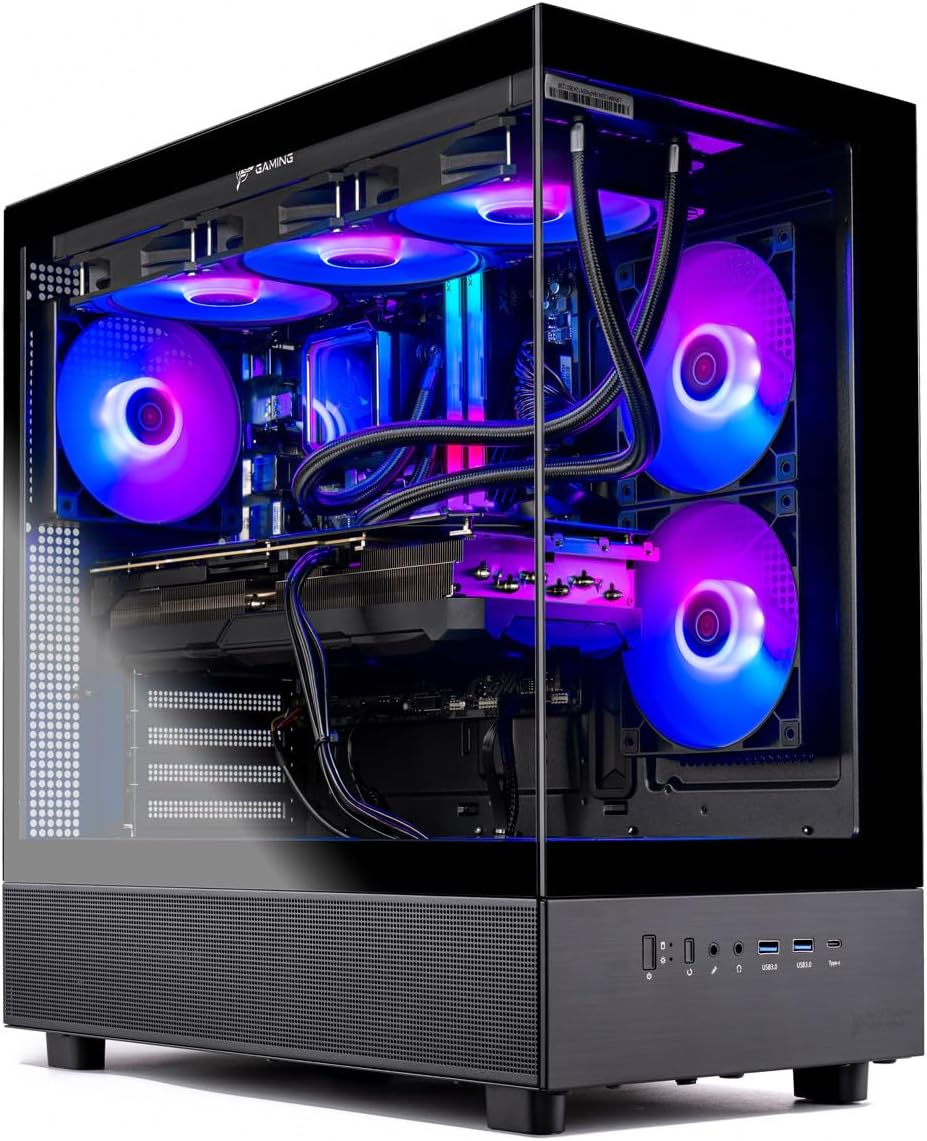
Figure 1.1: Skytech Gaming Azure 3 Desktop PC, showcasing its internal components and RGB lighting.
2. Setup Guide
2.1 Unboxing and Initial Placement
- Carefully remove the PC and all accessories from the packaging. Retain the packaging for future transport or warranty claims.
- Place the PC on a stable, flat surface with adequate ventilation. Ensure there is clear space around the air intake and exhaust vents.
- Verify all included accessories are present: Power Cord, Keyboard, Mouse, and Start Guide.
2.2 Connecting Peripherals
Connect your monitor, keyboard, mouse, and other peripherals to the appropriate ports on the PC. Refer to the images below for port locations.
- Monitor: Connect your monitor to the graphics card's HDMI or DisplayPort outputs. Avoid connecting to motherboard video outputs if a dedicated graphics card is installed.
- Keyboard & Mouse: Connect the included keyboard and mouse to any available USB ports (USB 2.0, 3.0, or 3.2 Gen1).
- Audio: Connect speakers or headphones to the audio output jacks. The front panel also provides headphone/microphone inputs.
- Network: For wired internet, connect an Ethernet cable to the LAN port. For wireless, ensure the Wi-Fi antenna (if included) is attached.

Figure 2.1: Front view of the PC, showing the front I/O panel.

Figure 2.2: Rear view of the PC, showing various connectivity ports.

Figure 2.3: Detailed view of the front I/O panel, including Power Button, Reset Button, Headphone/Mic Inputs, USB 3.0 ports, and USB-C port.
2.3 Power Connection and First Boot
- Connect the power cord to the PC's power supply unit (PSU) and then to a wall outlet or surge protector.
- Press the power button on the front of the PC. The system will boot up, and Windows 11 will guide you through the initial setup process.
- Follow the on-screen instructions to configure your Windows 11 settings, including language, region, network, and user accounts.
3. Operating Your PC
3.1 Windows 11 Basics
Your Skytech Gaming PC comes pre-installed with Windows 11 Home 64-bit. Familiarize yourself with the Windows 11 interface, Start Menu, Taskbar, and File Explorer for basic navigation and file management.
- Updates: Regularly check for Windows updates via Settings > Windows Update to ensure system stability and security.
- Drivers: Ensure all hardware drivers, especially for the graphics card, are up-to-date for optimal performance. Drivers can typically be downloaded from the component manufacturer's websites (AMD for CPU/GPU).
3.2 Gaming Performance
This PC is optimized for high-performance gaming. It is capable of running demanding titles such as Call of Duty, Fortnite, Grand Theft Auto V, and many others at Ultra settings with smooth 60+ FPS gameplay at 1080p Full HD resolution.
- Game Settings: Adjust in-game graphics settings to balance visual quality and frame rate according to your preference.
- Monitoring: Utilize software tools to monitor CPU and GPU temperatures and usage during gaming sessions to ensure stable operation.
3.3 RGB Lighting Control
Your PC features customizable ARGB fans and components. You can control the lighting effects and colors through dedicated software, often provided by the motherboard or component manufacturer. This allows for animated lighting effects, color synchronization, and even audio visualization.

Figure 3.1: The PC's RGB lighting can be customized for various effects.
4. Maintenance
4.1 Cleaning and Dust Management
Regular cleaning is crucial for maintaining optimal performance and extending the lifespan of your PC. Dust accumulation can impede airflow and lead to overheating.
- Exterior: Wipe the exterior surfaces with a soft, damp cloth. Avoid harsh chemicals.
- Interior: Periodically (every 3-6 months) open the side panel and use compressed air to clear dust from fans, heatsinks, and vents. Ensure the PC is powered off and unplugged before opening.
- Airflow: Ensure the PC's vents are not obstructed. The case is designed for optimal airflow to keep components cool.

Figure 4.1: Illustration of the PC's optimized airflow design for efficient cooling.

Figure 4.2: Internal view emphasizing the cooling system, designed for superior thermal management and low temperatures.
4.2 Software Maintenance
- Operating System Updates: Keep Windows 11 updated to receive security patches and performance improvements.
- Driver Updates: Regularly update graphics card drivers and other component drivers from the manufacturer's official websites.
- Antivirus/Anti-malware: Use reputable security software to protect your system from malicious threats.
- Disk Cleanup: Periodically run disk cleanup tools to remove temporary files and optimize storage.
5. Troubleshooting
This section provides solutions for common issues you might encounter. If the problem persists, please contact Skytech Gaming technical support.
5.1 No Power / System Not Turning On
- Check Power Connections: Ensure the power cord is securely connected to both the PC's PSU and the wall outlet/surge protector.
- PSU Switch: Verify the power supply unit's main switch (located at the back of the PC) is in the 'ON' position.
- Wall Outlet: Test the wall outlet with another device to confirm it has power.
5.2 No Display on Monitor
- Cable Connection: Ensure the monitor cable (HDMI/DisplayPort) is securely connected to both the monitor and the graphics card on the PC.
- Input Source: Check your monitor's input source setting to ensure it matches the connected port.
- Graphics Card Seating: If comfortable, power off and unplug the PC, then gently re-seat the graphics card in its PCIe slot.
5.3 Performance Issues / Slowdowns
- Overheating: Check component temperatures using monitoring software. Ensure proper airflow and clean any dust buildup.
- Driver Issues: Update graphics drivers and chipset drivers to the latest versions.
- Background Processes: Close unnecessary applications running in the background that might be consuming system resources.
- Malware Scan: Run a full system scan with your antivirus software.
6. Technical Specifications
Below are the key technical specifications for the Skytech Gaming Azure 3 Desktop PC (Model: ST-AZURE3-2135-B-AM).
| Component | Specification |
|---|---|
| Processor | AMD Ryzen 7 7700 3.8 GHz (5.3GHz Turbo) CPU |
| Memory (RAM) | 32GB DDR5 RAM 5200 RGB Gaming Memory |
| Graphics Card | AMD Radeon RX 9060 XT 16GB GDDR6 |
| Storage | 1TB NVMe M.2 SSD |
| Operating System | Microsoft Windows 11 Home 64-bit |
| Wireless Connectivity | 802.11AC Wi-Fi |
| Case | Skytech Azure Gaming Case with Tempered Glass, Black |
| Cooling | High-Performance Air Cooler, ARGB Fans |
| Power Supply | 650W Gold PSU |
| Dimensions (LxWxH) | 17.2 x 9.1 x 17.8 inches |
| Weight | 30.9 pounds |
| Included Peripherals | Gaming Keyboard & Mouse |
7. Warranty and Support
7.1 Warranty Information
Skytech Gaming provides a comprehensive warranty for your PC:
- 1 Year Warranty: Covers parts and labor for one year from the date of purchase.
- 30-Day Replacement/Refund: Free U.S. shipping for returns or replacements within 30 days.
- All Skytech systems are handcrafted in the USA using trusted, upgradeable components.
7.2 Technical Support
For any technical assistance, questions, or issues, Skytech Gaming offers dedicated support:
- Lifetime Technical Support: Free technical support is available for the lifetime of the product.
- Phone Support: (888) 370-8882 (Monday - Friday: 9am - 5pm California Time)
- Email Support: support@skytechgaming.com
Ask a question about this manual
Ask about setup, troubleshooting, compatibility, parts, safety, or missing instructions. Manuals+ will review the question and use this page’s manual context to help answer it.