
Introduction
The Tihebeyan MDB to RS232 Converter is designed to facilitate real-time data transmission between MDB (Multi-Drop Bus) devices and serial port boards such as PCs or PLCs. This adapter box enhances connectivity for various cashless devices, coin acceptors, and coin changers, streamlining data management and integration processes in vending machine interfaces and similar systems.
This manual provides detailed instructions for setting up, operating, and maintaining your MDB to RS232 Converter, ensuring optimal performance and longevity.
Key Features
- Enhanced Data Transmission: Ensures real-time data transfers for efficient remote monitoring and tracking, improving data management accuracy.
- Expanded Device Support: Supports various MDB devices, including coin acceptors, changers, and cashless devices (08H, 30H, 10H, 60H, 40H) for future expansions.
- Multiple Version Compatibility: Upgraded converter extends adaptability to Raspi and USB versions, simplifying integration between devices.
- Easy Integration: Wide compatibility reduces compatibility risks, saves time and effort for a seamless user experience.
- Plug-and-Play: Connects MDB devices to serial port boards effortlessly, improving efficiency and control.
Product Overview

Figure 1: Front view of the MDB to RS232 Converter main unit with connected cables.

Figure 2: Top-down view of the converter, highlighting the cable connections.

Figure 3: Another perspective of the converter, showing the RS232 and power input cables.
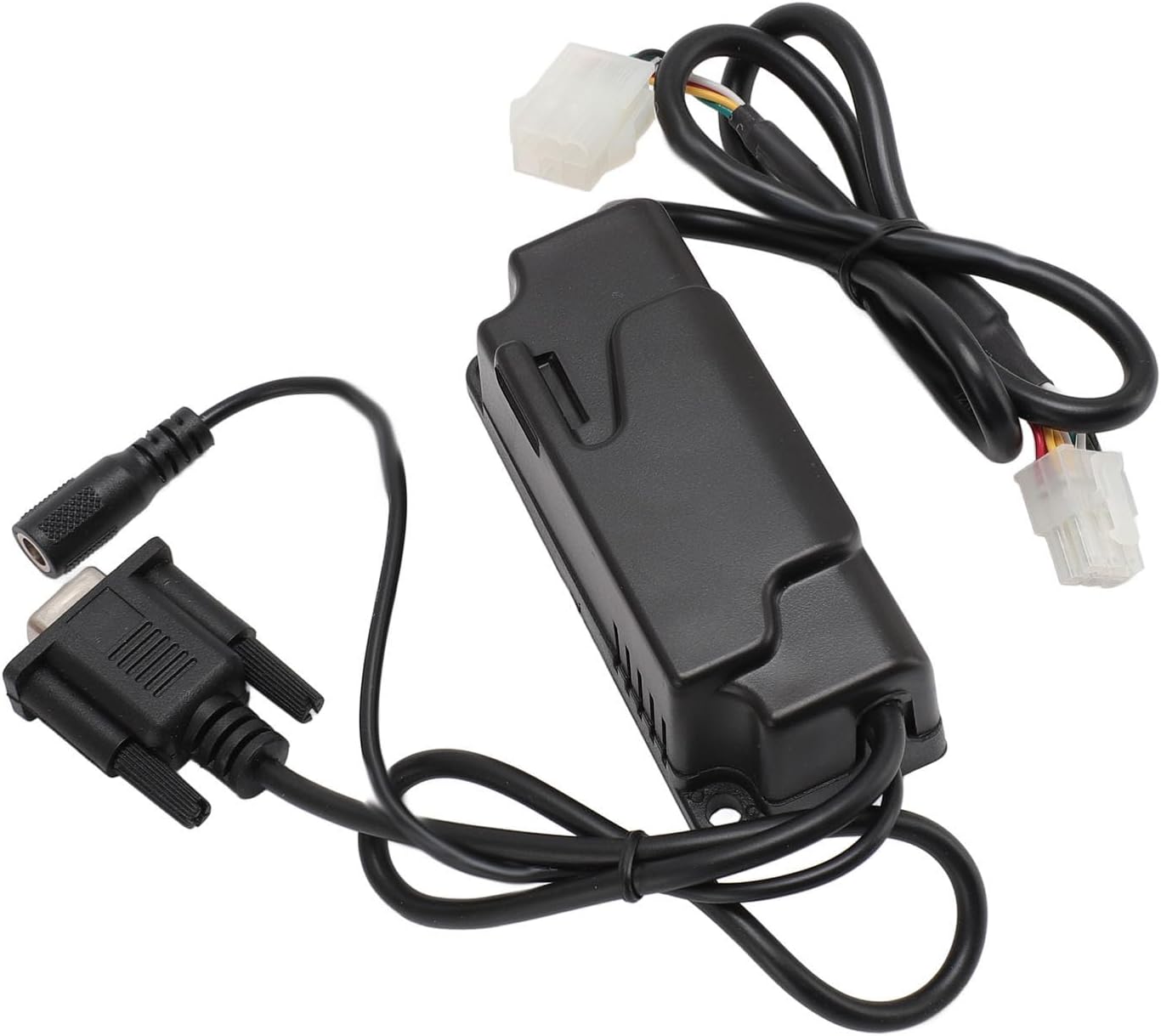
Figure 4: Close-up of the converter unit, showing the power input jack and RS232 connector.

Figure 5: View of the converter with both the MDB and RS232 cables clearly visible.

Figure 6: Side view of the converter unit, showing its compact design.
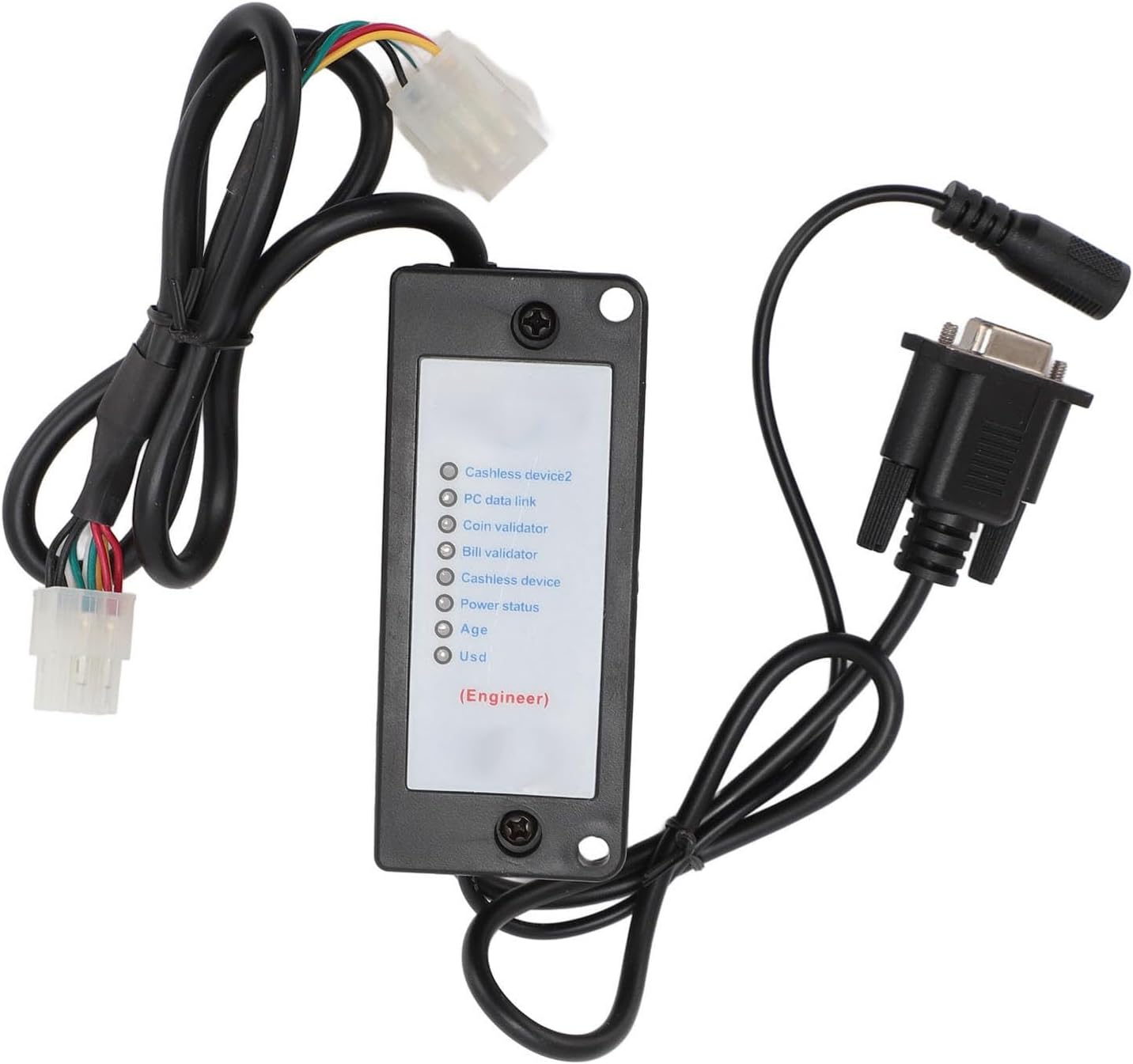
Figure 7: Bottom view of the converter, showing labels for various device types (Cashless device 2, PC data link, Coin validator, Bill validator, Cashless device, Power status, Age, Usd).

Figure 8: Angled view of the converter, emphasizing the cable connections and overall form factor.

Figure 9: Close-up view of the power input jack, showing its design.
Specifications
| Attribute | Detail |
|---|---|
| Item Type | MDB Invoice Acceptor to RS232 Interface |
| Material | Plastic |
| Communication Format | Serial (RS232) |
| Baud Rate | 9600 BPS |
| Start Bit | 1 |
| Data Bits | 8 |
| Parity | None |
| Stop Bit | 1 |
| Supply Voltage (Minimum) | 20 VDC |
| Normal Supply Range | 24-34 VDC (or 24-30 VAC) |
| Data Cable | Computer Standard Serial Communication Cable |
| Package Dimensions | 5.91 x 4.33 x 1.57 inches |
| Item Weight | 7.2 ounces |
| ASIN | B0FDJKC89N |
| Manufacturer | Tihebeyan |
| Connector Type | USB 1.0 (Note: Primary function is RS232, but specifications list USB 1.0 as a connector type.) |
Setup and Installation
The MDB to RS232 adapter is designed for straightforward connection to MDB devices and serial port boards. Follow these steps for proper installation:
- Identify Components: Ensure you have the main MDB to RS232 converter unit, the necessary MDB cables, and an RS232 serial communication cable.
- Connect MDB Devices: Connect your MDB devices (e.g., coin acceptors, coin changers, cashless devices) to the MDB input ports on the converter. The converter supports various MDB devices, including those with device codes 08H (coin machine), 30H (invoice validator), 10H (cashless device), 60H (cashless device 2), and 40H (device).
- Connect to Host System: Connect the RS232 output of the converter to the serial port of your host system (PC, PLC, etc.) using a standard serial communication cable.
- Power Connection: Connect the power supply to the converter. Ensure the supply voltage is within the normal range of 24-34 VDC (or 24-30 VAC), with a minimum of 20 VDC.
- Verify Connections: Double-check all cable connections to ensure they are secure and correctly seated.
The MDB to RS232 converter automatically communicates and manages MDB devices, sending valid MDB data to the host computer via the serial port. This reduces the complexity of host program design.
Operating Instructions
Once the converter is set up, it operates largely autonomously. Here's how data flow and control work:
- Automatic Data Transmission: The converter does not require the host to conduct survey queries. It automatically communicates with and manages MDB devices, forwarding valid MDB data to the host system via the serial port.
- Host Control Commands: When the host system sends control or configuration commands to the MDB to RS232 box, these commands should directly follow the MDB protocol. The converter will receive these instructions, forward them to the MDB device, and then relay the device's response back to the host.
- Real-time Payment Data: Upon receiving real-time payment data from an MDB device, the converter immediately sends it to the host via the MDB-RS232.
- Device Identification: To differentiate between data from various MDB devices, a device code is added before the data. For example:
30 xxrepresents data from an acceptor (e.g., bill validator).08 xxrepresents data from a currency changer (e.g., coin changer).
08 09, it indicates that the currency changer is in a disabled state. - Data Format: Data sent by the MDB box to the computer is in hexadecimal format. Refer to MDB V3.0 or MDB V4.0 instruction protocols for specific instruction meanings.
Maintenance
The MDB to RS232 Converter is designed for low maintenance. Adhere to the following guidelines to ensure its continued reliable operation:
- Keep Clean: Regularly wipe the exterior of the unit with a soft, dry cloth. Avoid using harsh chemicals or abrasive cleaners.
- Environmental Conditions: Operate the converter within a stable environment, avoiding extreme temperatures, high humidity, or dusty conditions.
- Cable Integrity: Periodically inspect all connected cables for any signs of wear, damage, or loose connections. Replace damaged cables immediately.
- Firmware Updates: While not typically user-serviceable, check the manufacturer's website (Tihebeyan) for any potential firmware updates that might enhance performance or compatibility.
- Power Supply: Ensure a stable and correct power supply is always used. Fluctuations or incorrect voltage can damage the unit.
Troubleshooting
If you encounter issues with your MDB to RS232 Converter, refer to the following common problems and solutions:
- No Data Transmission:
- Check Power: Ensure the converter is properly powered and receiving the correct voltage.
- Check Cables: Verify that all MDB and RS232 cables are securely connected to both the converter and the respective devices/host.
- Serial Port Settings: Confirm that the host system's serial port settings (Baud Rate: 9600, Start Bit: 1, Data Bits: 8, Parity: None, Stop Bit: 1) match the converter's specifications.
- MDB Device Status: Ensure the connected MDB devices are operational and not in a disabled state.
- Incorrect Data Received:
- Protocol Mismatch: Verify that your host system's software is interpreting the MDB protocol correctly (refer to MDB V3.0 or V4.0 instruction protocols).
- Device ID: Ensure your software correctly parses the device ID byte (e.g.,
30 xxfor acceptor,08 xxfor changer) to identify the source of the data.
- Converter Not Recognized by Host:
- Driver Issues: For USB versions, ensure the necessary USB drivers are installed on your host system.
- Port Selection: Confirm that your application is attempting to communicate with the correct serial (COM) port.
If problems persist after attempting these solutions, please contact Tihebeyan customer support for further assistance.
Warranty and Support
For warranty information and technical support, please refer to the official Tihebeyan website or contact their customer service directly. Keep your purchase receipt as proof of purchase for any warranty claims.
Tihebeyan Official Store: Visit Store