
1. Introduction
This manual provides essential information for the installation and use of your A-Tech 8GB DDR5-5200 PC5-41600 DIMM RAM module. This memory module is designed to enhance the performance of compatible desktop computer systems, specifically the HP Elite 805 G9 SFF Desktop PC.
The A-Tech 8GB DDR5-5200 RAM module is a Non-ECC Unbuffered DIMM (UDIMM) operating at 1.1V, featuring 288 pins and a speed of 5200MHz (PC5-41600).
2. Product Overview
The A-Tech 8GB DDR5-5200 RAM module is engineered to improve system speed and reduce bottlenecks by increasing available memory resources. It adheres to the JEDEC DDR5 standard for optimal compatibility and performance.

Image 1: A-Tech 8GB DDR5-5200 RAM Module in its retail packaging. The module is green with black chips and a white label indicating specifications.
For more information, visit: atechmemory.com/pages/qr

Image 2: A close-up view of the A-Tech 8GB DDR5-5200 RAM module, showing the green PCB, memory chips, and the product label with specifications and a barcode.
Further details can be found at: atechmemory.com
3. Compatibility
This A-Tech 8GB DDR5-5200 RAM module is specifically compatible with the HP Elite 805 G9 SFF Desktop PC.
It is important to verify your system's compatibility before installation. This module is designed for desktop computers and is not compatible with laptop computers.

Image 3: Graphic illustrating compatibility with desktop computers, emphasizing that the module is not for laptops.
4. Installation (Setup)
Installing the A-Tech RAM module is a straightforward process. However, it is crucial to follow proper procedures to prevent damage to your system or the memory module.
4.1 Safety Precautions
- Always power off your computer and disconnect it from the power source before opening the case.
- Discharge any static electricity from your body by touching a grounded metal object (e.g., the unpainted metal chassis of your computer) before handling components. Consider using an anti-static wrist strap.
- Handle the memory module by its edges, avoiding contact with the gold connectors or the chips.
4.2 Installation Steps
- Prepare Your System: Power down your HP Elite 805 G9 SFF Desktop PC completely and unplug the power cord.
- Open the Case: Refer to your HP Elite 805 G9 SFF Desktop PC's official manual for instructions on how to safely open its chassis.
- Locate Memory Slots: Identify the DIMM slots on your motherboard. Your system manual will indicate the correct slots for memory upgrades and channel guidelines.
- Install the Module: Align the notch on the A-Tech DDR5 DIMM with the key in the memory slot. Apply even pressure to both ends of the module until it clicks into place and the retaining clips on the sides snap shut.
- Secure and Close: Ensure the module is firmly seated. Close your computer case and reconnect the power cord.
- Power On: Turn on your computer. The system should automatically detect the new memory.
If your system does not boot or recognize the new memory, refer to the Troubleshooting section of this manual or your computer's official documentation.
5. Operation
Once installed, the A-Tech 8GB DDR5-5200 RAM module operates automatically. It functions as an integral part of your computer's memory system, providing faster data access and improved multitasking capabilities.
The primary benefit of this memory upgrade is to improve overall system responsiveness, accelerate application loading times, and enhance the ability to run multiple programs simultaneously without performance degradation.
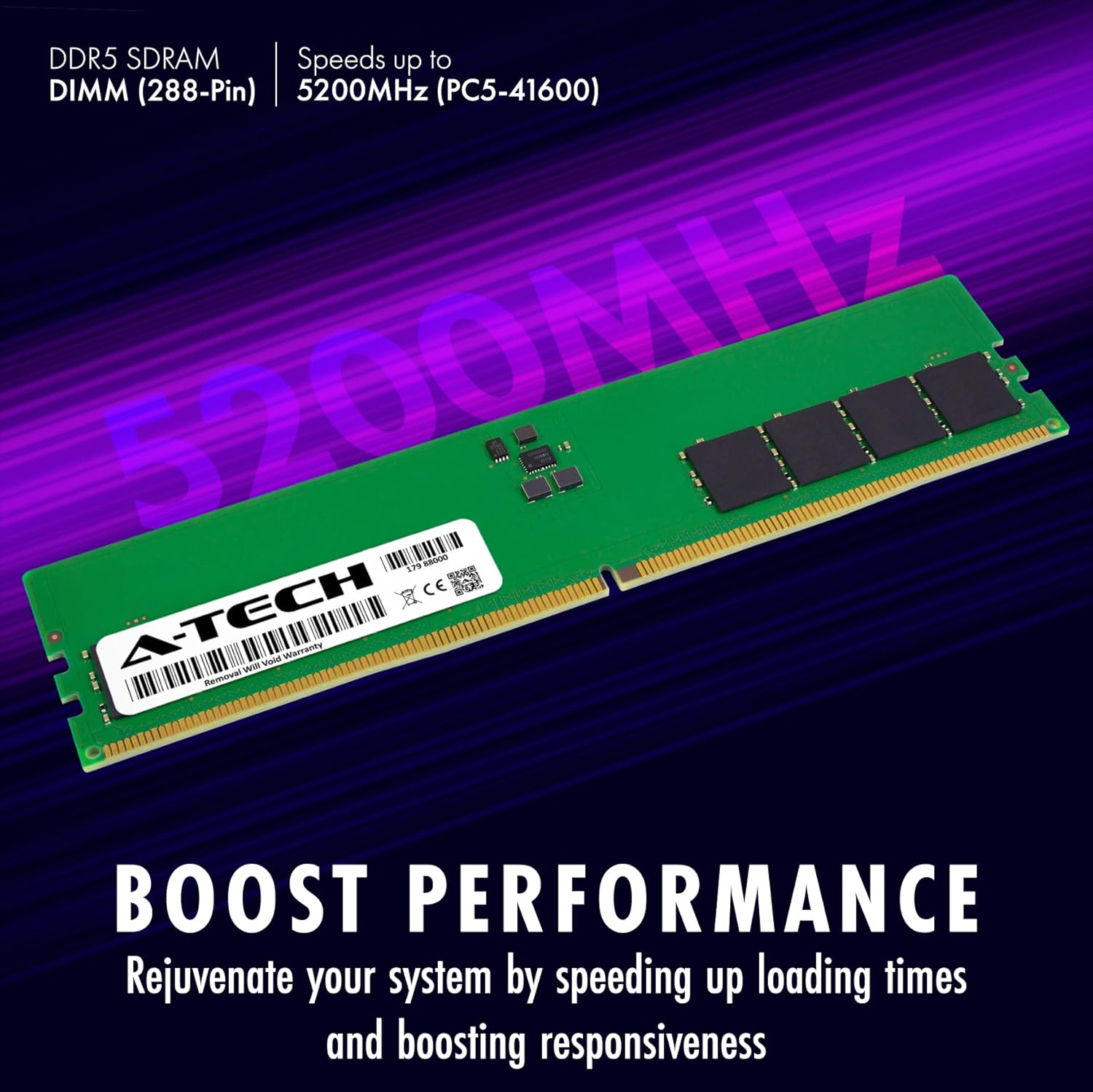
Image 4: A graphic highlighting the performance benefits of the RAM module, such as speeding up loading times and boosting responsiveness.
6. Maintenance
A-Tech DDR5 RAM modules are designed for long-term reliability and typically require no maintenance after installation.
- Handling: If you need to remove or re-install the module, always follow the safety precautions outlined in the Installation section.
- Cleaning: Do not attempt to clean the memory module with liquids or abrasive materials. If dust accumulates, use compressed air to gently remove it.
- Environment: Ensure your computer operates in a well-ventilated environment to prevent excessive heat buildup, which can affect all internal components, including RAM.
7. Troubleshooting
If you encounter issues after installing your A-Tech RAM module, consider the following troubleshooting steps:
- System Not Booting / No Display:
- Ensure the RAM module is fully seated in its slot. Remove and re-install it, ensuring the retaining clips snap into place.
- Verify that the module is installed in the correct DIMM slot as per your HP Elite 805 G9 SFF Desktop PC's manual.
- If you have multiple modules, try installing only the new A-Tech module to isolate the issue.
- Incorrect Memory Recognition:
- Check your system's BIOS/UEFI settings to confirm the recognized memory amount.
- Ensure your motherboard's BIOS/UEFI is updated to the latest version, as this can improve memory compatibility.
- System Instability / Blue Screens:
- Run a memory diagnostic tool (e.g., Windows Memory Diagnostic) to check for errors.
- Confirm that the module is compatible with your specific HP Elite 805 G9 SFF Desktop PC model.
If problems persist, contact A-Tech support for further assistance.
8. Specifications
| Feature | Detail |
|---|---|
| Memory Size | 8 GB |
| Memory Technology | DDR5 |
| Memory Speed | 5200 MHz (PC5-41600) |
| Module Type | DIMM (288-Pin) |
| Error Correction | Non-ECC Unbuffered (UDIMM) |
| Voltage | 1.1 Volts |
| Compatibility | HP Elite 805 G9 SFF Desktop PC |
| Product Dimensions (LxWxH) | 5.25 x 1.23 x 0.15 inches (133.35 x 31.25 x 3.81 mm) |
| Item Weight | 0.8 ounces |
| Manufacturer Part Number | AT13409169 (Reference from image) |
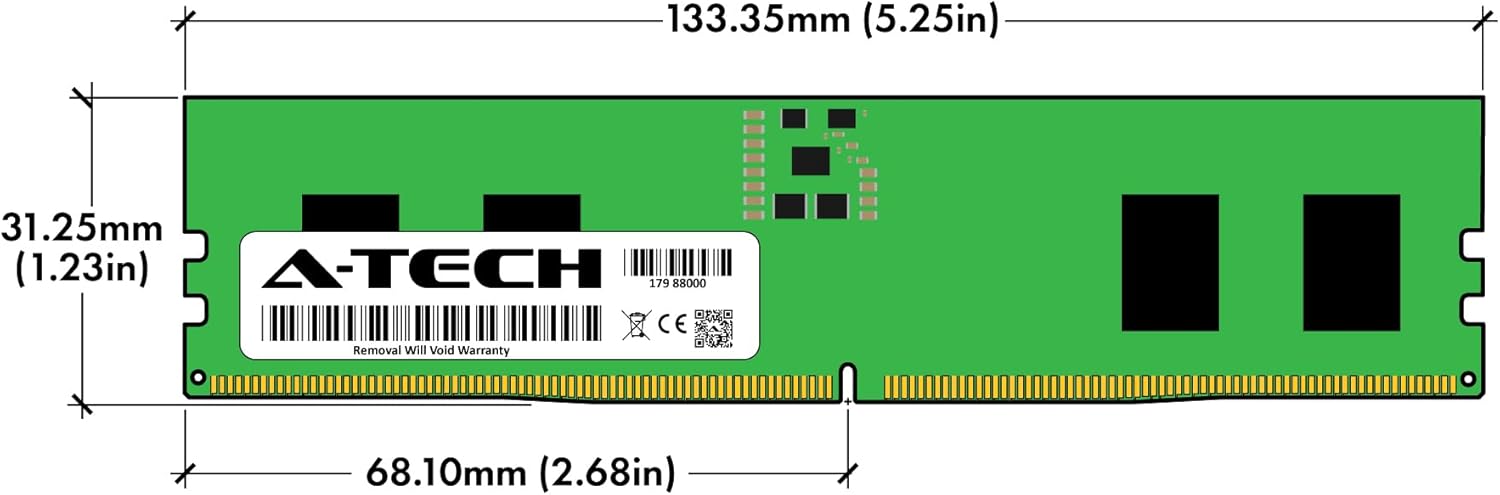
Image 5: Technical diagram showing the precise dimensions of the A-Tech DDR5 DIMM module in both millimeters and inches.
9. Warranty and Support
All A-Tech memory modules are covered by a Limited Lifetime Warranty. This warranty ensures dependable and reliable performance of your product.
A-Tech provides dedicated customer support to assist with any questions or issues you may encounter. Their support team is available to guide you through installation or troubleshooting steps.

Image 6: Graphic representing A-Tech's dedicated support, showing a headset on a laptop, symbolizing customer assistance.
For warranty claims or technical assistance, please visit the official A-Tech website or contact their customer service directly. Refer to the links provided in the Product Overview section for their website.


