
Introduction
This manual provides detailed instructions for the safe and efficient use of your GetD Bluetooth Smart Sunglasses. Please read this manual thoroughly before operating the device and retain it for future reference. These smart glasses integrate Bluetooth audio, AI translation, and eye protection features.
What's in the Box
- GetD Bluetooth Smart Sunglasses
- Charging Cable
- Cleaning Cloth
- User Manual
- Warranty Card
 Image: GetD Bluetooth Smart Sunglasses with included accessories.
Specifications
| Brand | GetD |
| Model Name | Anti-blue Light Lens |
| Operating System | Ubuntu Touch |
| Memory Storage Capacity | 8 MB |
| Special Feature | Phone Call |
| Battery Capacity | 260 Milliamp Hours |
| Connectivity Technology | Bluetooth 5.4 |
| Wireless Communication Standard | Bluetooth |
| Battery Cell Composition | Lithium Ion |
| GPS | No GPS |
| Shape | Square |
| Screen Size | 2 Inches (OLED Display) |
| Additional Features | Phone Call |
| Water Resistance Level | Water Repellent (IPX4) |
| Human Interface Input | Buttons, Microphone |
| Supported Application | AI Translation, Voice Assistant (GetD Smart App) |
| Color | Black |
| Battery Average Life | Up to 11 Hours (60% volume) |
| Battery Charge Time | 2 Hours (Fast Charging) |
| Item Weight | 150 Grams |
| Compatible Devices | Smartphone (iOS and Android) |
Setup Guide
1. Charging the Glasses
Before first use, fully charge your GetD Smart Sunglasses. Connect the magnetic charging cable to the charging port on the glasses and a USB power source. A full charge takes approximately 2 hours.
 Image: Illustration of the magnetic charging port and internal battery components.
2. Downloading the GetD Smart App
To access all features, download the GetD Smart App on your smartphone.
- For iOS: Search for "GetD" in the Apple App Store.
- For Android: Obtain the latest QR code from customer service to download the app, as it may not be directly searchable on the Google Play Store.
 Image: Screenshot showing the GetD App download process for iOS and Android devices.
Video: This video demonstrates the initial setup and features of the GetD Smart Glasses.
3. Bluetooth Pairing
- Ensure the glasses are charged and powered on.
- Enable Bluetooth on your smartphone.
- Open the GetD Smart App. The app will guide you through the pairing process.
- The glasses will automatically reconnect to previously paired devices.
Video: A quick guide to registering and pairing your GetD Smart Glasses with the app.
Operating Instructions
Voice Control and Blind Touch Operation
The GetD Smart Sunglasses feature voice-activated wake-up control and blind touch operation for managing your phone wirelessly within 10 meters.
- Voice Commands: Use voice commands to make calls, switch songs, or activate your voice assistant.
- Touch Controls: Specific touch areas on the temples allow for quick actions without needing to look at your phone. Refer to the app for detailed touch gesture mappings.
 Image: Diagram illustrating the location of the left speaker, charging port, chip, right speaker, and large lithium battery within the glasses.
AI Translation Features
The GetD Smart App offers four AI translation modes, supporting 17 languages for global communication.
- AI Dialogue (with ChatGPT): Engage in intelligent Q&A and conversations.
- Multi-language AI Translation: Translate spoken language in real-time.
- Voice-to-Text: Convert spoken words into written text.
- Face-to-Face Translation: Facilitate direct conversations with real-time translation.
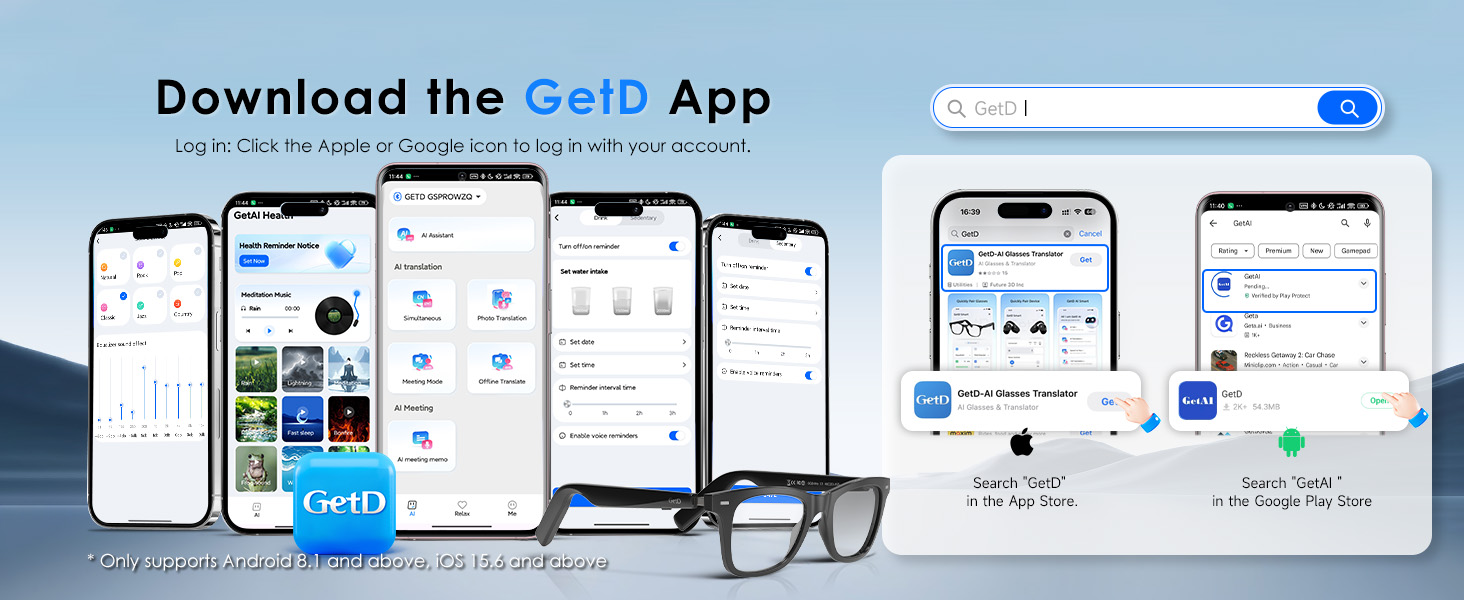 Image: Visual representation of the four AI translation modes available in the GetD Smart App.
 Image: Screenshot of the GetD app displaying real-time translation with split-screen functionality.
Music and Audio Playback
The glasses feature Bluetooth 5.4 technology and dual sound outlets on each temple for stereo audio.
- Audio Quality: Advanced audio gain technology provides clear sound.
- Sound Settings: The GetD Smart App offers 6 preset audio modes (e.g., classical, pop) for customized listening.
- Open-Ear Design: Listen to music while remaining aware of your surroundings.
 Image: Diagram illustrating the 360-degree surround sound experience provided by the open-ear speakers.
Making and Receiving Calls
The built-in microphone uses ENC noise reduction to ensure clear call quality by filtering out background noise.
- Hands-Free Calls: Use voice commands or touch controls to answer, end, or reject calls.
- Clear Communication: The ENC microphone enhances your voice for the recipient.
Eye Protection
The polarized lenses offer UV protection and reduce glare, providing clear vision. The lenses are also designed to filter 100% harmful blue light.
 Image: Cross-section diagram of the multi-layered lens structure, highlighting UV filtering, anti-glare, and blue light blocking layers.
Maintenance
- Cleaning: Use the provided cleaning cloth to gently wipe the lenses and frame. Avoid abrasive materials or harsh chemicals.
- Water Resistance: The glasses are IPX4 water repellent, meaning they are resistant to splashes. Do not submerge them in water.
- Storage: Store the glasses in a protective case when not in use to prevent scratches and damage.
- Charging: Use only the original charging cable. Avoid overcharging or exposing the battery to extreme temperatures.
Troubleshooting
| Problem | Possible Cause | Solution |
|---|---|---|
| Glasses do not power on. | Low battery. | Charge the glasses fully. |
| Cannot pair with smartphone. | Bluetooth is off on phone; glasses are not in pairing mode; previously paired device interfering. | Ensure Bluetooth is on. Restart glasses and phone. Clear previous pairing records in the app. |
| Poor audio quality or low volume. | Volume too low; environmental noise; incorrect audio settings. | Adjust volume on glasses and phone. Move to a quieter environment. Check equalizer settings in the GetD Smart App. |
| Touch controls are too sensitive or unresponsive. | Sweat or moisture on touch area; software glitch. | Wipe the touch area dry. Restart the glasses. Ensure the app is updated. |
| AI translation not working. | No internet connection; app not updated; microphone blocked. | Ensure stable internet connection. Update GetD Smart App. Check if microphone is clear. |
Warranty and Support
Your GetD Bluetooth Smart Sunglasses come with a limited warranty. Please refer to the included Warranty Card for specific terms and conditions.
For technical support or warranty claims, please contact GetD customer service through the GetD Smart App or visit the official GetD website.