1. Introduction
Thank you for choosing the AOOEPU WiFi Extender Signal Booster. This device is designed to expand your existing wireless network coverage, eliminate Wi-Fi dead zones, and provide a stable, high-speed internet connection throughout your home or office. With dual-band capabilities (2.4GHz and 5GHz) and a compact design, it offers a seamless online experience for multiple devices.

Figure 1: AOOEPU WiFi Extender Signal Booster with four external antennas.
2. Product Overview
Key Features:
- Dual-Band 1200Mbps Speed: Supports both 2.4GHz (up to 300Mbps) and 5GHz (up to 867Mbps) bands for fast and reliable connectivity.
- Extended Coverage: Expands WiFi signal up to 12,880 sq.ft, eliminating dead zones.
- Multi-Device Support: Connects up to 105+ devices simultaneously.
- Easy Setup: Features 1-tap WPS setup for quick connection to any router.
- Compact & Wall-Plug Design: Integrates discreetly into any environment.
- Stable Signal: Equipped with 4 high-gain antennas to boost and stabilize signals through walls and obstacles.

Figure 2: Illustration of dual-band capabilities, showing 2.4GHz and 5GHz signal ranges.
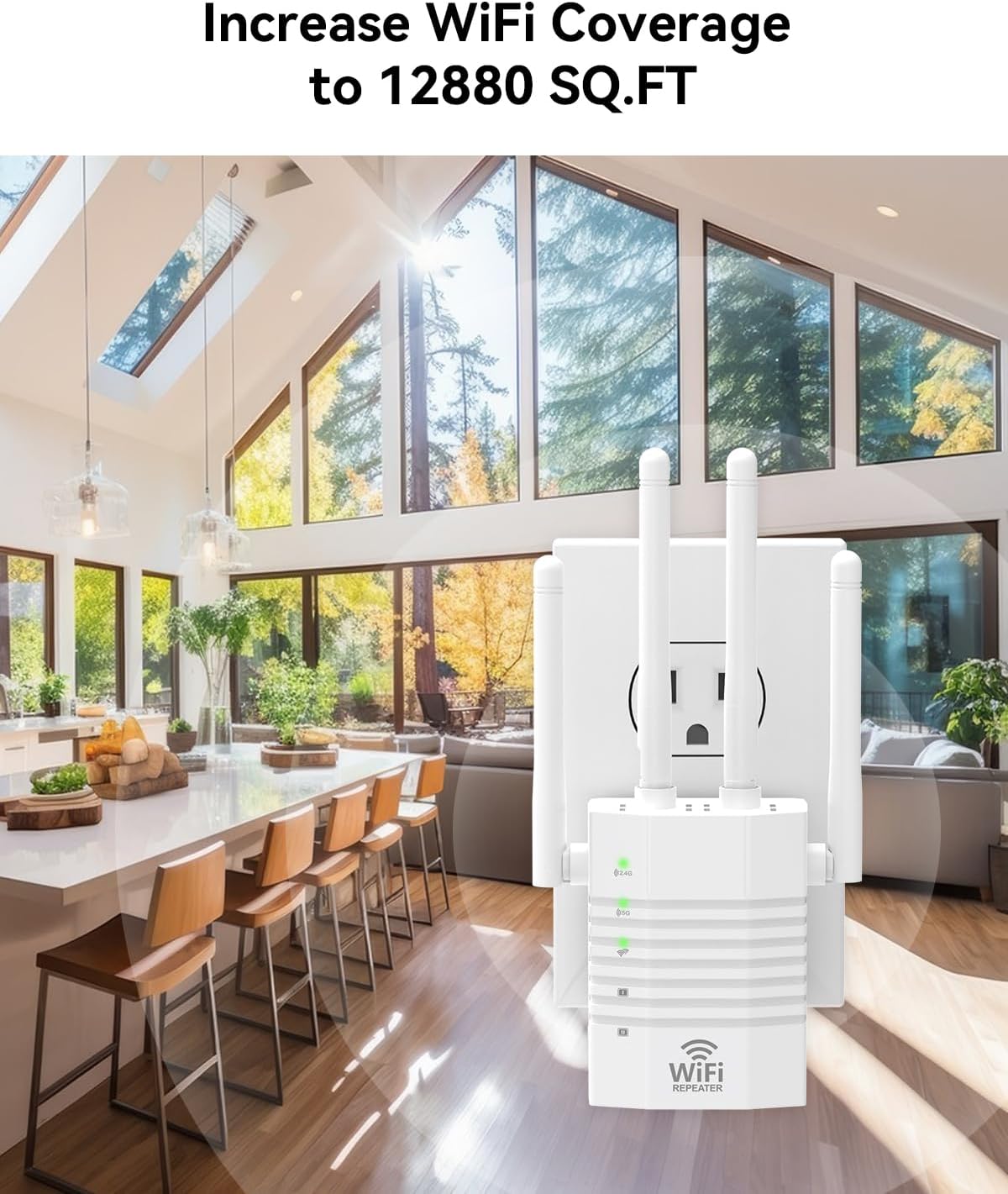
Figure 3: Visual representation of the WiFi extender increasing coverage in a large home environment.
3. Setup Guide
The AOOEPU WiFi Extender offers a simple and quick setup process, primarily using the WPS (Wi-Fi Protected Setup) button.
WPS Setup (Recommended):
- Power On: Plug the WiFi Extender into an electrical outlet near your main router. Wait for the power indicator light to become stable.
- Press Router WPS: Locate the WPS button on your main wireless router and press it. The WPS indicator on your router may start blinking.
- Press Extender WPS: Within 2 minutes, press the WPS button on the AOOEPU WiFi Extender. The WPS indicator on the extender will start blinking.
- Connection Confirmation: Wait for a few moments. Once the connection is established, the signal strength indicators on the extender will light up, indicating a successful connection.
- Relocate (Optional): You can now unplug the extender and move it to a location between your router and the WiFi dead zone. Ensure the signal strength indicators remain lit to confirm good signal reception from the router.

Figure 4: Visual guide for WPS setup, showing pressing WPS buttons on both router and extender.

Figure 5: Step 1 of WPS setup: Pressing the WPS button on the router.

Figure 6: Step 2 of WPS setup: Pressing the WPS button on the extender.
4. Operating Modes
The AOOEPU WiFi Extender supports multiple operating modes to suit various network requirements:
- Repeater Mode: Extends the existing WiFi coverage of your main router. This is the most common mode for eliminating dead zones.
- AP (Access Point) Mode: Converts a wired network connection into a wireless one. Ideal for creating a new WiFi hotspot from an Ethernet port.
- Router Mode: Functions as a primary router, creating a new private network. This mode is typically used when you don't have an existing router.
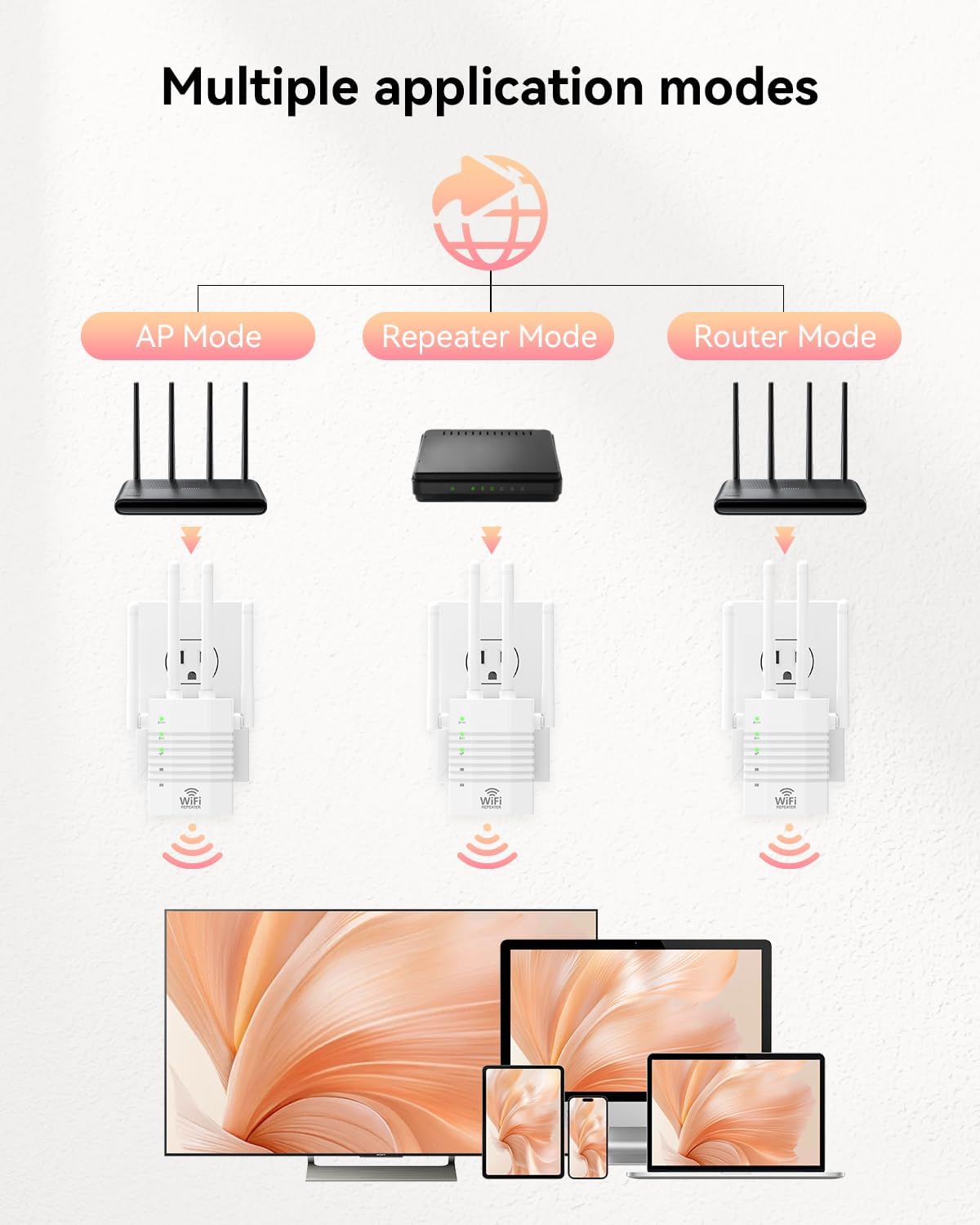
Figure 7: Diagram illustrating the three main application modes: AP, Repeater, and Router.
Connecting Wired Devices:
The extender is equipped with an RJ45 Ethernet port, allowing you to connect wired devices such as smart TVs, gaming consoles, desktop computers, or network printers directly to the extender for a stable wired connection.

Figure 8: Devices that can be connected via the RJ45 port, including phones, monitors, computers, printers, game consoles, and smart TVs.
5. Maintenance
To ensure optimal performance and longevity of your AOOEPU WiFi Extender, follow these maintenance guidelines:
- Placement: Place the extender in a well-ventilated area, away from direct sunlight, heat sources, and excessive moisture. Avoid placing it near large metal objects or appliances that may cause interference.
- Cleaning: Regularly wipe the exterior of the device with a soft, dry cloth. Do not use liquid cleaners or aerosols.
- Firmware Updates: Check the manufacturer's website periodically for any available firmware updates. Keeping the firmware updated can improve performance and security.
- Power Cycle: If you experience minor connectivity issues, try power cycling the extender by unplugging it from the outlet for 10 seconds and then plugging it back in.
6. Troubleshooting
If you encounter issues with your WiFi Extender, refer to the following common problems and solutions:
- No Signal in Certain Areas:
Solution: Relocate the extender to a position roughly halfway between your router and the area with poor signal. Ensure the signal strength indicators on the extender show a strong connection to your main router. Obstacles like thick walls can weaken signals. - Frequent Disconnections:
Solution: Ensure the extender is not too far from the main router. Check for potential interference from other electronic devices (e.g., microwaves, cordless phones). Try changing the WiFi channel on your main router. - Setup Failure:
Solution: Ensure your router supports WPS. If WPS fails, try a manual setup via a web browser (refer to the full digital manual if provided by manufacturer). Ensure you are pressing the WPS button on both devices within the specified time frame. - Slow Speed After Extension:
Solution: While extenders improve coverage, they can sometimes introduce latency. Ensure the extender is placed in an optimal location where it receives a strong signal from the router. Consider using the 5GHz band for devices that support it, as it generally offers higher speeds.

Figure 9: Illustrates common WiFi issues like dead zones, lost connections, and signal weakening by obstacles, which the extender aims to resolve.
7. Specifications
| Feature | Detail |
|---|---|
| Brand | AOOEPU |
| Model Number | AOOEPU-0617-1 |
| Product Dimensions | 7.48 x 3.74 x 2.4 inches |
| Item Weight | 5.3 ounces |
| Wireless Communication Standard | 2.4 GHz Radio Frequency (2.4G & 5G Dual Band) |
| Special Feature | 360 Degree, WiFi Mesh, 1-Tap Setup |
| Connector Type | RJ45 Ethernet Port |
| Color | White |
| Manufacturer | Shenzhen Century Xinyang Tech Co..Ltd |
| Country of Origin | China |
8. Warranty and Support
For warranty information and technical support, please refer to the documentation included with your product packaging or visit the official AOOEPU website. You may also contact the seller directly through the platform where you purchased the product for assistance.
For more information about AOOEPU products, visit the AOOEPU Store on Amazon.


