
1. Introduction
This manual provides detailed instructions for setting up and operating your Boowen Multi-Platform Wireless Gaming Controller. Designed for versatility and precision, this controller offers seamless compatibility across various gaming platforms, enhancing your gaming experience with advanced features.
2. Package Contents
- Boowen Multi-Platform Wireless Gaming Controller
- 2.4G USB Wireless Adapter
- USB-A to USB-C Charging Cable
- Instruction Manual (this document)
3. Key Features
- Multi-Platform Compatibility: Supports PC (Windows 7/8.1/10/11), Nintendo Switch/OLED/Lite, iOS, and Android devices.
- Versatile Connectivity: Bluetooth 5.0, low-latency 2.4GHz wireless (with included receiver), and wired USB-C.
- Hall Effect Joysticks & Triggers: Magnetic sensors for drift-free, precise, and durable control.
- 1200mAh High-Capacity Battery: Provides over 10 hours of continuous gameplay on a single 2-hour charge.
- 4 Programmable Back Buttons (M1-M4): Customize for macros or single key functions to enhance gameplay.
- Customizable RGB Lighting: Dual analog stick lightbars with spectrum cycle and solid color modes.
- 4-Level Vibration Feedback: Adjustable dual motor vibration for immersive tactile experiences.
- 3-Level Turbo Function: Adjustable rapid-fire settings for competitive advantage.
4. Setup and Connection
The Boowen controller offers multiple connection methods to suit your gaming platform. Please follow the instructions below for your specific device.

Figure 1: Multi-Platform Compatibility Overview
4.1. Bluetooth Connection (PC/iOS/Android)
- Hold the "BT" button on the controller for 2 seconds until the light flashes green.
- On your device (PC, iOS, or Android), navigate to Bluetooth settings.
- Select the controller from the list of available devices.
- A vibration and solid green light on the controller confirm a successful connection.
4.2. 2.4G Wireless Connection (PC)
- Hold the "NS.2.4G" button on the controller for 2 seconds until the pink light flashes.
- Plug the 2.4G USB wireless adapter into an available USB port on your PC.
- Press the button on the 2.4G adapter.
- Auto-pairing is confirmed by a solid light on both the controller and the adapter.
4.3. Nintendo Switch Connection (Switch/OLED/Lite)
- Hold the "NS.2.4G" button on the controller for 2 seconds until the pink light flashes.
- On your Nintendo Switch console, go to "Controllers" > "Change Grip/Order".
- Press the LB and RB buttons on the controller.
- A vibration and a solid pink light indicate a successful connection.
4.4. Wired USB-C Connection
For a direct and stable connection, you can connect the controller to your device using the provided USB-A to USB-C cable. Simply plug the USB-C end into the controller and the USB-A end into your device's USB port. The controller will automatically switch to wired mode.
Video 1: Demonstrates the multi-platform wireless controller's connection process for PC, Switch, Android, and iOS devices, highlighting its versatility.
5. Operating Instructions
5.1. Hall Effect Joysticks and Triggers
The controller features advanced Hall Effect joysticks and triggers, utilizing magnetic sensors to eliminate stick drift and provide precise, consistent input. This technology ensures long-term accuracy and durability, surpassing traditional potentiometer-based controls.
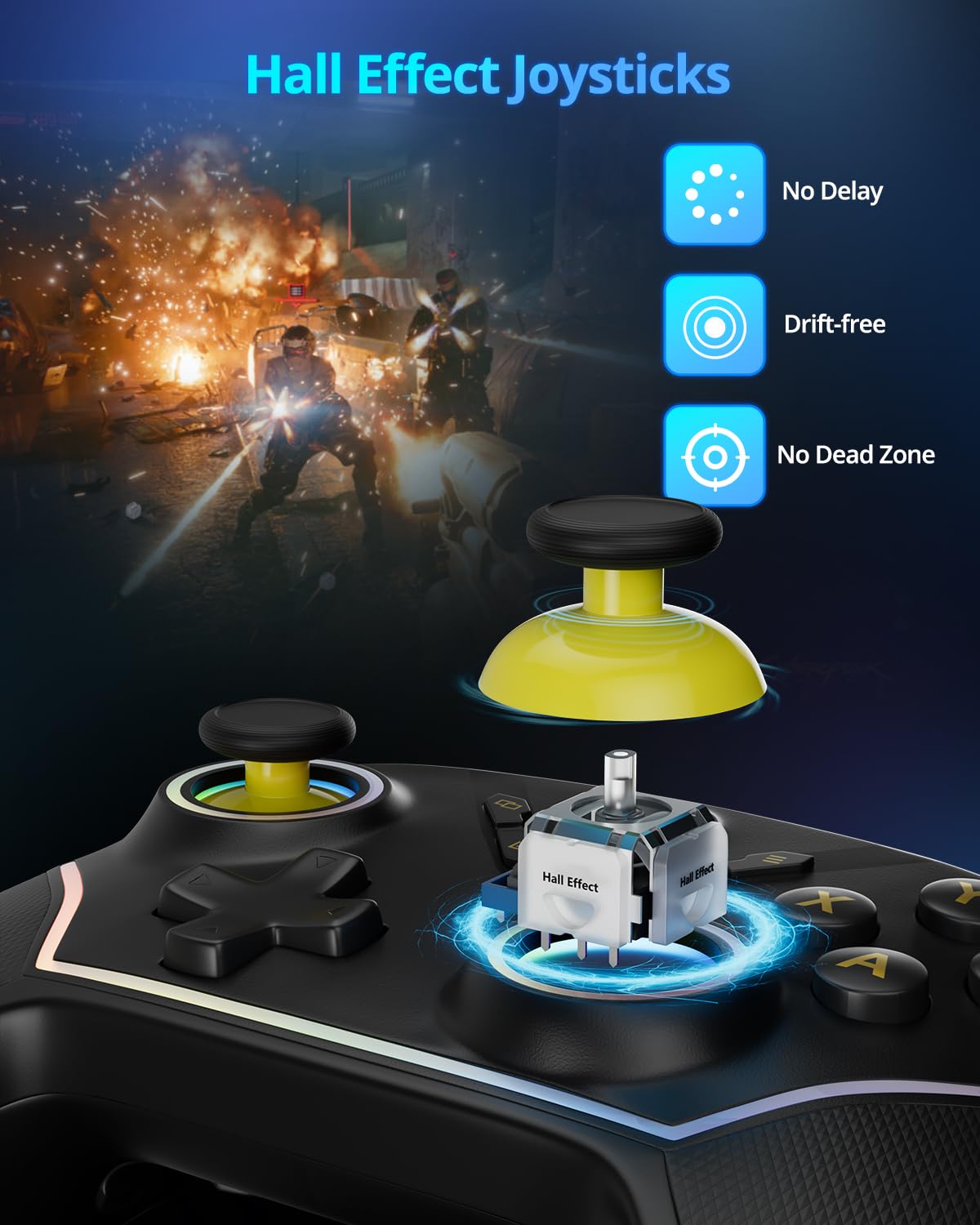
Figure 2: Hall Effect Joysticks for enhanced precision.
The Hall Effect triggers offer silky-smooth, linear feedback, allowing for fine control in games requiring nuanced input, such as racing or shooting titles. You can also adjust the trigger travel distance using the physical switches on the back of the controller for faster response times.

Figure 3: Hall Effect Analog Triggers for accurate input.
5.2. Programmable Back Buttons (M1-M4)
The controller features four customizable back buttons (M1, M2, M3, M4) located on the underside. These buttons can be programmed to execute complex macros or single key inputs (A, B, X, Y, LB, RB, LT, RT, L Joystick, R Joystick, directional buttons) to reduce finger strain and speed up command execution.
- To enter record mode: Hold the desired M-key (M1-M4) for 2 seconds until the controller vibrates once.
- To record input: Press your desired key combination or single key (e.g., A+X, LT+RT).
- To save: Tap the same M-key again. The controller will vibrate once more, indicating the macro is saved and the mode is exited.

Figure 4: Programmable M1-M4 Back Buttons.
5.3. Adjustable Vibration Feedback
Experience enhanced immersion with four levels of adjustable dual motor vibration. You can cycle through different intensity settings (Off, 30%, 70%, 100%) to match your preference and the game's requirements.
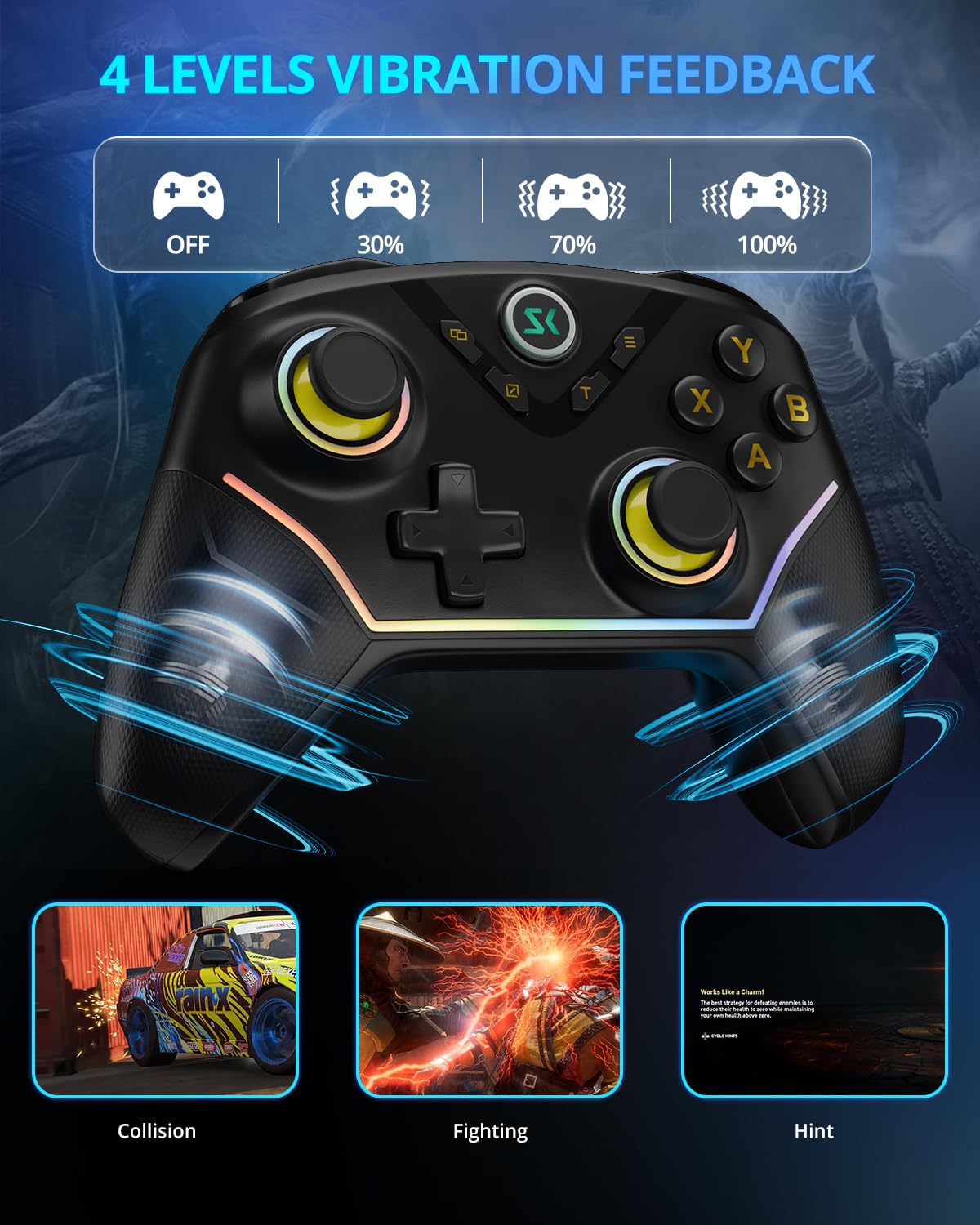
Figure 5: Four Levels of Vibration Feedback.
5.4. Turbo Function
Activate the 3-level Turbo function for rapid-fire actions. This feature allows you to set buttons to repeat inputs at speeds of 6, 12, or 18 shots per second, providing a competitive edge in fast-paced games.

Figure 6: Three Levels of Turbo Function.
5.5. RGB Lighting
The controller features dual analog stick lightbars with two distinct modes: a mesmerizing RGB spectrum cycle and a solid color of your choice. Refer to the controller's back panel buttons for lighting mode adjustments.
6. Charging and Battery
The Boowen controller is equipped with a robust 1200mAh rechargeable Lithium Polymer battery, providing over 10 hours of continuous gameplay on a single charge. A full charge typically takes approximately 2 hours using the provided USB-C charging cable.

Figure 7: 1200mAh Large Capacity Battery and USB-C Charging.
To charge the controller, connect the USB-C end of the charging cable to the controller's USB-C port and the USB-A end to a power source (e.g., PC, USB wall adapter). The LED indicators on the controller will show charging status and turn off when fully charged.
7. Maintenance
- Keep the controller dry and away from extreme temperatures.
- Clean the controller with a soft, dry cloth. Avoid using harsh chemicals or abrasive materials.
- Store the controller in a safe place to prevent accidental damage.
8. Troubleshooting
- Controller not connecting: Ensure the controller is charged. Verify the correct connection mode (Bluetooth, 2.4G, or Switch) is selected. For 2.4G, ensure the adapter is properly plugged in and its button pressed. For Bluetooth, ensure your device's Bluetooth is enabled and the controller is selected.
- Input lag or disconnection: Ensure the controller is within range of your device. Minimize interference from other wireless devices. For 2.4G, ensure the adapter has a clear line of sight.
- Stick drift: The Boowen controller utilizes Hall Effect joysticks designed to prevent stick drift. If you experience unusual input, ensure the controller's firmware is up to date (check manufacturer's website for updates).
- Buttons unresponsive: Ensure the controller is fully charged. If specific buttons are unresponsive, try resetting the controller (refer to manufacturer's website for reset instructions if needed).
- Charging issues: Ensure the USB-C cable is securely connected to both the controller and the power source. Try a different USB port or power adapter.
9. Specifications
| Feature | Detail |
|---|---|
| Model | S-AG43 |
| Connectivity | Bluetooth 5.0, 2.4G Wireless, USB-C Wired |
| Compatibility | PC (Windows 7/8.1/10/11), Nintendo Switch/OLED/Lite, iOS, Android |
| Joysticks & Triggers | Hall Effect Sensors |
| Battery Capacity | 1200 mAh Lithium Polymer |
| Playtime | Over 10 hours (approx.) |
| Charging Time | Approx. 2 hours |
| Programmable Buttons | 4 (M1, M2, M3, M4) |
| Vibration Feedback | 4 Levels (Dual Motor) |
| Turbo Function | 3 Levels (6/12/18 shots/s) |
| Product Dimensions | 2 x 2 x 3 inches |
| Item Weight | 12 ounces |
10. Warranty and Support
For warranty information, technical support, or further inquiries, please refer to the official Boowen website or contact their customer service directly. Keep your purchase receipt for warranty claims.