
1. What's in the Box
The DBIT AX1500 WiFi 6 Mesh Wi-Fi System (2-Pack) includes the following components:
- 2 Mesh Router Units
- 2 Power Adapters
- 1 RJ45 Ethernet Cable
- Quick Installation Guide

Image: Contents of the DBIT AX1500 WiFi 6 Mesh Wi-Fi System box.
2. Setup
2.1. System Overview
The DBIT AX1500 Mesh Wi-Fi System provides whole-home Wi-Fi 6 coverage, eliminating dead zones and supporting up to 120 devices across 3,900 sq ft. It operates on dual bands (2.4GHz and 5GHz) and features 4 Gigabit Ethernet ports per unit for stable wired connections.

Image: Overview of the DBIT AX1500 Mesh Wi-Fi System features.
2.2. Initial Setup of the Primary Mesh Router
Follow these steps to set up your primary mesh router:
- Power On: Insert the power adapter into the mesh router and plug the other end into a power outlet. The LED indicator will turn solid red, then flash yellow as it starts up.
- Connect to Modem: Turn off your cable modem. Plug one end of the included Ethernet cable into your modem and the other end into the WAN/LAN port of your primary mesh router.
- Power On Modem: Turn on your cable modem and wait for it to complete its startup sequence.
- Verify Connection: Wait for the LED indicator light on the mesh router to turn solid green, indicating a normal network connection.
Video: Instructions on how to set up the primary mesh router.

Image: Rear view of a mesh router unit with Gigabit Ethernet ports.
2.3. Adding More Mesh Nodes
You can add additional mesh nodes to expand your network coverage using either the mobile app or the Mesh button.
Method 1: Add nodes via APP
- Power up the secondary mesh router(s). Wait for the secondary node's light to blink yellow.
- Connect your phone to the primary mesh router's Wi-Fi SSID. The default SSID is printed on the product label.
- Download, install, and launch the MU-LINK APP. Log in using the details on the product label.
- The APP will automatically detect the number of devices to be mesh-networked. Click to complete the networking process.
- The LED turning solid green indicates a successful connection. If the LED doesn't turn solid green, reset the secondary nodes and try the process again.
Method 2: One-button networking via Mesh button
- Press the Mesh button on the connected primary node. The green light will blink rapidly.
- Press the Mesh button on the powered-up secondary node. The yellow light will blink rapidly.
- Both devices will enter the automatic networking process.
- The LED turning solid green on both nodes indicates a successful connection.
Note: Complete the networking process sequentially; do not operate multiple nodes at the same time.
Video: Instructions on how to add more mesh nodes to your system.
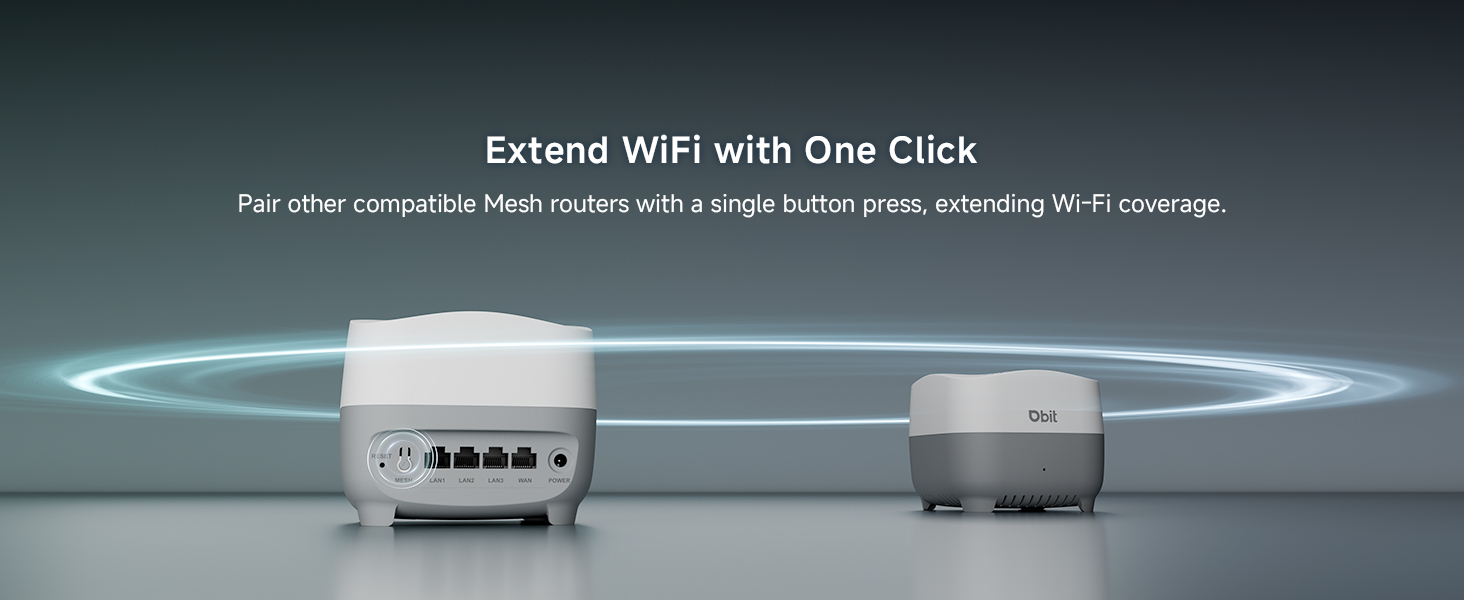
Image: One-Click Mesh pairing via button or app.

Image: Quick Setup with MU-LINK APP.
3. Operating Instructions
3.1. Whole-Home Coverage and Seamless Roaming
The AX1500 Mesh System provides up to 3,900 sq ft of Wi-Fi coverage, eliminating dead zones. With smart roaming technology, your devices automatically switch between nodes without dropped connections as you move around your home, ensuring a stable and continuous internet experience.
Video: Overview of the DBIT Mesh WiFi System for whole home coverage.

Image: Whole-Home WiFi Coverage illustration.

Image: Seamless Roaming in a multi-story home.
3.2. High Capacity Connectivity
The mesh system supports over 120 simultaneous connections without lag, making it suitable for smart homes, offices, and gaming setups. Advanced mesh technology maintains fast speeds even with multiple devices streaming 4K/8K content, gaming online, and video conferencing.
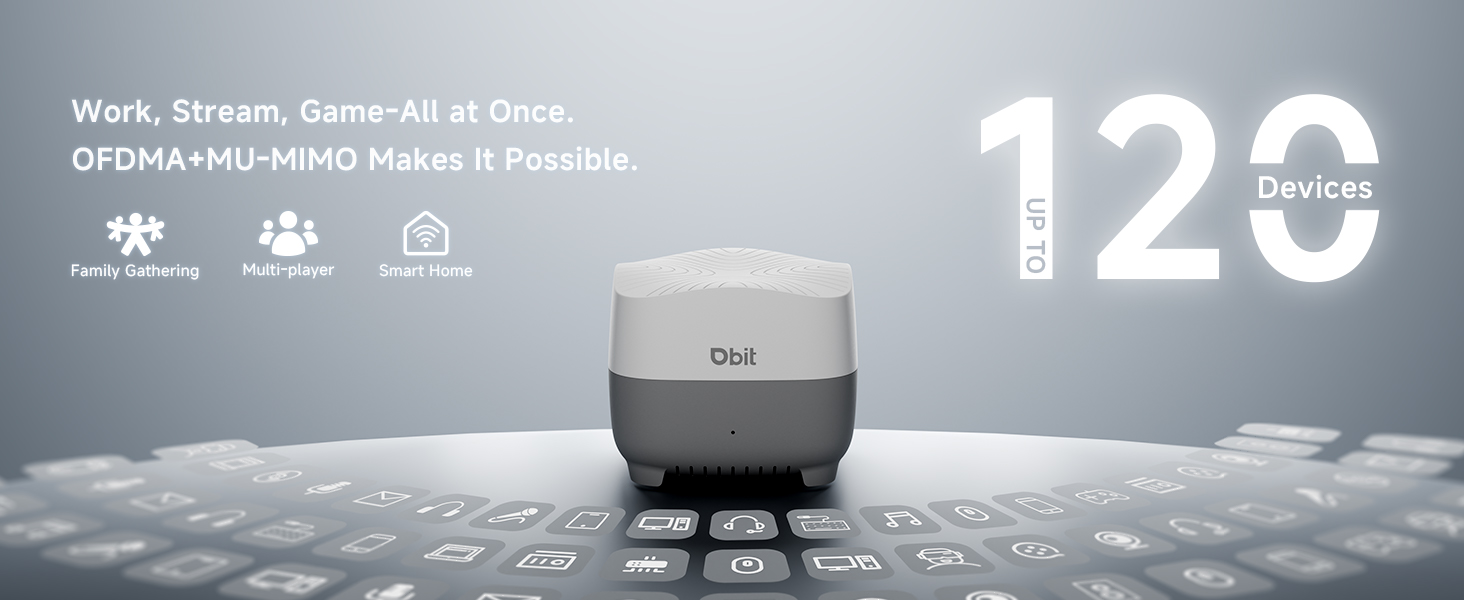
Image: High-speed connectivity for multiple devices.

Image: High-speed connectivity for multiple devices.
3.3. Parental Controls
Utilize the parental control features through the intuitive mobile app or web GUI to manage internet access for your family. You can block harmful content, balance screen time, and ensure a safe online environment for all home devices.
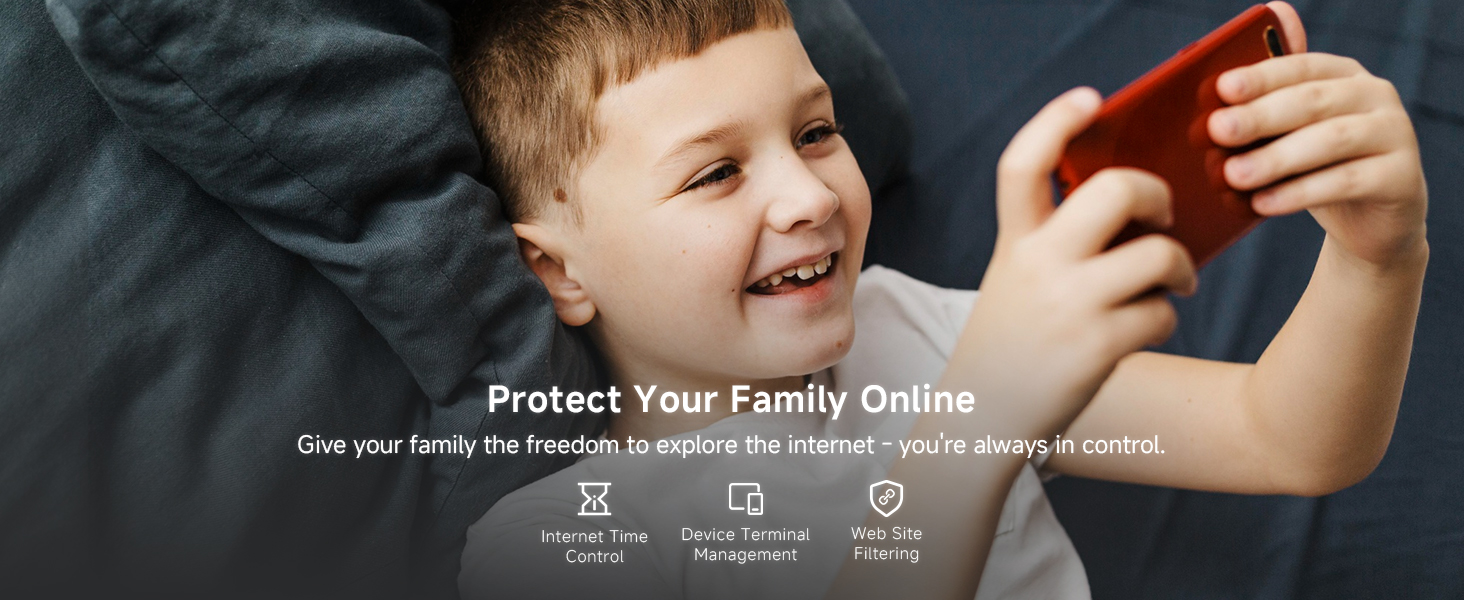
Image: Parental Controls features.
3.4. Guest Network
Create an isolated guest network to provide Wi-Fi access for visitors while maintaining the privacy and security of your main network and smart home devices. This ensures complete separation between guest and private network traffic.
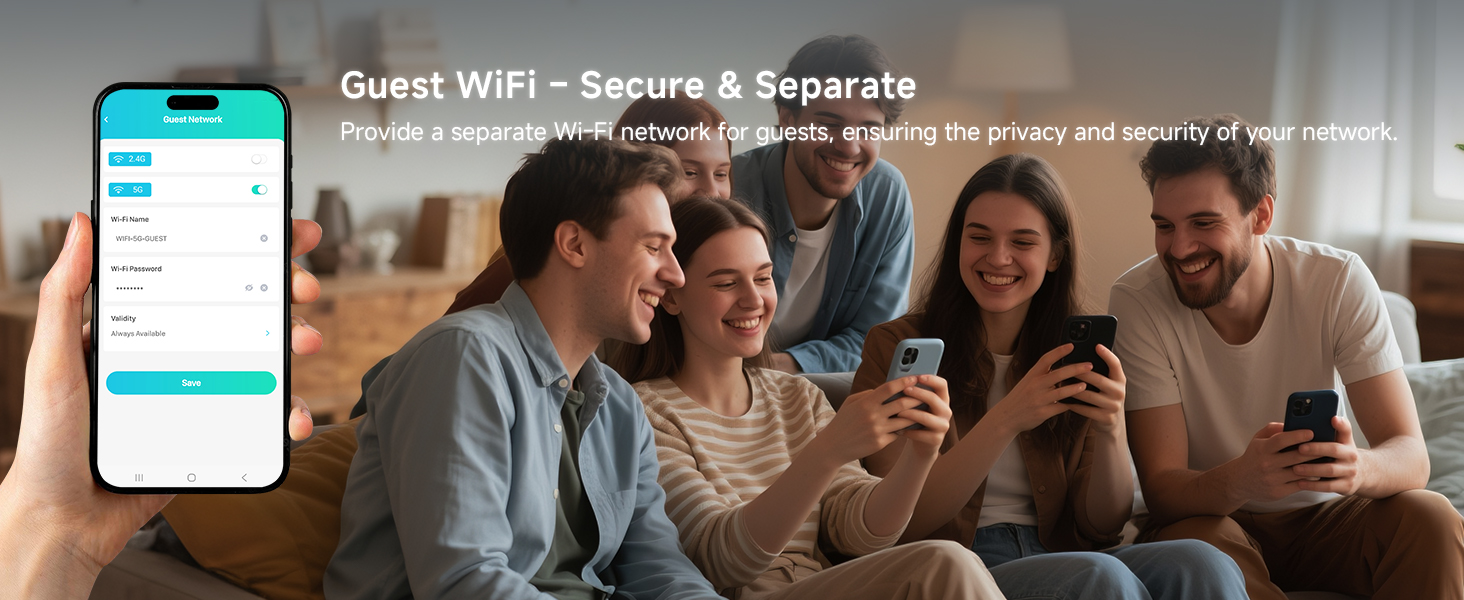
Image: Guest Network setup for secure visitor access.
3.5. Network Security
The DBIT AX1500 Mesh Wi-Fi System incorporates enterprise-grade WPA3-SAE encryption to safeguard your entire network. This advanced security protocol proactively blocks unauthorized access and cyber threats, protecting your sensitive data.
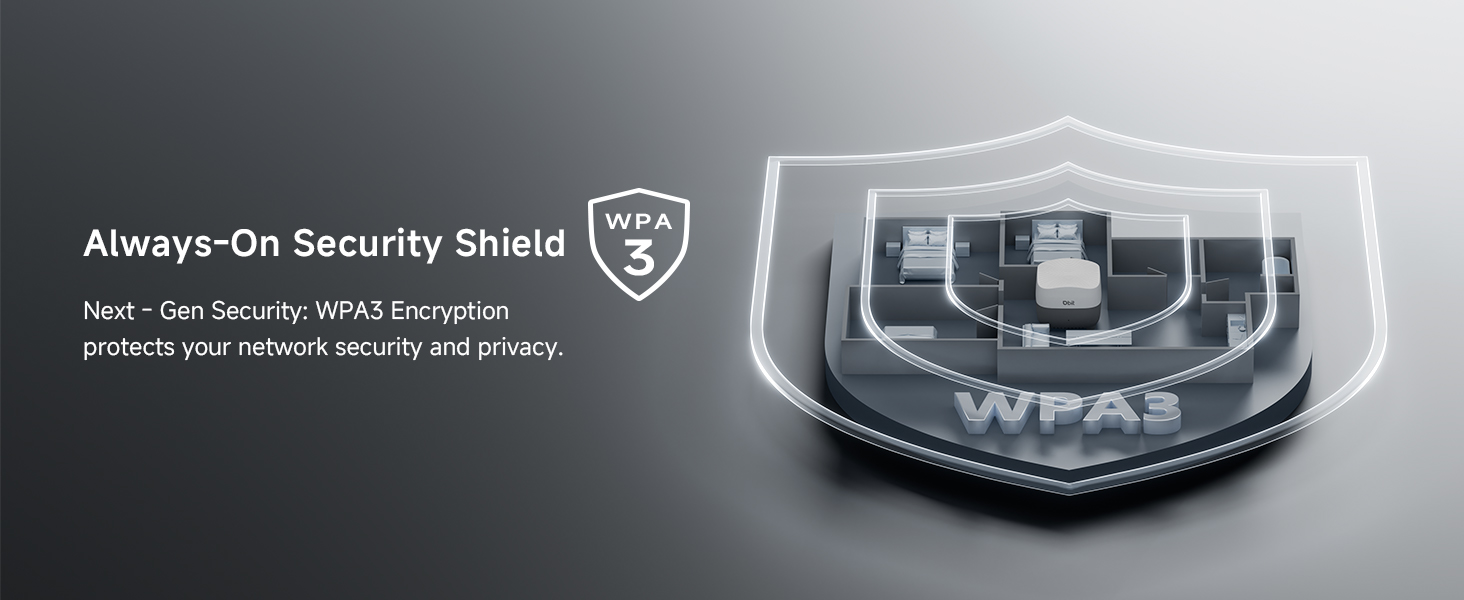
Image: WPA3 Encryption for enhanced network security.
4. Maintenance
To ensure optimal performance and longevity of your DBIT AX1500 Mesh Wi-Fi System, consider the following maintenance tips:
- Placement: Regularly check for and install firmware updates through the MU-LINK app or web interface. Updates often include performance improvements, security patches, and new features.
- Firmware Updates: Periodically restart your mesh system (both primary and secondary nodes) to refresh network connections and resolve minor performance issues.
- Cleaning: Keep the mesh units clean and free from dust to prevent overheating. Use a soft, dry cloth for cleaning.
- Restart: Place mesh nodes in central locations within your home, avoiding obstructions like thick walls or large metal objects. Refer to the "Flexible Node Placement" image for suggestions.
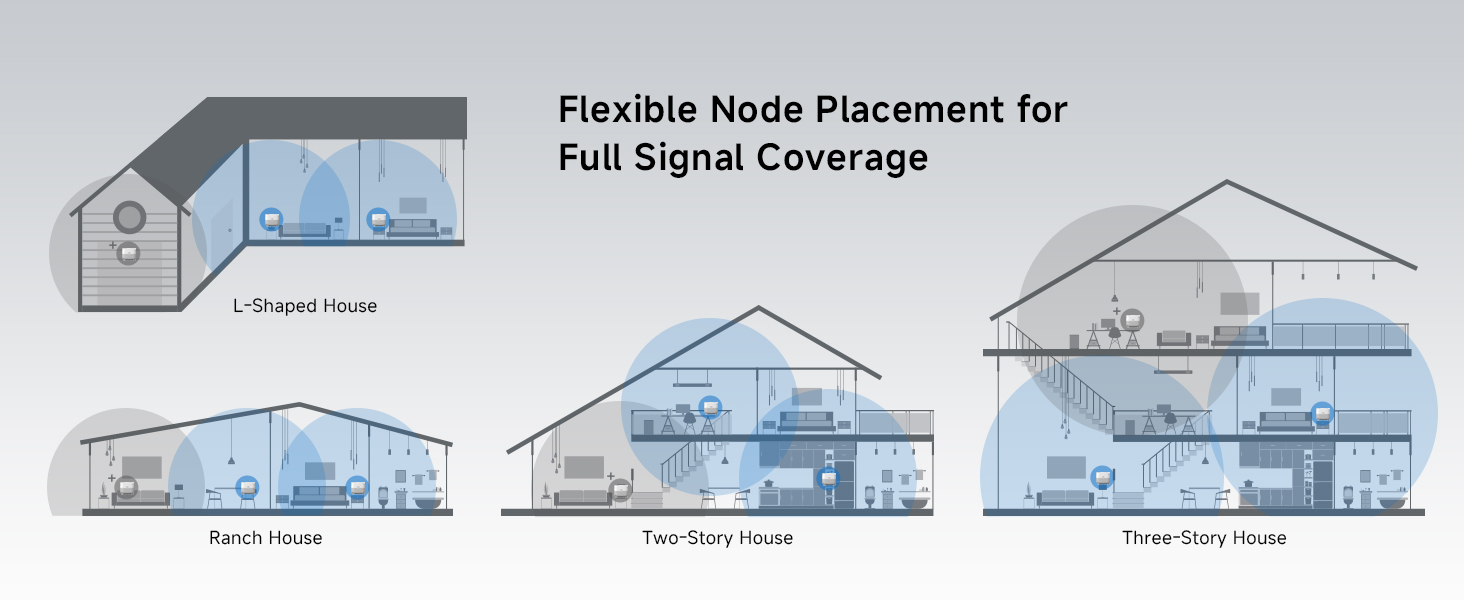
Image: Flexible Node Placement for Full Signal Coverage.
5. Troubleshooting
If you encounter issues with your DBIT AX1500 Mesh Wi-Fi System, try the following steps:
- No Internet Connection:
- Check if your modem is working correctly.
- Ensure all Ethernet cables are securely connected.
- Restart your modem and primary mesh router.
- Weak Wi-Fi Signal/Dead Zones:
- Relocate secondary mesh nodes closer to the primary node or to areas with weak signals.
- Ensure there are no major obstructions (e.g., large appliances, concrete walls) between nodes.
- Add more mesh nodes for extended coverage if necessary.
- Devices Not Connecting:
- Verify the Wi-Fi password.
- Check if the device is within the mesh network's range.
- Ensure the device is not blocked by parental controls or guest network settings.
- Restart the problematic device and the mesh node it's trying to connect to.
- LED Indicator Status:
- Solid Red: Starting up.
- Flashing Yellow: Startup complete, pending mesh networking or network connection.
- Solid Green: Successful connection / Normal network operation.
Video: General guide on how to set up the mesh system, which can help with troubleshooting initial setup issues.
6. Specifications
| Feature | Detail |
|---|---|
| Brand | DBIT |
| Model Name | D-MAX4 2-PACK |
| Frequency Band Class | Dual-Band (2.4 GHz, 5 GHz) |
| Wireless Communication Standard | 802.11ac, 802.11ax, 802.11b, 802.11g, 802.11n |
| Data Transfer Rate | 1500 Megabits Per Second (300Mbps on 2.4GHz + 1201Mbps on 5GHz) |
| Coverage | 3,900 Square Feet |
| Number of Ports | 4 Gigabit Ethernet ports per unit (3 LAN, 1 WAN/LAN) |
| Security Protocol | WPA-PSK, WPA2-PSK, WPA3 |
| Special Features | Beamforming, Guest Mode, Internet Security, Parental Control, Seamless Roaming |
| Compatible Devices | Gaming Console, Personal Computer, Tablet, Smart Television, Smartphone, Printer, Security Camera |
| Control Method | App, Push Button |
| Item Weight | 1.39 Pounds |
| Item Dimensions (L x W x H) | 5.04"L x 5.04"W x 4.01"H |
7. Warranty & Support
Warranty: The DBIT AX1500 WiFi 6 Mesh Wi-Fi System comes with a 1-Year Manufacturer Warranty.
Support: For technical assistance, troubleshooting, or warranty claims, please contact DBIT customer support through their official website or the contact information provided in your Quick Installation Guide.


