
1. Introduction
This manual provides comprehensive instructions for the installation, operation, and maintenance of your Rimoody 7-Inch Motorcycle CarPlay/Android Auto Screen. This device is designed to enhance your riding experience by integrating smartphone functionalities such as navigation, communication, and entertainment directly onto your motorcycle's dashboard. Key features include wireless CarPlay and Android Auto, IP67 waterproof touchscreen, dual Bluetooth connectivity, EQ sound customization, and mirror link capabilities.
2. Product Overview
The Rimoody 7-Inch Motorcycle CarPlay/Android Auto Screen is a robust and versatile display unit built for motorcycle environments. It features a high-resolution touchscreen and is housed in a durable, weather-resistant casing.

Figure 2.1: Rimoody 7-Inch Motorcycle CarPlay/Android Auto Screen
This image displays the main unit of the Rimoody 7-Inch Motorcycle CarPlay/Android Auto Screen. The screen shows a typical CarPlay interface with various app icons. Below the screen, a motorcycle is depicted, and a hand holds a smartphone, illustrating the wireless connectivity feature. The screen is shown with water droplets, highlighting its waterproof design.
3. What's in the Box
Upon unboxing, verify that all components listed below are present:
- 7-Inch Player (Main Unit)
- Universal Mount
- User Manual
- Power Cable
- Accessories (Brackets, etc.)
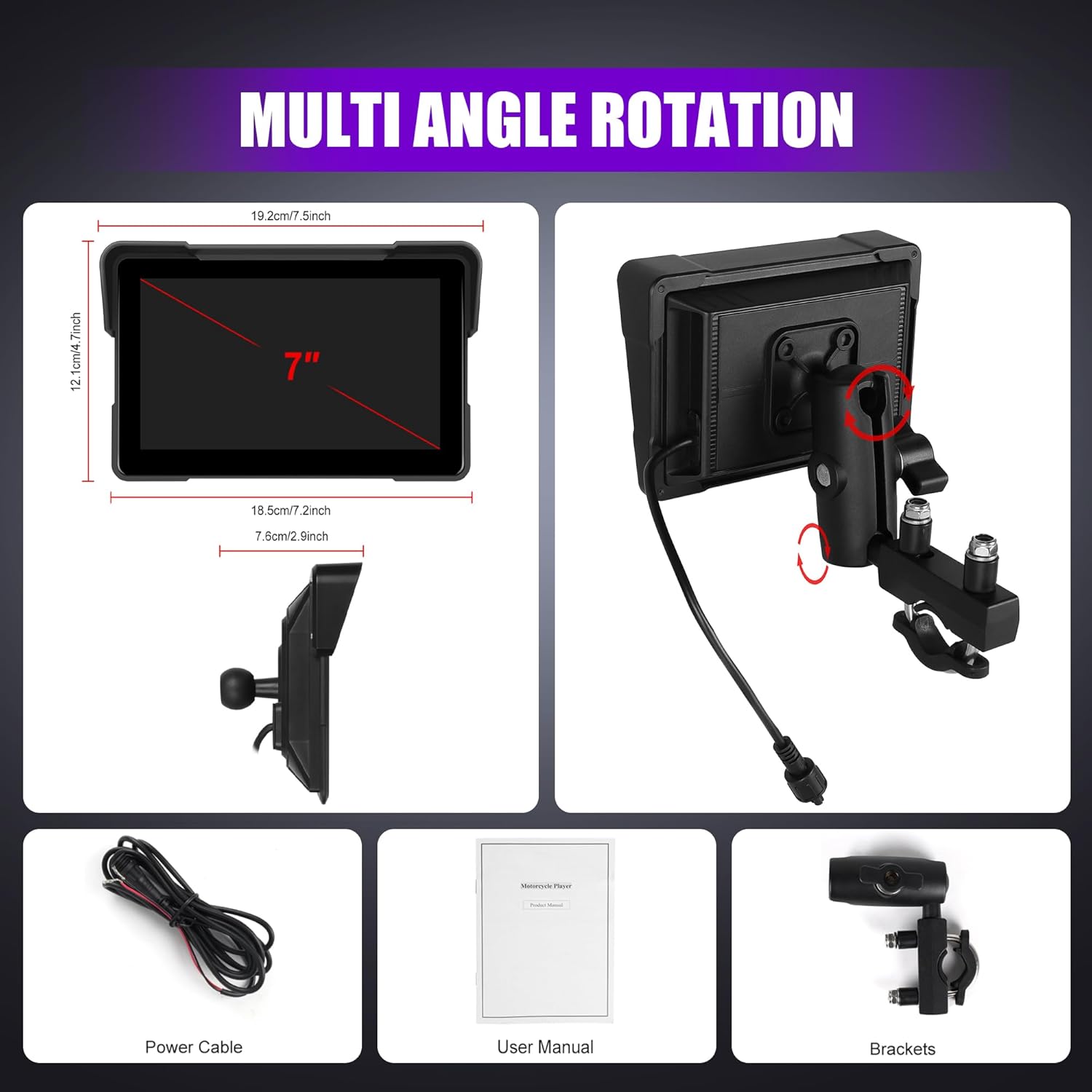
Figure 3.1: Package Contents
This image displays the various components included in the product package. It shows the 7-inch player, a universal mount, the power cable, and the user manual, along with additional brackets. This visual aid helps confirm that all necessary parts are present.
4. Setup and Installation
Follow these steps for proper installation and initial setup of your device.
4.1 Mounting the Device
- Attach the universal mount to your motorcycle's handlebars or a suitable surface using the provided brackets. Ensure the mount is secure and allows for optimal viewing angle.
- Connect the main unit to the universal mount. The multi-angle rotation feature allows for precise positioning.

Figure 4.1: Multi-Angle Rotation Mount
This image illustrates the multi-angle rotation mount, demonstrating how the device can be adjusted for optimal viewing. It highlights the flexibility of the mounting system for various motorcycle setups.
4.2 Power Connection
- Connect the power cable to the device and to your motorcycle's power source. Ensure proper wiring according to your motorcycle's electrical system.
4.3 TF Card Installation
- Locate the TF card slot on the device. Carefully insert the provided 64GB TF card into the slot. This card is essential for certain functionalities and data storage.

Figure 4.2: TF Card Slot and Ports
This image highlights the location of the TF card slot, Type-C port, and microphone input on the device. It demonstrates where to insert the TF card and connect other peripherals.
4.4 Initial Power-On and Boot Time
Once powered, the device will boot up quickly, displaying a startup animation before presenting the main interface.
Video 4.1: Motorcycle Carplay Screen Overview and Boot-up
This video provides a visual overview of the Rimoody Motorcycle Carplay Screen, including its physical appearance and a demonstration of its fast boot-up sequence. It shows the device powering on and transitioning to the main menu, highlighting its quick readiness for use.
5. Operating Instructions
This section details how to use the primary functions of your Rimoody screen.
5.1 Wireless CarPlay & Android Auto
Connect your smartphone wirelessly to access navigation, calls, music, and messages. This feature supports both Apple CarPlay and Android Auto.
- Ensure Bluetooth is enabled on your smartphone.
- On the Rimoody screen, select the "Wireless Auto" or "PhoneLink" option.
- Pair your smartphone via Bluetooth. Once connected, the CarPlay or Android Auto interface will appear on the screen.
- Utilize voice commands with Siri Assistant or Google Assistant for hands-free operation.

Figure 5.1: Wireless CarPlay & Android Auto Connection
This diagram visually explains how to connect your smartphone to the Rimoody screen using either Bluetooth or a cable for Wireless CarPlay and Android Auto functionality. It shows the respective logos for CarPlay and Android Auto, indicating compatibility with both systems.
5.2 Mirror Link (Airplay & Android Cast)
Stream content from your smartphone directly to the screen using Airplay for iOS or Android Cast for Android devices.
- Select the "Mirror Link" option on the device.
- Follow the on-screen instructions to activate Airplay (for iOS) or Android Cast (for Android) on your smartphone.
- Once connected, your phone's screen will be mirrored on the Rimoody display.

Figure 5.2: Android Cast & Airplay
This image demonstrates the Mirror Link feature, showing how content from an iOS device (via Airplay) or an Android device (via Android Cast) can be displayed on the motorcycle screen. A motorcycle is shown in the background, emphasizing the in-ride entertainment possibilities.
5.3 Dual Bluetooth & EQ Function
The device supports simultaneous connection of your smartphone and a Bluetooth helmet/headset, along with customizable audio equalization.
- Connect your smartphone for CarPlay/Android Auto (as per Section 5.1).
- Pair your Bluetooth helmet or headset with the device via the Bluetooth settings.
- Access the built-in EQ settings to adjust audio output. Choose from presets or customize the 10-band HD EQ for optimal sound.

Figure 5.3: Dual Bluetooth Function
This image illustrates the dual Bluetooth capability, showing a smartphone and a Bluetooth-enabled helmet connected simultaneously to the Rimoody screen. This setup allows for hands-free calls and music streaming directly to your helmet while maintaining smartphone connectivity for other functions.

Figure 5.4: EQ Sound Effect Interface
This image displays the Equalizer (EQ) sound effect interface on the screen, featuring sliders for adjusting various frequency bands. It also indicates support for TF+SD cards up to 128GB, allowing for expanded media storage.
6. Features
The Rimoody screen is equipped with several features designed for durability and user convenience.
6.1 IP67 Waterproof, Dustproof, and Shockproof Design
The device is engineered to withstand harsh environmental conditions, ensuring reliable performance in rain, dust, and on uneven roads. Its robust construction protects against water intrusion, abrasion, and clogging.
Figure 6.1: IP67 Waterproof Feature
This image visually represents the IP67 waterproof capability of the device, showing water splashing over the screen while it displays a navigation map. This highlights the screen's ability to function reliably in wet conditions. The image also shows brightness adjustment capabilities.
6.2 Brightness Adjustment
The screen's brightness can be adjusted from 15% to 100% to ensure optimal visibility in various lighting conditions, from bright daylight to nighttime riding.
7. Maintenance
To ensure the longevity and optimal performance of your Rimoody screen, follow these maintenance guidelines:
- Cleaning: Use a soft, damp cloth to clean the screen and exterior. Avoid abrasive cleaners or solvents that could damage the surface.
- Storage: When not in use for extended periods, store the device in a cool, dry place away from direct sunlight and extreme temperatures.
- Cable Inspection: Periodically check all cables and connections for wear or damage. Replace any damaged components immediately to prevent malfunction.
8. Troubleshooting
If you encounter issues with your device, refer to the following common problems and solutions:
| Problem | Possible Cause | Solution |
|---|---|---|
| Device does not power on. | No power supply or loose connection. | Check power cable connection to the device and motorcycle. Ensure the motorcycle's power source is active. |
| Wireless CarPlay/Android Auto fails to connect. | Bluetooth not enabled on phone, incorrect pairing, or interference. | Ensure phone's Bluetooth is on and visible. Re-pair the device. Move away from potential sources of interference. |
| Screen is unresponsive. | Software glitch or temporary freeze. | Restart the device by cycling its power. If issue persists, contact customer support. |
| Audio quality is poor. | Incorrect EQ settings or issue with connected Bluetooth headset. | Adjust EQ settings. Ensure your Bluetooth helmet/headset is properly connected and functioning. |
If the problem persists after attempting these solutions, please refer to the Warranty and Support section for further assistance.
9. Specifications
| Feature | Detail |
|---|---|
| Brand | Rimoody |
| Model Number | B0FDG4TSL2 |
| Package Dimensions | 8.86 x 5.51 x 4.33 inches |
| Item Weight | 1.45 pounds (659 Grams) |
| Connectivity Technology | Bluetooth, USB, Wi-Fi |
| Controller Type | Android |
| Special Feature | Built-In Bluetooth, Touchscreen |
| Compatible Devices | Smartphone |
| Connector Type | 3.5mm Jack, USB |
| Audio Output Mode | Stereo |
| Surround Sound Channel Configuration | 2.1 |
| Video Encoding | H.264, H.265/HEVC |
| Waterproof Rating | IP67 |
10. Warranty and Support
Rimoody is committed to providing excellent customer service and product support.
- Money-Back Guarantee: Enjoy a 30-day money-back guarantee from the date of purchase.
- Replacement Warranty: The product is covered by a 12-month replacement warranty for manufacturing defects.
- Technical Support: Lifetime technical support is available. If you have any questions regarding installation or usage, please contact Rimoody's professional technical team via email. They aim to respond within 24 hours.
For support, please refer to the contact information provided with your purchase or visit the official Rimoody website.


