
Introduction
This manual provides detailed instructions for the Wisoqu M109 Wireless Mouse with TF Card Reader. Please read it carefully before use to ensure proper operation and longevity of your device. This product combines the functionality of a wireless mouse with a versatile TF card reader, offering convenience and expanded utility.
Product Overview
The Wisoqu M109 is a compact and ergonomic wireless mouse designed for portability and efficient use. It features Bluetooth 5.1 connectivity for stable and fast pairing, an integrated TF card reader supporting up to 2TB for data transfer, and a rechargeable lithium battery for extended use. Its lightweight design and quiet clicks enhance the user experience.
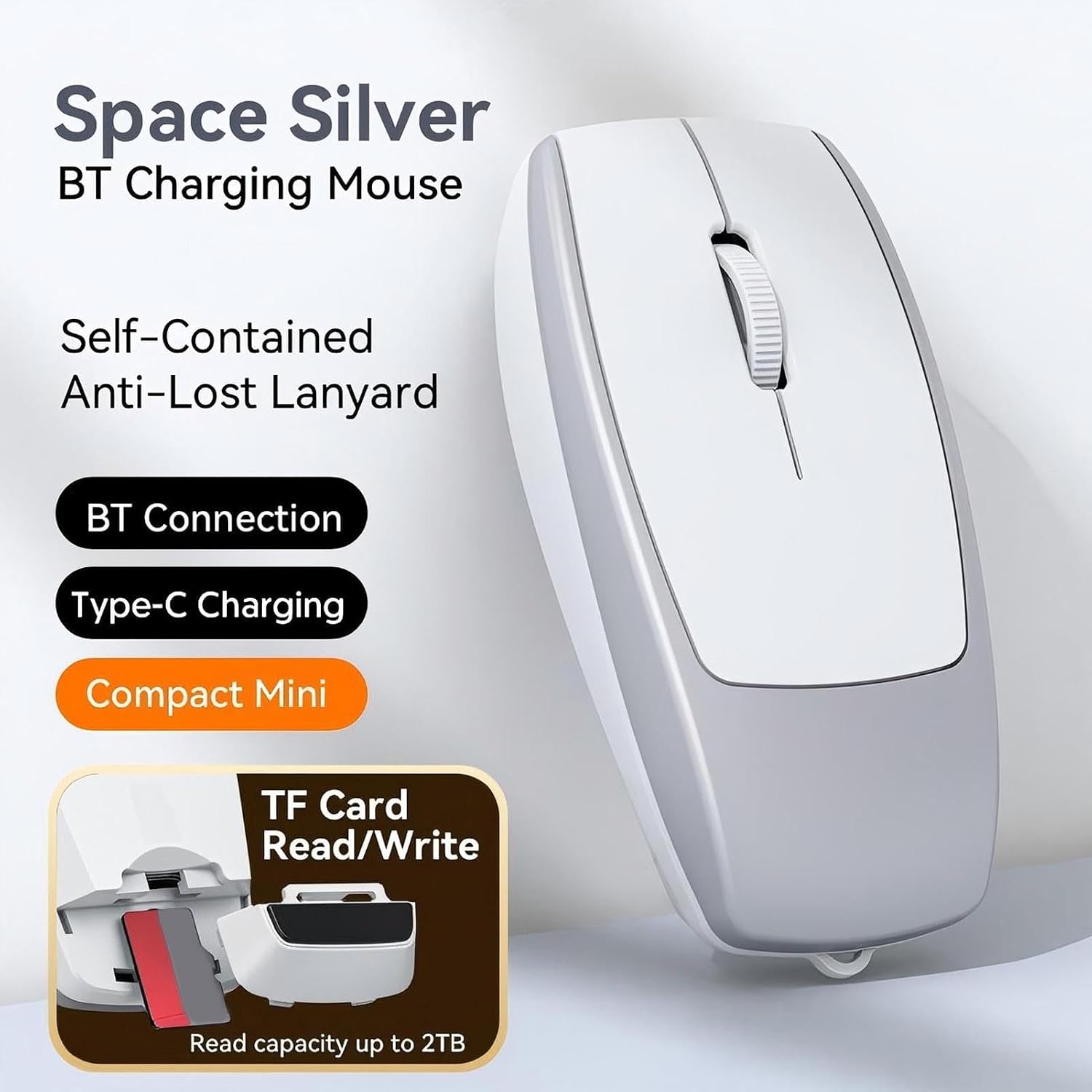
Image: Wisoqu M109 Wireless Mouse in Space Silver, highlighting its Bluetooth charging and TF card read/write capabilities.

Image: The Wisoqu M109 Wireless Mouse shown in a hand, illustrating its compact and portable design.
Package Contents
Verify that all items are present in the package:
- 1 x Wisoqu M109 Wireless Mouse
- 1 x Type-C Cable (also functions as an anti-lost rope)
- 1 x User Manual

Image: The Wisoqu M109 Wireless Mouse, Type-C charging cable, and instruction manual as included in the product package.
Specifications
The following table outlines the technical specifications of the Wisoqu M109 Wireless Mouse:
| Feature | Detail |
|---|---|
| Model | M109 |
| Operating Mode | BT5.1 Connection Mode |
| Frequency | 250Hz |
| Speed | 28 inches/second |
| Refresh Rate | 3000 frames per second |
| Acceleration | 10G |
| Resolution (DPI) | 800/1200/1600 |
| Number of Buttons | 4 buttons |
| Key Lifespan | 3 million clicks (silent switch) |
| Structure Material | ABS |
| Current | 500mA |
| Operating Distance | 10m |
| Battery Type | Lithium battery, 120mAh (built-in) |
| Charging Cable Length | 20 cm |
| Item Size | 7.8 x 3.8 x 2.2 cm / 3.07 x 1.5 x 0.87 in |
| Item Weight | 27g / 0.95oz |
| TF Card Reader Capacity | Up to 2TB |

Image: Visual representation of the Wisoqu M109's key specifications.

Image: Dimensional diagram of the Wisoqu M109 Wireless Mouse.
Setup
Follow these steps to set up your Wisoqu M109 Wireless Mouse:
- Power On: Locate the power switch at the bottom of the mouse and slide it to the 'ON' position.
- Enable Bluetooth: On your computer, laptop, or tablet, ensure Bluetooth is enabled.
- Pairing: Search for available Bluetooth devices. The mouse will appear as "BT5.1Mouse". Select it to initiate pairing.
- Connection Confirmation: Once successfully paired, the mouse is ready for use. The LED indicator on the mouse may change to a steady light or turn off, depending on the model.

Image: The Wisoqu M109 mouse demonstrating wireless Bluetooth connectivity with various devices.
Operating Instructions
Basic Mouse Functionality
- Left Click: Primary selection and activation.
- Right Click: Accesses contextual menus.
- Scroll Wheel: Navigates vertically through documents and web pages. Pressing the scroll wheel may activate middle-click functions depending on your operating system settings.
- DPI Button: Adjusts the mouse sensitivity (800/1200/1600 DPI). Press the button to cycle through the settings.
TF Card Reader Function
The Wisoqu M109 mouse includes an integrated TF (Micro SD) card reader:
- Insert TF Card: Locate the TF card slot on the mouse. Gently insert your TF card into the slot until it clicks into place.
- Access Data: Your computer will recognize the TF card as a removable storage device. You can now transfer files to and from the card.
- Remove TF Card: To remove, gently push the TF card further into the slot until it springs out. Always safely eject the device from your computer's operating system before physical removal to prevent data corruption.
Charging the Mouse
The mouse is equipped with a rechargeable lithium battery:
- Connect Charger: Use the provided Type-C cable to connect the mouse to a USB power source (e.g., computer USB port, wall adapter).
- Charging Indicator: A clear LED alert will indicate the charging status. The LED will typically be red while charging and turn off or change color when fully charged.
- Charging Time: A full charge typically takes 2-3 hours and provides over 30 hours of continuous use.

Image: The Wisoqu M109 mouse connected for charging via its Type-C port, indicating battery status.
Anti-Lost Rope Function
The included Type-C cable can also serve as an anti-lost rope. Attach it to the designated loop on the mouse for added security during travel or when moving between workstations.

Image: The Wisoqu M109 mouse with its anti-lost rope, emphasizing portability and secure handling.
Maintenance
To ensure optimal performance and extend the lifespan of your Wisoqu M109 mouse, follow these maintenance guidelines:
- Cleaning: Use a soft, dry, lint-free cloth to clean the exterior of the mouse. Avoid using harsh chemicals, solvents, or abrasive materials.
- Storage: When not in use, store the mouse in a cool, dry place away from direct sunlight and extreme temperatures.
- Battery Care: Do not expose the battery to excessive heat or cold. For long-term storage, it is recommended to charge the mouse to about 50% capacity.
- Avoid Drops: Protect the mouse from drops and impacts, which can damage internal components.
Troubleshooting
If you encounter issues with your Wisoqu M109 mouse, refer to the following common problems and solutions:
- Mouse not connecting via Bluetooth:
- Ensure the mouse is powered on.
- Check that Bluetooth is enabled on your host device (computer, laptop, etc.).
- Try unpairing and re-pairing the mouse from your device's Bluetooth settings.
- Ensure the mouse battery has sufficient charge.
- TF card not recognized:
- Ensure the TF card is inserted correctly and fully into the slot.
- Try the TF card in another device to check if the card itself is faulty.
- Check your computer's disk management or file explorer to see if the drive appears.
- Mouse not charging:
- Verify that the Type-C cable is securely connected to both the mouse and the power source.
- Try a different USB port or power adapter.
- Ensure the charging cable is not damaged.
- Mouse cursor erratic or unresponsive:
- Clean the optical sensor at the bottom of the mouse.
- Ensure you are using the mouse on a suitable surface (not highly reflective or transparent).
- Recharge the mouse battery.
Warranty Information
The Wisoqu M109 Wireless Mouse is covered by a manufacturer's warranty for 90 days from the date of purchase. This warranty covers defects in materials and workmanship under normal use. It does not cover damage caused by misuse, accidents, unauthorized modifications, or normal wear and tear. Please retain your proof of purchase for warranty claims.
Customer Support
For any questions, technical support, or warranty inquiries regarding your Wisoqu M109 Wireless Mouse, please refer to the manufacturer's contact information provided with your product packaging. You may also visit the official Wisoqu store on Amazon for additional resources and support.