
1. Introduction
The PWAYTEK Wireless CarPlay Adapter converts your car's wired CarPlay or Android Auto system into a wireless connection. This device allows for seamless integration of your smartphone's features directly onto your car's infotainment screen without the need for cables. It supports 5GHz WiFi and Bluetooth 5.0 for stable and fast connectivity.
2. Key Features
- Wireless Connectivity: Converts wired CarPlay/Android Auto to wireless.
- High-Speed Data: Utilizes 5GHz WiFi for fast and stable data transmission.
- Bluetooth 5.0: Enhanced Bluetooth for reliable pairing and audio performance.
- Plug & Play: Simple setup with no additional drivers or software required.
- Automatic Connection: Automatically connects to your paired smartphone upon car startup.
- Compact Design: Miniaturized for easy portability and discreet placement.
- Original Control Support: Retains full functionality of your car's original controls, including voice assistant, touch screen, scroll wheel, and OEM knobs.
3. Compatibility
This adapter is compatible with most cars manufactured in 2016 or later that feature a factory-installed wired CarPlay or Android Auto system. It supports iPhones running iOS 10 and above, and Android phones running Android 11 and above.
To check specific car compatibility for Apple CarPlay, visit: Apple CarPlay Compatible Models
To check specific car compatibility for Android Auto, visit: Android Auto Compatible Vehicles
4. Package Contents
- PWAYTEK Wireless CarPlay Adapter Unit
- USB-A to USB-C Adapter Cable
- User Manual

5. Setup Instructions
Follow these steps for initial setup of your PWAYTEK Wireless CarPlay Adapter:
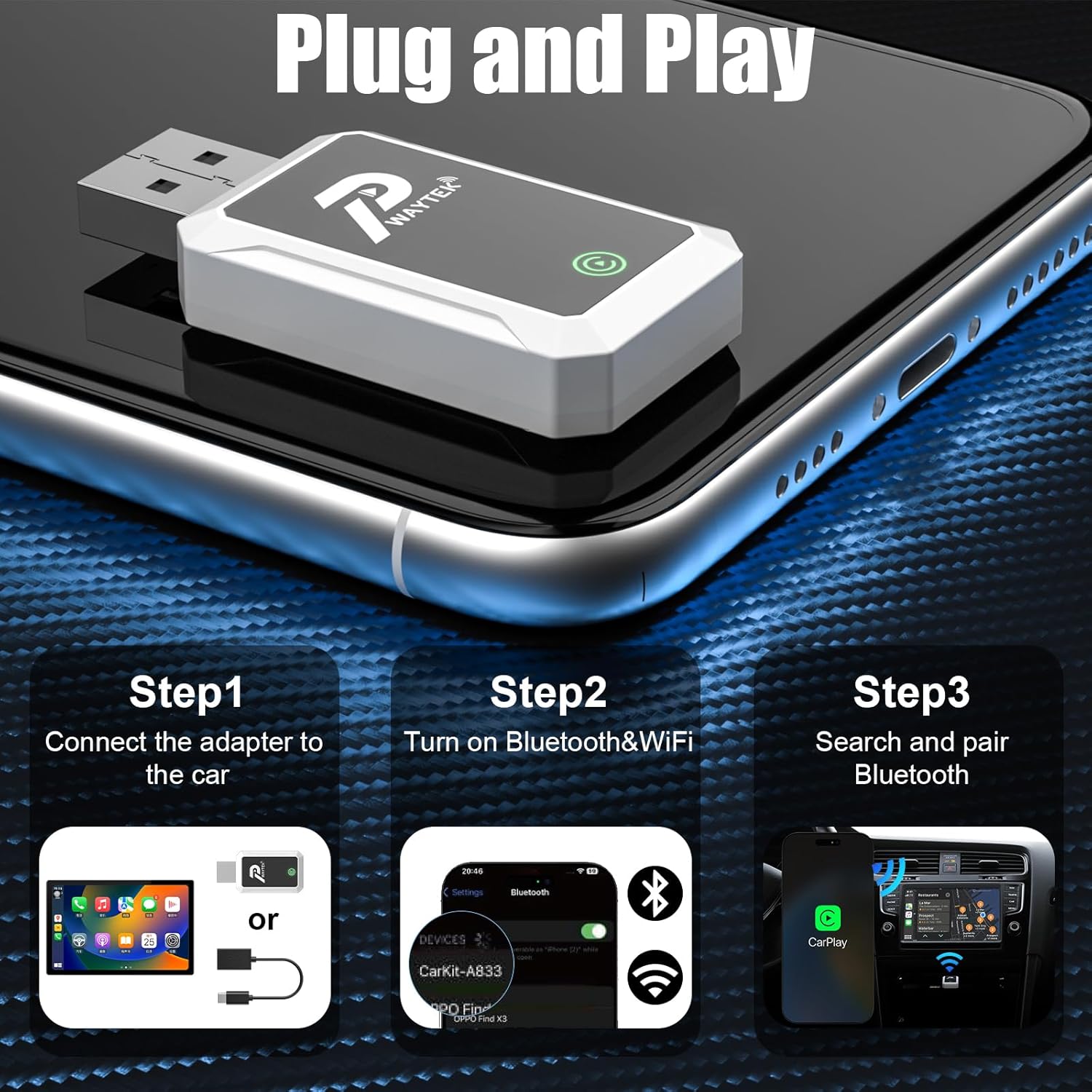
- Connect the Adapter: Plug the PWAYTEK Wireless CarPlay Adapter into your car's USB port that supports wired CarPlay or Android Auto. If your car has a USB-C port, use the included USB-A to USB-C adapter cable. The adapter's indicator light will illuminate.
- Enable Bluetooth & WiFi: On your iPhone or Android phone, ensure both Bluetooth and WiFi are turned on.
- Pair via Bluetooth: On your phone, go to Bluetooth settings and search for available devices. Select the device named "SmartBox-FA03" (or similar, as indicated by the adapter). Confirm the pairing request on both your phone and your car's infotainment screen.
- Automatic Connection: Once paired, your car's infotainment system should automatically launch CarPlay or Android Auto. For subsequent uses, the adapter will automatically connect to your phone when you start your car.
6. Operating Instructions
Once connected, your car's display will mirror your smartphone's CarPlay or Android Auto interface. You can interact with your phone's apps and features using your car's built-in controls.
- Navigation: Use your preferred navigation apps (e.g., Apple Maps, Google Maps, Waze) directly on the car screen.
- Music & Audio: Access your music, podcasts, and audiobooks through apps like Spotify, Apple Music, YouTube Music, etc.
- Communication: Make and receive calls, send messages, and access your contacts.
- Voice Assistant: Activate Siri or Google Assistant using your car's voice command button for hands-free control.
- Car Controls: Utilize your car's touch screen, scroll wheel, and physical buttons (OEM knobs) to navigate the interface.

7. Maintenance
To ensure the longevity and optimal performance of your PWAYTEK Wireless CarPlay Adapter, please follow these maintenance guidelines:
- Keep the device dry and away from moisture.
- Avoid exposing the adapter to extreme temperatures.
- Clean the device with a soft, dry cloth. Do not use harsh chemicals or abrasive cleaners.
- Handle the adapter and cables gently to prevent damage to connectors.
8. Troubleshooting
If you encounter issues with your PWAYTEK Wireless CarPlay Adapter, try the following solutions:
| Problem | Solution |
|---|---|
| Adapter does not power on. | Ensure the adapter is securely plugged into a functional USB port in your car. Try a different USB port if available. |
| Cannot connect to CarPlay/Android Auto. |
|
| Intermittent connection or lag. |
|
| Audio issues (no sound, distorted). |
|
If the problem persists, please contact PWAYTEK customer support for further assistance.
9. Specifications
| Feature | Detail |
|---|---|
| Brand | PWAYTEK |
| Model Number | B0FDF48GCJ |
| Connectivity | Wireless (5GHz WiFi, Bluetooth 5.0) |
| Supported Systems | Apple CarPlay, Android Auto |
| Car Compatibility | Cars with factory wired CarPlay/Android Auto (2016+) |
| Phone Compatibility | iPhone (iOS 10+), Android (Android 11+) |
| Item Weight | 0.04 Kilograms |
| Color | White |
| Number of Ports | 2 (USB-A, USB-C via adapter) |
| UPC | 717331823856 |
10. Warranty and Support
PWAYTEK products are designed for reliability and performance. For warranty information, product registration, or technical support, please refer to the documentation included with your purchase or visit the official PWAYTEK website. If you require assistance, please contact PWAYTEK customer service directly.
