1. Introduction
This manual provides essential information for the safe and efficient use of your new Samsung 32-Inch Class Full HD F6000 Smart TV, bundled with the S61D 5.0ch Soundbar. Please read these instructions thoroughly before operating the product and retain them for future reference. This guide covers setup, operation, maintenance, and troubleshooting to ensure you get the most out of your entertainment system.
2. Safety Information
Always follow basic safety precautions when using this product to reduce the risk of fire, electric shock, and injury. Keep the TV and soundbar away from water and moisture. Ensure proper ventilation and avoid blocking vents. Do not attempt to repair the product yourself; refer all servicing to qualified personnel. Use only manufacturer-specified attachments and accessories.
3. Package Contents
Verify that all items are present in the package:
- Samsung 32-Inch Class Full HD F6000 Smart TV
- Samsung S61D 5.0ch Soundbar (White All-in-One)
- Remote Control with Batteries
- Power Cable(s)
- TV Stand (if not wall-mounted)
- HDMI Cable
- Quick Setup Guide
- Warranty Card
4. Setup
4.1 Physical Setup
Stand Installation: If using the included stand, carefully attach it to the TV following the instructions in the Quick Setup Guide. Ensure all screws are tightened securely.
Wall Mounting: If wall-mounting, use a VESA-compatible wall mount (sold separately) appropriate for the TV's size and weight. Consult a professional for installation to prevent damage or injury.
Soundbar Placement: Position the S61D Soundbar directly in front of the TV for optimal audio delivery. Ensure it does not obstruct the TV's remote sensor.
4.2 Connections
Connect your devices to the TV and soundbar using the appropriate ports:
- HDMI: Connect external devices (e.g., cable box, gaming console, Blu-ray player) to the TV's HDMI ports. For the soundbar, use the HDMI eARC/ARC port for the best audio experience.
- USB: Insert USB drives for media playback or software updates into the USB ports.
- LAN: For a stable internet connection, connect an Ethernet cable from your router to the TV's LAN port.
- Antenna: Connect your antenna or cable TV feed to the ANT IN port.
- Power: Connect the power cable(s) to the TV and soundbar, then plug them into a wall outlet.
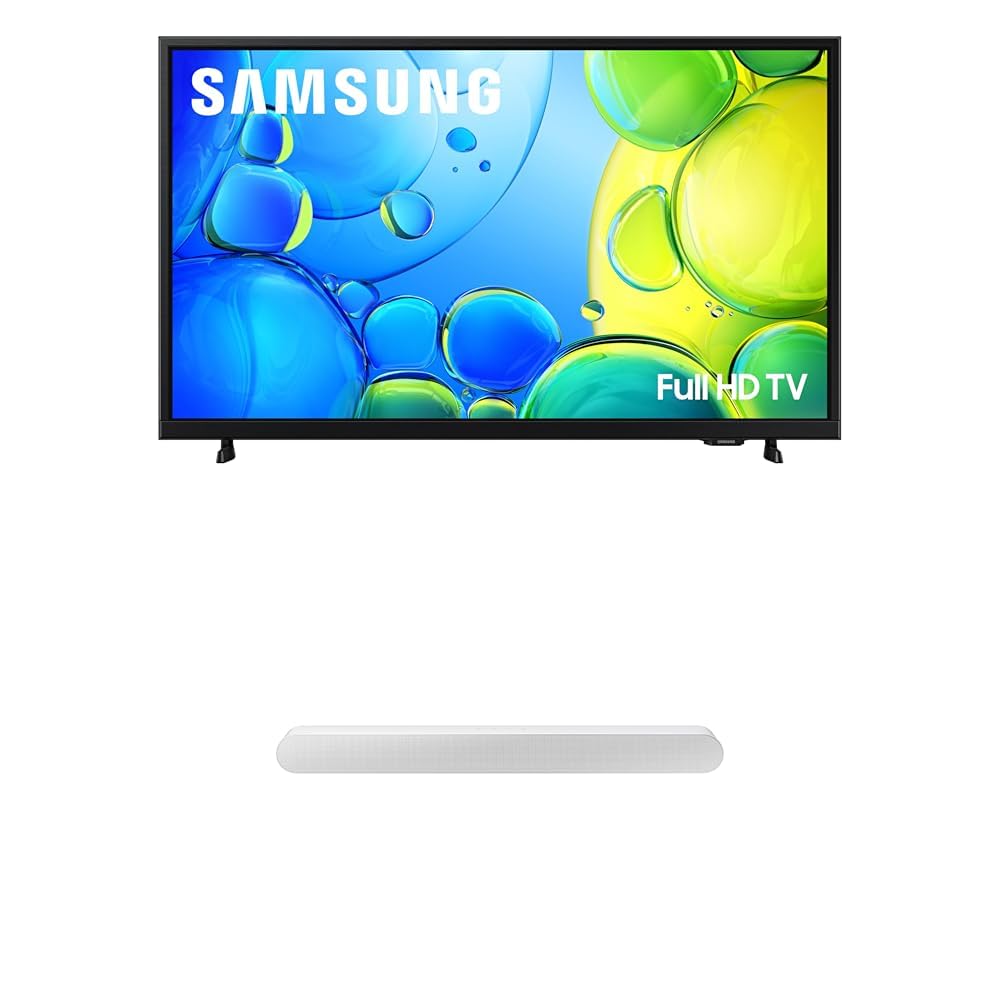
Figure 1: Samsung 32-Inch F6000 Smart TV with S61D Soundbar, showcasing its sleek design and integrated sound solution.
4.3 Initial Power On & Network Setup
- Press the Power button on the remote control or TV.
- Follow the on-screen prompts to select your language, country, and time zone.
- Connect to your Wi-Fi network by selecting it from the list and entering the password. Alternatively, if using a wired connection, the TV should automatically connect.
- Complete the initial setup, including channel scanning (for antenna/cable) and agreeing to terms and conditions.
5. Operating Instructions
5.1 Remote Control Functions
The included remote control allows you to navigate the TV's features. Key functions include:
- Power: Turns the TV on/off.
- Volume (+/-): Adjusts the sound level.
- Channel (CH +/-): Changes TV channels.
- Source: Selects input sources (HDMI 1, HDMI 2, USB, etc.).
- Navigation Pad: Moves through menus and selects options.
- Home: Accesses the Smart Hub.
- Back/Exit: Returns to the previous screen or exits a menu.
5.2 Basic TV Functions
- Changing Channels: Use the CH +/- buttons or the number pad.
- Adjusting Volume: Use the VOL +/- buttons.
- Selecting Input: Press the Source button and choose the desired input (e.g., HDMI 1 for your gaming console).
6. Smart Features
Your Samsung F6000 Smart TV is powered by the intuitive One UI Tizen OS, offering a seamless smart TV experience.
- One UI Tizen: Stream your favorite movies and shows, and access a wide range of apps and games directly from the Smart Hub.
- Smart Integration: Connect your smart devices and control your TV using integrated voice assistants like built-in Alexa. Enjoy seamless content casting with Chromecast and AirPlay 2.
- Endless Content: Access over 2,700 free channels, including more than 400 Samsung TV Plus premium channels, with just a Wi-Fi connection. Explore national and local news, sports, movies, and kids’ shows, live and on demand.
- Samsung Knox Security: Your TV experiences are secured. Samsung Knox Security protects against harmful apps and phishing sites, safeguarding sensitive data like PINs and passwords. It also secures IoT devices connected to your TV.
7. Sound System Integration
The included S61D 5.0ch Soundbar enhances your audio experience with advanced features:
- All-in-One Design: The compact soundbar delivers powerful 5-channel sound with Dolby Atmos, featuring built-in subwoofers for deep bass. Its all-in-one design simplifies setup without compromising surround sound performance.
- Object Tracking Sound Lite: Experience audio that follows the action on screen. A virtual top channel precisely places every sound, immersing you in the scene.
- Q-Symphony: Pair your Samsung TV with the Samsung Soundbar for an optimized audio experience. Q-Symphony allows your TV and soundbar speakers to work together, operating as one to enhance all audio channels.
- Wireless Dolby Atmos: Enjoy elevated audio without the clutter of HDMI cables. Experience captivating sound with Wireless Dolby Atmos.
- SpaceFit Sound Pro: Achieve room-filling sound calibrated to your space. The soundbar analyzes your environment and automatically optimizes audio settings for accurate and clear sound.
8. Maintenance
- Cleaning: Gently wipe the screen and exterior surfaces with a soft, dry, lint-free cloth. Do not use harsh chemicals or abrasive cleaners.
- Software Updates: Ensure your TV's software is up to date for optimal performance and security. Navigate to Settings > Support > Software Update to check for and install updates.
9. Troubleshooting
If you encounter issues, try the following common solutions:
- No Power: Check if the power cable is securely connected to both the TV/soundbar and the wall outlet. Test the outlet with another device.
- No Picture/Sound: Verify the correct input source is selected. Check all cable connections (HDMI, antenna). Restart connected devices.
- Poor Picture Quality: Adjust picture settings (brightness, contrast, sharpness). Ensure the content source is high quality.
- No Internet Connection: Check your Wi-Fi router and internet service. Reconnect the TV to the Wi-Fi network or use a wired LAN connection.
- Remote Not Working: Replace batteries. Ensure no obstructions between the remote and the TV's sensor.
For persistent issues, consult the full user manual available on the Samsung support website or contact Samsung customer service.
10. Specifications
| Feature | Detail |
|---|---|
| Brand Name | Samsung |
| Model | F6000 Series TV |
| Screen Size | 32-Inch Class |
| Display Technology | Full HD LED |
| Soundbar Model | HW-S61D/ZA (S61D 5.0ch) |
| Operating System | One UI Tizen |
| Connectivity | Wi-Fi, Bluetooth, HDMI, USB, LAN |
| Special Features | HDR, Object Tracking Sound Lite, Knox Security, Q-Symphony, Wireless Dolby Atmos, SpaceFit Sound Pro, Built-in Alexa, Chromecast, AirPlay 2, Samsung TV Plus |
| Date First Available | April 21, 2025 |
11. Warranty and Support
Your Samsung F6000 Smart TV and S61D Soundbar are covered by a limited warranty. Please refer to the included warranty card for specific terms and conditions, including coverage duration and service procedures. For technical support, product registration, or to download the full user manual, visit the official Samsung support website or contact Samsung customer service.
Online Support: www.samsung.com/us/support/
12. Official Product Videos
No official seller videos were found for this specific product model in the provided data. Please refer to the Samsung support website for any available product videos or demonstrations.