
Introduction
This manual provides essential information for setting up, operating, and maintaining your VIZIO VQD50M 50-inch Class Quantum 4K QLED UHD HDR Smart TV. Please read these instructions carefully before using your television to ensure proper functionality and to maximize your viewing experience.
The VIZIO VQD50M features a 50-inch Quantum 4K QLED display with UHD HDR, offering spectacular color and contrast. It includes a built-in Smart Platform with access to various apps, WiFi 6 for enhanced streaming, and a VIZIO Voice Remote for convenient control. A VIZIO Account is required for Smart TV functionality and product updates.
What's Included
Verify that all components are present in the packaging:
- VIZIO VQD50M 50-inch Class Quantum 4K QLED UHD HDR Smart TV
- Voice Remote (XRT270)
- Power Cable
- Quick Start Guide (not included in this digital manual)

Figure 1: VIZIO VQD50M TV and included Voice Remote. The image displays the TV's dimensions (49.5" diagonal, 43.7" width, 25.2" height without stand, 27.6" height with stand) and the VIZIO Voice Remote, highlighting its features like access to free streaming channels.
Setup
1. Unpacking
Carefully remove the television and all accessories from the packaging. It is recommended to retain the original packaging for future transport or service needs.
2. Attaching the Stand or Wall Mounting
Your VIZIO VQD50M TV can be placed on a stand or mounted on a wall. Ensure the TV is placed on a stable, level surface if using the stand. For wall mounting, use a VESA-compliant mount (400 x 400 mm) and follow the instructions provided with your wall mount kit. Always ensure proper ventilation around the TV.
3. Connecting Devices
Connect your external devices such as cable boxes, gaming consoles, or Blu-ray players to the TV's input ports. The VQD50M features 3 HDMI ports, 1 USB port, and supports Wi-Fi and Bluetooth connectivity.
- HDMI: For high-definition video and audio. Supports 4K Dolby Vision HDR.
- USB: For media playback or connecting compatible accessories.
- Wi-Fi 6: For wireless internet connection and smart TV features.
- Bluetooth: For connecting wireless headphones or other Bluetooth-enabled devices.

Figure 2: Bluetooth connectivity for wireless headphones. This image illustrates the convenience of pairing wireless headphones with the VIZIO TV for private listening.
4. Initial Power On
Plug the power cable into the TV and then into a wall outlet. Press the power button on the remote or on the TV itself. Follow the on-screen instructions to complete the initial setup, including network connection and VIZIO Account creation.
Operating Instructions
1. VIZIO Account and Smart TV Features
A VIZIO Account is essential for accessing the full range of Smart TV functionalities, managing app subscriptions, and receiving product updates. Create or log in to your VIZIO Account to unlock VIZIO Home, which provides access to built-in apps and free channels.

Figure 3: VIZIO Account interface on a smartphone. This image demonstrates how the VIZIO Account helps users save time and stream more by managing apps and settings.
2. Using the Voice Remote (XRT270)
The included Voice Remote allows for easy navigation and control of your TV. Use voice commands to search for content, launch apps, or adjust settings. The remote also provides quick access buttons for popular streaming services and VIZIO WatchFree+.

Figure 4: VIZIO Voice Remote and WatchFree+ content. This image highlights the remote's functionality for accessing free TV content and on-demand titles.
3. Accessing Apps and VIZIO Home
VIZIO Home is your central hub for all entertainment. It provides instant access to your favorite apps like Netflix, Hulu, Amazon Prime Video, and Apple AirPlay. Additionally, enjoy hundreds of free channels and thousands of free On Demand titles through the built-in WatchFree+ app.

Figure 5: VIZIO Home interface. This image displays the user-friendly layout of VIZIO Home, showcasing popular apps and content for easy navigation.
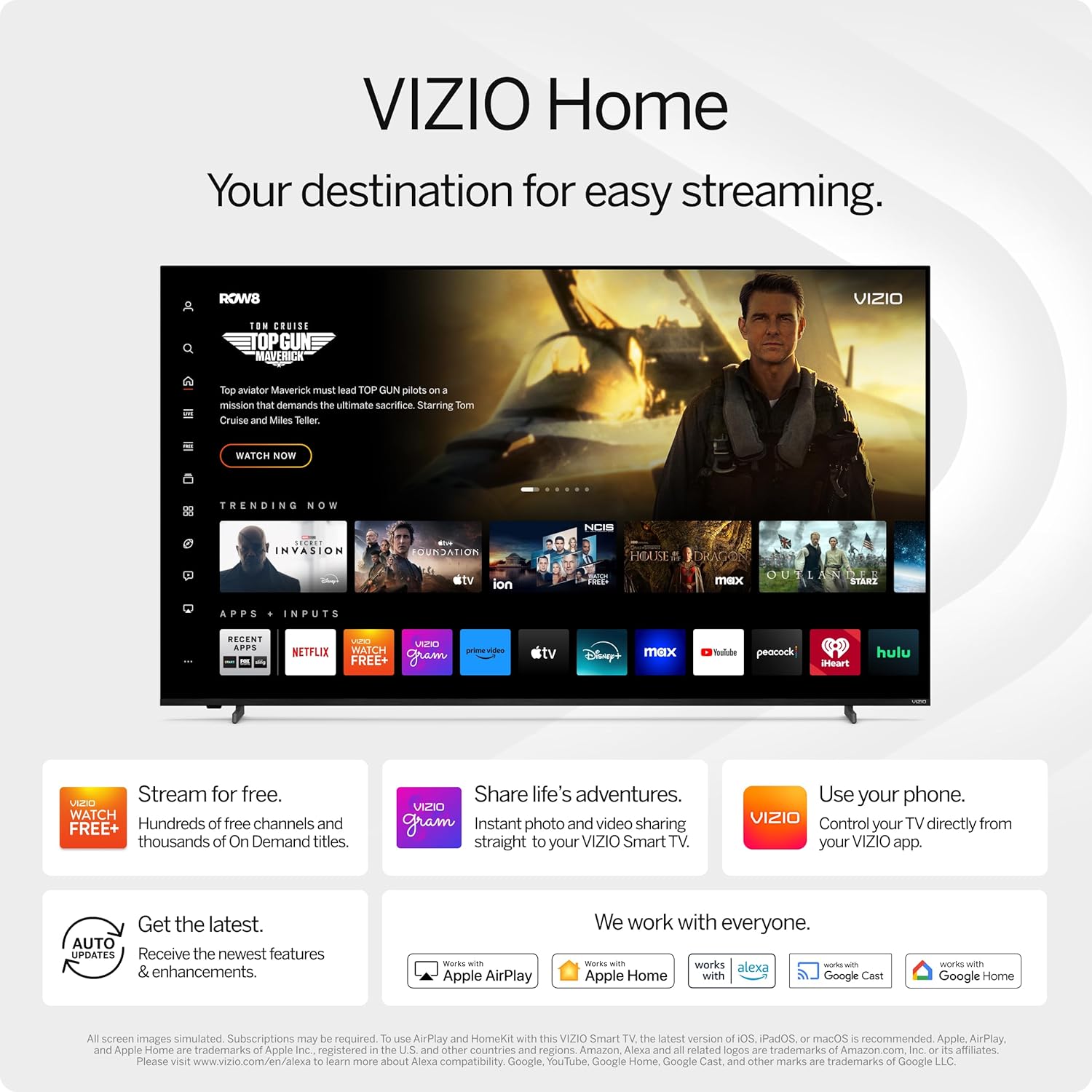
Figure 6: Key features of the VIZIO Quantum TV. This image emphasizes the benefits of QLED technology, the integrated smart platform, and advanced WiFi 6 connectivity.

Figure 7: VIZIO App Catalog. This image illustrates the wide array of streaming applications available directly on the VIZIO Smart TV.
4. Picture Settings
Your VQD50M TV features Quantum Color (QLED) and Dolby Vision 4K HDR for a superior visual experience. Adjust picture modes (e.g., Standard, Calibrated, Vivid) to suit your viewing environment and content. Quantum Color technology delivers over a billion vibrant colors for a true-to-life picture.

Figure 8: QLED picture quality. This image demonstrates the rich and accurate color reproduction achieved by the TV's Quantum Color technology.
5. Audio Settings
The TV supports Dolby Atmos for immersive audio. Explore the audio settings menu to adjust sound modes, equalizer settings, and ensure optimal sound output for your preferences or connected audio systems.
6. Connectivity
Leverage WiFi 6 for faster and more reliable streaming, especially in congested home networks. Bluetooth allows for easy connection of wireless audio devices. The TV also supports Apple AirPlay and Chromecast for casting content from compatible devices.
Maintenance
1. Cleaning Your TV
To clean the screen, gently wipe it with a soft, dry, lint-free cloth. For stubborn marks, lightly dampen the cloth with water or a screen cleaner specifically designed for electronics. Avoid using harsh chemicals or abrasive materials. Clean the TV's exterior with a soft, dry cloth.
2. Software Updates
Your VIZIO Smart TV will periodically receive software updates to improve performance and add new features. Ensure your TV is connected to the internet to receive these updates automatically. You can also manually check for updates in the TV's settings menu.
Troubleshooting
If you encounter issues with your VIZIO VQD50M TV, refer to the following common solutions:
- No Power: Ensure the power cable is securely connected to both the TV and a working electrical outlet. Try a different outlet.
- No Picture/Sound: Verify that the correct input source is selected. Check all cable connections (HDMI, etc.) for looseness.
- No Signal: Confirm that the connected device (cable box, game console) is powered on and functioning correctly. Ensure the correct input is selected on the TV.
- Remote Not Working: Replace the batteries in the remote. Ensure there are no obstructions between the remote and the TV's sensor.
- Network Connection Issues: Restart your router and modem. Check the TV's network settings to ensure it's connected to the correct Wi-Fi network.
- Smart TV Features Not Working: Ensure you are logged into your VIZIO Account and the TV has an active internet connection.
For more detailed troubleshooting or persistent issues, consult the VIZIO support website or contact customer service.
Specifications
| Feature | Detail |
|---|---|
| Screen Size | 50 Inches |
| Display Technology | QLED |
| Resolution | 4K UHD |
| Refresh Rate | 60 Hz |
| HDR Format Supported | Dolby Vision |
| Connectivity Technology | Bluetooth, USB, Wi-Fi 6 |
| Total HDMI Ports | 3 |
| Total USB Ports | 1 |
| Audio Channels | 5.1 (Dolby Atmos Integrated) |
| Mounting Type | Wall Mount (VESA 400 x 400 mm) |
| Control Method | Remote, Voice |
| Item Weight | 19 Pounds |
| Model Number | VQD50M0809 |
| UPC | 724129299151 |
Warranty and Support
Your VIZIO VQD50M TV comes with a 90-day limited warranty. For warranty claims, technical support, or additional product information, please visit the official VIZIO support website or contact their customer service department. Keep your purchase receipt for warranty verification.
Online Support: www.vizio.com/support