
LG 45GX900A-B
LG 45GX900A-B Ultragear OLED Curved Gaming Monitor User Manual
1. Introduction
This manual provides essential information for the proper setup, operation, and maintenance of your LG 45GX900A-B Ultragear OLED Curved Gaming Monitor. Please read this manual thoroughly before using the product to ensure safe and optimal performance.
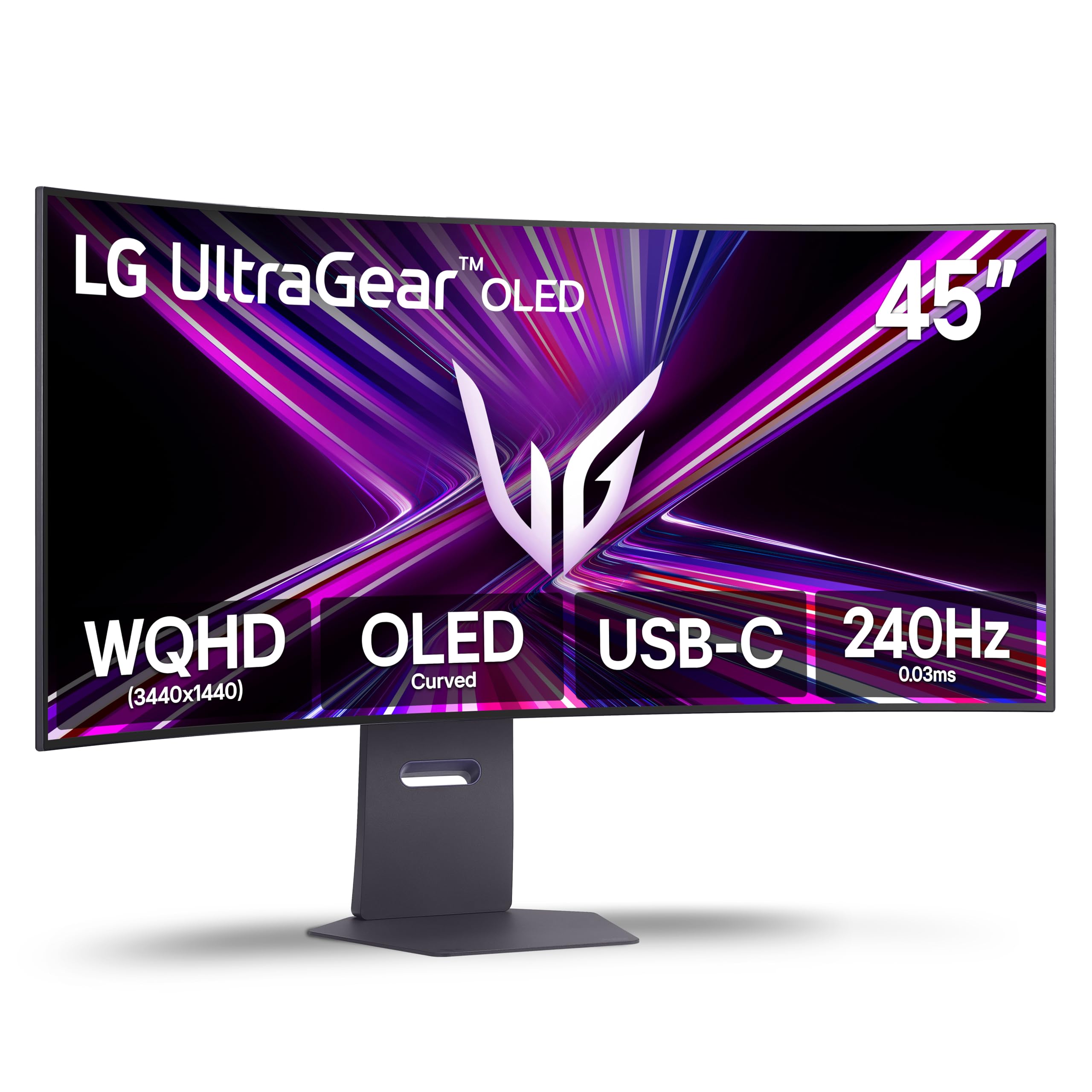
Front view of the LG 45GX900A-B Ultragear OLED Curved Gaming Monitor.
2. What's in the Box
Verify that all components are present before proceeding with the setup:
- LG 45GX900A-B Monitor
- Monitor Stand (Base and Neck)
- HDMI 2.1 Cable
- DisplayPort Cable
- USB-C Cable
- Power Adapter and Power Cord
- User Manual (this document)
3. Setup
3.1. Monitor Assembly
Carefully remove the monitor and its components from the packaging. Place the monitor face down on a soft, clean surface to prevent scratches.
- Attach the stand neck to the monitor panel. Ensure it clicks securely into place.
- Attach the stand base to the stand neck. Tighten any screws as indicated in the quick setup guide provided with the product.
- Alternatively, the monitor supports VESA mounting (100x100mm) for wall or desk arm installation. Ensure the mounting solution can support the monitor's weight (approximately 29.76 lbs without stand).

Back view of the monitor with the stand assembled.
3.2. Connecting to a Device
Connect the monitor to your computer or other devices using the appropriate cables. Ensure all connections are secure.

Available input and output ports on the monitor.
- Power Connection: Connect the power adapter to the monitor's DC-IN port and then plug the power cord into a wall outlet.
- HDMI Connection: Use the provided HDMI 2.1 cable to connect your device to one of the monitor's HDMI ports.
- DisplayPort Connection: Use the provided DisplayPort cable to connect your device to the monitor's DisplayPort.
- USB Type-C Connection: Use the provided USB-C cable to connect compatible devices. This port supports video, data, and up to 65W power delivery.
- USB Downstream Ports: Connect USB peripherals (e.g., keyboard, mouse) to the USB-A downstream ports.
4. Operating Instructions
4.1. Power On/Off
Press the power button (usually located on the bottom center or back of the monitor) to turn the monitor on or off. The power indicator light will illuminate when the monitor is on.
4.2. On-Screen Display (OSD) Menu
The OSD menu allows you to adjust various monitor settings. Access it using the joystick or buttons typically found on the bottom center or back of the monitor.
- Picture Mode: Select from various preset picture modes optimized for different content (e.g., Gamer 1, FPS, RTS, Vivid, Reader).
- Brightness/Contrast: Adjust the overall luminance and contrast levels.
- Color: Fine-tune color temperature, gamma, and saturation.
- Input: Manually select the input source (HDMI 1, HDMI 2, DisplayPort, USB-C).
4.3. Gaming Features
The LG 45GX900A-B is equipped with features designed to enhance your gaming experience:
- 240Hz Refresh Rate: Provides ultra-smooth motion for fast-paced games. Ensure your graphics card and connection support this refresh rate.
- 0.03ms (GtG) Response Time: Minimizes motion blur and ghosting for clear, precise visuals.
- NVIDIA G-SYNC Compatible & AMD FreeSync Premium Pro: These adaptive sync technologies synchronize the monitor's refresh rate with your GPU's frame rate, eliminating screen tearing and stuttering.
- Dynamic Action Sync (DAS): Reduces input lag, allowing for real-time response in games.
- Black Stabilizer: Brightens dark areas in games, making it easier to spot enemies hidden in shadows.
- FPS Counter: Displays your current frames per second in real-time.
- Crosshair: Places a fixed crosshair on the center of the screen for improved aiming accuracy in FPS games.
5. Maintenance
5.1. OLED Care Features
To maintain the longevity and performance of your OLED panel, utilize the built-in OLED Care features:
- Pixel Cleaning: This function helps to refresh the pixels and prevent image retention. It is recommended to run this periodically or as prompted by the monitor.
- Consult the OSD menu for other available OLED Care options and their recommended usage.
5.2. Cleaning the Monitor
Always unplug the monitor before cleaning.
- Screen: Gently wipe the screen with a soft, lint-free cloth. For stubborn marks, lightly dampen the cloth with water or a specialized screen cleaner. Do not spray liquid directly onto the screen.
- Exterior: Wipe the exterior surfaces with a soft, dry cloth. Avoid using abrasive cleaners or solvents.
6. Troubleshooting
If you encounter issues with your monitor, refer to the following common solutions:
| Problem | Possible Solution |
|---|---|
| No Power | Check if the power cord is securely connected to the monitor and the power outlet. Ensure the power outlet is functional. |
| No Signal / Blank Screen | Verify that the video cable (HDMI, DisplayPort, USB-C) is securely connected to both the monitor and the source device. Select the correct input source via the OSD menu. |
| Image Flickering / Stuttering | Ensure your graphics card drivers are up to date. Check the refresh rate settings in your operating system. Enable G-SYNC/FreeSync in both your graphics card control panel and the monitor's OSD. |
| Poor Picture Quality | Adjust brightness, contrast, and color settings in the OSD menu. Ensure the display resolution is set to the native WQHD (3440 x 1440) resolution. |
For more detailed troubleshooting or persistent issues, please refer to the LG support website or contact customer service.
7. Specifications
| Feature | Detail |
|---|---|
| Model Name | 45GX900A-B |
| Screen Size | 44.5 Inches |
| Display Type | OLED |
| Resolution | WQHD (3440 x 1440) |
| Aspect Ratio | 21:9 |
| Curvature | 800R |
| Refresh Rate | 240 Hz |
| Response Time | 0.03 ms (GtG) |
| Contrast Ratio | 1,500,000:1 |
| Brightness | 275 cd/m² (Typical) |
| HDR Support | VESA DisplayHDR True Black 400, HDR 10 |
| Adaptive Sync | NVIDIA G-SYNC Compatible, AMD FreeSync Premium Pro |
| Connectivity | 2x HDMI 2.1, 1x DisplayPort 1.4, 1x USB Type-C (65W PD), 2x USB 3.0 Downstream, 1x USB Upstream |
| Dimensions (W x D x H) | 39.1" x 13.3" x 26.1" (with stand) |
| Weight | 29.76 lbs (with stand) |
8. Warranty Information
Your LG 45GX900A-B Ultragear OLED Curved Gaming Monitor is covered by a 2-Year Limited Manufacturer's Warranty. This warranty covers defects in materials and workmanship under normal use. For specific terms, conditions, and limitations, please refer to the warranty card included with your product or visit the official LG website.
9. Customer Support
For further assistance, technical support, or to download the latest drivers and software, please visit the official LG support website:
Website: www.lg.com/us/support
You may also find helpful resources and FAQs on the product page or by searching for your specific model number.
Ask a question about this manual
Ask about setup, troubleshooting, compatibility, parts, safety, or missing instructions. Manuals+ will review the question and use this page’s manual context to help answer it.