
1. Product Overview
The ORICO 4-Port USB 3.2 Hub (Model 50CM) is a high-speed data extender designed to expand connectivity for various devices. It features a durable zinc alloy and transparent PC construction, offering both functionality and a modern aesthetic. This hub provides two USB-A and two USB-C ports, supporting data transfer speeds up to 10Gbps, making it suitable for laptops, PCs, desktops, and other compatible devices.
Key Features:
- High-Speed Data Transfer: Supports up to 10Gbps total bandwidth across all four interfaces, enabling rapid transfer of large files.
- Versatile Connectivity: Equipped with 2 USB-A and 2 USB-C ports for connecting multiple peripherals simultaneously.
- Durable Construction: Made from zinc alloy with an anti-oxidation treatment and transparent PC material for enhanced heat dissipation and stability.
- Compact and Portable: Small dimensions (2.24 x 2.24 x 0.81 inches) for easy transport.
- Broad Compatibility: Compatible with Windows 8/10 and Mac OS systems.
Product Components:
- ORICO 4-Port USB 3.2 Hub (Model 50CM)
- USB-C to USB-C Cable (1.64Ft or 3.28Ft, depending on variant)
- User Manual
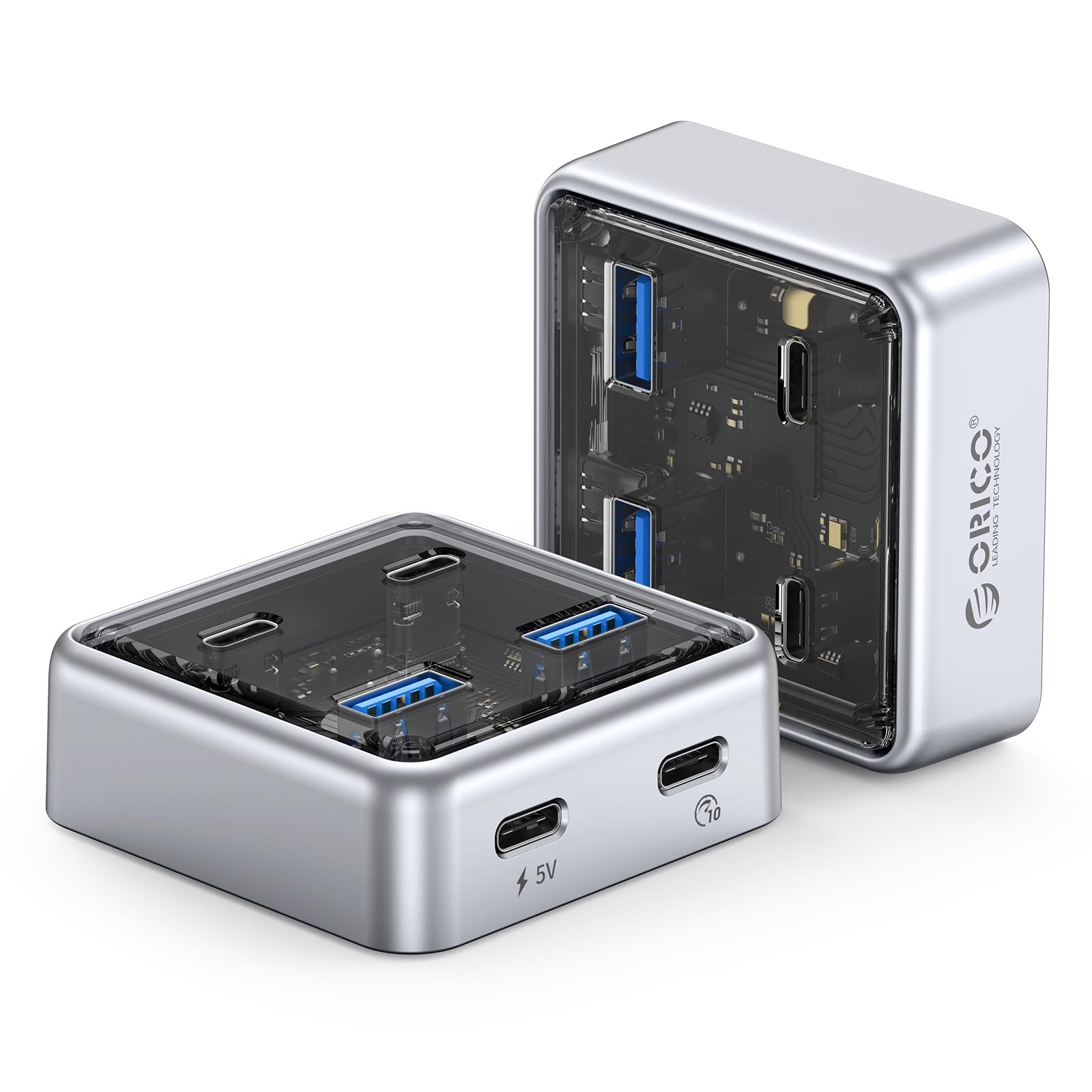
Figure 1: ORICO 4-Port USB 3.2 Hub (Model 50CM) - Front View.
2. Setup Instructions
Follow these steps to set up your ORICO 4-Port USB 3.2 Hub.
2.1 Connecting the Hub to Your Device
- Locate an available USB-C port on your laptop, PC, or desktop computer.
- Connect one end of the provided USB-C to USB-C cable to the designated host port on the ORICO hub.
- Connect the other end of the USB-C cable to the USB-C port on your computer.
- The hub is plug-and-play and does not require additional drivers for most operating systems (Windows 8/10, Mac OS).
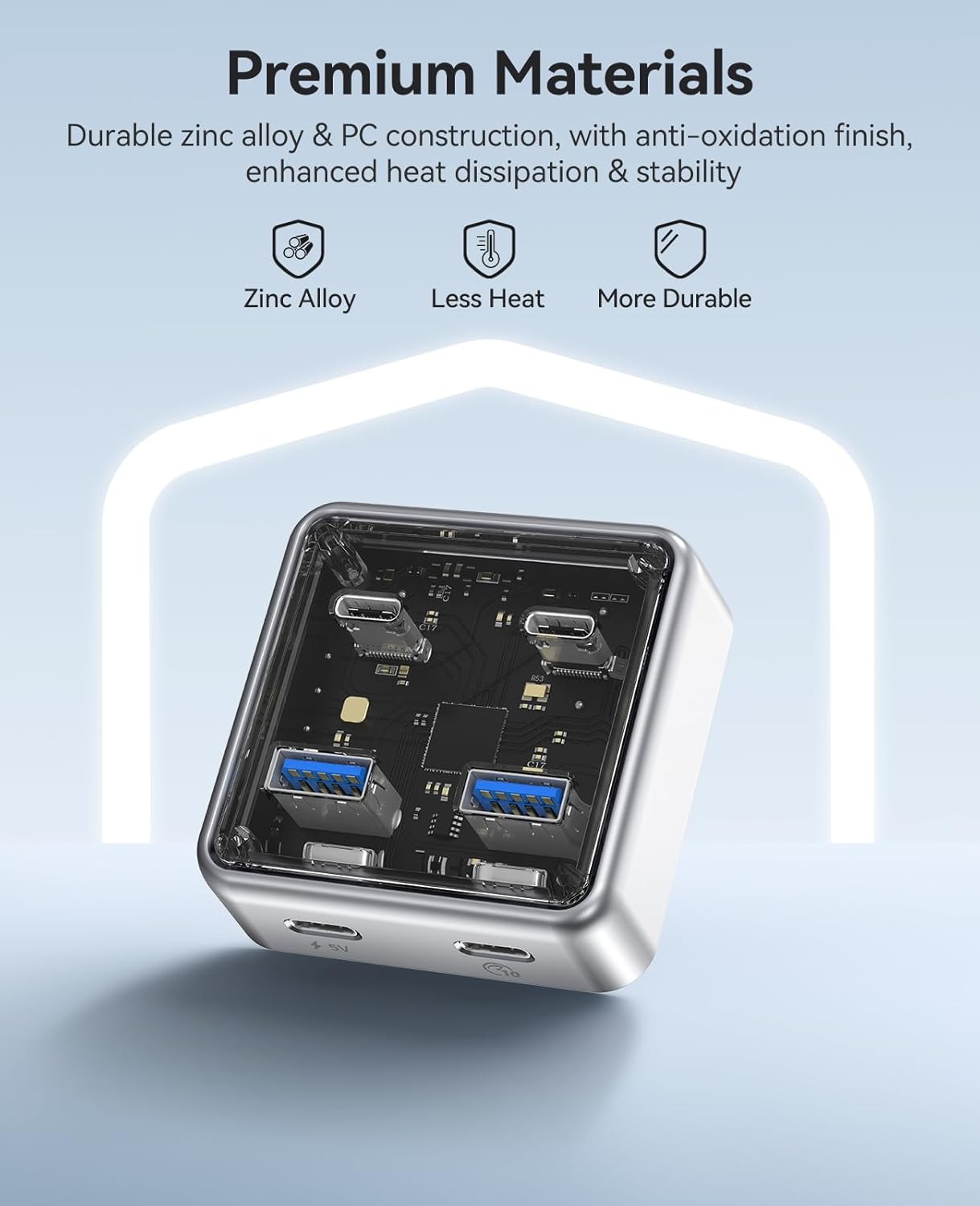
Figure 2: Connecting the ORICO hub to a laptop via USB-C cable.
2.2 Powering High-Power Devices (Optional)
For stable operation with high-power devices such as external hard drives, RGB keyboards, or printers, the hub includes a 5V USB-C power input port. An adapter is not included and must be prepared separately if needed.
- Connect a 5V power adapter (not included) to the 5V USB-C power input port on the hub.
- Ensure the power adapter provides sufficient current for your connected high-power devices.

Figure 3: Optional 5V USB-C power input for stable connection with high-power devices.
3. Operating Instructions
The ORICO 4-Port USB 3.2 Hub allows for simultaneous connection and data transfer with multiple devices.
3.1 Connecting Peripherals
- Insert USB-A devices (e.g., flash drives, mice, keyboards) into the two USB-A 3.2 ports.
- Insert USB-C devices (e.g., external SSDs, smartphones) into the two USB-C 3.2 ports.
- All four ports can be used concurrently for data transfer and device connectivity.
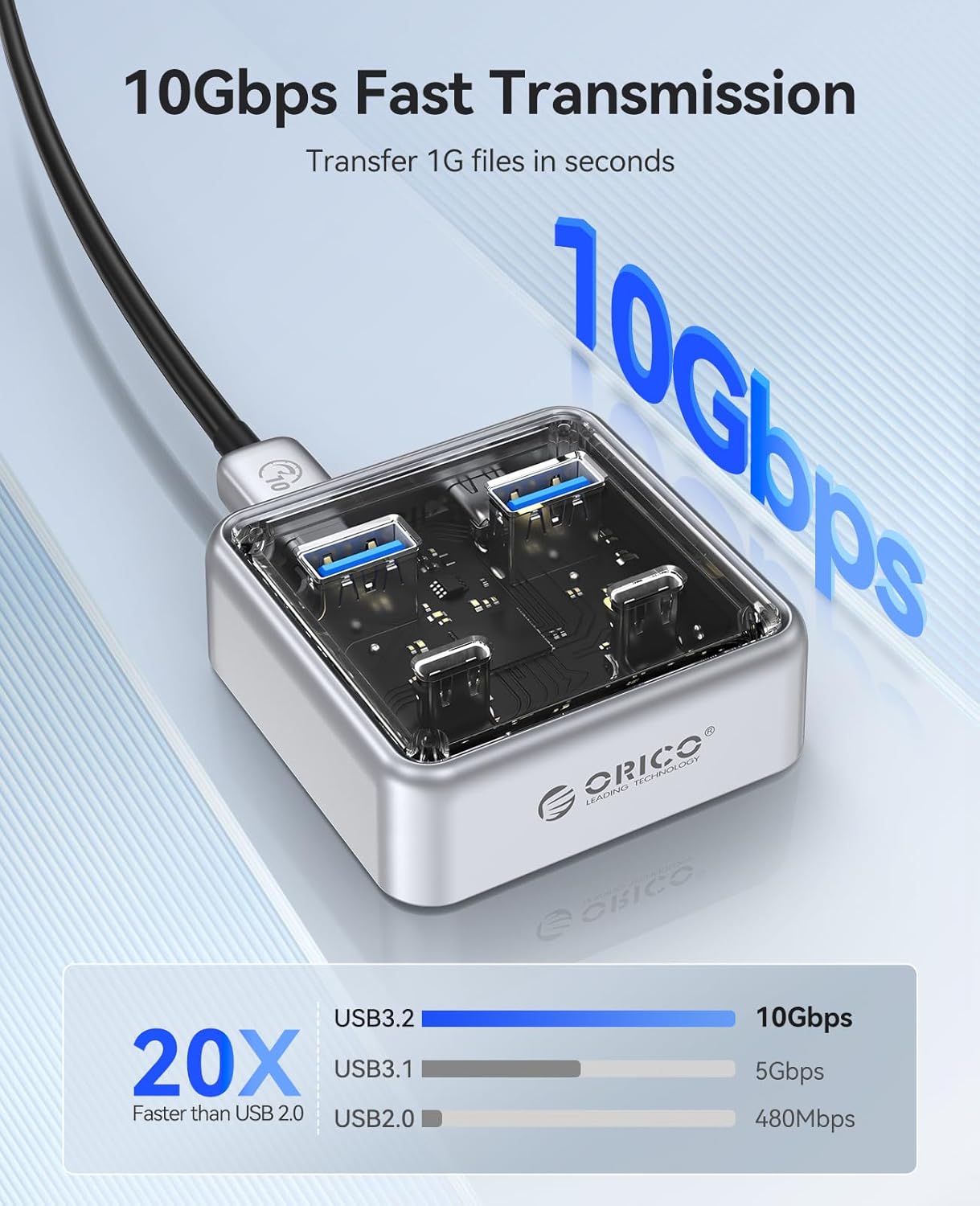
Figure 4: The hub connected to various peripherals, demonstrating its versatile port options.
3.2 Data Transfer
The hub supports data transfer speeds up to 10Gbps. When transferring large files, ensure both the connected device and your computer's port support USB 3.2 Gen 2 for optimal performance.
Video 1: Demonstrates high-speed data transfer using the ORICO 4-Port USB 3.2 Hub. This video shows the hub facilitating quick file transfers between a laptop and an external storage device, highlighting its 10Gbps capability for efficient workflow.
Video 2: An overview of the ORICO 10Gbps Transparent USB Hub. This video showcases the hub's design, port configuration, and its application in expanding connectivity for various devices, emphasizing its compact size and high-speed capabilities.
4. Maintenance
Proper maintenance ensures the longevity and optimal performance of your ORICO USB Hub.
- Cleaning: Use a soft, dry cloth to wipe the exterior of the hub. Avoid using liquid cleaners or abrasive materials.
- Storage: Store the hub in a cool, dry place away from direct sunlight and extreme temperatures.
- Handling: Avoid dropping the hub or subjecting it to strong impacts, as this may damage internal components.
- Port Care: Ensure USB ports are free from dust and debris before inserting cables.

Figure 5: The compact design of the ORICO hub, illustrating its portability and ease of handling for maintenance.
5. Troubleshooting
If you encounter issues with your ORICO USB Hub, refer to the following common solutions:
| Problem | Possible Cause | Solution |
|---|---|---|
| Device not recognized | Loose connection, incompatible device, insufficient power. |
|
| Slow data transfer speed | Device or computer port does not support 10Gbps, multiple devices sharing bandwidth. |
|
| Hub gets warm during use | Normal operation, especially with multiple active devices. |
|
6. Product Specifications
| Feature | Detail |
|---|---|
| Brand | ORICO |
| Model Number | 50CM |
| Color | Silver |
| Hardware Interface | USB, USB Type C |
| Total USB Ports | 4 (2x USB-A, 2x USB-C) |
| Data Transfer Rate | 10 Gigabits Per Second (shared bandwidth) |
| Special Feature | Plug and Play |
| Compatible Devices | Card Readers, Desktops, Hard Disk Drive, Keyboards, Laptops, PCs, Smartphones |
| Operating System | Windows 8/10, Mac OS |
| Item Weight | 100 Grams |
| Dimensions | 2.24 x 2.24 x 0.81 inches (approximate) |
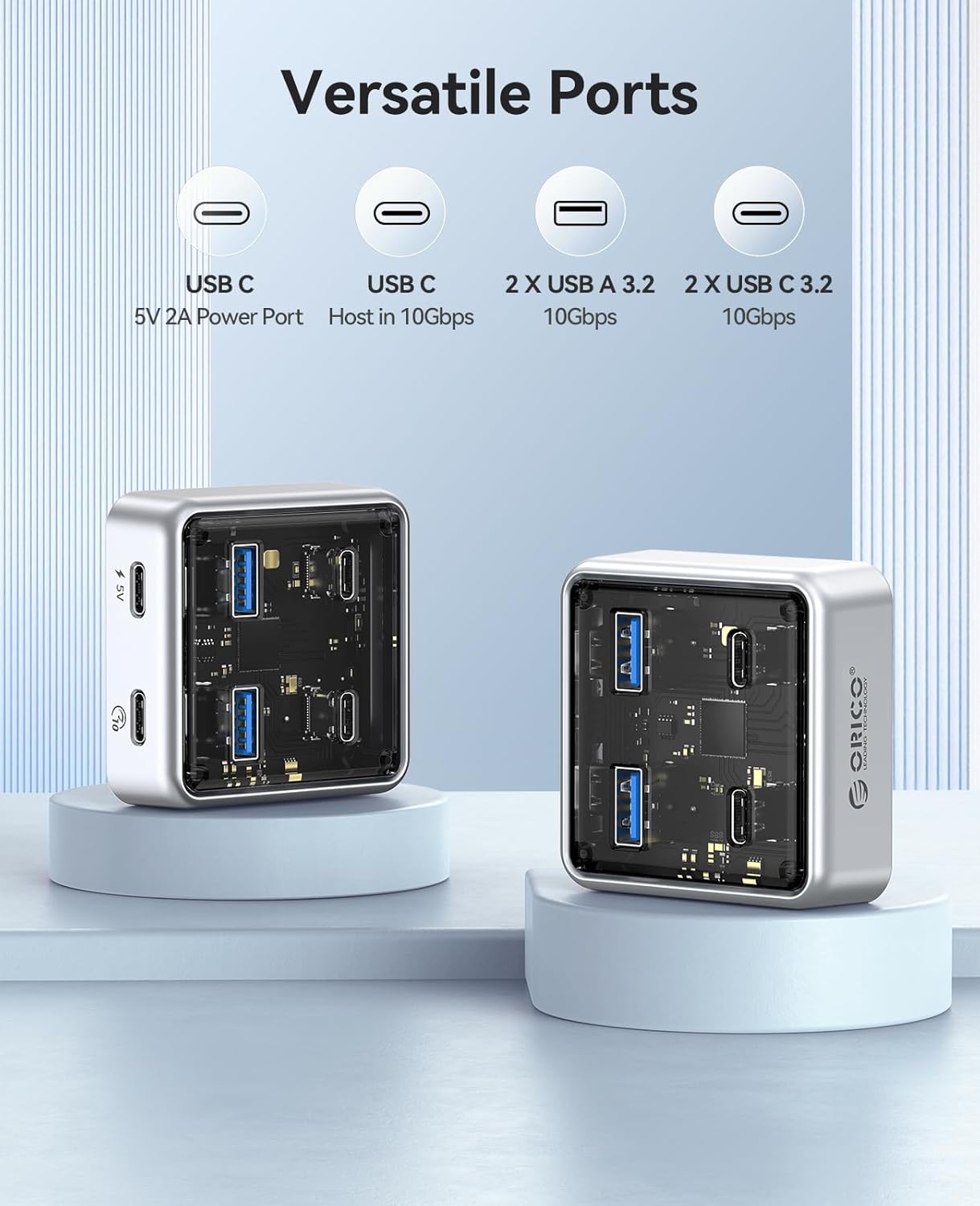
Figure 6: Detailed view of the ORICO hub's versatile ports, including USB-A and USB-C connections.
7. Warranty & Support
7.1 Warranty Information
The ORICO 4-Port USB 3.2 Hub (Model 50CM) comes with a 12-month warranty from the date of purchase. This warranty covers manufacturing defects and malfunctions under normal use. It does not cover damage caused by misuse, accidents, unauthorized modifications, or external factors.
Please retain your proof of purchase for warranty claims.
7.2 Customer Support
For technical assistance, troubleshooting, or warranty inquiries, please contact ORICO customer support through the official ORICO website or your retailer's support channels. Provide your product model number (50CM) and a detailed description of the issue for faster service.
For more information, visit the ORICO Store on Amazon.


