1. Product Overview
The iBUYPOWER Element Black Gaming PC Desktop EBI5N56T02 is a high-performance computer designed for gaming, content creation, and general computing tasks. It features an Intel Core i5 14400F processor, NVIDIA GeForce RTX 5060Ti 8GB graphics card, 16GB DDR5 5200MHz RAM, and a 1TB NVMe SSD. The system comes with Windows 11 Home pre-installed and includes a gaming keyboard and mouse.
Key Features:
- Intel Core i5 14400F Processor
- NVIDIA GeForce RTX 5060Ti 8GB Graphics Card
- 16GB DDR5 RGB 5200MHz RAM
- 1TB NVMe SSD for fast storage
- Windows 11 Home Operating System
- Wi-Fi Ready (802.11AC)
- Tempered Glass RGB Gaming Case with 16-color RGB lighting
- Includes iBUYPOWER Gaming Keyboard and RGB Gaming Mouse
2. Initial Setup
2.1 Unboxing
Carefully remove the PC and all accessories from the packaging. Retain all packaging materials for future transport or warranty claims.

Image: The iBUYPOWER Element Black Gaming PC Desktop, showcasing the tower, included gaming keyboard, and RGB gaming mouse.
2.2 Connecting Peripherals
- Monitor: Connect your monitor to the graphics card (NVIDIA GeForce RTX 5060Ti) ports (DisplayPort or HDMI) using the appropriate cable. Ensure the cable is securely fastened.
- Keyboard and Mouse: Connect the included iBUYPOWER gaming keyboard and mouse to the available USB ports on the rear or front of the PC.
- Power: Connect the power cable to the power supply unit (PSU) at the rear of the PC, then plug the other end into a grounded electrical outlet.
- Network (Optional): For a wired internet connection, connect an Ethernet cable from your router or modem to the RJ-45 network port on the rear of the PC. For wireless, the PC is Wi-Fi ready.
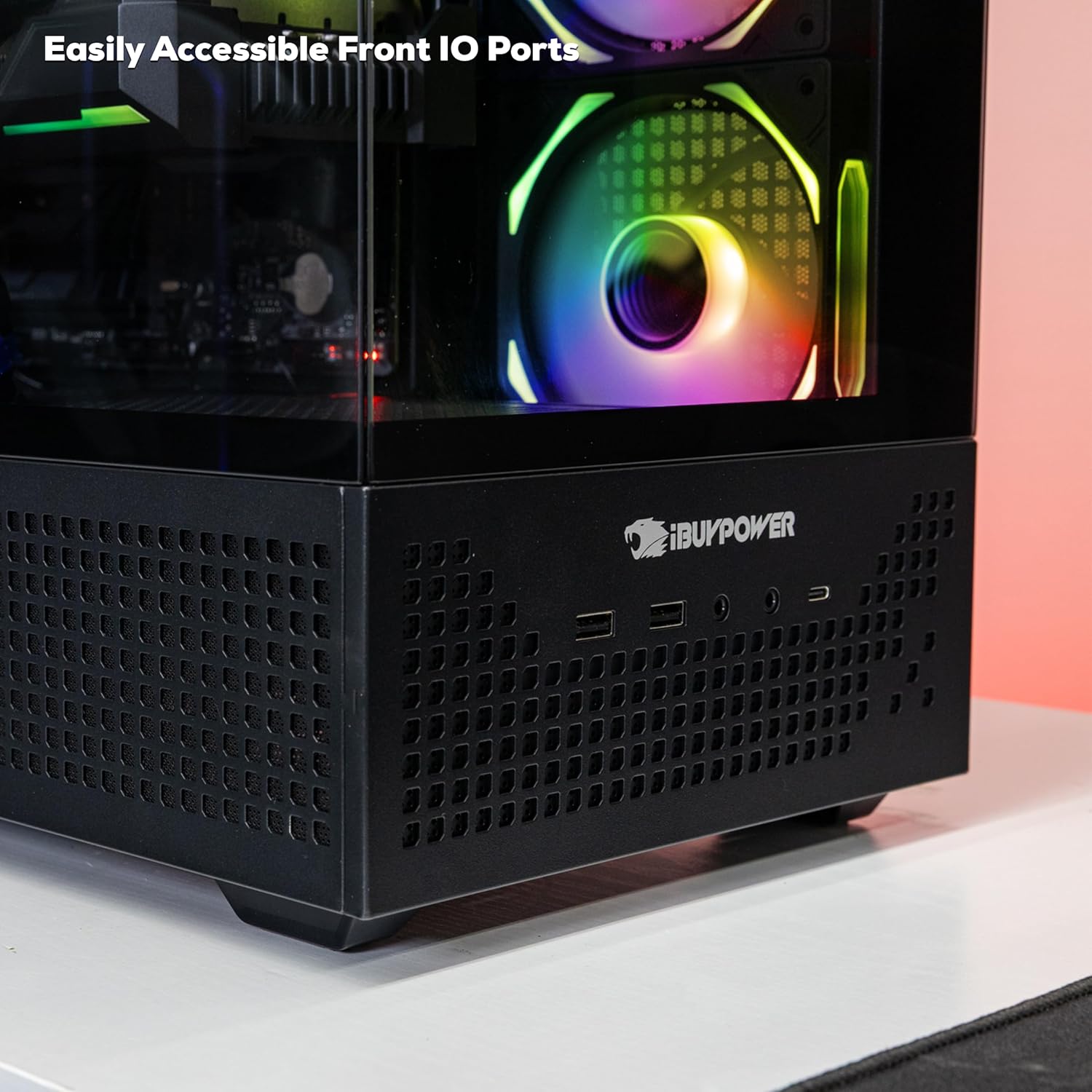
Image: Close-up view of the easily accessible front I/O ports, including USB ports and audio jacks.
2.3 First Boot-Up
Press the power button located on the top corner of the PC case. The system will power on, and the RGB lighting will illuminate.

Image: Detailed view of the iconic Chimera Corner Power Button, located at the top corner of the PC case.
Follow the on-screen instructions to complete the Windows 11 Home setup process. This typically involves selecting your region, language, creating a user account, and connecting to a network.
3. Operating Instructions
3.1 Windows 11 Home
Your iBUYPOWER PC comes with Windows 11 Home pre-installed. Familiarize yourself with the operating system's interface, including the Start Menu, Taskbar, and File Explorer. Regular updates are recommended for security and performance.
3.2 Gaming and Performance
The PC is optimized for gaming and demanding applications. Ensure your graphics drivers are up to date for optimal performance. You can download the latest drivers from the NVIDIA website.
3.3 RGB Lighting Control
The iBUYPOWER Element case features 16-color RGB lighting. Control of the RGB lighting is typically managed through pre-installed software or a dedicated button on the case. Refer to the specific software documentation for detailed instructions on customizing lighting effects.
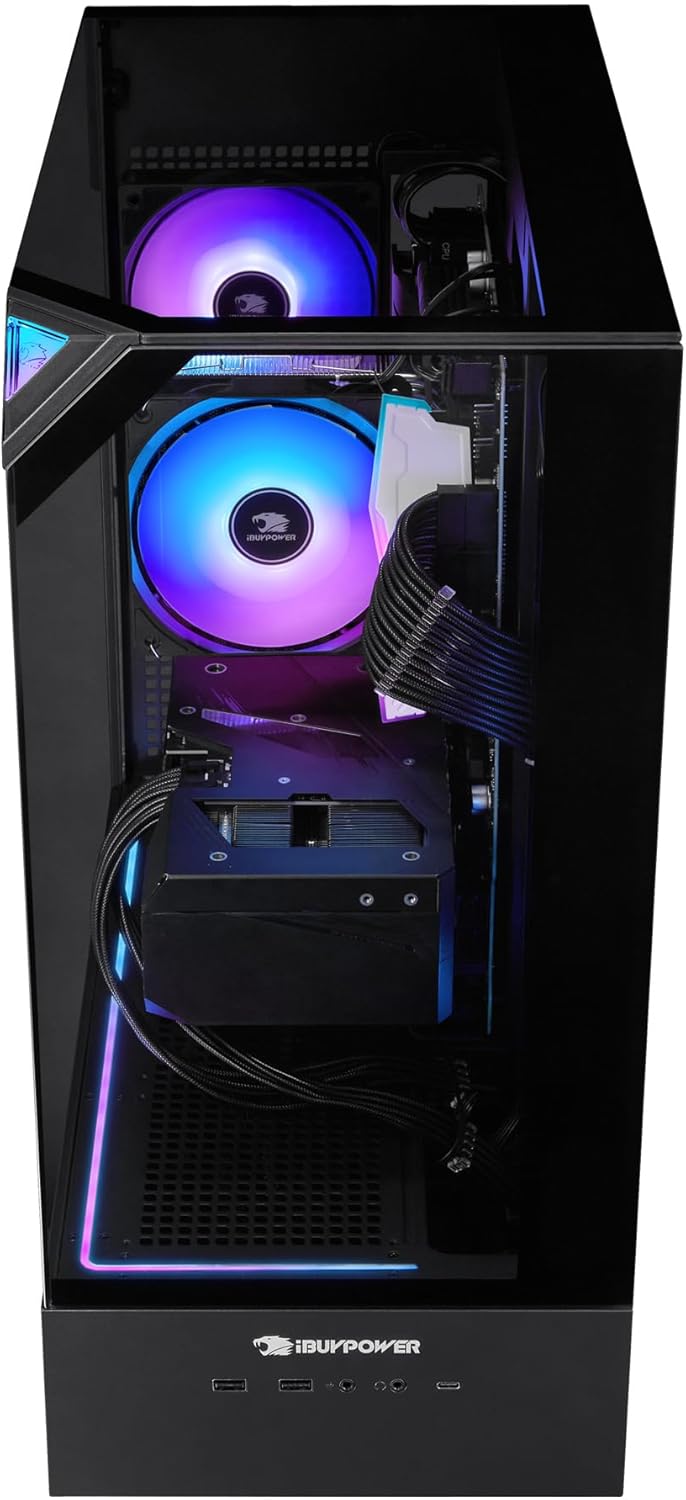
Image: Side view of the PC highlighting the built-in RGB LED strip along the bottom edge of the tempered glass panel.

Image: Interior view of the PC, displaying the RGB illuminated cooling fans and internal components.
4. Maintenance and Care
4.1 Cleaning
Regular cleaning helps maintain performance and longevity. Use a can of compressed air to remove dust from internal components, especially fans and heatsinks. Wipe exterior surfaces with a soft, dry cloth. Avoid liquid cleaners directly on components.
4.2 Software Updates
Keep your operating system, drivers, and applications updated. Windows Update will handle OS updates, and graphics drivers should be updated periodically from the NVIDIA website.
4.3 Data Backup
Regularly back up important data to an external drive or cloud storage to prevent data loss.
5. Troubleshooting Common Issues
This section addresses common issues you might encounter. For more complex problems, please contact iBUYPOWER support.
5.1 No Power
- Ensure the power cable is securely connected to both the PC and the wall outlet.
- Verify the power switch on the PSU (located at the rear of the PC) is in the 'ON' position.
- Try a different power outlet.
5.2 No Display on Monitor
- Check that the monitor is powered on and connected to the graphics card (NVIDIA GeForce RTX 5060Ti) and not the motherboard's integrated graphics ports.
- Ensure the monitor input source is correctly selected.
- Try a different display cable or monitor if available.
5.3 System Slowdown or Freezing
- Close unnecessary applications running in the background.
- Check for malware or viruses using antivirus software.
- Ensure sufficient free space on the 1TB NVMe SSD.
- Verify that all drivers, especially graphics drivers, are up to date.
6. Technical Specifications
| Component | Specification |
|---|---|
| Processor | Intel Core i5 14400F (2.5 GHz) |
| Graphics Card | NVIDIA GeForce RTX 5060Ti 8GB |
| RAM | 16GB DDR5 RGB 5200MHz |
| Storage | 1TB NVMe SSD |
| Operating System | Windows 11 Home |
| Connectivity | 6 x USB 3.1, 1x RJ-45 Ethernet, Onboard Audio, 802.11AC Wi-Fi |
| Dimensions (LxWxH) | 20 x 9.1 x 17.4 inches |
| Weight | 36 pounds |
| Color | Black |
7. Warranty and Support
7.1 Warranty Information
Your iBUYPOWER Element Black Gaming PC Desktop is covered by a manufacturer's warranty. Please refer to the warranty card included with your product for specific terms, conditions, and duration. Keep your proof of purchase for warranty claims.
7.2 Customer Support
For technical assistance, troubleshooting beyond this manual, or warranty inquiries, please contact iBUYPOWER customer support. You can find contact information and additional resources on the official iBUYPOWER website: iBUYPOWER Support.
You may also visit the iBUYPOWER Store on Amazon for product information and updates.


