1. Introduction
This manual provides detailed instructions for the setup, operation, maintenance, and troubleshooting of your MOFII 2.4GHz Wireless Keyboard and Mouse Combo. This combo features a gradient color design with retro typewriter-style round keycaps, an ergonomic design with foldable stands, and anti-slip pads for comfortable use. It utilizes 2.4GHz wireless technology for a stable connection.
2. Package Contents
- MOFII Wireless Keyboard
- MOFII Wireless Mouse
- USB Receiver (located inside the mouse battery compartment)
- User Manual
- Cleaning Brush (for detachable keycaps)
3. Setup Instructions
Follow these steps for initial setup:
- Install Batteries: The keyboard and mouse each require one AA battery (not included). Open the battery compartment on the underside of both the keyboard and mouse and insert the batteries, ensuring correct polarity.
- Locate USB Receiver: The USB receiver is stored in the battery compartment of the mouse. Carefully remove it.
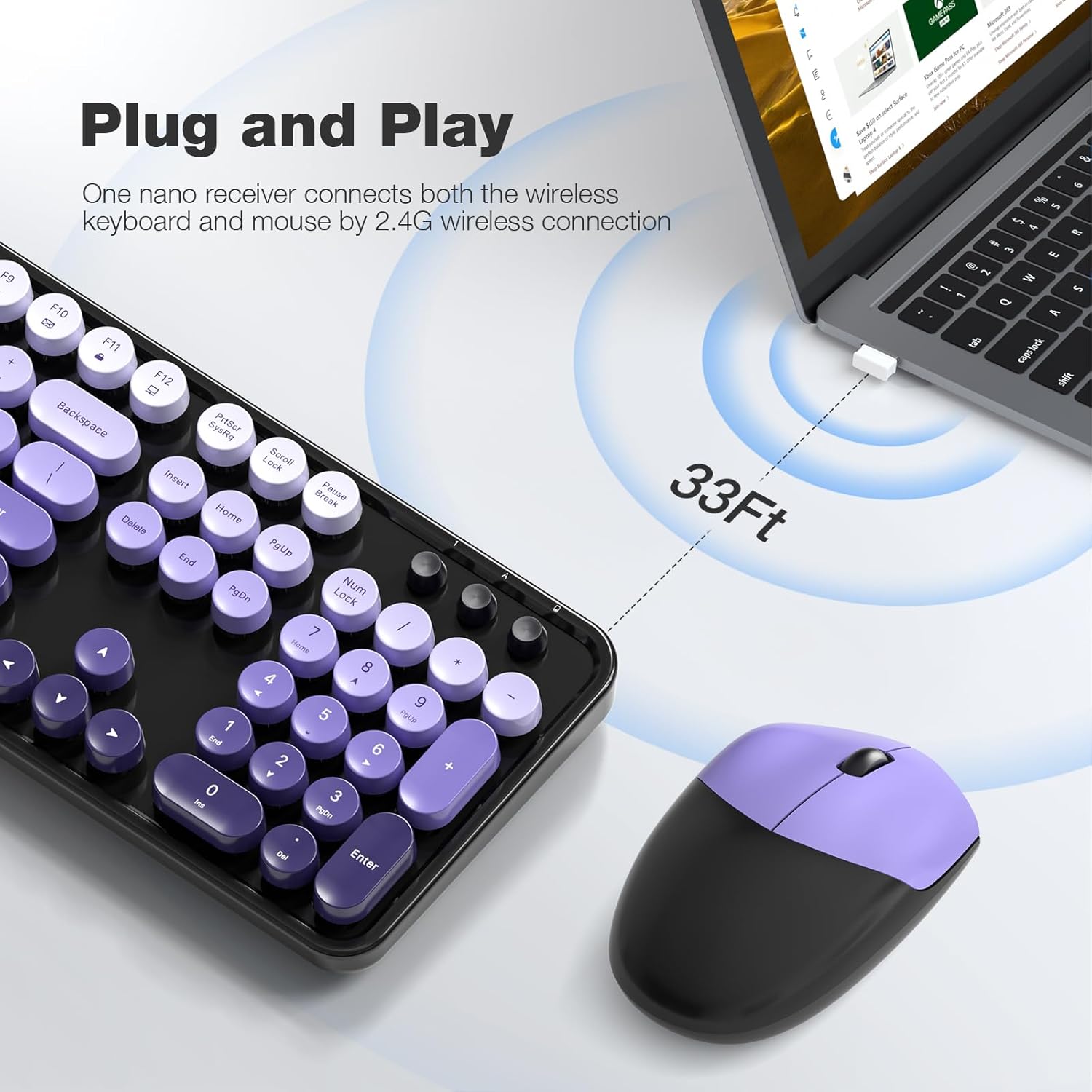
- Connect Receiver: Plug the USB receiver into an available USB port on your computer (PC, laptop, desktop, etc.).
- Power On: Turn on the keyboard and mouse using their respective power switches (usually located on the underside).
- Automatic Connection: The keyboard and mouse will automatically connect to your computer. No additional drivers are required for most operating systems.

The 2.4GHz wireless technology provides a stable and reliable connection up to 33 feet (10 meters) without latency.
4. Operating Instructions
4.1 Keyboard Features
- Full-Size Layout: The 104-key layout includes a number pad for efficient data entry.
- Multimedia Shortcuts: Utilize the 13 multimedia shortcuts (Fn + F1-F12) to control audio/video playback, volume, web browsing, and email.
- Ergonomic Design: The keyboard features foldable stands on the underside to adjust the typing angle for improved comfort. Anti-slip pads prevent movement during use.

4.2 Auto Sleep Mode
To conserve battery life, both the keyboard and mouse are equipped with a smart auto-sleep function. If inactive for 5 minutes, they will automatically enter sleep mode. To wake them up, simply click any key on the keyboard or move the mouse.

5. Maintenance
5.1 Cleaning
The keyboard features detachable round keycaps, allowing for easy cleaning. Use the included cleaning brush to remove dust and debris from between the keys. For deeper cleaning, carefully remove the keycaps and clean the keyboard base and keycaps separately with a soft, damp cloth. Ensure all parts are completely dry before reassembling.

5.2 Battery Replacement
When the keyboard or mouse stops responding or experiences intermittent connectivity, it may be time to replace the AA batteries. Open the battery compartment on the underside of the device, remove the old battery, and insert a new AA battery, observing the correct polarity. Close the compartment securely.
6. Troubleshooting
- No Response from Keyboard/Mouse:
- Ensure batteries are correctly installed and not depleted. Replace if necessary.
- Check if the power switch on both devices is in the 'ON' position.
- Verify the USB receiver is securely plugged into a working USB port on your computer. Try a different USB port.
- Move the keyboard and mouse closer to the USB receiver to rule out range issues.
- Lag or Intermittent Connection:
- Reduce interference by moving other wireless devices away from the receiver.
- Ensure there are no large metal objects between the devices and the receiver.
- Replace batteries if they are low.
- Multimedia Keys Not Working:
- Ensure you are pressing the 'Fn' key simultaneously with the desired function key (F1-F12).
- Check your operating system settings for any conflicting hotkey configurations.
- Mouse Cursor Jumps or is Inaccurate:
- Ensure the mouse sensor is clean and free from dust or debris.
- Use the mouse on a suitable surface (e.g., a mouse pad) for optimal tracking.
7. Specifications
| Brand | MOFII |
| Model | 2.4GHz Retro Typewriter Keyboard and Mouse Combo |
| Color | Black Purple Gradient Color |
| Connectivity Technology | 2.4GHz Wireless (USB Receiver) |
| Keyboard Layout | 104-Key Full-Size |
| Special Feature | Round Keycaps, Ergonomic Design, Auto-Sleep Mode, Multimedia Shortcuts |
| Compatible Devices | Laptop, Personal Computer, Desktop, Notebook, Smart TV |
| Compatible Operating Systems | Windows 7/8/10/11/XP/Vista, Linux, Chrome |
| Power Source | 1x AA Battery (Keyboard), 1x AA Battery (Mouse) - Batteries not included |
| Item Weight | 3.2 ounces |
| Package Dimensions | 17.76 x 5.43 x 3.03 inches |
8. Warranty and Support
For warranty information and technical support, please refer to the product packaging or contact MOFII customer service directly. Keep your purchase receipt for warranty claims.


