
Introduction
This manual provides detailed instructions for the ZOLAMENTE DV10 4K Video Camera Camcorder. Please read this manual thoroughly before using the device to ensure proper operation and to maximize its performance. Keep this manual for future reference.
Product Overview
The ZOLAMENTE DV10 is a versatile 4K video camera camcorder designed for capturing high-quality video and photos. Key features include:
- UHD 4K Video Resolution (3840 Pixels) and 80MP Effective Still Resolution
- 3.0-inch 270° Rotatable IPS Screen
- 18x Digital Zoom
- IR Night Vision for low-light recording
- Webcam Function for live streaming and video calls
- Pause Function during video recording
- Additional features: Motion Detection, Slow Motion, Timed Photo, HD Selfie
- Remote Control included
- Supports external microphone (not included)
- Record while Charging capability
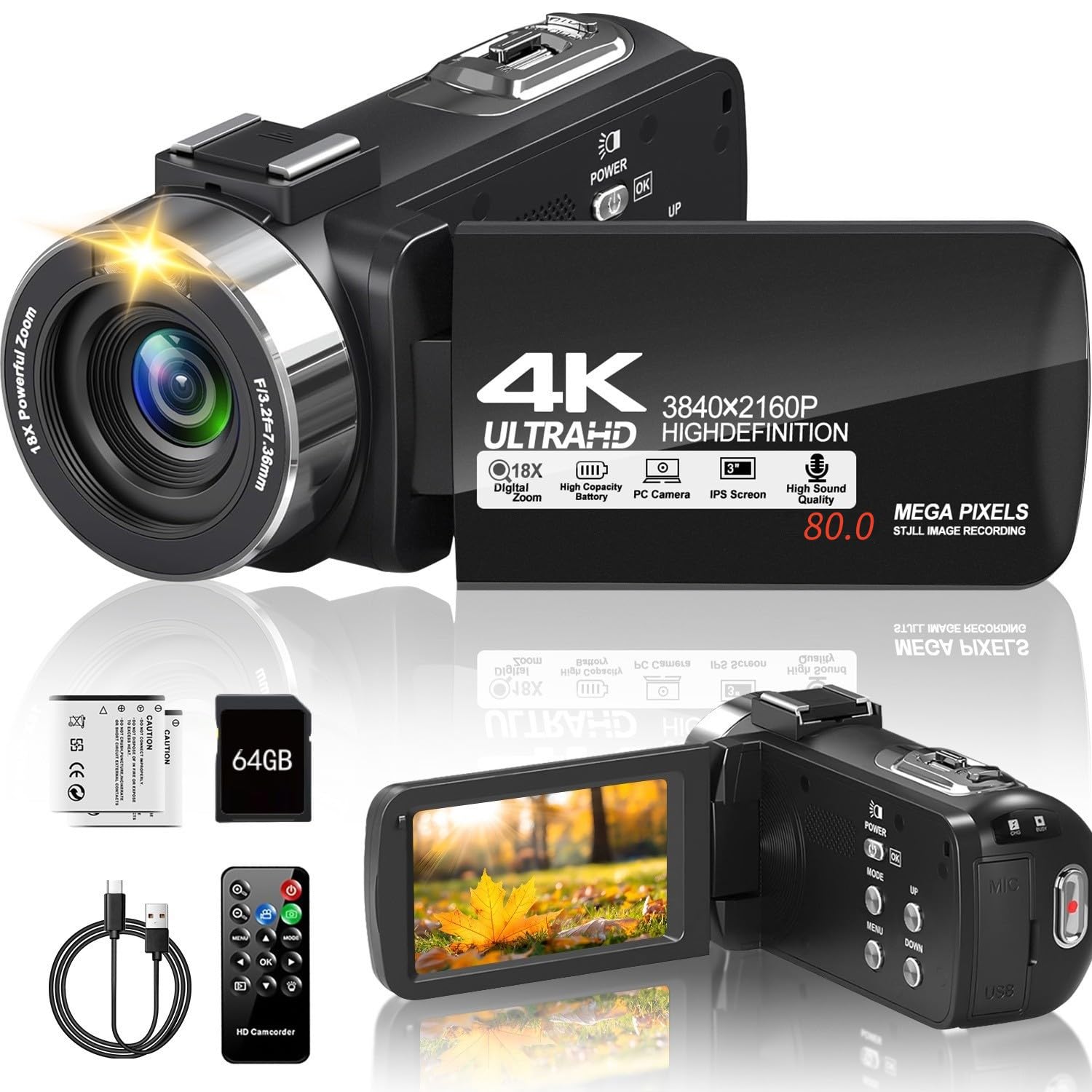
Image: ZOLAMENTE DV10 4K Video Camera Camcorder, front view with screen closed.

Image: Overview of ZOLAMENTE DV10 camcorder features including 4K, 80MP, 18x zoom, IR night vision, and webcam function.
Setup
1. Charging Batteries
The camcorder includes two rechargeable NP-40 batteries. Fully charge both batteries before first use. Charging typically takes approximately 2 hours. A fully charged battery provides about one hour of continuous recording time.
2. Inserting SD Card
The camera supports SDHC (Class 10) and SDXC (Class 10) memory cards up to 256GB. Ensure the camera is powered off and the lock on the SD card is in the unlocked position. Gently push the card into the slot until it clicks into place. A 64GB SD card is included with the package.

Image: A 64GB SD card, indicating its inclusion with the camcorder.
3. Formatting SD Card
Upon inserting an SD card for the first time, the camera may prompt you to format it. Follow the on-screen instructions. Alternatively, access the format submenu via the system menu by pressing the Menu, Mode, and Down buttons. If the camera repeatedly requests formatting, it is recommended to format the card using a computer first, then format it again using the camera.
Operating Instructions
1. Power On/Off
Locate the power button on the camcorder. Press and hold it for a few seconds to turn the device on or off.
2. Recording Video
Ensure the camera is in video recording mode. Press the dedicated Record button to start recording. Press the Record button again to stop recording. The 270° rotatable screen allows for flexible shooting angles, including self-recording for vlogging.

Image: The camcorder displaying 4K video resolution and its 3-inch 270° rotatable screen.
3. Taking Photos
Switch the camcorder to photo mode. Press the Shutter button to capture a still image. The camera supports an effective still resolution of 80MP.

Image: Demonstrating the 18x digital zoom capability and 80MP image resolution of the camcorder.
4. Digital Zoom
Use the zoom controls (typically a rocker switch) on the camcorder to adjust the 18x digital zoom, allowing you to magnify distant subjects.
5. IR Night Vision
Activate the IR Night Vision function to record videos or capture photos in dimly lit or completely dark environments. Footage captured in IR Night Vision mode will be in black and white.

Image: The camcorder demonstrating its Infrared Night Vision capability, showing a scene in both normal and IR mode.
6. Webcam Function
Connect the camcorder to your computer using a USB cable. Select 'Webcam Mode' on the camera's screen when prompted. The camcorder can then function as a webcam for video calls or live streaming on platforms like YouTube, TikTok, and Facebook. Digital zoom is supported in webcam mode.

Image: The camcorder connected to a laptop, illustrating its use as a webcam for online platforms.
7. Pause Function
During video recording, press the Pause button to temporarily stop recording. Press it again to resume recording within the same file, avoiding multiple video segments.
8. Other Functions
Explore additional features such as motion detection, slow motion, timed photo, and HD selfie through the camera's menu system. Refer to the on-screen prompts for specific settings and usage.

Image: A person taking a selfie, demonstrating the camcorder's HD selfie mode.
9. Remote Control
Use the included remote control for convenient operation from a distance, allowing you to start/stop recording, take photos, and navigate menus without touching the camera.

Image: The camcorder recording while connected to a power bank, with the remote control visible.
Maintenance
Cleaning
Use a soft, dry cloth to clean the camera body. For the lens, use a specialized lens cleaning cloth and solution. Avoid abrasive cleaners or solvents that could damage the camera's surface or lens coating.
Storage
Store the camcorder in a cool, dry place away from direct sunlight, extreme temperatures, and high humidity. If storing for extended periods, remove the batteries to prevent leakage.
Water Resistance
This camera is not water-resistant. Avoid exposure to water, rain, splashes, or high humidity to prevent damage to internal components.
Troubleshooting
Camera Not Powering On
- Ensure batteries are fully charged and correctly inserted.
- Try using the second included battery.
SD Card Error
- Ensure the SD card is correctly inserted and its lock switch is in the unlocked position.
- Format the SD card as described in the Setup section.
- Try a different compatible SD card (SDHC Class 10 or SDXC Class 10, up to 256GB).
Short Battery Life
- Ensure batteries are fully charged (approximately 2 hours).
- Continuous recording typically yields about one hour of battery life.
- Utilize the 'Record while Charging' feature for extended use.
Poor Image/Video Quality
- Ensure the lens is clean and free from smudges.
- Check lighting conditions; use IR Night Vision in dark environments.
- Adjust camera settings such as resolution and exposure.
Remote Control Not Working
- Check the remote control battery and replace if necessary.
- Ensure there are no obstructions between the remote and the camera's IR receiver.
Specifications
| Brand | ZOLAMENTE |
| Model Number | DV10 |
| Video Capture Resolution | 4K (3840 Pixels) |
| Effective Still Resolution | 80 MP |
| Video Capture Format | MP4 |
| Screen Size | 3 Inches |
| Screen Rotation | 270° |
| Digital Zoom | 18x |
| IR Night Vision | Yes |
| Webcam Function | Yes |
| Image Stabilization | Digital |
| Lens Type | Zoom |
| Focus Type | Auto Focus |
| Supported Image Format | JPEG |
| File Format | MP4, JPEG |
| Compatible Devices | Personal Computer |
| Included Components | 2x Rechargeable Batteries, 64GB SD Card, Built-in Microphone |
| External Microphone Support | Yes (external microphone not included) |
| Battery Model | NP-40 |
| Water Resistance Level | Not Water Resistant |
| Parcel Dimensions | 17.1 x 14.2 x 8.7 cm |
| Item Weight | 510 g |
Warranty and Support
For any questions, technical assistance, or support needs, please contact ZOLAMENTE customer service. You can typically find support options by navigating to 'Your Orders' on the platform where you made your purchase, locating your order ID, and selecting the 'Contact seller' option. Our customer service team is dedicated to providing assistance within 24 hours.
The camera requires an NP-40 battery. If you need to purchase additional or replacement batteries and encounter difficulty finding them, please contact us directly for guidance.