1. Introduction
This manual provides detailed instructions for the installation, operation, and maintenance of your MOES WHT-9000-MS Smart Programmable Thermostat. This device is designed for controlling 120V/240V electric baseboard heaters and offers smart features including Wi-Fi connectivity, remote control via the Smart Life/TUYA APP, and compatibility with Alexa and Google Home.
2. Safety Information
WARNING: Installation must be performed by a qualified electrician. Disconnect power at the circuit breaker before installation to prevent electrical shock or damage to the product. This thermostat is designed for high-voltage electric heating systems (120V/240V) and requires at least four wires (including neutral or a second live wire) in the electrical box. Do not use with low-voltage systems.
Always adhere to local electrical codes and regulations during installation.
3. Package Contents
- MOES WHT-9000-MS Smart Thermostat
- Mounting Screws (2)
- User Manual (This document)
4. Product Overview
The MOES WHT-9000-MS Smart Thermostat features a frosted display for clear readability and an easy-grip knob for manual temperature adjustments. It integrates seamlessly with smart home ecosystems for enhanced control and energy efficiency.

Figure 4.1: MOES Smart Thermostat with its corresponding mobile application interface, showing current temperature and settings.
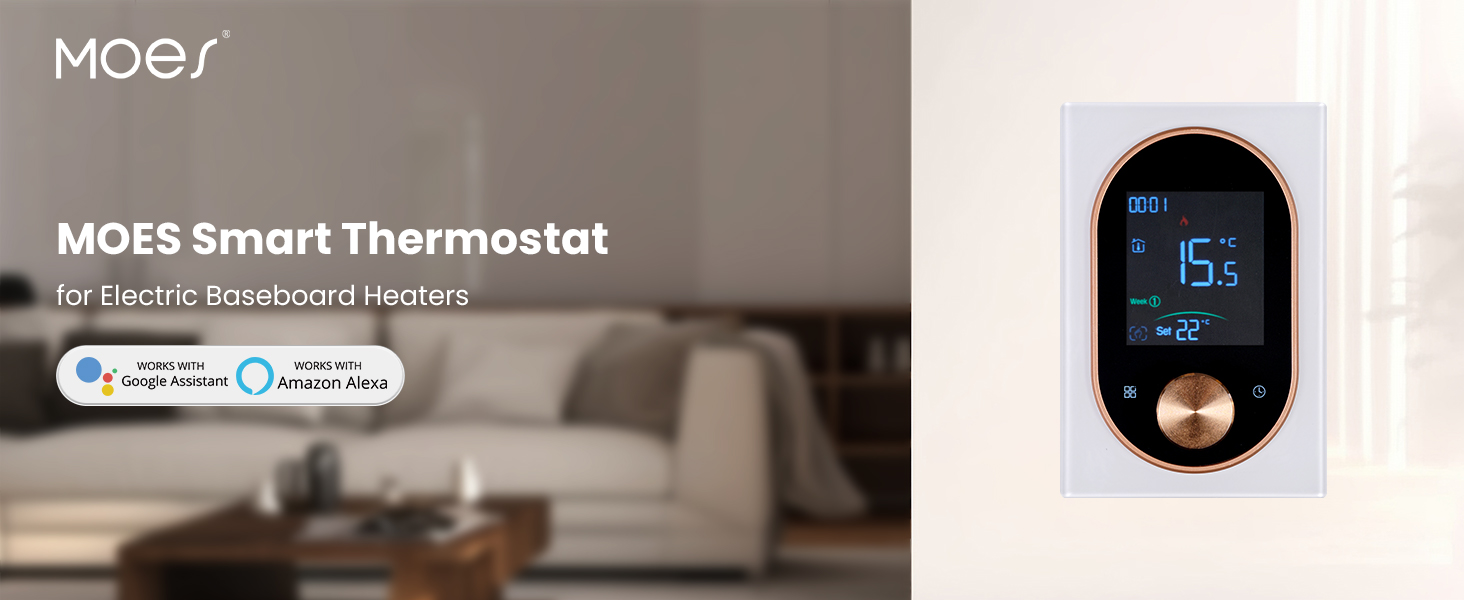
Figure 4.2: The MOES Smart Thermostat, highlighting its compatibility with electric baseboard heaters and smart home systems.
5. Setup and Installation
5.1 Pre-installation Requirements
- Ensure your heating system is a high-voltage electric heating system (120V/240V).
- Verify that your electrical box has at least four wires, including a neutral or a second live wire.
- Turn off power to the heating circuit at the main electrical panel before proceeding.
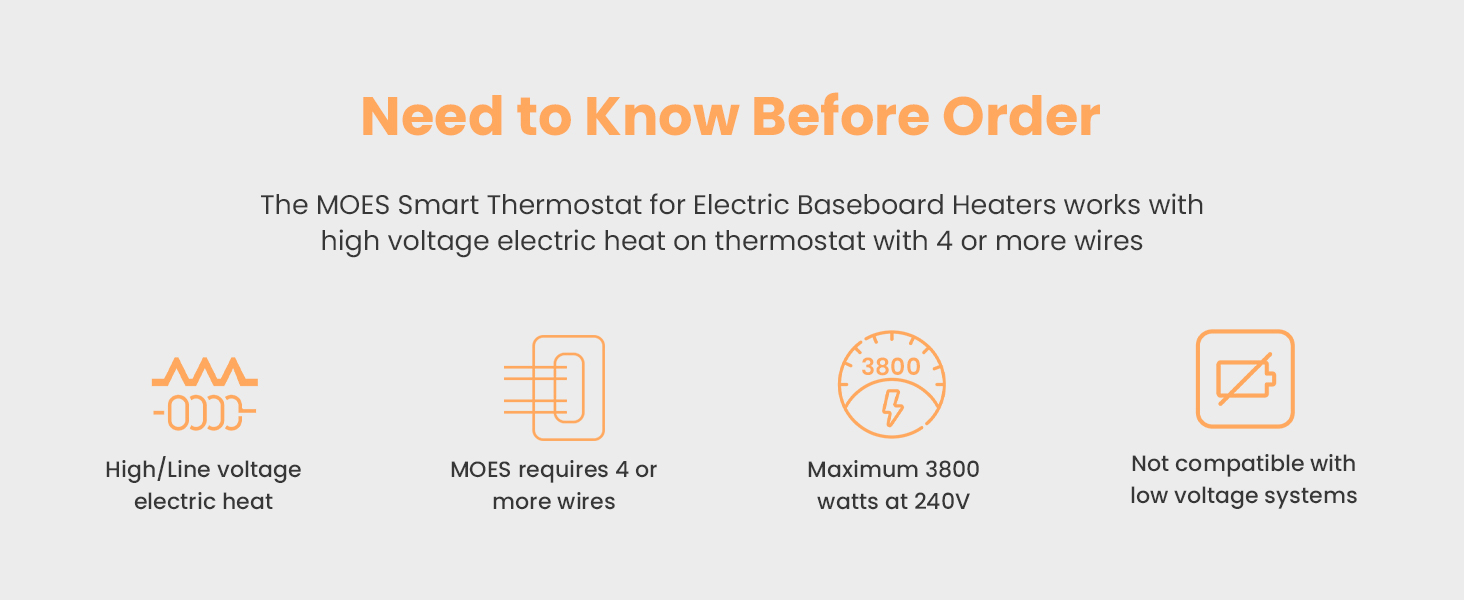
Figure 5.1: Important considerations before installing the thermostat, including voltage, wiring, and wattage limits.
5.2 Wiring and Mounting
- Disconnect power at the circuit breaker.
- Remove your old thermostat (if applicable) and identify the existing wiring.
- Connect the MOES thermostat wires according to the wiring diagram provided. Ensure all connections are secure.
- Mount the thermostat base plate to the wall using the provided screws.
- Attach the thermostat display unit to the base plate.
- Restore power at the circuit breaker.

Figure 5.2: Detailed view of the thermostat's backplate with wiring terminals and overall dimensions for installation reference.
5.3 App Download and Pairing
- Download the "Smart Life" or "TUYA Smart" app from your smartphone's app store.
- Register or log in to your account.
- Follow the in-app instructions to add a new device. The thermostat should enter pairing mode automatically upon first power-up or by holding the knob for a few seconds.
- Ensure your phone is connected to a 2.4GHz Wi-Fi network during the pairing process.
6. Operating Instructions
6.1 Manual Control
Use the easy-grip knob on the thermostat to manually adjust the desired temperature. Rotate clockwise to increase the temperature and counter-clockwise to decrease it. The current temperature and set temperature will be displayed on the frosted screen.
6.2 Display Information
The thermostat's display shows:
- Current Room Temperature
- Set Temperature
- Time and Day of the Week
- Wi-Fi Connection Status
- Heating Indicator
7. Smart Features and App Integration
7.1 Remote Control via App
Once paired with the Smart Life or TUYA Smart app, you can control your thermostat from anywhere using your smartphone. Adjust settings, monitor temperature, and manage schedules remotely.
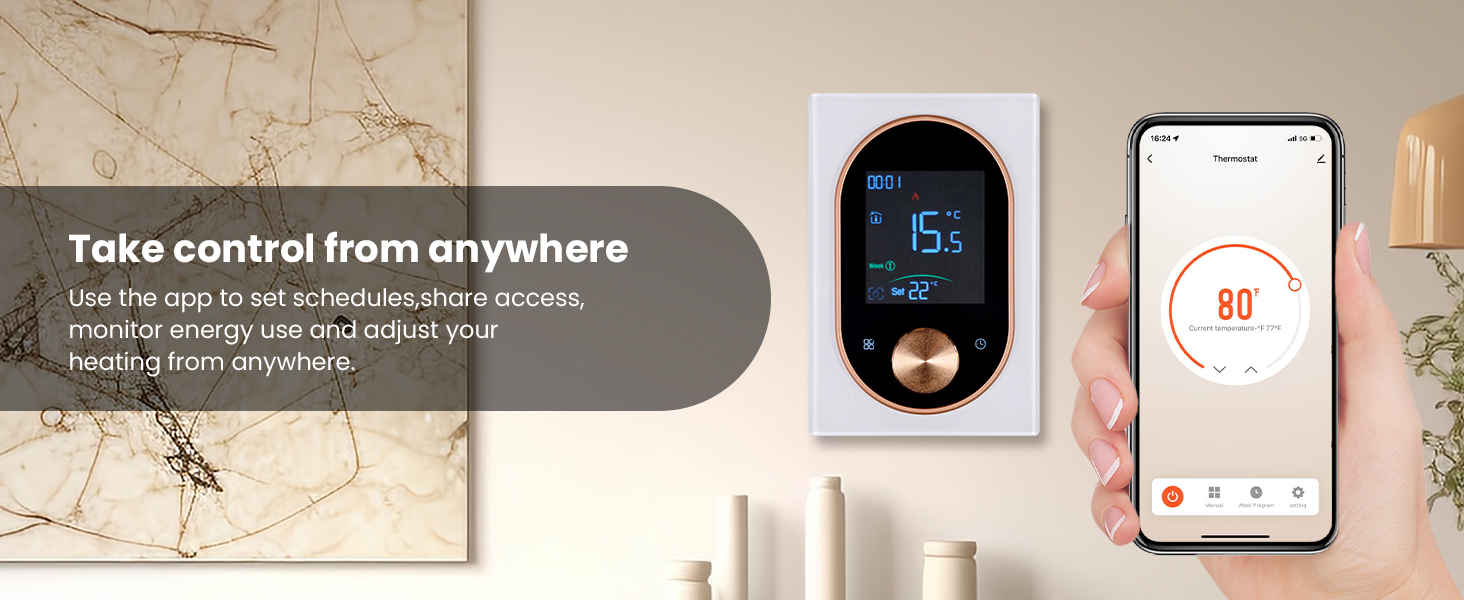
Figure 7.1: A user adjusting the thermostat settings remotely using the mobile application.
7.2 Programmable Scheduling
Set custom weekly schedules through the app to automatically adjust heating based on your daily routine. This feature helps optimize energy consumption and maintain comfort.

Figure 7.2: The mobile app displaying options for setting a weekly heating schedule, allowing for different temperatures at various times of the day.
7.3 Voice Control
The MOES Smart Thermostat is compatible with Amazon Alexa and Google Home. Link your thermostat to your preferred voice assistant for hands-free temperature control using simple voice commands.
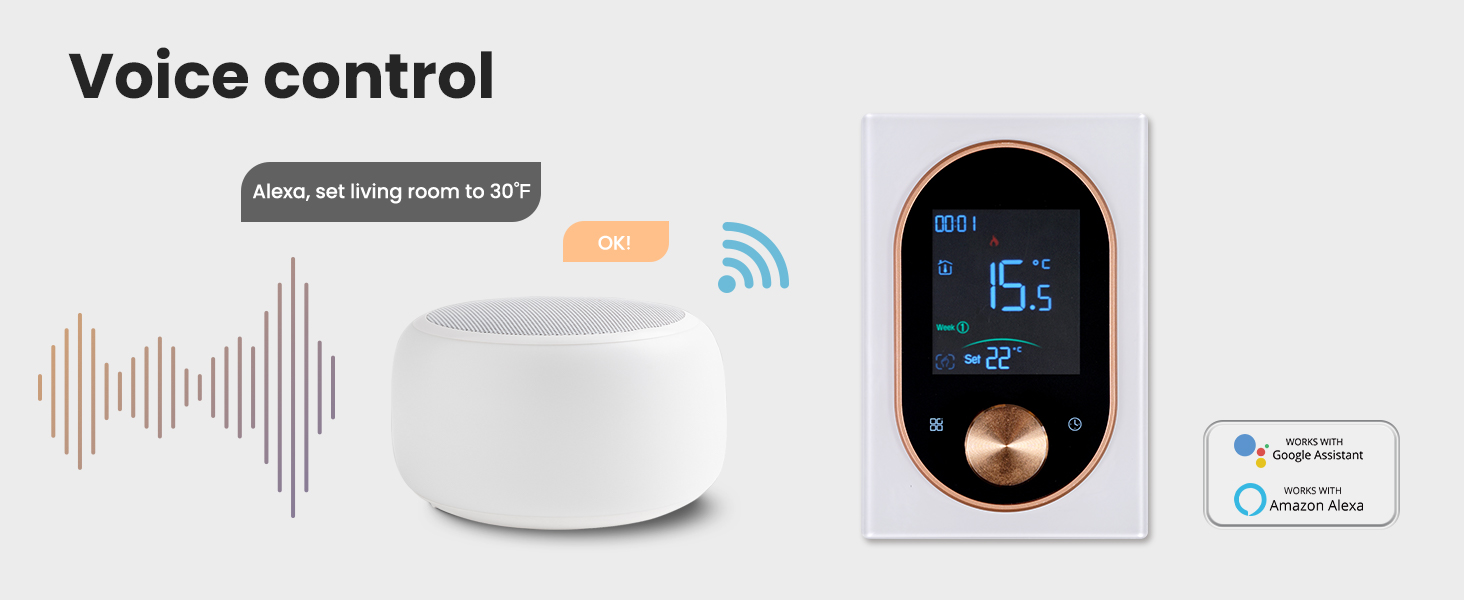
Figure 7.3: An illustration of using a smart speaker to control the MOES thermostat via voice commands.
7.4 Intelligent Detection
The thermostat features intelligent detection capabilities, such as automatically pausing heating when an open window is detected, further contributing to energy savings.
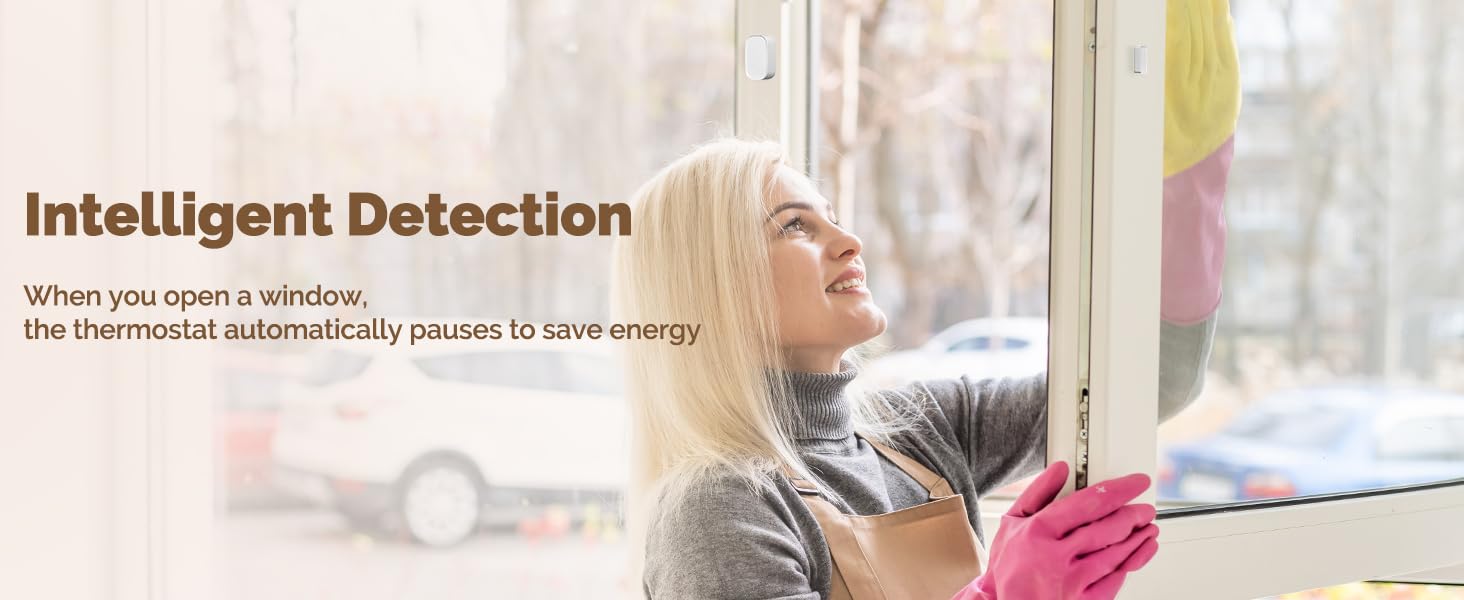
Figure 7.4: The thermostat's intelligent detection feature, which can pause heating when an open window is detected to conserve energy.
8. Maintenance
To ensure optimal performance and longevity of your MOES Smart Thermostat, follow these simple maintenance guidelines:
- Cleaning: Gently wipe the thermostat's exterior with a soft, dry, or slightly damp cloth. Avoid using abrasive cleaners, solvents, or chemical sprays, as these can damage the finish or internal components.
- Display Care: Keep the frosted display clean and free from dust to maintain clear readability.
- Avoid Obstructions: Ensure no objects are blocking the thermostat's sensors, which could affect temperature readings.
9. Troubleshooting
If you encounter issues with your MOES Smart Thermostat, refer to the following common problems and solutions:
| Problem | Possible Cause | Solution |
|---|---|---|
| Thermostat has no power/display is off. | No power from the circuit breaker; incorrect wiring. | Check the circuit breaker and ensure it is ON. Verify wiring connections are secure and correct according to the installation guide. |
| Cannot connect to Wi-Fi or app. | Incorrect Wi-Fi password; 5GHz Wi-Fi network; thermostat out of range; pairing mode not active. | Ensure correct 2.4GHz Wi-Fi password. Confirm your router supports 2.4GHz. Move thermostat closer to router. Activate pairing mode (refer to app instructions). |
| Temperature reading seems inaccurate. | Thermostat exposed to direct sunlight or drafts; sensor obstruction. | Relocate thermostat if possible, or shield it from direct environmental influences. Ensure no objects are covering the thermostat's sensors. |
| Heating not turning on/off as scheduled. | Incorrect schedule settings in the app; manual override active. | Review and adjust your schedule settings in the Smart Life/TUYA app. Check if manual mode is active and switch to program mode if desired. |
10. Specifications
| Feature | Detail |
|---|---|
| Brand | MOES |
| Model Name | Knob Thermostat |
| Item Model Number | WHT-9000-MS |
| Special Feature | Programmable |
| Color | White |
| Connectivity Technology | Wi-Fi |
| Voltage | 120 Volts / 240 Volts (High Voltage) |
| Control Type | App Control, Manual Knob |
| Connectivity Protocol | Wi-Fi (2.4GHz) |
| Mounting Type | Wall Mount |
| Manufacturer | WENZHOU NOVA NEW ENERGY CO.,LTD |
| Package Dimensions | 5.75 x 3.82 x 2.91 inches |
| Item Weight | 12.3 ounces |
| Date First Available | June 16, 2025 |

Figure 10.1: The MOES Smart Thermostat seamlessly integrated into a modern living space, demonstrating its compact design.
11. Warranty and Support
For specific warranty details, technical assistance, or customer support, please refer to the official MOES website or contact MOES customer service directly. It is recommended to retain your purchase receipt as proof of purchase for any warranty claims.
You can visit the MOES store online for additional product information and support resources: MOES Official Store


