1. Introduction
Thank you for choosing the FUZHUI Portable 4K 64MP Digital Camera. This manual provides essential information for setting up, operating, and maintaining your camera. Please read it thoroughly before use to ensure optimal performance and longevity of your device. This camera is designed for capturing high-resolution photos and videos, offering features like 16X digital zoom, a fill light, and anti-shake technology, making it suitable for various photography and videography needs, including travel and webcam use.
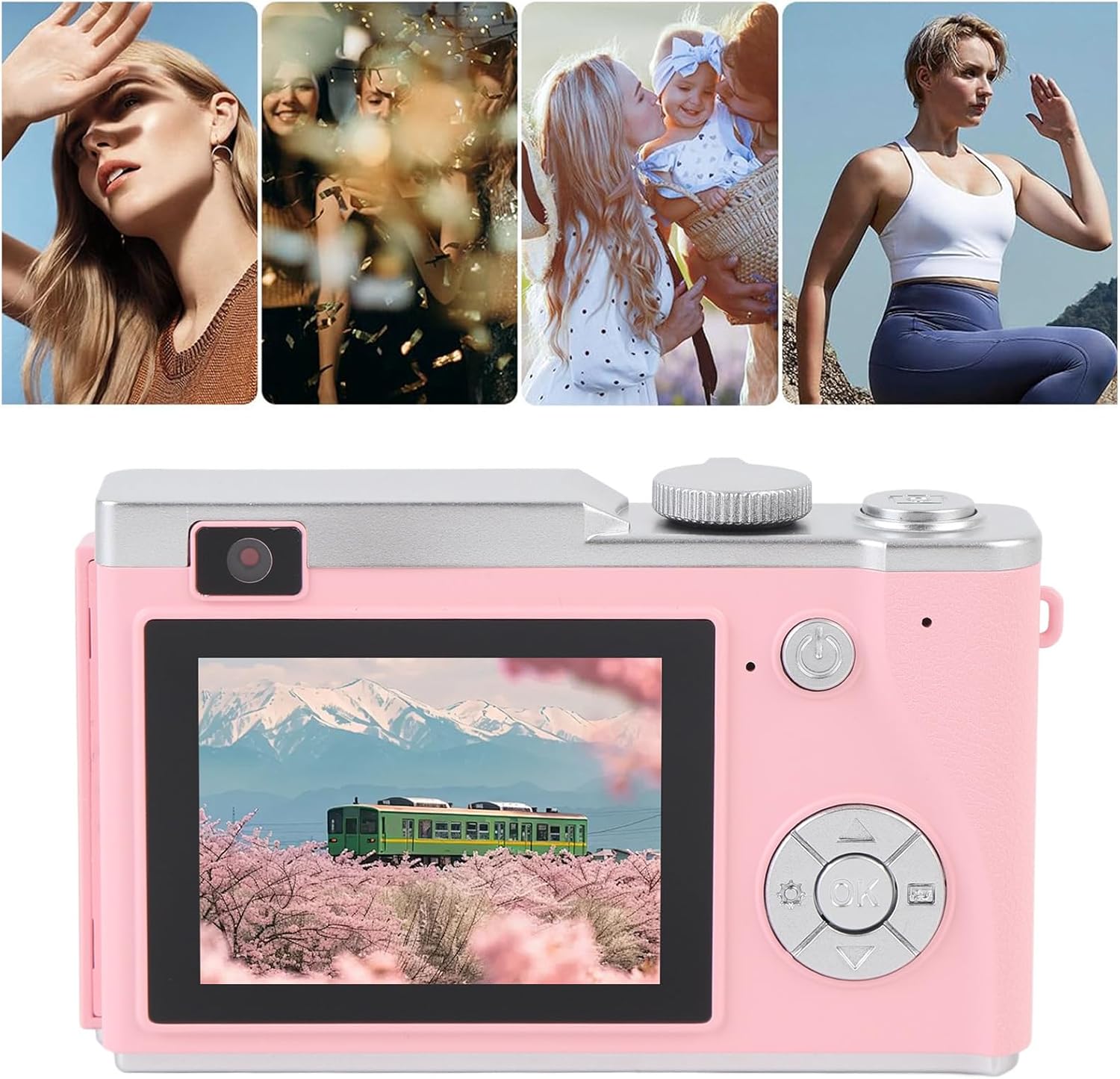
Image: The FUZHUI Portable Digital Camera is versatile for capturing various life moments.
2. Package Contents
Please verify that all items listed below are included in your package:
- 1 x FUZHUI Digital Camera
- 1 x Charging Cable (Type-C)
- 1 x Lanyard
- 1 x Small Memory Card (32GB, pre-installed or separate, depending on package option)
3. Product Features
The FUZHUI Digital Camera is equipped with several features to enhance your photography and videography experience:
- High Resolution Imaging: Captures stunning 64MP photos and 4K videos.
- 16X Digital Zoom: Allows for closer shots of distant subjects.
- 2.4-inch IPS Screen: Provides a clear display for framing shots and reviewing content.
- Built-in Fill Light: Enhances illumination in low-light conditions.
- Anti-Shake Technology: Helps reduce blur from camera movement.
- Rechargeable Battery: Integrated 800mAh Li-battery for extended use.
- Webcam Functionality: Can be used as a webcam when connected to a computer.
- Portable Design: Lightweight and compact, ideal for travel.

Image: Front view of the camera highlighting its 4K video capability.

Image: Front view of the camera highlighting its 64MP photo resolution.
4. Setup
4.1 Charging the Battery
The camera comes with a built-in rechargeable Li-battery. Before first use, fully charge the camera.
- Connect the provided Type-C charging cable to the camera's charging port.
- Connect the other end of the cable to a USB power adapter (not included) or a computer's USB port.
- The charging indicator light will illuminate. Once charging is complete, the light may change color or turn off.
4.2 Installing the Memory Card
A small memory card (32GB) may be included with your package. The camera requires a memory card to store photos and videos.
- Locate the memory card slot on the side of the camera.
- Gently insert the memory card into the slot with the gold contacts facing the correct direction (refer to the diagram near the slot if available).
- Push the card in until it clicks into place. To remove, push it in again until it springs out.
4.3 Attaching the Lanyard
Attach the lanyard to the designated loop on the camera body to prevent accidental drops.

Image: The camera with its included accessories: charging cable and lanyard.
5. Operating Instructions
5.1 Powering On/Off
Press and hold the power button (usually marked with a circle and a vertical line) located on the top or back of the camera to turn it on or off.

Image: Rear view of the camera, showing the power button and navigation controls.
5.2 Taking Photos
- Ensure the camera is in photo mode (check the display icon).
- Frame your shot using the 2.4-inch IPS screen.
- Press the shutter button (typically on top of the camera) halfway to focus, then fully to capture the image.
5.3 Recording Videos
- Switch the camera to video recording mode.
- Press the record button (often marked with a red dot) to start recording.
- Press the record button again to stop recording.
5.4 Using Digital Zoom
While in photo or video mode, use the zoom buttons (often labeled 'W' for wide and 'T' for telephoto) to adjust the 16X digital zoom level.
5.5 Activating the Fill Light
In low-light conditions, you can activate the built-in fill light. Refer to the camera's on-screen menu or a dedicated button for this function.

Image: Detail of the camera's front, including the fill light (flash).
5.6 Webcam Function
To use the camera as a webcam:
- Connect the camera to your computer using the Type-C charging cable.
- On the camera's screen, select the 'Webcam' or 'PC Camera' option if prompted.
- Your computer should recognize the camera as a webcam. You can then select it in your video conferencing or streaming software.
6. Maintenance
Proper care will extend the life of your camera:
- Cleaning: Use a soft, dry cloth to clean the camera body. For the lens and screen, use a specialized lens cleaning cloth and solution. Avoid abrasive materials.
- Storage: Store the camera in a cool, dry place away from direct sunlight and extreme temperatures.
- Battery Care: Avoid fully discharging the battery frequently. Charge it regularly, even if not in use for extended periods.
- Water Exposure: This camera is not waterproof. Avoid exposure to water or high humidity.
7. Troubleshooting
If you encounter issues with your camera, refer to the following common problems and solutions:
- Camera does not power on: Ensure the battery is charged. Connect the camera to a power source and try again.
- Cannot take photos/record videos: Check if a memory card is inserted correctly and has sufficient free space. The card may need to be formatted (this will erase all data).
- Images are blurry: Ensure the anti-shake function is enabled. Hold the camera steady. Clean the lens if it's dirty.
- Webcam function not working: Ensure the camera is connected to the computer via the Type-C cable and the 'Webcam' mode is selected on the camera. Check your computer's device manager to see if the camera is recognized.
- Battery drains quickly: Reduce screen brightness, turn off the fill light when not needed, and limit continuous video recording.
If problems persist, please contact customer support.
8. Specifications
| Feature | Specification |
|---|---|
| Item Type | Digital Camera |
| Material | ABS |
| Display Screen | 2.4 inches IPS |
| Maximum Video Resolution | 4K |
| Maximum Photo Resolution | 64MP |
| Digital Zoom | 16x |
| Camera Battery | Built-in Li Battery, 800mAh |
| Model Name | FUZHUIrg2u3v5zxk-12 |
| Special Feature | Fill Light, Anti-Shake, Webcam Function |
9. Warranty and Support
For warranty information and customer support, please refer to the documentation provided with your purchase or visit the official FUZHUI website. Keep your proof of purchase for any warranty claims.
For further assistance, you may contact FUZHUI customer service through their official channels.


