
1. Introduction
This manual provides essential information for the safe and efficient use of your Lenovo ThinkCentre M90a Gen 6 13AT0006US All-in-One Computer. Please read this manual thoroughly before operating your device and retain it for future reference. This All-in-One PC is designed for productivity and reliability, featuring an Intel Core Ultra 5 processor, 16GB DDR5 RAM, a 512GB SSD, and a 23.8-inch Full HD touchscreen display running Windows 11 Pro.
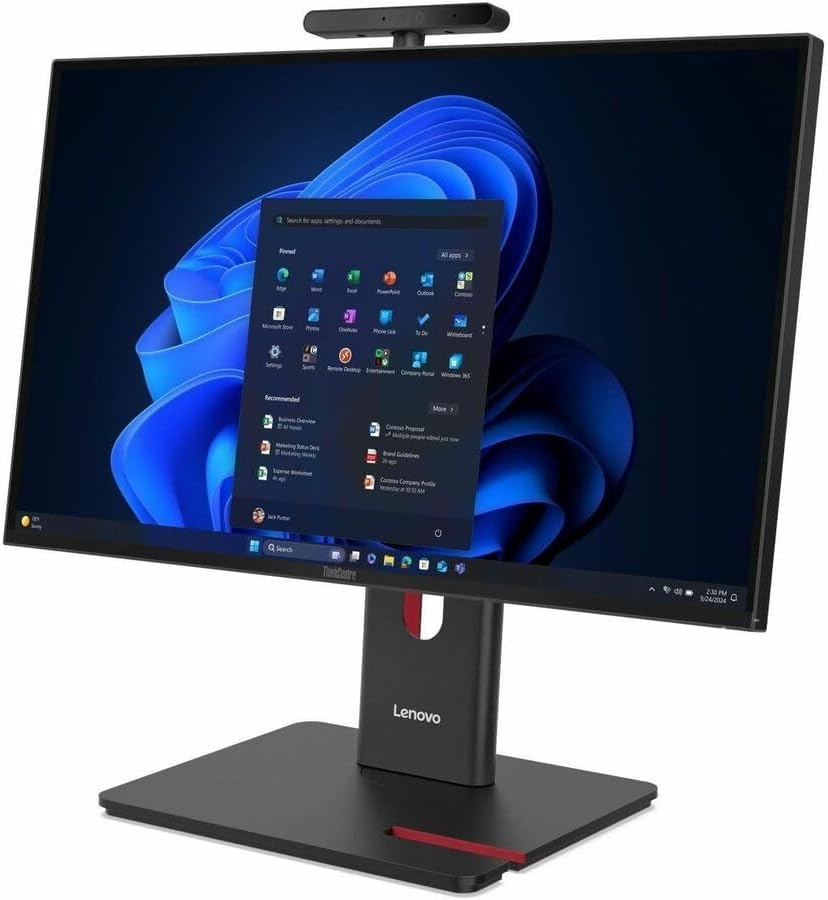
Figure 1: Front view of the Lenovo ThinkCentre M90a Gen 6 All-in-One Computer, showcasing its sleek design and vibrant display.
2. What's in the Box
Carefully unpack your computer and verify that all items listed below are present and undamaged. If any item is missing or damaged, contact your retailer immediately.
- ThinkCentre M90a Gen 6 13AT0006US All-in-One Computer
- USB Calliope Keyboard
- USB Calliope Mouse
- VESA mount
- UltraFlex V Stand
- Power Adapter and Cable
- Documentation (Quick Start Guide, Safety Information)
3. Setup Instructions
Follow these steps to set up your new All-in-One computer.
3.1 Unpacking and Placement
- Carefully remove the computer and all accessories from the packaging.
- Place the computer on a stable, flat surface with adequate ventilation. Ensure there is enough space around the unit for proper airflow.

Figure 2: Rear view of the All-in-One PC, highlighting the various ports and the adjustable stand.
3.2 Connecting Peripherals
- Connect the USB Calliope Keyboard to an available USB port on the computer.
- Connect the USB Calliope Mouse to another available USB port.
- If using external speakers or headphones, connect them to the audio output jack.
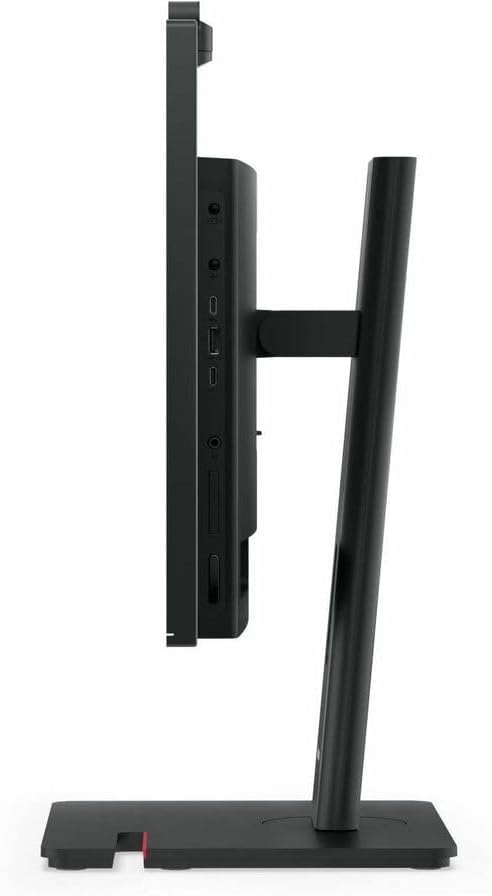
Figure 3: Side view of the All-in-One PC, illustrating accessible side ports for convenient peripheral connections.
3.3 Power Connection
- Connect the power cable to the power adapter.
- Plug the power adapter into the power input port on the back of the computer.
- Plug the other end of the power cable into a grounded electrical outlet.
3.4 Initial Boot-up
- Press the power button, usually located on the side or bottom bezel of the display.
- Follow the on-screen instructions to complete the Windows 11 Pro setup process, including language selection, network connection, and user account creation.
4. Operating Instructions
This section covers basic operation of your ThinkCentre M90a Gen 6.
4.1 Windows 11 Pro Overview
Your computer comes pre-installed with Windows 11 Pro. Familiarize yourself with the Start Menu, Taskbar, and File Explorer for efficient navigation and application management. For detailed information on Windows 11 Pro, refer to Microsoft's official documentation.
4.2 Touchscreen Functionality
The 23.8-inch Full HD display supports multi-touch gestures. You can interact with the operating system and applications directly on the screen using taps, swipes, pinches, and stretches. Ensure your screen is clean for optimal touch response.
4.3 Optical Drive (DVD-Writer)
Your computer includes a DVD-Writer drive for reading and writing CDs and DVDs. To open the tray, press the eject button on the drive. Insert the disc label-side up and gently push the tray back in until it clicks. The operating system will typically prompt you for action or automatically play media.
4.4 Connectivity
- USB Ports: Utilize the various USB ports (USB 3.2 Gen 2, USB-C) for connecting external devices such as storage drives, printers, and other peripherals.
- Wireless (Wi-Fi): Connect to wireless networks using the integrated 802.11ax Wi-Fi. Access network settings via the Windows Taskbar.
- Bluetooth: Pair Bluetooth-enabled devices like headphones, speakers, or mobile phones. Manage Bluetooth settings through Windows Settings.
- Ethernet: For a wired network connection, plug an Ethernet cable into the RJ-45 port on the rear of the computer.
5. Maintenance
Proper maintenance ensures the longevity and optimal performance of your computer.
5.1 Cleaning
- Screen: Use a soft, lint-free cloth slightly dampened with water or a non-abrasive screen cleaner. Do not spray liquid directly onto the screen.
- Chassis: Wipe the exterior surfaces with a soft, dry cloth. Avoid using harsh chemicals or abrasive materials.
- Vents: Periodically check and gently clean the ventilation openings to prevent dust buildup, which can affect cooling performance.
5.2 Software Updates
Regularly update your operating system (Windows Update) and drivers (Lenovo Vantage or Lenovo Support website) to ensure security, stability, and optimal performance.
5.3 Data Backup
It is highly recommended to regularly back up your important data to an external drive or cloud storage to prevent data loss.
6. Troubleshooting
This section addresses common issues you might encounter. For more complex problems, refer to the Lenovo support website or contact technical support.
6.1 No Power
- Ensure the power cable is securely connected to both the computer and the electrical outlet.
- Verify the electrical outlet is functional by plugging in another device.
- Check the power adapter for any damage.
6.2 Display Issues
- If the screen is blank, ensure the computer is powered on and not in sleep mode.
- Adjust the brightness settings using the function keys or Windows display settings.
- If the touchscreen is unresponsive, try restarting the computer.
6.3 Peripheral Not Working
- Ensure the peripheral (keyboard, mouse, etc.) is correctly plugged into a functional USB port.
- Try connecting the peripheral to a different USB port.
- Check the device manager in Windows to see if the peripheral is recognized and if its drivers are up to date.
7. Specifications
Below are the key technical specifications for the Lenovo ThinkCentre M90a Gen 6 13AT0006US All-in-One Computer.
| Feature | Detail |
|---|---|
| Model Number | 13AT0006US |
| Display | 23.8 Inches Full HD (1920 x 1080) Touchscreen |
| Processor | Intel Core Ultra 5 (up to 4.9 GHz) |
| RAM | 16 GB DDR5 (5600 MHz) |
| Storage | 512 GB SSD (Solid State Drive) |
| Graphics | Integrated Intel Graphics |
| Operating System | Windows 11 Pro |
| Optical Drive | DVD-Writer |
| Wireless Connectivity | 802.11ax Wi-Fi, Bluetooth |
| Ports | USB, USB-C, Ethernet, Audio Jack |
| Dimensions (LxWxH) | 19.3 x 5.04 x 9.8 inches |
| Weight | 5.5 pounds |
| Color | Black |
8. Warranty and Support
Your Lenovo ThinkCentre M90a Gen 6 All-in-One Computer comes with a standard manufacturer's warranty. For detailed warranty terms and conditions, please refer to the warranty documentation included with your product or visit the official Lenovo support website.
For technical assistance, driver downloads, or further troubleshooting, please visit the Lenovo Support website:
You may also find helpful resources and community forums on the Lenovo website.