
Introduction
This manual provides essential information for setting up, operating, maintaining, and troubleshooting your Thermaltake LCGS View 7660-170 Gaming Desktop. This high-performance system is designed for demanding tasks such as gaming and video editing, featuring an AMD Ryzen™ 5 7600X CPU, NVIDIA® GeForce RTX™ 5060 graphics, 32GB DDR5 6000MT/s RGB memory, and a 1TB NVMe M.2 SSD. Please read this manual thoroughly to ensure optimal performance and longevity of your device.

Figure 1: Thermaltake LCGS View 7660-170 Gaming Desktop highlighting seamless performance.
Setup
1. Unboxing
Carefully remove the desktop from its packaging. Ensure all accessories, including the power cable and any documentation, are present. The internal components are protected by vacuum-sealed packing material; gently remove this material before powering on the system.

Figure 2: Overall view of the Thermaltake LCGS View 7660-170 Gaming Desktop.
2. Connecting Peripherals
- Monitor: Connect your monitor to the dedicated graphics card (NVIDIA GeForce RTX 5060) ports located at the lower rear of the PC. Use either a DisplayPort or HDMI cable. Do not use the video ports on the motherboard (upper rear section), as these are for integrated graphics which are disabled when a dedicated GPU is present.
- Keyboard and Mouse: Connect your keyboard and mouse to any available USB ports.
- Power: Connect the power cable to the power supply unit (PSU) at the rear of the desktop and then to a wall outlet. Ensure the PSU switch is in the 'ON' position.
- Network: Connect an Ethernet cable to the LAN port for a wired internet connection, or attach the Wi-Fi antennas for wireless connectivity.

Figure 3: Front panel connectivity options including USB 3.0, headphone, and microphone ports.
3. Initial Power On
Press the power button located on the top panel of the desktop. The system will initiate the boot process. Follow the on-screen instructions to complete the Windows 11 setup.
Operating Instructions
1. Windows 11
Your desktop comes pre-installed with Windows 11. Complete the initial setup steps, including user account creation and network configuration. Ensure Windows updates are installed for optimal security and performance.
2. Performance
The Thermaltake LCGS View 7660-170 is equipped with powerful components for a smooth computing experience:
- Processor: AMD Ryzen™ 5 7600X for efficient multitasking and demanding applications.
- Graphics: NVIDIA® GeForce RTX™ 5060 ensures high frame rates and visual fidelity in modern games.
- Memory: 32GB DDR5 6000MT/s RGB memory provides ample capacity for gaming and content creation.
- Storage: 1TB NVMe M.2 SSD offers rapid boot times and quick loading of applications and games.
3. RGB Lighting
The desktop features customizable ARGB lighting for the fans and memory modules. Use the pre-installed software (if available) or physical buttons on the case (if present) to adjust lighting effects and colors to match your preference.
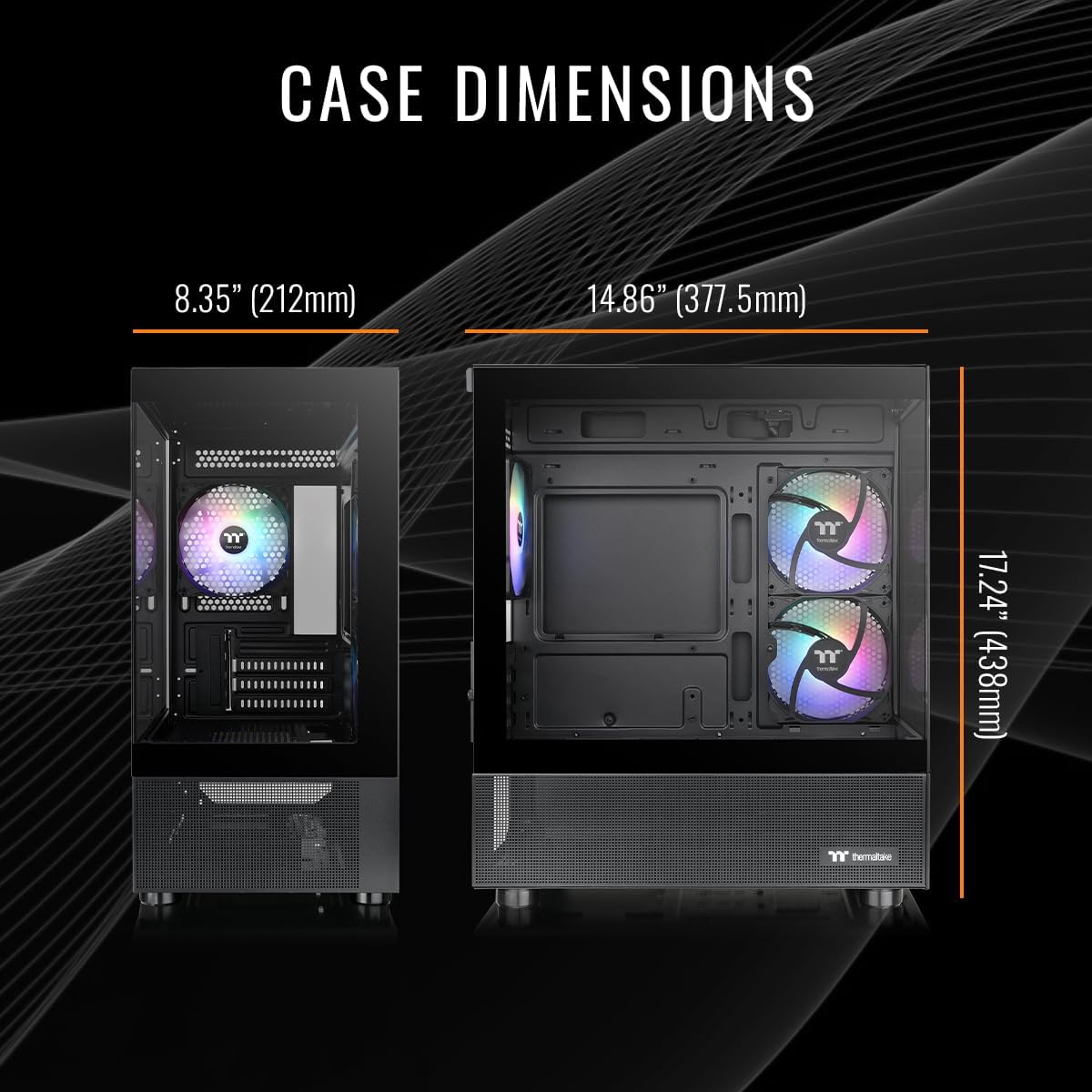
Figure 4: Internal view of the desktop with illuminated ARGB fans and RAM.
Maintenance
1. Cleaning
- Exterior: Use a soft, dry cloth to clean the exterior surfaces, including the tempered glass panels. Avoid abrasive cleaners.
- Dust Filters: Regularly check and clean the dust filters located on the intake vents to maintain optimal airflow and prevent dust buildup inside the case.
- Internal Components: Periodically use compressed air to gently remove dust from internal components such as fans, heatsinks, and the graphics card. Ensure the system is powered off and unplugged before cleaning.

Figure 5: Illustration of optimized airflow within the Thermaltake View series chassis.
2. Software Updates
Keep your operating system, drivers (especially graphics drivers), and other software up to date. This ensures system stability, security, and optimal performance for your hardware.
Troubleshooting
- No Power: Ensure the power cable is securely connected to both the PC and the wall outlet. Verify that the power switch on the PSU (located at the rear of the PC) is in the 'ON' position.
- No Display: Confirm your monitor cable is connected to one of the graphics card's output ports (DisplayPort or HDMI), not the motherboard's ports. Check that your monitor is powered on and set to the correct input source.
- Performance Issues: Update your graphics drivers and Windows 11. Close unnecessary background applications. Monitor system temperatures to ensure proper cooling.
- RGB Lighting Not Working: Check the connections for the RGB components inside the case. Ensure any dedicated RGB control software is installed and configured correctly.
Specifications
| Component | Specification |
|---|---|
| Processor | AMD Ryzen™ 5 7600X (4.7 GHz) |
| Graphics Coprocessor | NVIDIA® GeForce RTX™ 5060 (8 GB) |
| RAM | 32 GB DDR5 6000MT/s |
| Storage | 1 TB NVMe M.2 SSD |
| Operating System | Windows 11 |
| Motherboard Chipset | AMD B650 |
| Cooling | ARGB Tower Air Cooler |
| USB Ports | 2x USB 3.0 (front), 10x USB 2.0 (rear) |
| Audio Ports | 1x Headphone, 1x Mic (front) |
| Connectivity | Wi-Fi, Ethernet |
| Item Weight | 22.3 pounds |
| Package Dimensions | 20.5 x 20 x 12.5 inches |

Figure 6: Visual summary of the desktop's key specifications.
Warranty & Support
Your Thermaltake LCGS View 7660-170 Gaming Desktop comes with a manufacturer's warranty. For specific warranty terms and conditions, please refer to the documentation included with your product or visit the official Thermaltake website. For technical support, troubleshooting assistance, or warranty claims, please contact Thermaltake customer service.
Thermaltake Support: For assistance, please visit the Thermaltake Store on Amazon or their official website.


