1. Introduction
Welcome to the user manual for your new Vibox I-530 Gaming PC. This system is designed for casual gaming and general productivity, offering a balanced performance with its AMD Ryzen 3 3200G processor and integrated Radeon Vega 8 graphics. This manual provides essential information for setting up, operating, maintaining, and troubleshooting your computer.
What's in the Box
- Vibox I-530 Gaming PC Tower (VTX-8 Black)
- Power Cable
- 300 Mbps Wi-Fi Adapter
- Documentation (this manual)
- RGB Lighting (integrated into the PC case)

Figure 1: The Vibox I-530 Gaming PC tower, showcasing its transparent side panel and vibrant RGB fans.
2. Setup Guide
Follow these steps to set up your Vibox I-530 Gaming PC for the first time.
2.1 Unboxing and Placement
- Carefully remove the PC from its packaging.
- Place the PC tower on a stable, flat surface with adequate ventilation. Ensure there is enough space around the vents for proper airflow.
- Remove any protective films or packaging materials from the PC case.

Figure 2: Diagram illustrating the dimensions of the Vibox I-530 PC case, highlighting its tempered glass design and overall size (37.5cm height, 29.5cm depth, 22cm width, 8cm stand height).
2.2 Connecting Peripherals
Connect your monitor, keyboard, mouse, and other peripherals to the appropriate ports on the back of the PC.
- Monitor: Connect your monitor using an HDMI or DisplayPort cable to the corresponding port on the motherboard (not a dedicated graphics card, as this model uses integrated graphics).
- Keyboard and Mouse: Plug your keyboard and mouse into any available USB ports.
- Wi-Fi Adapter: Insert the provided 300 Mbps Wi-Fi adapter into an available USB port.
- Power: Connect the power cable to the PC's power supply unit (PSU) and then to a wall outlet.
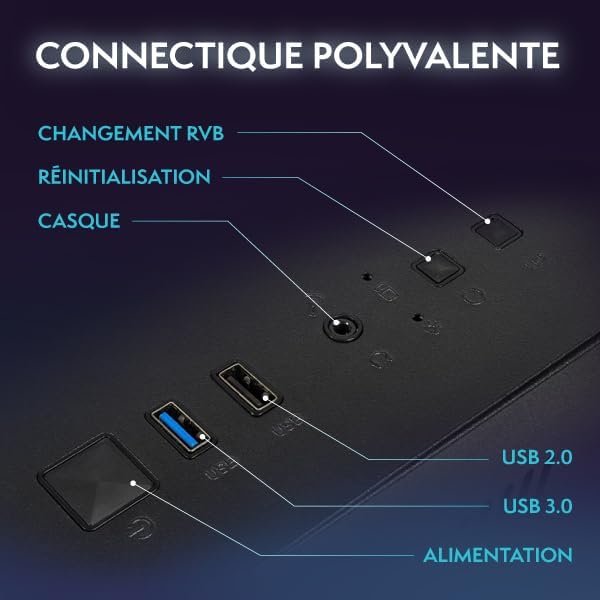
Figure 3: Close-up of the PC's front panel connectivity, showing the power button, RGB change button, reset button, headphone jack, USB 2.0 ports, and USB 3.0 ports.
2.3 Initial Power On
- Press the power button on the front of the PC.
- The system will boot into Windows 11. Follow the on-screen instructions to complete the initial Windows setup, including language, region, and user account creation.
- Once Windows is set up, ensure your Wi-Fi adapter is recognized and connect to your wireless network.
3. Operating Instructions
This section covers basic operation and tips for using your Vibox I-530 PC.
3.1 Power On/Off
- To Power On: Press the power button on the front of the PC.
- To Shut Down: Click the Start button in Windows, then select Power > Shut down. Avoid simply holding the power button to turn off the PC, as this can lead to data loss or system corruption.
- To Restart: Click the Start button, then select Power > Restart.
3.2 Windows 11 Overview
Your PC comes pre-installed with Windows 11 Home, offering a modern interface and enhanced features for gaming and productivity.
- Faster Load Times: Benefit from DirectStorage for quicker game loading.
- Enhanced Graphics: AutoHDR provides improved visuals for supported games.
- Xbox Game Pass Integration: Seamless access to Xbox Game Pass.
- Optimized CPU Performance: Experience better performance for your processor.

Figure 4: Key features of Windows 11 Home, highlighting benefits for gamers such as faster loading, AutoHDR, and Xbox Game Pass integration.
3.3 RGB Lighting Control
Your Vibox I-530 PC features customizable RGB lighting for its fans. You can change the colors and modes directly from the PC case.
- Locate the RGB change button on the front panel of your PC (refer to Figure 3).
- Press this button to cycle through various colors and lighting effects.
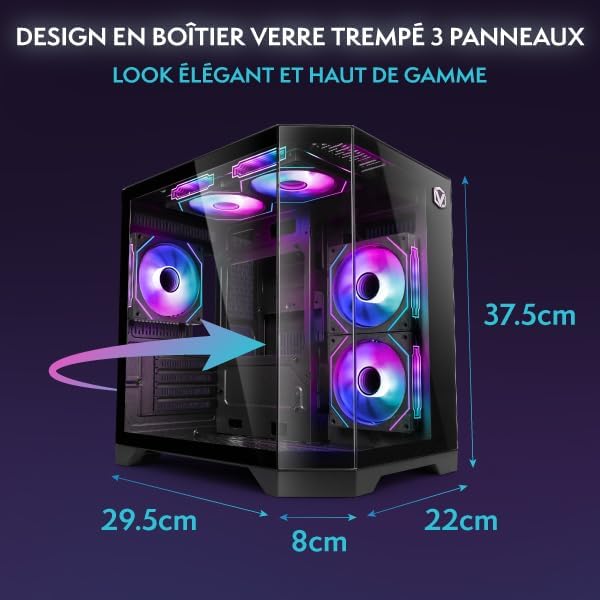
Figure 5: Hex RGB Infinity 120mm fans, illustrating the customizable colors and RGB modes available for personalization.
3.4 Gaming and Performance
The AMD Ryzen 3 3200G with Radeon Vega 8 integrated graphics is suitable for indie games and less graphically demanding titles. For optimal performance:
- Keep your graphics drivers updated.
- Close unnecessary background applications while gaming.
- Adjust in-game graphics settings to match your system's capabilities for a smooth experience.

Figure 6: An internal view of the Vibox I-530 PC, showing the motherboard, CPU cooler, and RGB fans, illustrating the component layout.
4. Maintenance
Regular maintenance helps ensure the longevity and optimal performance of your PC.
4.1 Cleaning
- Exterior: Use a soft, damp cloth to wipe down the exterior of the case. Avoid harsh chemicals.
- Dust: Periodically use compressed air to clean dust from the internal components, especially the fans and heatsinks. Ensure the PC is powered off and unplugged before cleaning.
- Airflow: Ensure the PC's vents are not obstructed to maintain proper airflow and prevent overheating.

Figure 7: Diagram illustrating the inverted airflow design for new generation cooling in the Vibox I-530 PC, showing air intake and exhaust paths.
4.2 Software Updates
- Windows Updates: Regularly check for and install Windows updates to ensure security and performance improvements. Go to Settings > Windows Update.
- Driver Updates: Keep your AMD graphics drivers and other component drivers updated. You can usually find these on the AMD website or through the device manager.
4.3 Storage Management
- SSD Health: While SSDs do not require defragmentation, ensure you don't fill them to full capacity, as this can impact performance.
- Disk Cleanup: Use Windows' built-in Disk Cleanup tool to remove temporary files and free up space.
5. Troubleshooting
This section addresses common issues you might encounter with your Vibox I-530 PC.
5.1 No Power
- Ensure the power cable is securely connected to both the PC and the wall outlet.
- Check if the power switch on the back of the PSU (Power Supply Unit) is in the 'On' position.
- Try a different power outlet or power cable.
5.2 No Display on Monitor
- Verify that the monitor is powered on and the video cable (HDMI/DisplayPort) is securely connected to both the PC's motherboard video output and the monitor.
- Ensure your monitor is set to the correct input source.
- If possible, test with another monitor or cable.
5.3 Wi-Fi Connectivity Issues
- Ensure the USB Wi-Fi adapter is properly inserted into a USB port.
- Check Windows network settings to confirm Wi-Fi is enabled and you are attempting to connect to the correct network.
- Restart your router and modem.
- Update the Wi-Fi adapter drivers.
5.4 System Performance is Slow
- Check Task Manager (Ctrl+Shift+Esc) for applications consuming excessive CPU, RAM, or disk resources.
- Ensure Windows and drivers are up to date.
- Perform a disk cleanup and check for malware.
- Ensure the PC has adequate ventilation and is not overheating.
6. Specifications
Detailed technical specifications for the Vibox I-530 Gaming PC.
| Feature | Detail |
|---|---|
| Brand | Vibox |
| Model Number | I-530 |
| Series | VTX-8 |
| Color | VTX-8 Black |
| Dimensions (L x W x H) | 35 x 28 x 38 cm |
| Weight | 10.6 kg |
| Processor Manufacturer | AMD |
| Processor Type | Ryzen 3 3200G |
| Processor Speed | 3.6 GHz (up to 4.0 GHz boost) |
| Processor Socket | Socket AM4 |
| Number of Processor Cores | 4 |
| RAM Capacity | 16 GB |
| RAM Technology | DDR4 |
| RAM Speed | 3200 MHz |
| Max Supported RAM | 128 GB |
| Storage Type | SSD (Solid State Drive) |
| Storage Capacity | 480 GB |
| Graphics Coprocessor | AMD Radeon Vega 8 |
| Graphics Card Brand | AMD |
| Graphics Card Description | Integrated |
| Graphics Memory Type | Shared |
| Connectivity Type | Wi-Fi (802.11n) |
| USB 2.0 Ports | 3 |
| USB 3.0 Ports | 3 |
| HDMI Ports | 1 |
| Optical Drive Type | None |
| Operating System | Windows 11 Home |
| Specific Product Uses | Image Editing, Video Editing, Video Games |
7. Warranty and Support
For warranty information and technical support, please refer to the documentation provided with your purchase or contact Vibox customer service directly.
You can visit the official Vibox website or the seller's page on Amazon for further assistance:
- Vibox Gaming Store: Visit Vibox Store on Amazon
- Seller Support: For issues related to your purchase, contact "Vibox Gaming" directly through your Amazon order history.


