
Introduction
This manual provides detailed instructions for the installation, operation, and maintenance of your ZWNAV 15.8 Inch Android 14 Car Multimedia Player. This unit is designed for BMW 5 Series F10, F11, and F18 models manufactured between 2013 and 2016, specifically those equipped with the NBT system. Please read this manual thoroughly before installation and use to ensure proper function and to maximize your experience with the device.
Product Overview
The ZWNAV Car Multimedia Player features a 15.8-inch display, powered by an Android 14 operating system and a Qualcomm 680 8-core CPU. It offers advanced multimedia and navigation capabilities, integrating seamlessly with your vehicle's existing systems.
Key Features:
- Operating System: Android 14 with TS10 UIS8667 8 Core CPU.
- Processor & Memory: Qualcomm 680 8-core, 8GB RAM, 128GB ROM.
- Display: 15.8-inch HD touchscreen.
- Connectivity: Built-in 4G/Wifi, mobile phone hotspot support, Bluetooth 5.0 for hands-free calls.
- Navigation: Supports Google Maps, IGO, Sygic, Waze, Yandex navigation.
- Smartphone Integration: Wireless Apple Carplay and Android Auto functionality.
- Audio: Built-in SI4745 radio module with RDS, Built-in DSP (16 bands of EQ), 7850 Amplifier with 45W*4 audio output.
- Vehicle Integration: Supports factory steering wheel controls, radar parking sensors, and A/C information display.

Image: Overview of key features including Qualcomm 8-core processor, Bluetooth 5.0 support, large HD screen, Android 14 system, and 360-degree panorama view capability.
Vehicle Compatibility
This multimedia player is compatible with the following BMW 5 Series models:
- BMW 5 Series F10 (2013-2016 NBT system)
- BMW 5 Series F11 (2013-2016 NBT system)
- BMW 5 Series F18 (2013-2016 NBT system)
Ensure your vehicle is within the specified model years and has the NBT system for proper compatibility.

Image: Comparison showing the original BMW 5 Series dashboard display versus the ZWNAV 15.8-inch screen after installation, highlighting the larger display area.
What's in the Box
Upon unpacking, please verify that all the following components are included:
- ZWNAV 15.8 Inch Multimedia Head Unit
- GPS Antenna
- WiFi Antenna
- SIM Card Slot Cable
- Power Cable Harness
- Microphone
- Small Trumpet (Speaker)
- AMI Audio Adapter Cable
- Fiber Optic Box (if applicable to your vehicle's audio system)
- Installation Base/Mounting Bracket

Image: Visual representation of the included components: GPS antenna, WiFi antenna, SIM card slot, power cable, microphone, small speaker, AMI audio adapter cable, and fiber optic box.

Image: The main display unit and its separate mounting base, illustrating how the components fit together for installation.
Setup and Installation
The ZWNAV multimedia player is designed for a "Plug and Play" installation, utilizing your vehicle's existing wiring harness and CANbus system. This allows for retention of factory features such as steering wheel controls, radar parking sensors, and A/C information display.
General Installation Steps:
- Preparation: Ensure the vehicle's ignition is off and the battery is disconnected before beginning installation.
- Remove Original Display: Carefully remove the factory display unit from your dashboard. Refer to your vehicle's service manual for specific instructions on trim panel removal.
- Connect Wiring Harness: Connect the provided plug-and-play wiring harness to the vehicle's existing connectors. Ensure all connections are secure.
- Connect Antennas: Connect the GPS antenna and WiFi antenna to the corresponding ports on the new head unit. Position the antennas in a location that provides optimal signal reception, typically on the dashboard or under the A-pillar trim.
- Connect Peripherals: Connect the microphone, SIM card slot cable, and AMI audio adapter cable as needed. If your vehicle has a fiber optic audio system, connect the fiber optic box.
- Mount New Display: Securely mount the ZWNAV 15.8-inch display unit into the dashboard opening using the provided base and mounting hardware.
- Test Functionality: Reconnect the vehicle battery and turn on the ignition. Test all functions of the multimedia player, including audio, navigation, Bluetooth, Carplay/Android Auto, and steering wheel controls, before fully reassembling the dashboard trim.
- Final Assembly: Once all functions are verified, carefully reassemble any removed trim panels.
Note: Professional installation is recommended if you are unfamiliar with car audio system installations.

Image: The ZWNAV multimedia player seamlessly integrated into the dashboard of a BMW 5 Series, displaying the main menu interface.
Operating Instructions
The ZWNAV multimedia player operates on an Android 14 system, providing a user-friendly interface similar to a tablet. Touchscreen gestures are used for navigation and control.
Basic Navigation:
- Home Screen: Tap the home icon to return to the main application launcher.
- App Drawer: Swipe up or tap the app drawer icon to view all installed applications.
- Settings: Access system settings via the 'Settings' icon to configure Wi-Fi, Bluetooth, display, sound, and other preferences.
Key Functions:
- GPS Navigation:
Access pre-installed navigation apps like Google Maps, IGO, Sygic, Waze, or Yandex. Ensure the GPS antenna is properly connected for accurate positioning. You can download additional navigation apps from the Google Play Store.

Image: The multimedia player displaying a navigation map alongside media playback within the Carplay interface.
- Wireless Apple Carplay / Android Auto:
Connect your iPhone or Android smartphone wirelessly to access compatible apps, navigation, music, and messaging directly on the head unit's screen. Follow the on-screen prompts for initial pairing via Bluetooth and Wi-Fi.

Image: The ZWNAV screen displaying the Apple Carplay interface with various app icons like Phone, Music, Maps, and Messages.
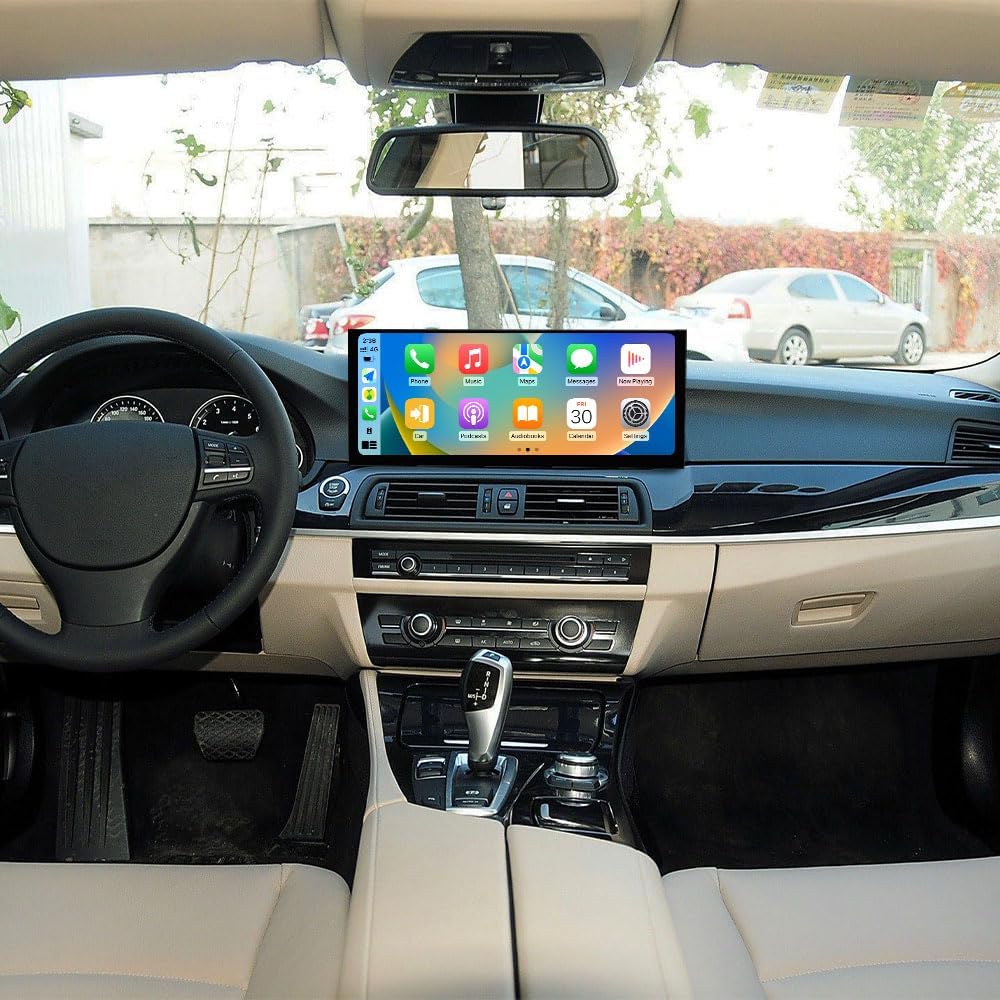
Image: The ZWNAV screen displaying the Android Auto interface with various app icons for communication, navigation, and media.

Image: An illustration demonstrating the Carplay and Android Auto functionality, showing how phone apps are mirrored on the car screen.
- Bluetooth 5.0:
Pair your phone for hands-free calling and audio streaming. Go to 'Settings' > 'Bluetooth' to enable Bluetooth, search for devices, and pair with your phone. The built-in microphone ensures clear call quality.
- Radio (RDS):
Access the built-in radio application. The SI4745 radio module supports RDS (Radio Data System) for displaying station information where available.
- DSP (Digital Sound Processor):
Utilize the 16-band equalizer within the DSP settings to customize your audio experience. Adjust frequencies to match your preferences and vehicle acoustics.

Image: Screenshots of the ZWNAV user interface, showing the app launcher, a 16-band equalizer for audio adjustment, vehicle settings, and a music playback screen.
- 4G/Wi-Fi Connectivity:
Insert a 4G SIM card into the provided slot for direct internet access, or connect to a Wi-Fi hotspot. This enables online navigation, streaming, and app downloads.
Maintenance
To ensure the longevity and optimal performance of your ZWNAV multimedia player, follow these maintenance guidelines:
- Screen Cleaning: Use a soft, lint-free cloth specifically designed for electronics screens. Dampen the cloth slightly with water or a screen-safe cleaner if necessary. Avoid harsh chemicals or abrasive materials.
- Software Updates: Periodically check for system software updates. These updates can improve performance, add new features, and enhance security. Follow the on-screen instructions for safe updating.
- Temperature Control: Avoid exposing the unit to extreme temperatures for extended periods. While designed for automotive use, prolonged exposure to direct sunlight in hot climates or extreme cold can affect performance and lifespan.
- Cable Connections: Periodically check all cable connections to ensure they are secure and free from damage. Loose connections can lead to intermittent issues.
- Avoid Liquids: Prevent liquids from spilling onto or into the unit. Liquid damage is not covered under warranty.
Troubleshooting
If you encounter issues with your ZWNAV multimedia player, refer to the following common troubleshooting steps:
| Problem | Possible Cause | Solution |
|---|---|---|
| Unit does not power on. | Loose power connection, blown fuse, vehicle battery issue. | Check power cable connections. Inspect vehicle fuses. Ensure vehicle battery is charged. |
| No audio output. | Incorrect audio settings, loose speaker connections, fiber optic box issue. | Verify volume levels and audio output settings. Check speaker wiring. Ensure fiber optic box is correctly installed and functioning. |
| GPS signal is weak or inaccurate. | GPS antenna improperly placed or disconnected. | Ensure GPS antenna is securely connected and placed in an unobstructed location (e.g., dashboard, under A-pillar). |
| Carplay/Android Auto not connecting. | Bluetooth/Wi-Fi not enabled, phone compatibility issue, incorrect pairing steps. | Ensure Bluetooth and Wi-Fi are enabled on both the unit and your phone. Re-attempt pairing process. Check phone compatibility with Carplay/Android Auto. |
| Touchscreen unresponsive. | Temporary software glitch, screen damage. | Restart the unit (turn vehicle off and on). If issue persists, contact support. |
| Steering wheel controls not working. | CANbus connection issue, incorrect settings. | Verify CANbus wiring. Check steering wheel control settings in the unit's menu. |
If these steps do not resolve the issue, please contact ZWNAV customer support for further assistance.
Specifications
| Feature | Detail |
|---|---|
| Brand | ZWNAV |
| Model Name | ZW15F103220071417 |
| Operating System | Android 14 |
| CPU | Qualcomm 680 8-core (TS10 UIS8667) |
| RAM | 8GB |
| ROM | 128GB |
| Display Size | 15.8 Inches |
| Connectivity Technology | 4G SIM Carplay, Bluetooth 5.0, Wi-Fi, USB, Cables |
| Special Features | Bluetooth, Wireless Carplay, Android Auto, Touchscreen, DSP (16-band EQ), RDS Radio |
| Audio Output Mode | Digital |
| Amplifier Output | 45W*4 (Built-in 7850 Amplifier) |
| Map Type | North America (supports various navigation apps) |
| Item Weight | 5.61 pounds |
| Product Dimensions | 13.3 x 4.9 x 4.9 inches |
Warranty and Support
ZWNAV provides comprehensive support for its products:
- Warranty: The product comes with a 1-year manufacturer's warranty.
- After-Sales Service: Lifetime after-sales service is provided.
- Contact Support: For any questions or assistance, please contact ZWNAV customer support via email at zwnavgps@hotmail.com. Alternatively, you can visit the "ZWNAVGPS Official Store" on Amazon and use the "ask a question" feature.
