
EWEADN TK100
EWEADN TK100 Wired Mechanical Keyboard User Manual
Model: TK100
1. Introduction
The EWEADN TK100 is a 104-key wired mechanical keyboard designed with a retro typewriter aesthetic. It features durable double-shot injection round keycaps, responsive blue mechanical switches, and a white LED backlight with multiple effects. This manual provides detailed instructions for setting up, operating, maintaining, and troubleshooting your TK100 keyboard.
2. Package Contents
Please verify that all items are present in your package:
- EWEADN TK100 Wired Mechanical Keyboard
3. Setup
Setting up your EWEADN TK100 keyboard is a simple plug-and-play process.
- Unpack the Keyboard: Carefully remove the keyboard from its packaging.
- Connect to Your Device: Locate an available USB-A port on your computer (PC, Mac, laptop, desktop) or compatible device. Insert the USB cable from the keyboard firmly into the USB port.
- Automatic Installation: Your operating system will automatically detect and install the necessary drivers. No additional software installation is required.
- Ready for Use: Once the installation is complete, the keyboard is ready for immediate use.
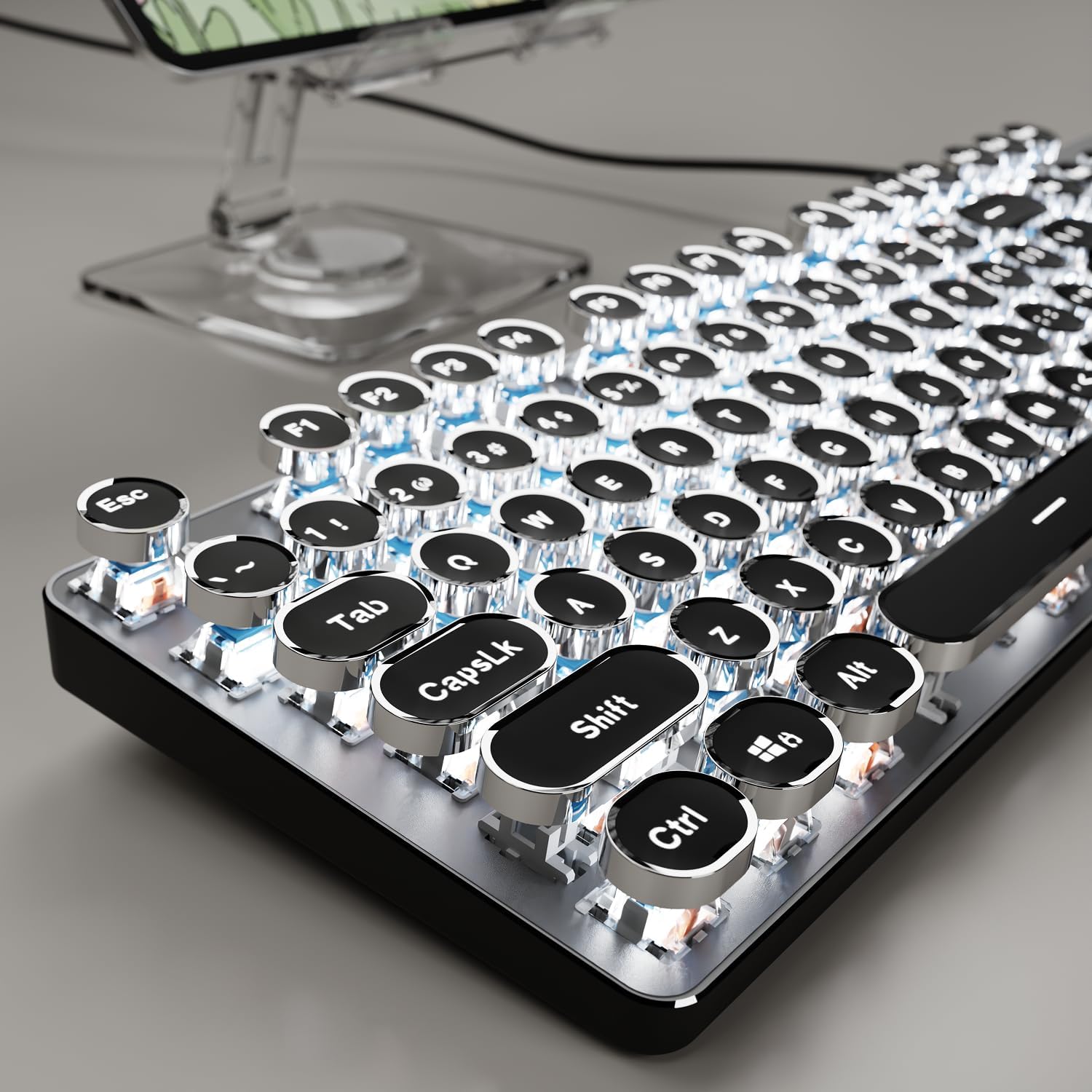
Image: The EWEADN TK100 keyboard connected and ready for use, highlighting its aesthetic design.
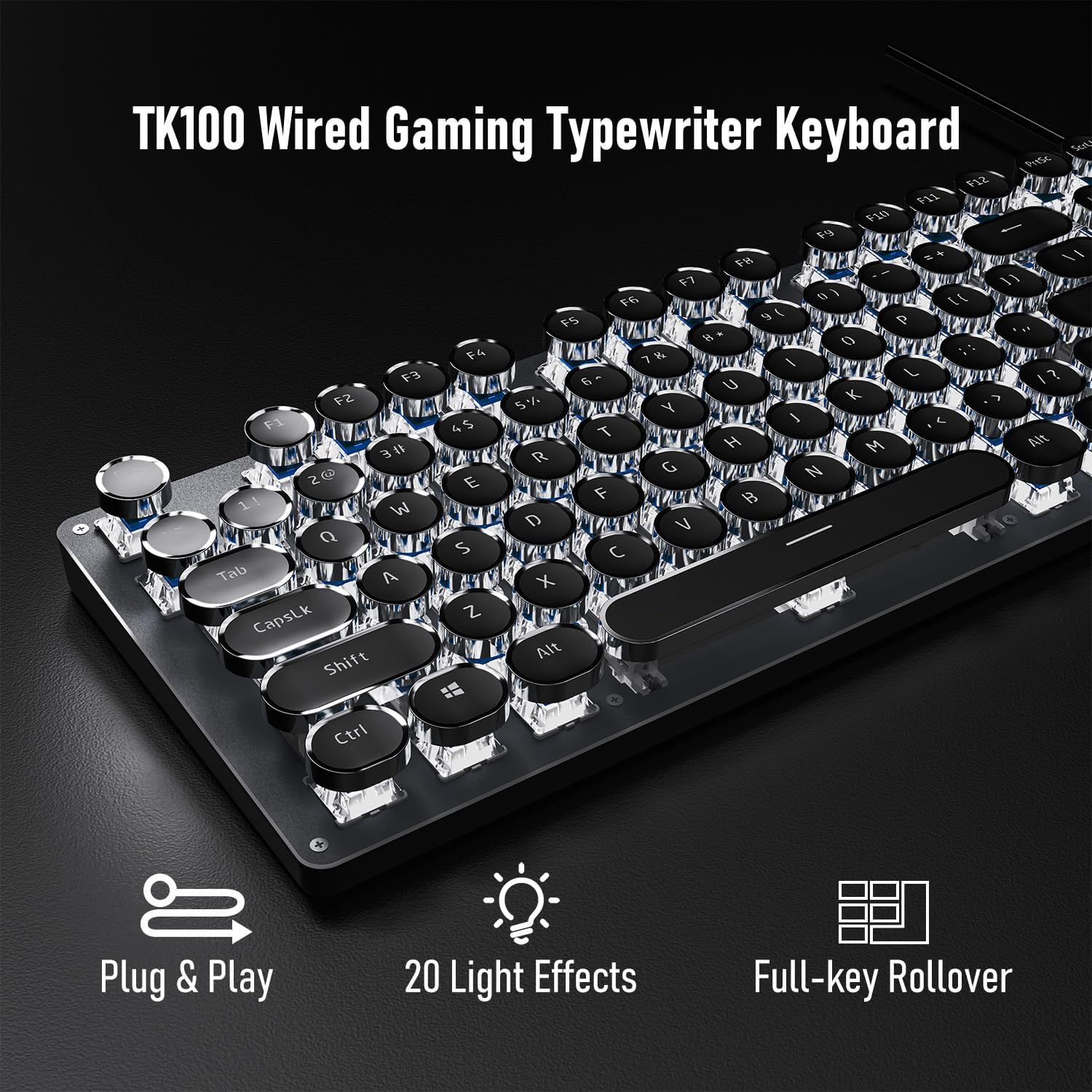
Image: Visual representation of the keyboard's plug-and-play functionality and full-key rollover capability.
4. Operating Instructions
4.1 Backlight Control
The TK100 keyboard features a white LED backlight with various effects and brightness levels.
- Change Light Effects: Press FN + INS to cycle through 20 preset basic lighting effects.
- Game Lighting Effects: Press FN + 6, 7, 8, 9, or 0 to activate 4 specific game lighting effects.
- Adjust Brightness/Speed: Press FN + Up Arrow (↑) to increase brightness or breathing speed. Press FN + Down Arrow (↓) to decrease brightness or breathing speed (5 levels available).
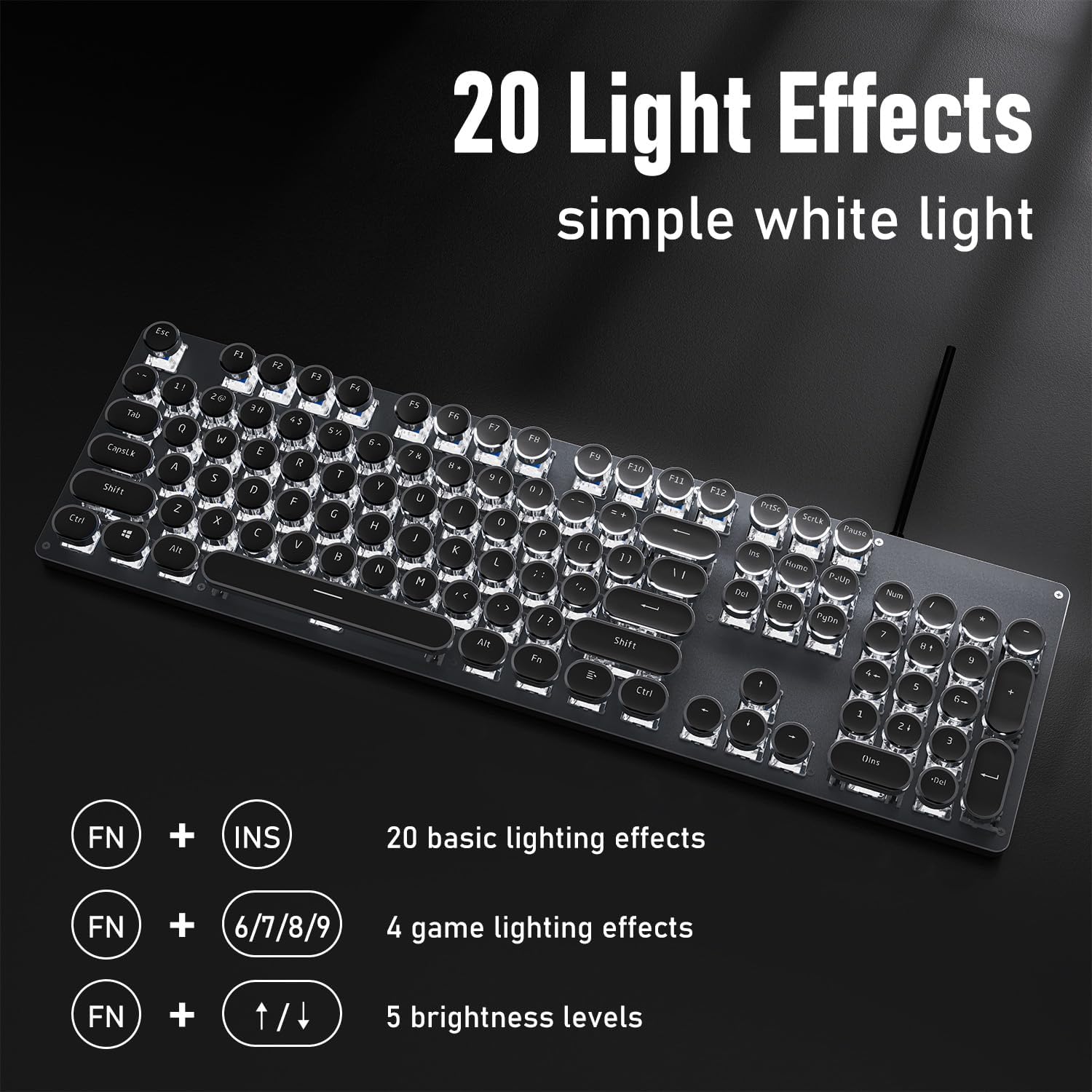
Image: The keyboard showcasing its 20 light effects and the FN key combinations for adjusting them.
4.2 Key Features
- Mechanical Blue Switches: The TK100 utilizes highly durable mechanical blue switches, known for their tactile feedback and crisp, audible click. This provides a satisfying typing experience and quick response time.
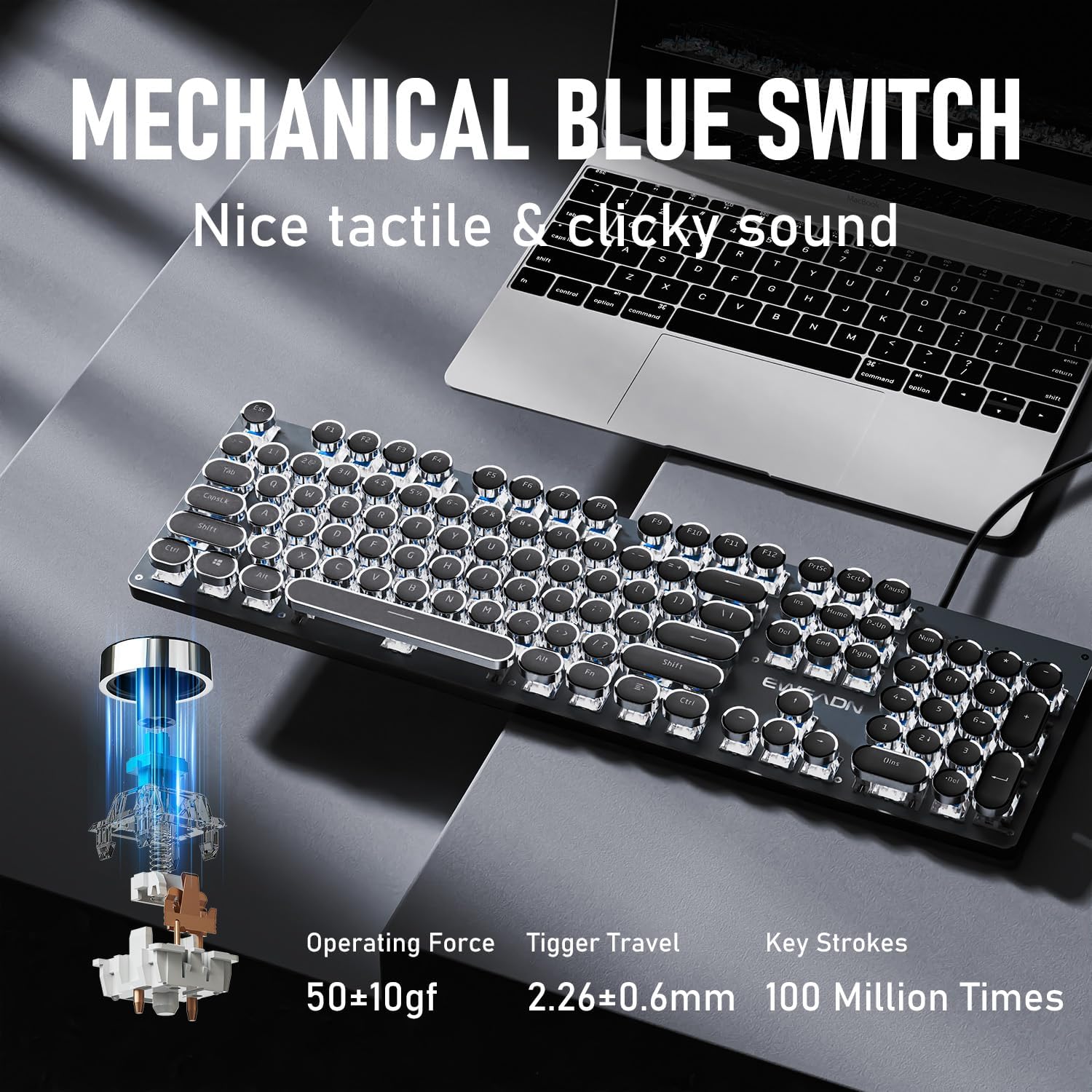
Image: Detailed view of the mechanical blue switch, highlighting its specifications for performance and durability.
- Retro Punk Round Keycaps: The keyboard features double-shot injection retro punk round keycaps. These keycaps are designed for durability, clear character visibility, and a comfortable typing feel.

Image: A close-up of the unique retro punk round keycaps, showcasing their design and clarity.
- Anti-Ghosting & Full Key Rollover: Equipped with anti-ghosting technology, the TK100 ensures that every keystroke is accurately registered, even during rapid, multi-key commands. This full key rollover capability is essential for gaming and fast typing, preventing missed inputs.
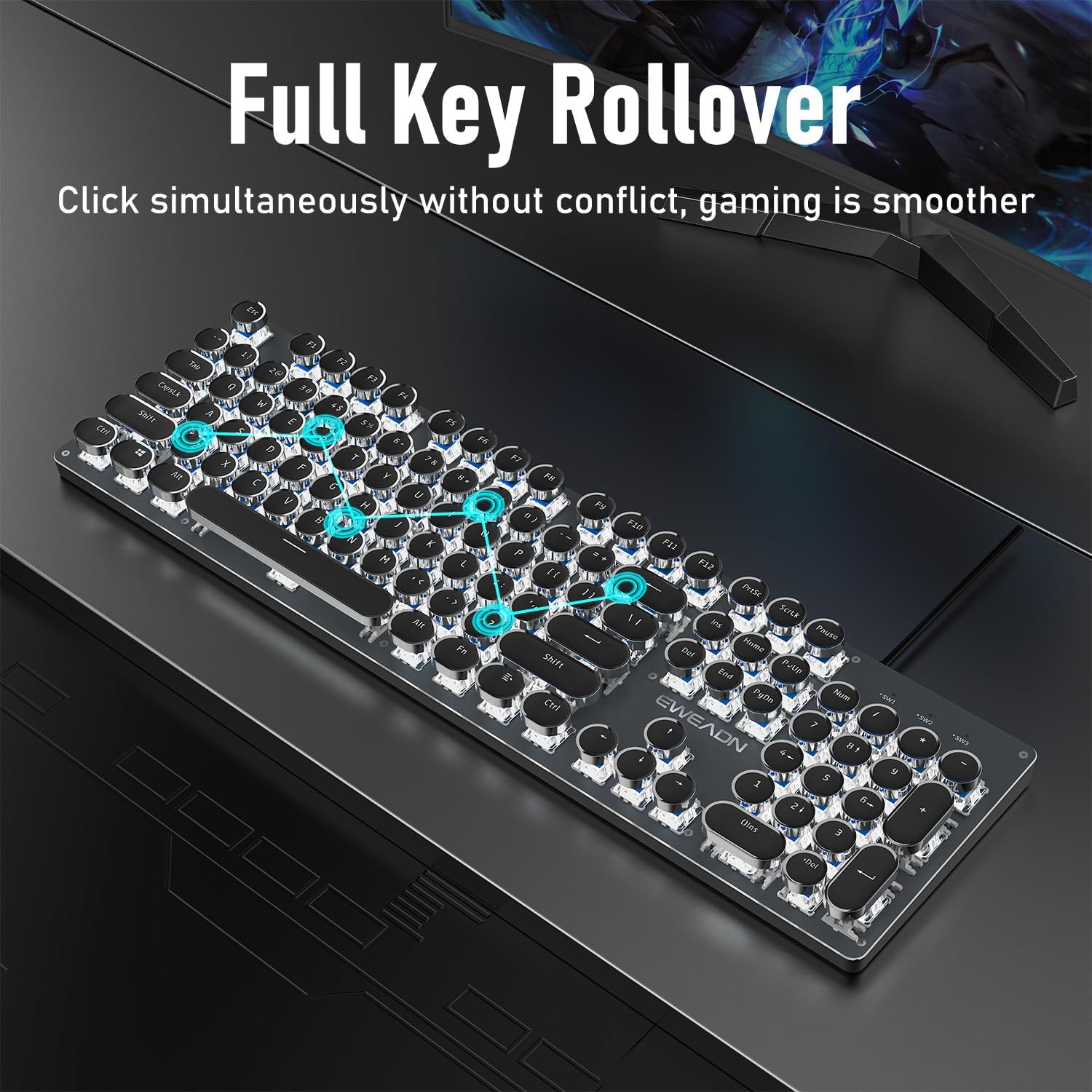
Image: The keyboard demonstrating its full key rollover feature, ensuring smooth and accurate input during simultaneous key presses.
- Ergonomic Design: The keyboard features stepped floating keycaps that conform to your fingertips for comfortable typing. It also includes two-level adjustable foot supports, allowing you to set the keyboard angle for reduced fatigue during extended use.
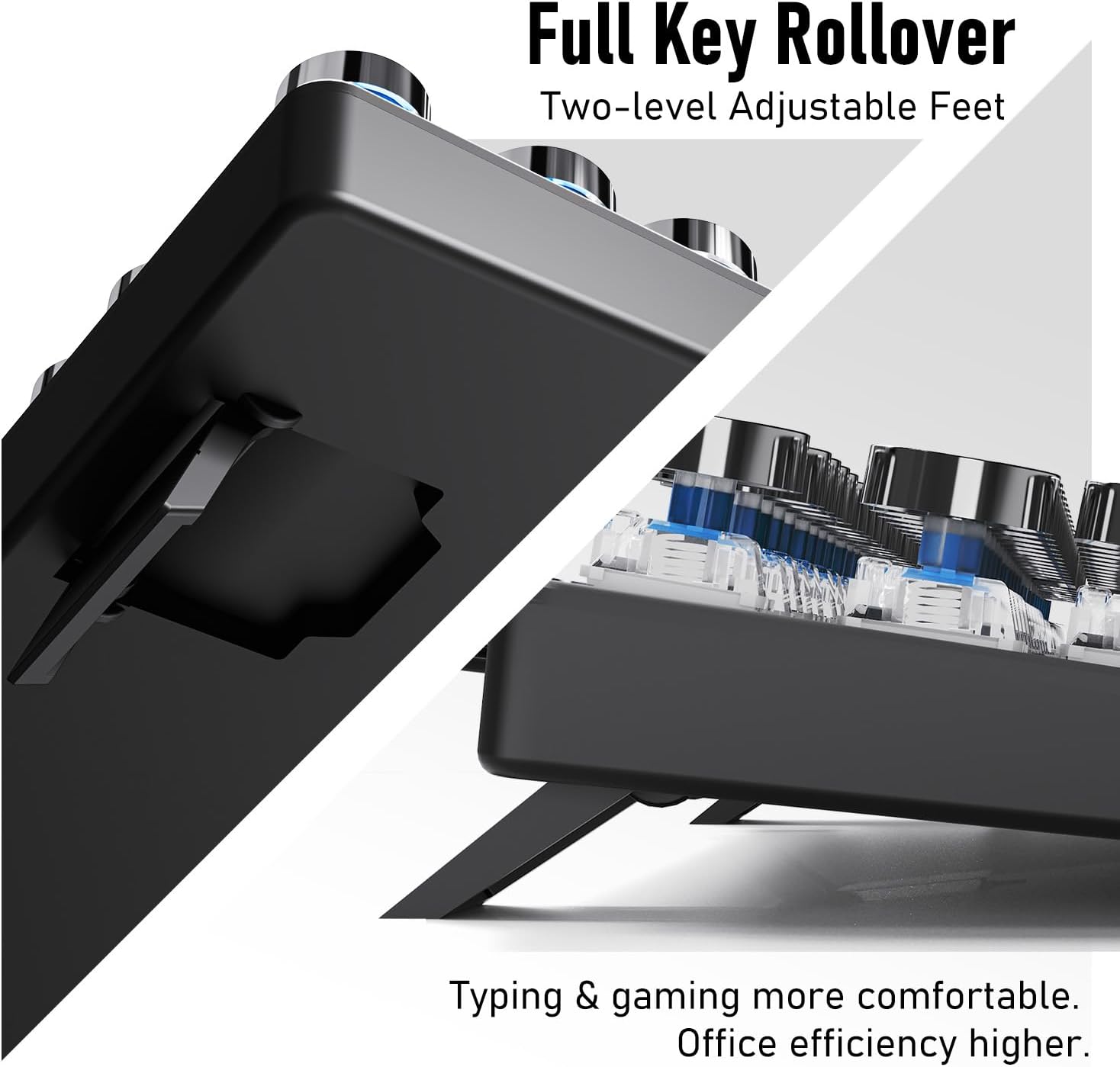
Image: A view of the keyboard's adjustable feet, designed to enhance typing comfort and efficiency.
4.3 Multimedia & Hotkeys
The TK100 keyboard provides convenient access to multimedia controls:
- Dedicated quick-access buttons for volume control.
- Dedicated quick-access buttons for backlight effects.
- Dedicated quick-access buttons for play/pause and track switching.
5. Maintenance
To ensure the longevity and optimal performance of your EWEADN TK100 keyboard, follow these maintenance guidelines:
- Regular Cleaning: Use a soft, lint-free cloth slightly dampened with water or a mild cleaning solution to wipe down the keycaps and keyboard surface. Avoid harsh chemicals or abrasive materials.
- Dust Removal: Use compressed air to remove dust and debris from between the keycaps and under the switches.
- Spill Prevention: Avoid spilling liquids on the keyboard. If a spill occurs, immediately disconnect the keyboard from your computer and allow it to dry completely before reconnecting.
- Storage: When not in use for extended periods, store the keyboard in a clean, dry environment away from direct sunlight and extreme temperatures.
6. Troubleshooting
If you encounter issues with your EWEADN TK100 keyboard, please refer to the following common solutions:
- Keyboard Not Responding:
- Ensure the USB cable is securely connected to both the keyboard and the computer's USB port.
- Try connecting the keyboard to a different USB port on your computer.
- Test the keyboard on another computer to determine if the issue is with the keyboard or the original computer.
- Restart your computer.
- Backlight Not Working or Flickering:
- Ensure the keyboard is properly connected and receiving power.
- Press FN + Up Arrow (↑) to increase brightness.
- Cycle through different backlight modes using FN + INS to see if the issue persists across all modes.
- Keys Not Registering or Double Typing:
- Ensure the keyboard is clean and free of debris that might be obstructing key presses.
- If specific keys are problematic, gently remove the keycap (if possible) and clean around the switch.
- Verify that no software or operating system settings are interfering with key input.
If these steps do not resolve your issue, please contact EWEADN customer support.
7. Specifications
| Feature | Detail |
|---|---|
| Model Number | TK100 |
| Connectivity Technology | USB-A Wired |
| Keyboard Description | Typewriter Style Mechanical Keyboard Wired |
| Number of Keys | 104 |
| Key Switch Type | Blue Mechanical Switch |
| Backlighting | White LED, Single Color |
| Special Features | Backlit, Ergonomic, Hotkeys and Media Keys, Round Key, Anti-Ghosting, Full Key Rollover |
| Compatible Devices | Laptop, PC, Gaming Console, Tablet, Smartphone |
| Item Weight | 1.9 pounds |
| Package Dimensions | 19 x 7 x 2 inches |
8. Warranty and Support
EWEADN stands by the quality of its products. The TK100 keyboard comes with a 48-month brand support period, ensuring assistance for any manufacturing defects or operational issues.
Customer Support
For any inquiries, technical assistance, or warranty claims, please contact our expert support team:
Email Support: eweadnkeyboard@outlook.com
Our team is dedicated to providing prompt and helpful responses to ensure your satisfaction.
Related documentsTK100


Ask a question about this manual
Ask about setup, troubleshooting, compatibility, parts, safety, or missing instructions. Manuals+ will review the question and use this page’s manual context to help answer it.