
1. Introduction
This manual provides detailed instructions for the installation, operation, and maintenance of your ZWNAV Digital Car LCD Cluster. This advanced virtual cockpit system is designed to replace your vehicle's analog gauges, offering a high-definition display with dynamic graphics and enhanced functionality.
2. Vehicle Compatibility
The ZWNAV Digital Car LCD Cluster is compatible with the following BMW models:
- BMW 3 Series Sedan (F30)
- BMW 3 Series Touring (F31)
- BMW 4 Series Coupe (F32)
- BMW 4 Series Convertible (F33)
- BMW 4 Series Gran Coupe (F36)
- BMW 3 Series Gran Turismo (GT-F34)
Applicable model years: 2013-2019.
Note: This unit does not support Head-Up Display (HUD) functionality.
3. Key Features
- HD 12.3" LCD Virtual Cockpit: Seamlessly replaces analog gauges with crisp speed, RPM, and fuel data, featuring dynamic graphics.
- High Resolution Display: 1920 x 720 resolution for a clear visual experience.
- Multifunctionality: Retains factory steering wheel controls and parking sensor integration without requiring additional coding.
- Enhanced Visibility: Includes anti-glare tempered glass.
- CANbus Decoder: Integrated CANbus decoder ensures full compatibility with your vehicle's systems.
- Multi-Language Support: Supports various languages for user interface customization.
- CarPlay Functions: Integrated CarPlay functionality for smartphone integration.
4. Specifications
| Attribute | Value |
|---|---|
| Display Size | 12.3 inches |
| Resolution | 1920 x 720 |
| Product Dimensions (L x W x H) | 25 x 15 x 15 inches |
| Item Weight | 2.2 Kilograms (4.85 Pounds) |
| Material | Plastic |
| Manufacturer | ZWNAV |
5. Setup and Installation
The ZWNAV Digital Car LCD Cluster is designed for non-destructive installation, requiring no drilling. It is recommended that installation be performed by a qualified professional to ensure proper function and avoid damage to your vehicle.
5.1. Package Contents
Before beginning installation, verify that all components are present:
- ZWNAV Digital Car LCD Cluster Unit
- Necessary Cables for connection

Image: The ZWNAV Digital Car LCD Cluster unit and its accompanying connection cables.
5.2. Installation Process Overview
- Carefully remove the original instrument cluster from your BMW.
- Connect the provided cables from the ZWNAV Digital Car LCD Cluster to the corresponding ports in your vehicle. The integrated CANbus decoder ensures proper communication.
- Mount the new digital cluster securely in the dashboard opening.
- Ensure all connections are firm and secure before reassembling any removed trim pieces.
For detailed, step-by-step installation guidance, please consult a professional installer or contact ZWNAV customer support.
6. Operating Instructions
The ZWNAV Digital Car LCD Cluster offers a user-friendly interface with various customizable options. Navigation through the menus is typically done using your vehicle's existing steering wheel controls.

Image: The digital cluster displaying navigation and vehicle data within a BMW interior.
6.1. Display Modes and Styles
The cluster supports multiple display styles, allowing you to customize the appearance of your speedometer, tachometer, and other vehicle information. You can switch between these styles through the system settings.

Image: A standard display mode on the digital cluster, showing speed and RPM.

Image: An alternative, modern display style with dynamic graphics on the digital cluster.
6.2. Language Settings
The system supports multiple languages. To change the display language:
- Navigate to the 'System Settings' menu.
- Select 'Language' and choose your preferred language from the list.

Image: The digital cluster showing a selection of supported languages.
6.3. CarPlay Functionality
The cluster integrates CarPlay functions, allowing you to access compatible smartphone applications directly on the display. This includes navigation, music, messages, and more.
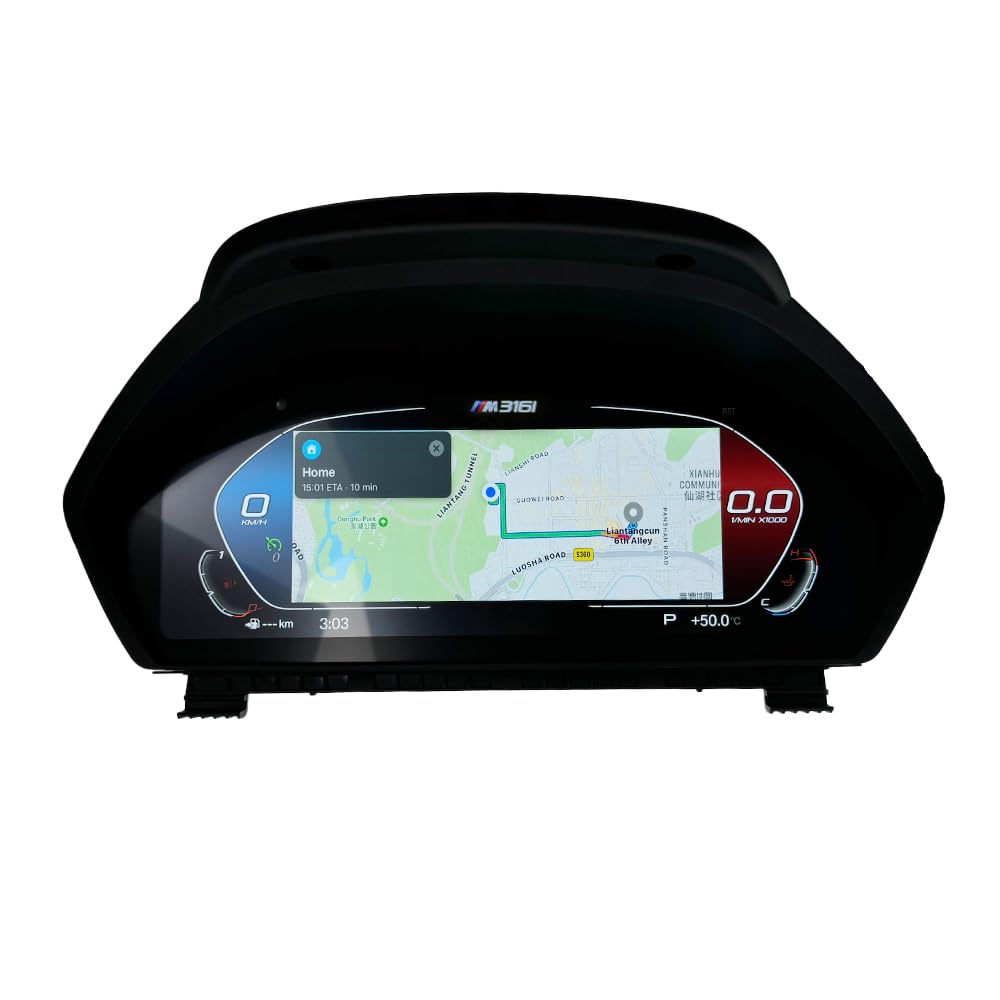
Image: The digital cluster displaying a navigation map, likely via CarPlay.
6.4. Video Demonstration of Features
The following video demonstrates various features of the ZWNAV Digital Car LCD Cluster, including different display styles, language selection, and CarPlay integration.
Video: A demonstration of the ZWNAV Digital Car LCD Cluster's interface, showing various display modes, language settings, and CarPlay functionality.
7. Maintenance
To ensure the longevity and optimal performance of your ZWNAV Digital Car LCD Cluster, follow these general maintenance guidelines:
- Cleaning: Use a soft, lint-free cloth to gently wipe the screen. For stubborn smudges, slightly dampen the cloth with water or a screen-safe cleaner. Avoid harsh chemicals or abrasive materials.
- Temperature: Avoid exposing the unit to extreme temperatures for extended periods.
- Physical Damage: Protect the screen from impacts and sharp objects. The anti-glare tempered glass provides some protection, but excessive force can still cause damage.
8. Troubleshooting
If you encounter any issues with your ZWNAV Digital Car LCD Cluster, consider the following basic troubleshooting steps:
- No Power/Display: Check all cable connections to ensure they are securely plugged in. Verify your vehicle's power supply.
- Incorrect Readings: Ensure the unit is correctly configured for your specific vehicle model. If issues persist, a factory reset (if available in settings) might resolve software glitches.
- CarPlay Issues: Ensure your smartphone is compatible with CarPlay and that its software is up to date. Check the connection between your phone and the cluster.
- Steering Wheel Control Malfunction: Confirm that the CANbus decoder is properly installed and functioning.
If these steps do not resolve the issue, please contact ZWNAV customer support for further assistance.
9. Warranty and Support
ZWNAV provides comprehensive pre-sales and after-sales services for this product.
- Warranty: The product comes with a 1-year manufacturer's warranty.
- Lifetime After-Sell Service: ZWNAV offers lifetime after-sales support for the product.
For any questions or support needs, please contact ZWNAV directly:
- Email: zwnavgps@hotmail.com
- Amazon Store: You can also click on "ZWNAVGPS Offical Store" on the product page and then click "ask a question" to contact support.