1. Introduction
This manual provides detailed instructions for the setup, operation, and maintenance of your GravaStar Mercury V75Pro HE Gaming Keyboard. Designed for high-performance gaming, this keyboard features Hall-Effect magnetic switches, a 75% layout, 8000Hz polling rate, and customizable RGB lighting. Please read this manual thoroughly to ensure optimal use and longevity of your device.
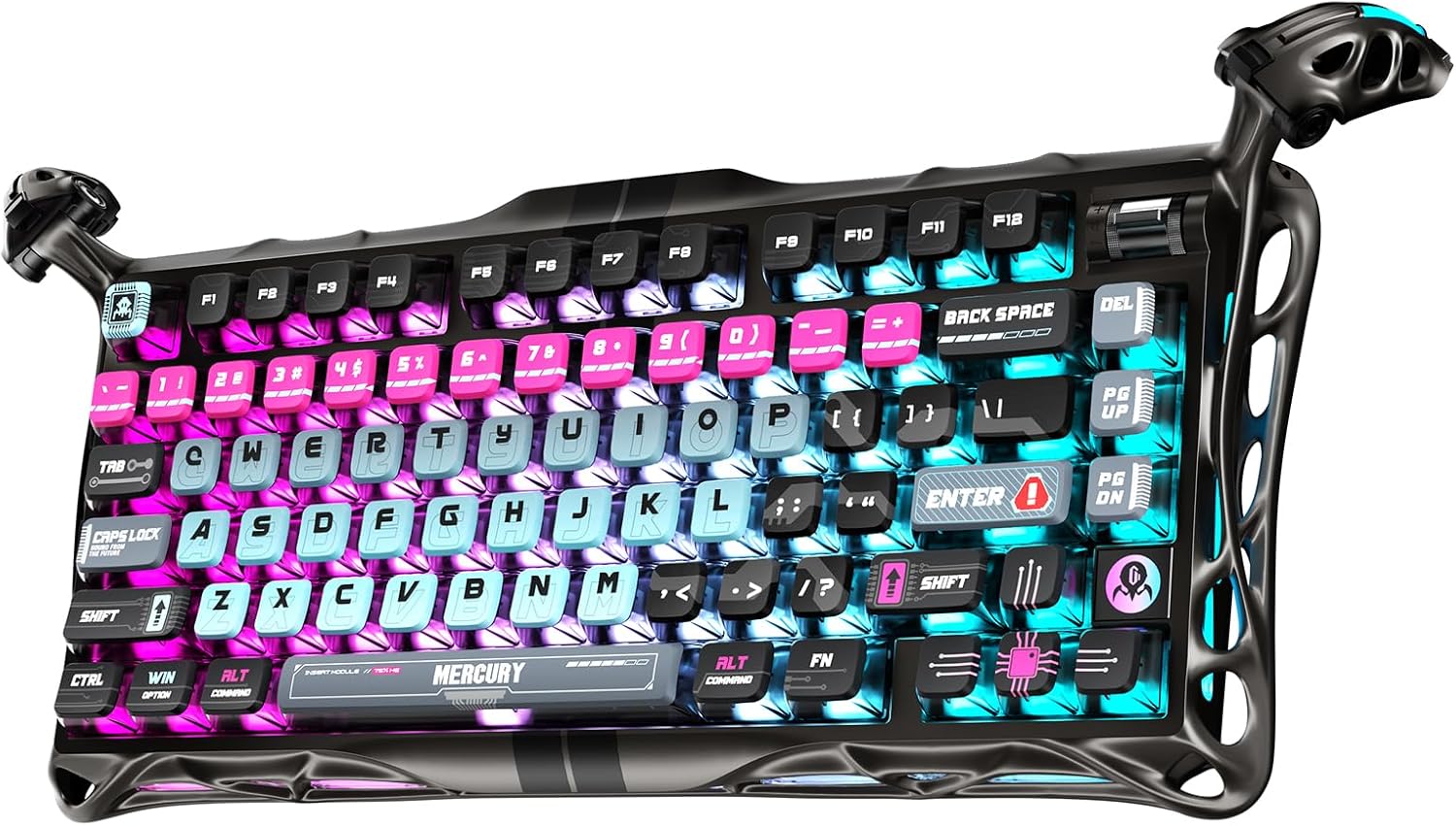
Image 1.1: The GravaStar Mercury V75Pro HE Gaming Keyboard, showcasing its unique Cyberpunk aesthetic and vibrant RGB illumination.
2. Setup
2.1 Initial Connection
Connect the GravaStar Mercury V75Pro HE keyboard to your computer using the provided USB-C cable. The keyboard is designed for wired operation only to ensure maximum performance and minimal latency.
2.2 Driver Connection
To access advanced customization features, connect your keyboard to the dedicated web driver. Follow the on-screen prompts to establish the connection.
Video 2.1: This video demonstrates the process of connecting the GravaStar Mercury V75Pro HE keyboard to its web driver for initial setup and configuration.
2.3 Firmware Update
Regularly updating your keyboard's firmware ensures optimal performance and access to the latest features. Follow the instructions in the web driver software to update the firmware.
Video 2.2: This video provides a step-by-step guide on how to update the firmware for your GravaStar Mercury V75Pro HE Gaming Keyboard.
3. Operating Instructions
3.1 Hall-Effect Magnetic Switches
The GravaStar Mercury V75Pro HE features Gateron × GravaStar Magnetic Hall-Effect switches, offering precise and customizable actuation. Each key's actuation point can be adjusted to suit your preference, providing a competitive edge in gaming.
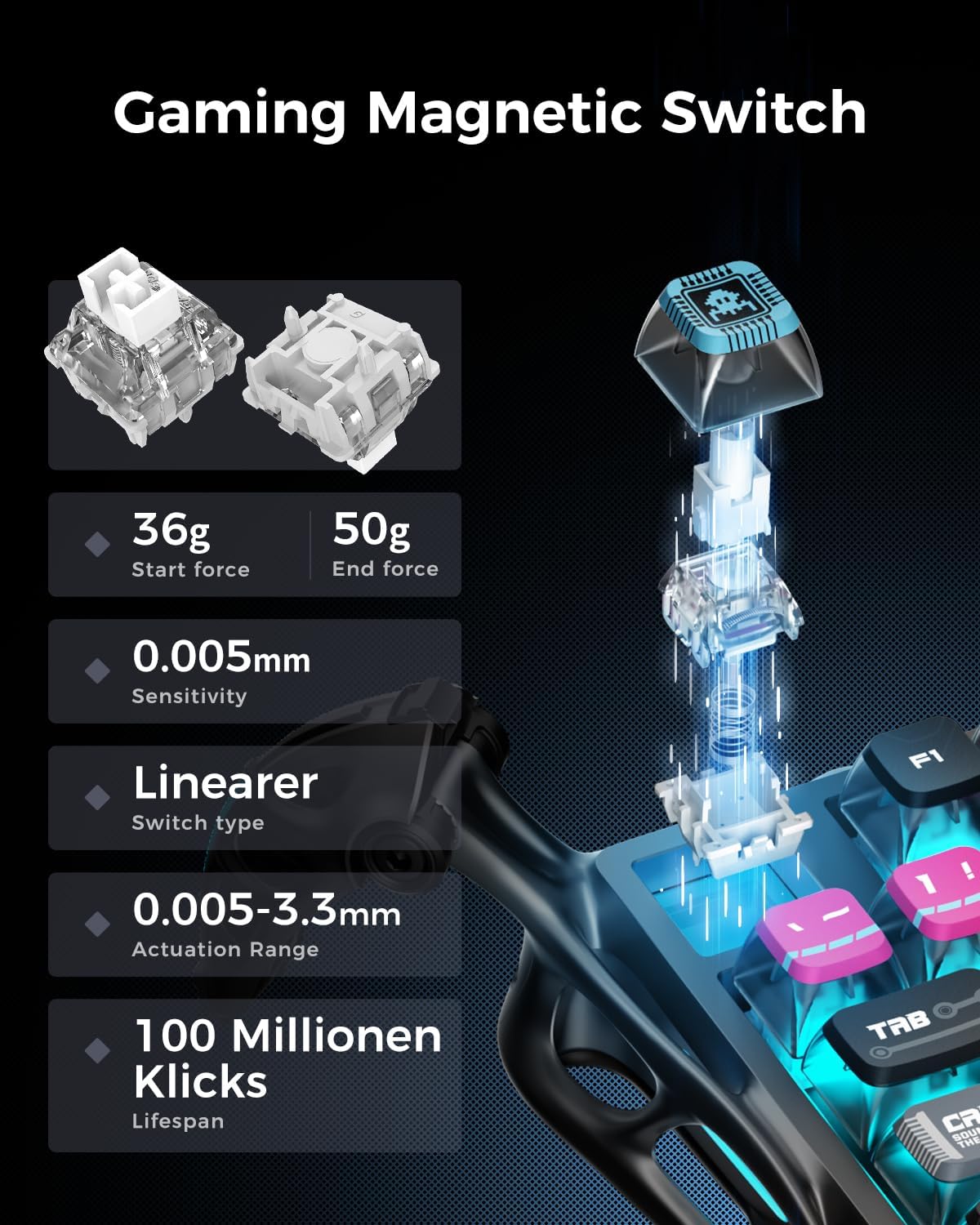
Image 3.1: Detailed specifications of the Hall-Effect Magnetic Switches, highlighting their precision and durability.
3.2 Trigger Distance Setting
Adjust the trigger distance for individual keys to fine-tune their responsiveness. This allows you to set how far a key needs to be pressed before it registers an input.
Video 3.2: This video demonstrates how to adjust the trigger distance for keys on your GravaStar Mercury V75Pro HE keyboard, allowing for personalized responsiveness.
3.3 Polling Rate Adjustment
The keyboard supports an ultra-low latency 8000Hz polling rate, ensuring rapid response times. You can adjust the polling rate through the web driver settings to match your system and game requirements.

Image 3.3: Visual representation of the keyboard's 8kHz polling rate and its ultra-low latency for fast response.
Video 3.4: This video guides you through the process of adjusting the polling rate on your GravaStar Mercury V75Pro HE keyboard for optimized performance.
3.4 Dual-Zone RGB Lighting
Customize your keyboard's aesthetic with dual-zone RGB lighting, featuring south-facing per-key illumination and three-side ambient underglow. Choose from 16 dynamic RGB modes and adjust hue, brightness, and effects via the web driver.

Image 3.5: The keyboard displaying its extensive RGB backlighting options.
3.5 Custom Key Functions
The web driver allows for comprehensive customization of key mappings and advanced functions. You can remap keys, create macros, and configure specific behaviors for enhanced control.

Image 3.6: The web driver interface for customizing keyboard settings and key functions.
Video 3.7: This video demonstrates how to set up custom key functions on your GravaStar Mercury V75Pro HE keyboard using the web driver.
3.5.1 Dead Zone Setting
Configure dead zones to prevent accidental, missed, or false key presses. This feature automatically limits the actuation point, ensuring only intentional inputs are registered.
Video 3.8: This video explains and demonstrates how to set up dead zones for keys on your GravaStar Mercury V75Pro HE keyboard to avoid unintended inputs.
3.5.2 MT Key (Mod Tap)
The MT (Mod Tap) function allows a single key to perform two different actions: one when tapped and another when held. This enhances key utility and customization.
Video 3.9: This video illustrates how to configure and use the MT (Mod Tap) key function on your GravaStar Mercury V75Pro HE keyboard for dual-action key presses.
3.5.3 END Key (Release Trigger)
The END key (Release Trigger) function allows a key to send a different input upon release compared to its initial press. This provides advanced control options for specific applications or games.
Video 3.10: This video demonstrates how to configure and utilize the END key (Release Trigger) function on your GravaStar Mercury V75Pro HE keyboard for unique key release actions.
4. Maintenance
4.1 Cleaning
To maintain the appearance and functionality of your keyboard, regularly clean it with a soft, dry cloth. For deeper cleaning, you may use a slightly damp cloth with mild soap, ensuring no liquid enters the key switches or internal components. Avoid abrasive cleaners or solvents.
4.2 Hot-Swappable Switches
The keyboard features hot-swappable switches, allowing for easy replacement without soldering. When replacing switches, use the provided tool to gently remove the old switch and insert the new one, ensuring proper alignment of the pins.

Image 4.1: Illustration of the hot-swappable switch mechanism, allowing for easy customization and maintenance.
5. Troubleshooting
5.1 Keyboard Not Responding
- Ensure the USB-C cable is securely connected to both the keyboard and your computer.
- Try connecting the keyboard to a different USB port on your computer.
- Restart your computer.
- Check the web driver software for any error messages or connection issues.
5.2 Keys Not Registering Correctly
- Verify that the trigger distance and dead zone settings in the web driver are configured correctly for your preference.
- If a specific key is not working, try replacing its switch as the keyboard is hot-swappable.
- Perform a factory reset via the web driver software if issues persist after checking individual settings.
5.3 RGB Lighting Issues
- Ensure the RGB settings in the web driver are correctly configured.
- Check for any firmware updates that might address lighting bugs.
- If specific LEDs are not functioning, contact customer support.
6. Specifications
| Feature | Detail |
|---|---|
| Product Dimensions | 1.63 x 7.39 x 2.27 inches |
| Item Weight | 4.42 pounds |
| Manufacturer | ZhuoYe ChuangYi Co., Ltd. |
| ASIN | B0FD3LTXLX |
| Item Model Number | V75 PRO |
| Batteries | 1 LR44 batteries required (included) |
| Compatible Devices | Gaming Console, Laptop, PC |
| Connectivity Technology | USB-C |
| Keyboard Description | Hall effect gaming keyboard |
| Recommended Uses | Gaming |
| Special Features | 0.005 Rapid Trigger, 8000Hz Polling Rate, Adjustable Actuation, Cyberpunk Design, Hall Effect Switch |
| Color | Cyberpunk |
| Keyboard Backlighting | RGB |
| Style | Cyberpunk |
| Material | Semi-Aluminum Frame |
7. Warranty and Support
For warranty information, technical support, or customer service inquiries, please refer to the official GravaStar website or contact their customer support directly. Keep your proof of purchase for warranty claims.