
1. Introduction
This manual provides detailed instructions for the ORICO 6-in-1 USB C Docking Station, model PW11-6PC25R. This device expands a single USB-C port on your host device into multiple connectivity options, including HDMI, Ethernet, USB-A, USB-C, and Power Delivery. Please read this manual thoroughly before using the product to ensure proper operation and to maximize its capabilities.
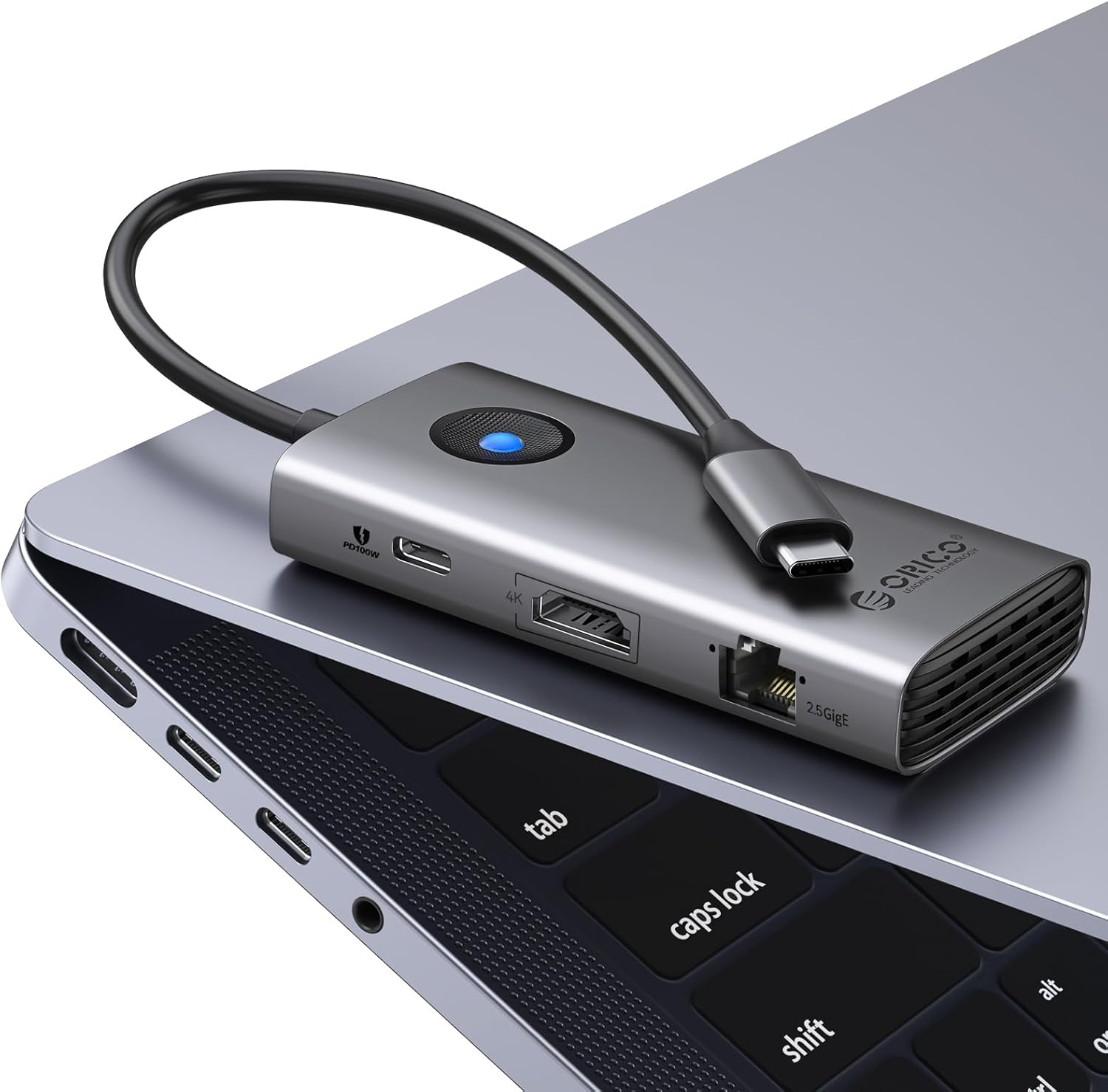
Image: The ORICO 6-in-1 USB C Docking Station, model PW11-6PC25R, shown connected to a laptop, highlighting its compact design and various ports.
2. Product Features
The ORICO 6-in-1 USB C Docking Station offers the following features:
- 6-in-1 Multiport USB C Hub: Expands one USB-C port into six functional ports: 4K@60Hz HDMI, two USB-A 3.0, one USB-C 3.0, 2.5G Ethernet, and 100W Power Delivery. All ports are designed to operate simultaneously.
- 4K@60Hz HDMI Output: Provides high-resolution video output to external displays, supporting 4K at 60Hz, and is backward compatible with 1080P at 120Hz and 2K at 120Hz.
- 5 Gbps Data Transfer: The USB-A 3.0 and USB-C 3.0 ports support data transfer speeds of up to 5 Gbps, enabling quick file transfers.
- 100W Power Delivery (PD): The dedicated USB-C PD port allows for charging your laptop with up to 85W while using other connected peripherals. A 100W PD charger and cable (not included) are required for maximum charging output.
- 2.5G High-Speed Ethernet: Features a 2.5 Gigabit Ethernet port, offering data speeds up to 2.5 times faster than standard 1G ports. It supports adaptive speeds (10 Mbps–2.5 Gbps) for stable wired network connections. A Cat 5e or higher cable is recommended for optimal performance.
- Compact and Portable Design: Designed for portability, allowing for easy transport in briefcases or laptop bags.
- Durable Construction: Features an aluminum alloy shell for enhanced durability and heat dissipation.
- Wide Compatibility: Compatible with Windows 11/10/8/7, Mac OS X, and Linux operating systems, and works with various laptops, tablets, and smartphones that support a full-function USB-C port.

Image: A visual representation of the ORICO 6-in-1 USB C Hub, detailing each port: USB-C PD 100W (for charging only), HDMI (4K@60Hz), USB-C 3.0 (5Gbps), two USB-A 3.0 (5Gbps), and RJ45 (2.5G Ethernet).
3. Setup Instructions
Follow these steps to set up your ORICO 6-in-1 USB C Docking Station:
- Connect to Host Device: Plug the integrated USB-C cable of the docking station into a full-function USB-C port on your laptop, tablet, or smartphone. Ensure your device's USB-C port supports data transfer, video output (DisplayPort Alt Mode), and Power Delivery for full functionality.
- Connect Power (Optional): If you wish to charge your host device or power high-consumption peripherals, connect a USB-C Power Delivery charger (up to 100W, not included) to the docking station's "PD 100W" USB-C port.
- Connect HDMI Display: Use an HDMI cable to connect your monitor or TV to the HDMI port on the docking station. Ensure the display is set to the correct input source.
- Connect Ethernet: For a wired network connection, plug a Cat 5e or higher Ethernet cable into the RJ45 port on the docking station and connect the other end to your router or modem.
- Connect USB Peripherals: Plug your USB-A devices (e.g., mouse, keyboard, USB flash drive) into the two USB-A 3.0 ports. Connect USB-C devices (e.g., external SSD) to the USB-C 3.0 data port.
Important Note:
For all functions of the docking station to work correctly, the host device's USB-C interface must be a Thunderbolt 5/4/3 port or a full-featured USB interface supporting data transmission, video transmission and charging. Ports labeled "Only Data Transfer" or "Only Charging" will not support all features.

Image: A diagram showing different types of USB-C ports and their compatibility with the docking station. It highlights that Thunderbolt Full-Function Ports and Data+Displayport alt ports are compatible, while "Only Data Transfer" or "Only Charging" ports are not fully compatible for all functions.
4. Operating Instructions
4.1 HDMI Video Output
Once connected, your host device should automatically detect the external display. You can configure display settings (e.g., mirror mode, extend mode) through your operating system's display settings.
- Mirror Mode: Duplicates your primary screen onto the external display.
- Extend Mode: Extends your desktop across multiple screens, allowing for increased workspace.

Image: A laptop connected to an external monitor through the ORICO docking station, demonstrating 4K@60Hz video output for an enhanced visual experience.
4.2 Data Transfer (USB-A 3.0 & USB-C 3.0)
The USB 3.0 ports (both Type-A and Type-C) support data transfer speeds up to 5 Gbps. Simply plug in your compatible USB devices, such as external hard drives, SSDs, or flash drives, for high-speed data access.

Image: The ORICO docking station with USB-A and USB-C ports, showing connected USB storage devices, emphasizing its 5Gbps ultra-fast data transfer capability.
4.3 Ethernet Connection
The 2.5G Ethernet port provides a stable and fast wired internet connection. Once connected, your operating system should automatically detect the network. Verify the connection status in your network settings.
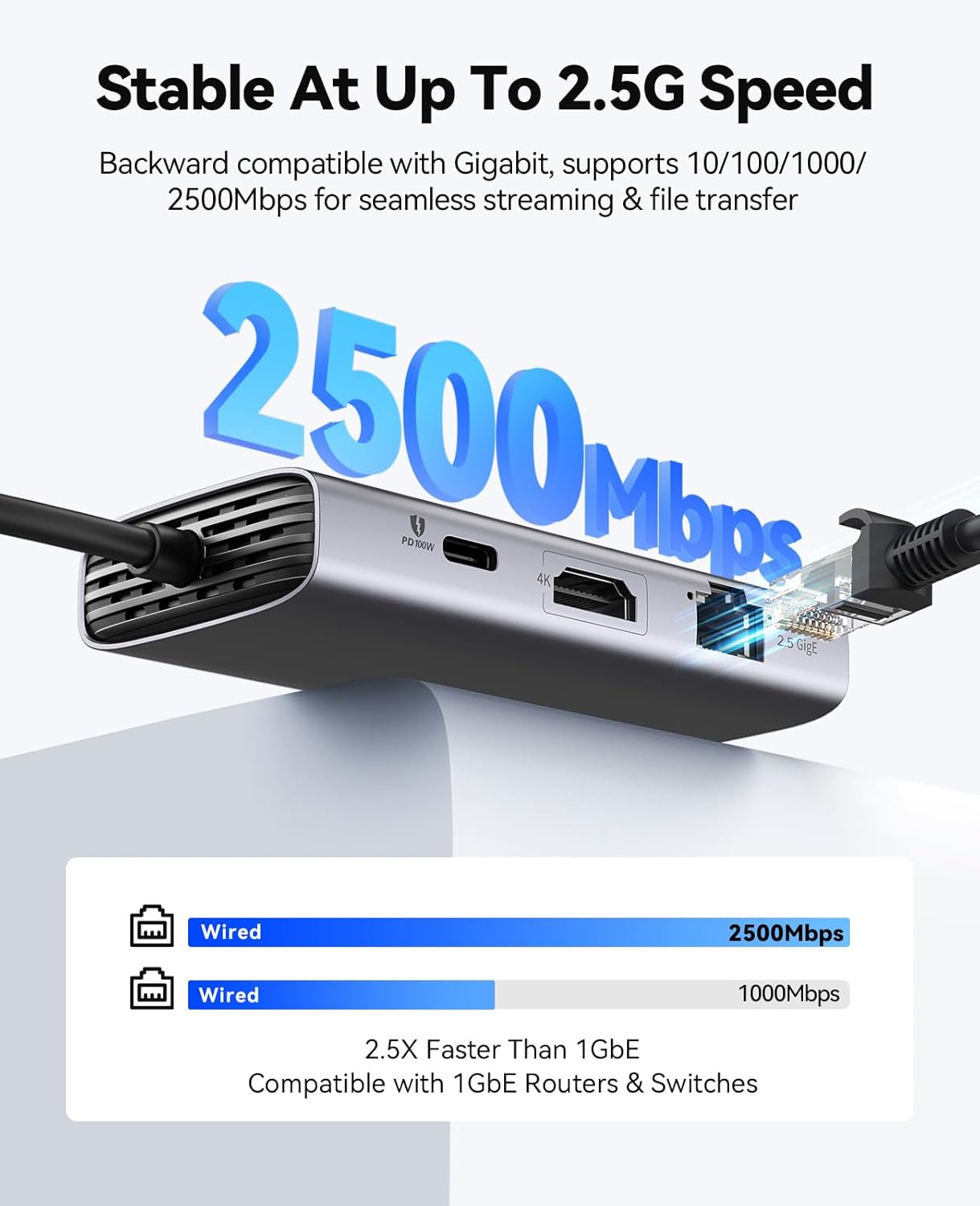
Image: A close-up of the ORICO docking station's 2.5G Ethernet port with a connected cable, illustrating stable and high-speed wired connectivity.
4.4 Power Delivery (PD) Charging
Connect your laptop's original USB-C power adapter (or a compatible 100W PD charger) to the docking station's PD port. The docking station will pass through up to 85W of power to charge your laptop while reserving 15W for its own operation and connected peripherals.

Image: A laptop being charged through the ORICO docking station, which is connected to a 100W power adapter, demonstrating 85W fast charging capability for the laptop.
5. Compatibility
The ORICO 6-in-1 USB C Docking Station is designed for broad compatibility:
- Operating Systems: Windows 11/10/8/7, Mac OS X, Linux.
- Compatible Devices: Laptops, tablets, and smartphones equipped with a full-function USB-C port (Thunderbolt 3/4/5 or USB-C with DisplayPort Alt Mode and Power Delivery).
- Peripherals: Supports various USB devices such as mice, keyboards, USB flash drives, hard disk enclosures, and mobile hard drives.

Image: A visual guide illustrating the universal compatibility of the ORICO docking station with Mac OS, Windows, Linux, and Android systems, as well as various devices like laptops, PCs, mice, keyboards, USB flash drives, hard disk enclosures, and mobile hard drives.
6. Troubleshooting
If you encounter issues with your docking station, refer to the following common problems and solutions:
| Problem | Solution |
|---|---|
| No video output via HDMI. |
|
| USB devices are not recognized. |
|
| Ethernet connection is unstable or not working. |
|
| Laptop is not charging via PD port. |
|
| Docking station feels warm during use. |
|
7. Specifications
| Feature | Detail |
|---|---|
| Model Number | PW11-6PC25R |
| Product Dimensions | 3.74 x 1.75 x 0.67 inches (95 x 44.5 x 17 mm) |
| Item Weight | 3.2 ounces (90.7 grams) |
| Material | Aluminum Alloy Shell |
| Input Port | USB-C (integrated cable) |
| Output Ports |
|
| Power Delivery | Up to 100W input, 85W output to host device |
| Compatibility | Windows 11/10/8/7, Mac OS X, Linux |

Image: A detailed view of the ORICO docking station, highlighting its aluminum alloy shell, which contributes to heat dissipation and durability.
8. Maintenance
To ensure the longevity and optimal performance of your ORICO 6-in-1 USB C Docking Station, follow these maintenance guidelines:
- Cleaning: Use a soft, dry cloth to clean the surface of the docking station. Avoid using liquid cleaners or aerosols, as they may damage the device.
- Storage: Store the device in a cool, dry place away from direct sunlight and extreme temperatures.
- Handling: Avoid dropping or subjecting the device to strong impacts. Do not attempt to disassemble or modify the docking station, as this will void the warranty and may cause damage.
- Ventilation: Ensure the device has adequate airflow, especially during extended use, to prevent overheating. Do not cover the device with cloths or place it in enclosed spaces.
- Cable Care: Handle the integrated USB-C cable gently. Avoid bending it sharply or pulling it forcefully, which can damage the internal wires.
9. Warranty and Support
ORICO products typically come with a manufacturer's warranty. For specific warranty terms and conditions, please refer to the warranty card included with your product or visit the official ORICO website. For technical support, product inquiries, or warranty claims, please contact ORICO customer service through their official channels or the retailer where the product was purchased.
You can find more information and support resources on the ORICO Official Store on Amazon.


