
1. Product Overview
The ORICO 6-in-1 USB C Docking Station (Model: PW11-6PR) is a versatile multiport adapter designed to expand the connectivity of your USB-C enabled devices. It provides essential ports for display output, high-speed data transfer, network connectivity, and power delivery, enhancing productivity and convenience for users of Windows, Mac, and other compatible systems.

Figure 1: ORICO 6-in-1 USB C Hub Overview
2. Package Contents
- ORICO 6-in-1 USB C Docking Station (Model: PW11-6PR)
- User Manual
3. Device Layout
The docking station features a compact design with clearly labeled ports for easy identification and connection.

Figure 2: Port Layout of the Docking Station
- USB-C Input Cable: Connects to your host device (laptop, tablet, smartphone).
- 3 x USB-A 3.0 Ports: For connecting USB peripherals such as keyboards, mice, external hard drives, or USB flash drives. Supports data transfer speeds up to 5 Gbps.
- HDMI Port: For connecting to an external display (monitor, TV, projector). Supports resolutions up to 4K@30Hz.
- Ethernet (RJ45) Port: Provides stable wired network connectivity with speeds up to 1 Gbps.
- USB-C PD (Power Delivery) Port: For connecting a power adapter to charge your host device and power the docking station. Supports up to 100W power input.
4. Features
- 6-in-1 Multiport Hub: Expands a single USB-C port into 6 functional ports: 4K@30Hz HDMI, 3 USB-A 3.0, 1G Ethernet, and 100W PD.
- 4K@30Hz HDMI Output: Supports high-resolution video output to external displays, backward compatible with 1080P@60Hz and 720P@60Hz.
- 5 Gbps Data Transfer: Three USB-A 3.0 ports enable rapid data transfer, allowing a 1GB video file to be transferred in seconds.
- 100W Power Delivery: The PD port allows simultaneous charging of your laptop while using other connected USB accessories, eliminating the need to choose between charging and connectivity.
- 1G High-Speed Ethernet: Provides a stable and fast wired internet connection (10 Mbps–1 Gbps), ideal for streaming, video calls, and large file downloads. A Cat 5e cable is recommended for optimal performance.
- Wide Compatibility: Compatible with Windows 11/10/8/7, Mac OS X, and Linux. Supports laptops, tablets, and smartphones with a compatible USB-C port.
- Compact & Portable Design: Features a sleek, lightweight aluminum alloy build, making it easy to carry for business trips, mobile work, or meetings.
5. Setup Instructions
- Connect to Host Device: Plug the integrated USB-C cable of the docking station into a compatible USB-C port on your laptop, tablet, or smartphone. Ensure your device's USB-C port supports DisplayPort Alternate Mode for video output.
- Power Connection (Optional but Recommended): For stable operation and to charge your host device, connect your original USB-C power adapter to the USB-C PD port on the docking station.
- Connect Peripherals:
- HDMI Display: Connect an HDMI cable from your monitor/TV to the HDMI port on the docking station.
- Ethernet Network: Connect an Ethernet cable (Cat 5e or higher recommended) from your router/modem to the RJ45 Ethernet port on the docking station.
- USB Devices: Plug your USB-A peripherals (e.g., mouse, keyboard, USB drive) into the USB-A 3.0 ports.
- Driver Installation: The docking station is plug-and-play for most operating systems and typically does not require additional drivers. If prompted, follow on-screen instructions.

Figure 3: Broad Compatibility of the Docking Station
6. Operating Instructions
6.1. Video Output via HDMI
Connect an HDMI-enabled display to the docking station's HDMI port. Your host device should automatically detect the external display. You can configure display settings (e.g., mirror, extend) through your operating system's display settings.

Figure 4: 4K@30Hz HDMI Display Connection
6.2. Data Transfer via USB-A 3.0 Ports
Plug your USB devices into the three USB-A 3.0 ports. These ports support data transfer speeds up to 5 Gbps, allowing for quick synchronization and file transfers.

Figure 5: High-Speed Data Transfer
6.3. Wired Network Connection via Ethernet
Connect an Ethernet cable to the RJ45 port for a stable and fast wired internet connection. This is particularly useful in environments with unreliable Wi-Fi or for tasks requiring high bandwidth.
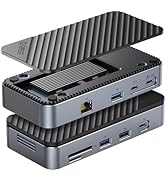
Figure 6: 1Gbps Ethernet Connection
6.4. Power Delivery (PD) Charging
Connect your laptop's USB-C power adapter to the docking station's USB-C PD port. The docking station will pass through up to 85W of power to charge your laptop while simultaneously powering the hub and connected devices.

Figure 7: 100W Power Delivery
7. Compatibility
The ORICO 6-in-1 USB C Docking Station is designed for broad compatibility. Please ensure your host device's USB-C port supports the necessary functions for optimal performance.
- Host Device Compatibility: Devices with a full-featured USB-C port (supporting data, power delivery, and DisplayPort Alternate Mode). This includes many modern laptops (e.g., MacBook Pro/Air, Dell XPS, Surface Pro, ThinkPad/Yoga), tablets (e.g., iPad Pro/Air), and some smartphones.
- System Compatibility: Windows 11/10/8/7, macOS X, Linux, Android.
- Important Note on USB-C Ports: Not all USB-C ports are created equal. Please confirm your laptop's USB-C port supports DisplayPort Alternate Mode for video output.

Figure 8: Understanding USB-C Port Functionality
8. Troubleshooting
- No Video Output:
- Ensure your host device's USB-C port supports DisplayPort Alternate Mode.
- Check the HDMI cable connection between the docking station and the display.
- Verify the display input source is set correctly.
- Try restarting your host device.
- USB Devices Not Recognized:
- Ensure the docking station is properly connected to your host device.
- Try connecting the USB device directly to your host device to confirm it functions independently.
- If using high-power USB devices, ensure the docking station is connected to an external power source via its PD port.
- No Ethernet Connection:
- Check the Ethernet cable connection to both the docking station and your router/modem.
- Verify your network settings on your host device.
- Ensure your router/modem is functioning correctly.
- Charging Issues:
- Ensure your USB-C power adapter is connected to the PD port and is capable of providing sufficient power (e.g., 100W).
- Check if your host device supports USB-C Power Delivery.
9. Specifications
| Feature | Specification |
|---|---|
| Product Dimensions | 3.74 x 1.75 x 0.67 inches |
| Item Weight | 3.52 ounces |
| Model Number | PW11-6PR |
| Brand | ORICO |
| Color | Grey |
| Hardware Interface | Ethernet, HDMI, USB 3.0 Type A, USB-C PD |
| Special Feature | Powered, Plug and Play |
| HDMI Output | 4K@30Hz (backward compatible with 1080P@60Hz, 720P@60Hz) |
| USB-A 3.0 Data Transfer Speed | Up to 5 Gbps |
| Ethernet Speed | 10 Mbps / 100 Mbps / 1 Gbps |
| USB-C PD Charging | Up to 100W input (85W output to host) |
10. Maintenance
- Keep the device clean and free from dust. Use a soft, dry cloth for cleaning.
- Avoid exposing the docking station to extreme temperatures, humidity, or direct sunlight.
- Do not attempt to disassemble or repair the device yourself. Contact customer support for assistance.
- Disconnect the device when not in use for extended periods.
11. Safety Information
- This device is intended for indoor use only.
- Do not expose the device to water or other liquids.
- Avoid dropping or subjecting the device to strong impacts.
- Keep out of reach of children.
- Use only compatible power adapters and cables.
12. Official Product Video
Video: ORICO 6-in-1 USB C Docking Station with 1G Ethernet. This video demonstrates the features and connectivity of the ORICO 6-in-1 USB C Docking Station, including its HDMI, Ethernet, USB-A, and PD charging capabilities.
13. Warranty and Support
ORICO products come with a standard manufacturer's warranty. For detailed warranty information, technical support, or customer service inquiries, please refer to the official ORICO website or contact your retailer. Please retain your proof of purchase for warranty claims.


