1. Overview
The Real HD SW5-25G-MGV1 is a high-performance 5-port 2.5 Gigabit Ethernet switch with an additional 10 Gigabit SFP+ port, designed to upgrade your network infrastructure for faster data transfer. This managed switch offers advanced features for network optimization and comes with a 10Gb SFP+ to RJ45 module for extended connectivity. Its fanless metal design ensures quiet operation and efficient heat dissipation.
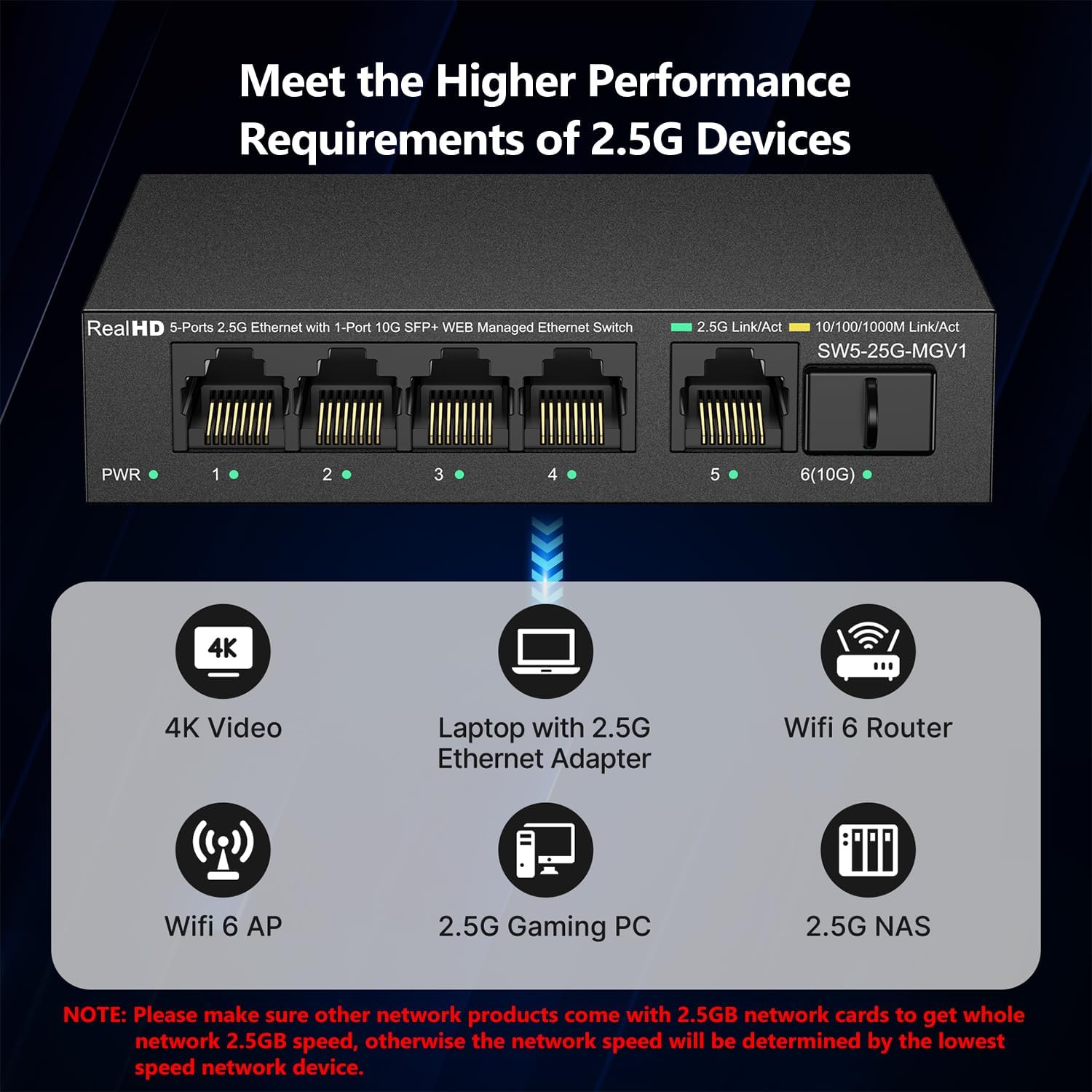
Image 1.1: The Real HD SW5-25G-MGV1 switch connected to various 2.5G devices such as 4K video systems, laptops, WiFi 6 routers, WiFi 6 APs, 2.5G gaming PCs, and 2.5G NAS systems, illustrating its application in a high-performance network environment.
2. Features
- High-Speed Connectivity: Equipped with 5x 2.5G RJ45 ports and 1x 10G SFP+ port, providing up to 60Gbps switching capacity.
- Web Managed Interface: Offers an easy-to-use web interface for secure setup and configuration of advanced network features like VLAN, QoS, security, multicast, and MAC address table management.
- 10Gb SFP+ to RJ45 Module: Includes a module supporting 10GB/5GB/2.5GB data rates over CAT6A/CAT7 cables for distances up to 80 meters (262 feet). Note: Not compatible with HP, Dell, H3C, Aruba, Arista, Intel, Juniper, Brocade, Alcatel brands.
- Robust and Quiet Design: Features a compact, fanless metal housing with 4KV lightning protection, ensuring quiet operation and good heat dissipation in various environments (-20 to 50℃).
- Wide Application: Compatible with a broad range of Ethernet devices including 4K video systems, 2.5G Ethernet adapter-equipped laptops, WiFi 6 routers/APs, 2.5G gaming PCs, and 2.5G NAS computers.

Image 2.1: An illustration of the basic management features available on the Real HD switch, including VLAN, QoS, Jumbo Frame, Static Aggregation, LACP, Loop prevention, and Spanning Tree Protocol, designed to optimize network efficiency.
3. Package Contents
Please verify that all items are present and in good condition upon unpacking.
- Real HD SW5-25G-MGV1 5-Port 2.5G Managed Ethernet Network Switch
- 10Gb SFP+ to RJ45 Copper Module
- Power Adapter (DC 12V 1A)
- User Manual (this document)
4. Physical Description and Port Layout
The Real HD SW5-25G-MGV1 switch features a compact metal chassis with clearly labeled ports and indicators on the front panel.

Image 4.1: A detailed view of the front panel of the Real HD SW5-25G-MGV1 switch, highlighting the PWR indicator, five 2.5Gbps RJ45 ports with their respective Link/Act LEDs, and one 10Gbps SFP+ port with its LED. The power input and reset button are also visible.
Front Panel
- PWR LED: Indicates power status.
- 1-5 (2.5G RJ45 Ports): Five 2.5 Gigabit Ethernet ports. Each port has two LEDs:
- Green LED: On when 2.5G link is active.
- Yellow LED: On when 10/100/1000Mbps link is active. Flashing indicates data transmission.
- Off: Link not working.
- 6 (10G SFP+ Port): One 10 Gigabit SFP+ port.
Rear Panel
- DC 12V Power Input: Connector for the included power adapter.
- Reset Button: Used to restore factory default settings.
5. Setup
Follow these steps to set up your Real HD SW5-25G-MGV1 network switch.
5.1 Unpacking and Inspection
- Carefully remove the switch and all accessories from the packaging.
- Inspect all components for any signs of damage. If any item is damaged or missing, please contact your vendor.
5.2 Power Connection
- Connect the included power adapter to the DC 12V power input on the rear panel of the switch.
- Plug the power adapter into a standard electrical outlet. The PWR LED on the front panel should illuminate, indicating the switch is powered on.
5.3 Network Connections
- For 2.5G RJ45 Ports: Connect your network devices (e.g., computers with 2.5G network cards, WiFi 6 APs, NAS) to ports 1-5 using CAT6 or higher-level pure copper Ethernet cables. The corresponding Link/Act LEDs will indicate connection status and activity.
- For 10G SFP+ Port: Insert the included 10Gb SFP+ to RJ45 copper module into the SFP+ port (Port 6). Then, connect a CAT6A or CAT7 Ethernet cable from the module to your 10G-capable device.
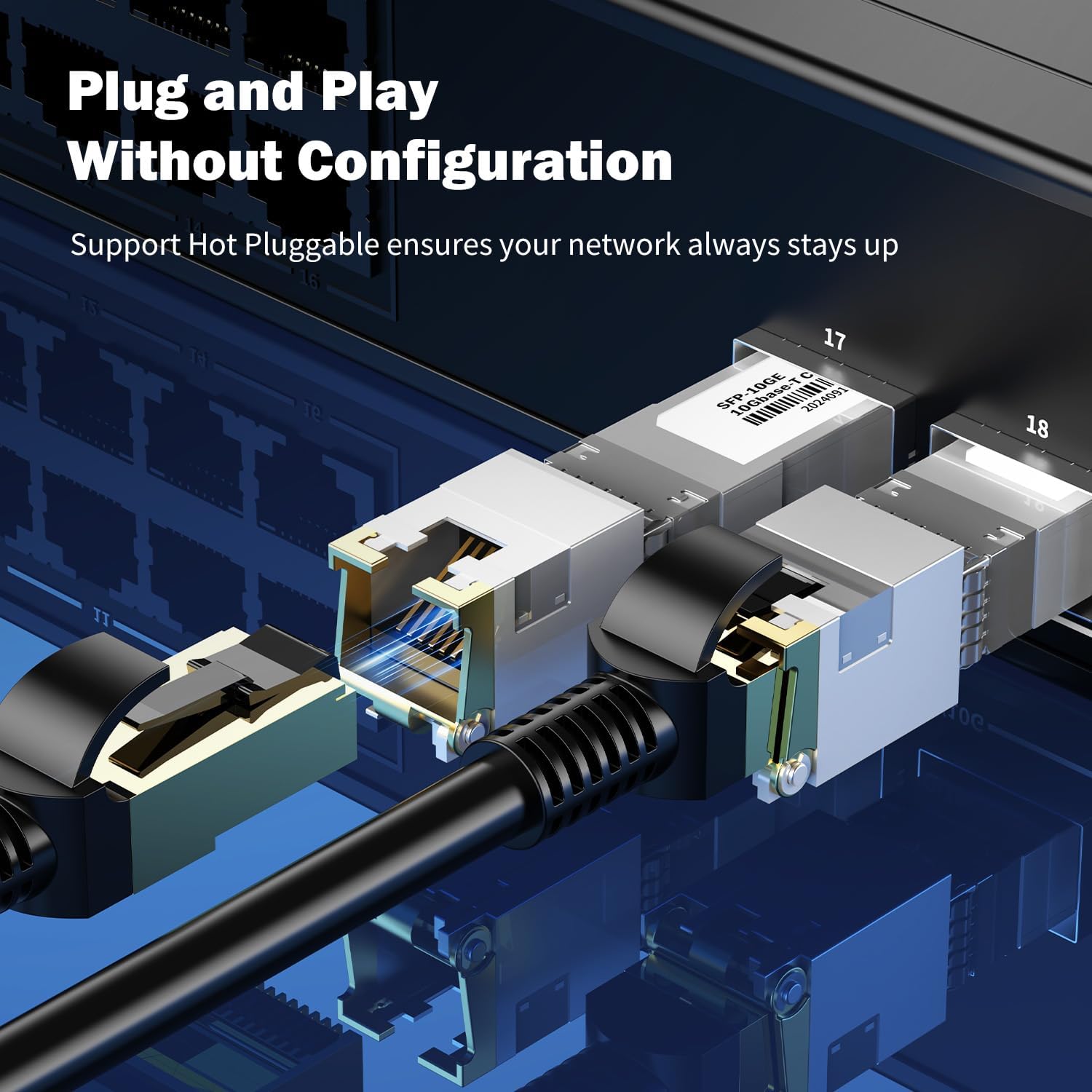
Image 5.1: A close-up view demonstrating the 'Plug and Play' functionality, showing an SFP+ module and an RJ45 Ethernet cable being connected to the switch, emphasizing hot-pluggable support for continuous network operation.
5.4 Initial Web Management Access
To access the switch's web management interface for configuration:
- Ensure your computer is connected to one of the switch's RJ45 ports.
- Open a web browser (e.g., Chrome, Firefox, Edge).
- Enter the default IP address: 192.168.2.1 in the address bar and press Enter.
- When prompted, enter the default username: admin and password: admin.
- You will now have access to the management interface to configure various settings.

Image 5.2: Screenshots illustrating the easy management and configuration process through the web interface, showing the login page and various configuration screens accessible from a laptop.
6. Operation
Once the switch is set up, you can monitor its status and configure advanced settings through the web management interface.
6.1 LED Indicators
The LEDs on the front panel provide real-time status information:
- PWR LED: Solid green indicates the device is powered on.
- 2.5G Link/Act (Green): Solid green indicates a stable 2.5G link. Flashing indicates data activity.
- 10/100/1000M Link/Act (Yellow): Solid yellow indicates a stable 10/100/1000Mbps link. Flashing indicates data activity.
6.2 Web Management Interface
The web interface allows you to:
- View device and port status.
- Configure VLANs (Virtual Local Area Networks) for network segmentation.
- Set up QoS (Quality of Service) to prioritize network traffic.
- Manage security settings.
- Configure multicast settings.
- View and manage the MAC address table.
- Change the default IP address, username, and password for enhanced security.
7. Maintenance
Proper maintenance ensures the longevity and optimal performance of your switch.
- Cleaning: Use a soft, dry cloth to clean the exterior of the switch. Do not use liquid or aerosol cleaners.
- Environment: Ensure the switch is placed in a well-ventilated area, away from direct sunlight, heat sources, and excessive moisture. The operating temperature range is -20℃ to 50℃.
- Cable Management: Keep network cables organized and avoid excessive bending or crimping to prevent signal loss.
- Firmware Updates: Periodically check the manufacturer's website for firmware updates to ensure optimal performance and security.
8. Troubleshooting
If you encounter issues with your Real HD SW5-25G-MGV1 switch, refer to the following common troubleshooting steps.
8.1 No Power
- Verify that the power adapter is securely connected to both the switch and a working electrical outlet.
- Check if the PWR LED on the front panel is illuminated. If not, try a different power outlet.
8.2 No Network Connection
- Ensure Ethernet cables are securely connected to both the switch and the network device.
- Check the Link/Act LEDs for the connected port. If they are off, try a different cable or port.
- Verify that the connected device's network adapter is enabled and functioning correctly.
8.3 Slow Network Speeds
- Ensure you are using CAT6 or higher-level pure copper Ethernet cables for 2.5G connections, and CAT6A/CAT7 for 10G SFP+ connections.
- Confirm that all connected network devices (e.g., network cards, routers) support 2.5G or 10G speeds. The network speed will be limited by the slowest device in the chain.
- Check for network congestion or excessive traffic on your network.
8.4 Cannot Access Web Management Interface
- Ensure your computer's IP address is in the same subnet as the switch (default 192.168.2.x, where x is not 1).
- Verify that you are entering the correct default IP address (192.168.2.1) and credentials (admin/admin).
- If the IP address has been changed and forgotten, you may need to perform a factory reset by pressing and holding the Reset button on the rear panel for approximately 5-10 seconds while the device is powered on.
9. Specifications
| Feature | Specification |
|---|---|
| Model | SW5-25G-MGV1 |
| Ports | 5x 2.5G RJ45, 1x 10G SFP+ |
| Switching Bandwidth | 60 Gbps |
| Forwarding Rate | 33.48 Mpps |
| Packet Buffer Memory | 8 Mbit |
| Jumbo Frame | 12K |
| Management | Web Managed |
| Power Input | AC 100-240V, DC 12V 1A |
| Operating Temperature | -20℃ to 50℃ |
| Housing | Metal, Fanless |
| Lightning Protection | 4KV |
10. Warranty and Support
Real HD products are designed for reliability and performance. For warranty information, please refer to the warranty card included with your product or visit the official Real HD website. For technical support, troubleshooting assistance, or to report any issues, please contact Real HD customer service through the contact information provided on their official website or through your purchase platform.


