Thunderobot Storm 17 Gaming Laptop User Manual
Model: Storm 17
1. Introduction
This manual provides essential information for setting up, operating, maintaining, and troubleshooting your Thunderobot Storm 17 Gaming Laptop. Please read this manual thoroughly to ensure proper usage and to maximize the performance and lifespan of your device.
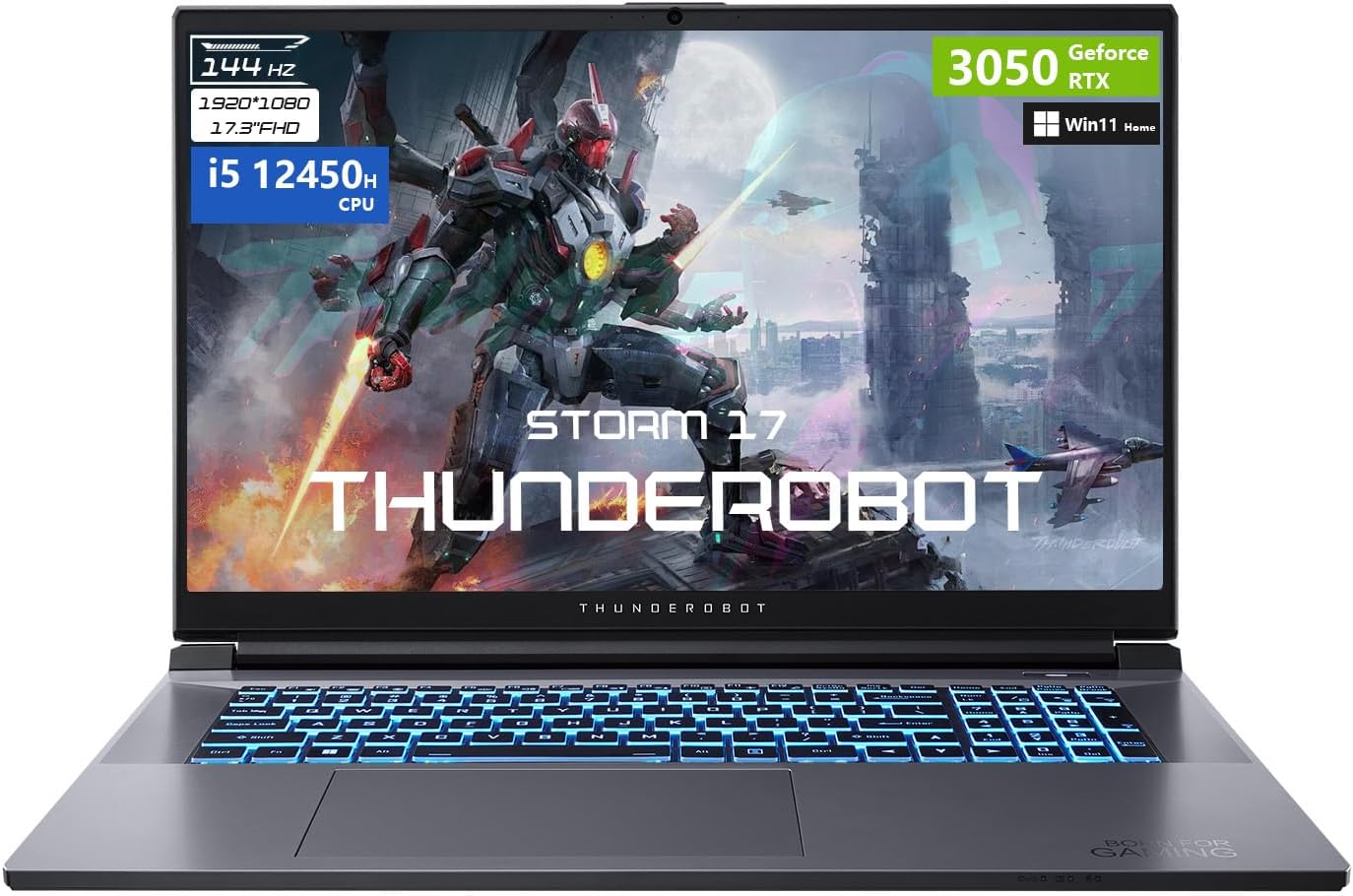
Figure 1: Front view of the Thunderobot Storm 17 Gaming Laptop.
2. What's in the Box
Verify that all items are present in the packaging:
- Thunderobot Storm 17 Laptop
- Power Adapter and Cable
- User Manual (this document)
- Warranty Card (if applicable)
3. Getting Started (Setup)
3.1. Unpacking and Initial Inspection
Carefully remove the laptop and all accessories from the packaging. Inspect the laptop for any signs of physical damage. If any damage is found, contact your retailer immediately.
3.2. Connecting the Power Adapter
- Connect the power cable to the power adapter.
- Plug the power adapter into a grounded electrical outlet.
- Insert the DC output plug of the power adapter into the DC-IN port on the side of your laptop.
It is recommended to fully charge the battery before the first use.
3.3. Initial Boot-up and Windows Setup
- Open the laptop lid.
- Press the power button to turn on the laptop.
- Follow the on-screen instructions to complete the Windows 11 Home operating system setup. This typically involves selecting your region, language, creating a user account, and accepting license agreements.
3.4. Connecting Peripherals
Your laptop supports various external devices. Refer to the 'Ports and Connectors' section for port locations.
- USB Devices: Connect USB mice, keyboards, external drives, or other peripherals to the available USB Type-A or USB Type-C ports.
- External Display: Use the HDMI or Mini DisplayPort to connect an external monitor or projector.
- Ethernet: For a wired network connection, plug an Ethernet cable into the RJ-45 port.
3.5. Network Connection (Wi-Fi)
To connect to a wireless network:
- Click the Wi-Fi icon in the Windows taskbar.
- Select your desired Wi-Fi network from the list.
- Enter the network security key (password) if prompted, then click 'Connect'.
4. Operating Your Laptop
4.1. Keyboard Functions
The Thunderobot Storm 17 features an RGB backlit keyboard with a numeric keypad. Function keys (F1-F12) can be accessed by pressing the Fn key in combination with the desired function key.
- Backlight Control: Adjust keyboard backlight brightness and effects using dedicated function key combinations.
- Numeric Keypad: Provides a full set of number keys for data entry.
- Media Controls: Function keys allow control over volume, playback, and screen brightness.

Figure 2: RGB Backlit Keyboard layout.
4.2. Touchpad Usage
The integrated touchpad supports multi-touch gestures for navigation. Refer to Windows settings for customizing touchpad sensitivity and gestures.
4.3. Display Settings
Your laptop features a 17.3-inch Full HD (1920x1080) display with a 144Hz refresh rate. To adjust display settings:
- Right-click on the desktop and select 'Display settings'.
- Under 'Scale & layout', you can adjust text size.
- Under 'Multiple displays', you can configure external monitors.
- For refresh rate, navigate to 'Advanced display settings' and select '144Hz' for optimal performance.
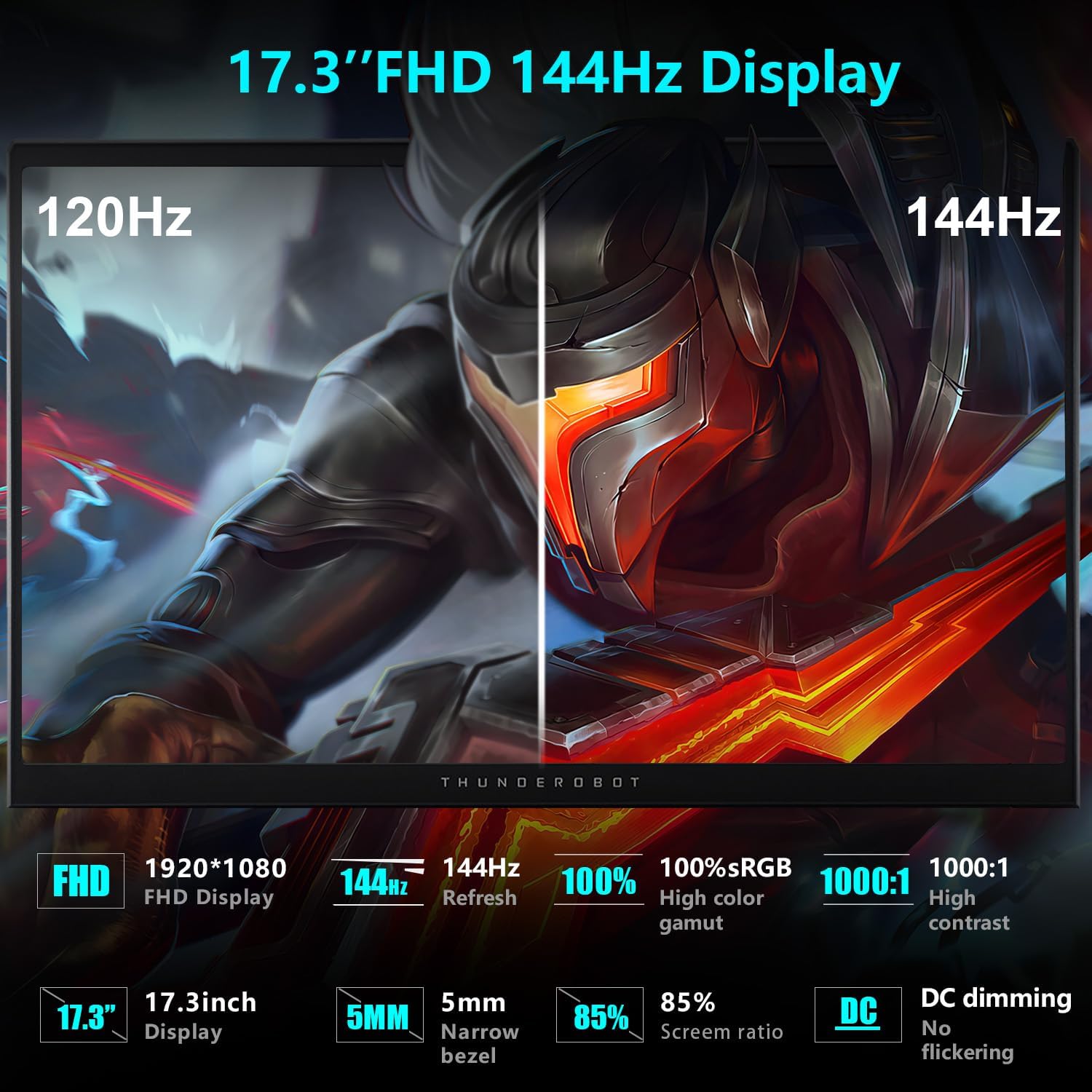
Figure 3: Display specifications highlighting 144Hz refresh rate.
4.4. Audio Configuration
The laptop's audio system provides a wide range of sound. You can adjust volume using the function keys or through the Windows sound settings. Connect headphones or external speakers to the 3.5mm audio jack for private listening or enhanced sound output.

Figure 4: Illustration of the laptop's audio capabilities.
4.5. Thunderobot Control Center
The Thunderobot Control Center software allows you to customize various aspects of your laptop's performance, cooling, and lighting. This application provides access to:
- Performance Modes: Switch between modes like 'Berserk' (full performance), 'Game' (balanced), and 'Audio and Video Office' (power-saving).
- Fan Adjustment: Manually control fan speeds for optimal cooling.
- Lighting Settings: Customize the RGB keyboard backlight effects and colors.
To access the Control Center, search for 'Control Center' in the Windows search bar. Note that system mode switching in Control Center requires the device to be connected to a power source.

Figure 5: Thunderobot Control Center interface.
4.6. Ports and Connectors
Familiarize yourself with the various ports on your laptop for connecting external devices:
- USB 3.2 Gen 1 Type-A: High-speed USB ports for peripherals.
- USB 2.0 Type-A: Standard USB port.
- USB Type-C: Versatile port for data transfer and display output.
- HDMI Port: For connecting to external displays.
- Mini DisplayPort: Another option for external display connections.
- RJ-45 Ethernet Port: For wired network connectivity.
- 3.5mm Combo Jack: For connecting headphones with a microphone.
- DC-IN Jack: For connecting the power adapter.
- Kensington Lock Slot: For securing your laptop with a compatible lock.
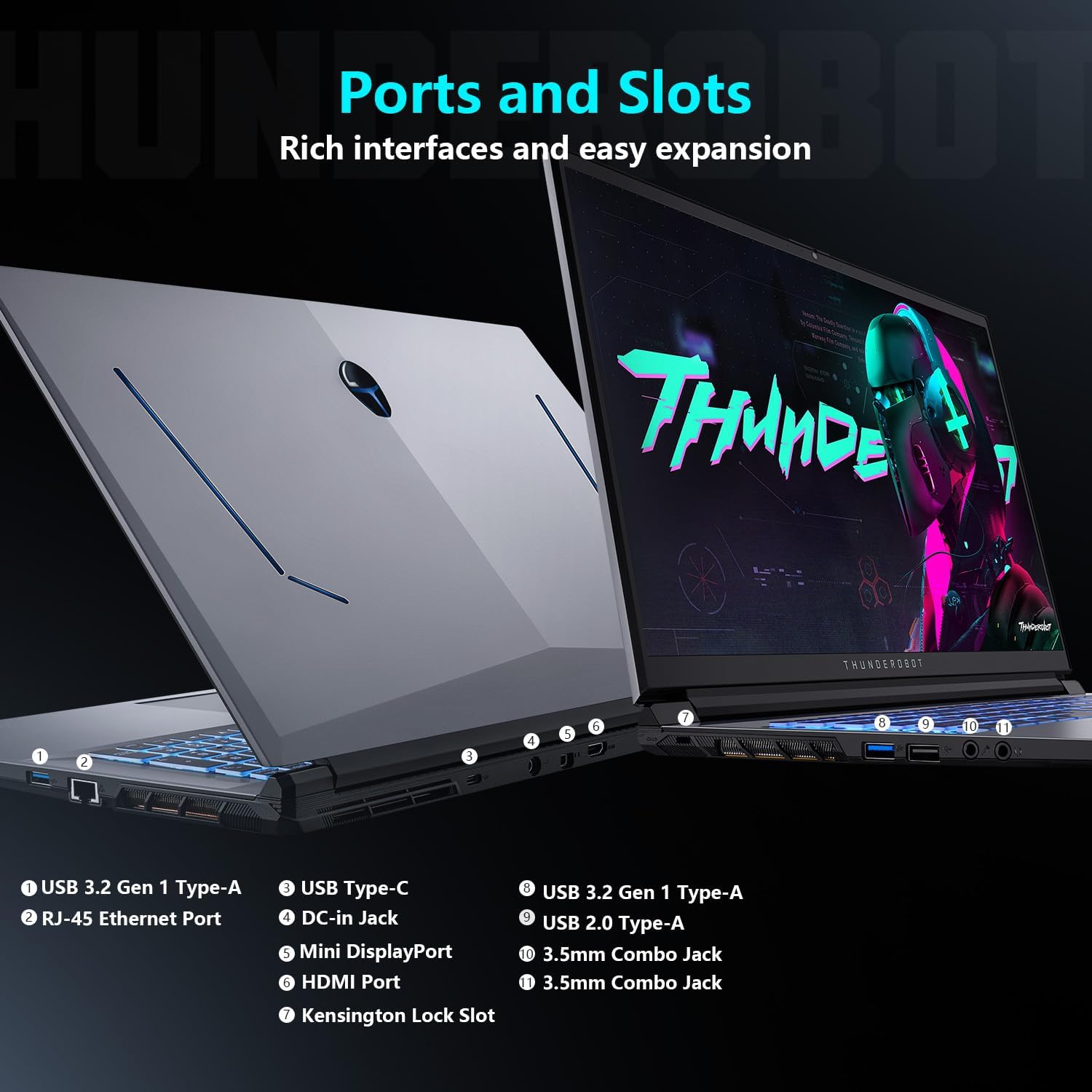
Figure 6: Overview of laptop ports and connectors.
5. Maintenance and Care
5.1. Cleaning Guidelines
- Screen: Use a soft, lint-free cloth lightly dampened with water or a screen cleaner. Avoid harsh chemicals.
- Keyboard: Use compressed air to remove dust and debris between keys. Wipe keycaps with a soft, damp cloth.
- Chassis: Wipe the laptop's exterior with a soft, damp cloth.
- Always power off the laptop and disconnect the power adapter before cleaning.
5.2. Thermal Management
The Storm 17 features an efficient cooling system with dual turbofans and copper heat pipes. To maintain optimal cooling performance:
- Ensure that the air vents are not obstructed. Avoid placing the laptop on soft surfaces like beds or carpets.
- Periodically clean dust from the air vents using compressed air.
- Utilize the Thunderobot Control Center to adjust fan speeds, especially during demanding tasks.

Figure 7: Direct-Flow Cooling Technology diagram.
5.3. Battery Optimization
- Avoid completely discharging the battery frequently.
- Store the laptop in a cool, dry place if not used for extended periods.
- Disconnect the power adapter once the battery is fully charged if you plan to use it on battery power.
5.4. Software and Driver Updates
Regularly update your operating system and device drivers to ensure optimal performance and security. Check the Thunderobot support website for the latest drivers for your Storm 17 laptop.
5.5. Storage Management
Periodically clean up unnecessary files and applications to maintain sufficient free space on your 1TB SSD. This helps ensure smooth system operation.
6. Troubleshooting
6.1. Common Issues and Solutions
- No Power:
- Ensure the power adapter is securely connected to both the laptop and a working electrical outlet.
- Check if the power outlet is functional.
- Try pressing and holding the power button for 15 seconds to perform a hard reset.
- Display Problems:
- If the screen is blank, try connecting an external monitor to check if the laptop is functioning.
- Adjust screen brightness using function keys.
- Ensure display drivers are up to date.
- Network Connectivity Issues:
- For Wi-Fi, ensure Wi-Fi is enabled and you are connected to the correct network. Restart your router.
- For wired connection, check the Ethernet cable and router connection.
- Update network drivers.
- Audio Issues:
- Check volume levels in Windows and ensure speakers/headphones are properly connected.
- Verify that audio drivers are installed and up to date.
- Performance Lag:
- Close unnecessary applications running in the background.
- Ensure the laptop's cooling system is not obstructed and fans are operating correctly.
- Check for sufficient free storage space.
- Update graphics drivers.
- Switch to a higher performance mode in the Thunderobot Control Center.
6.2. Restoring System
Windows 11 provides options for system recovery, including resetting the PC while keeping your files or performing a clean reinstallation. Access these options via 'Settings > System > Recovery'.
6.3. Contacting Support
If you encounter issues that cannot be resolved using this manual, please visit the official Thunderobot support website or contact their customer service for assistance.
7. Product Specifications
| Feature | Specification |
|---|---|
| Model Name | Storm 17 |
| Display Size | 17.3 Inches |
| Max Screen Resolution | 1920x1080 Pixels (FHD) |
| Refresh Rate | 144Hz |
| Processor | Intel Core i5-12450H (8 Cores, 12 Threads, up to 4.4 GHz) |
| RAM | 16 GB DDR4 (3200 MHz) |
| Storage | 1 TB PCIe M.2 SSD |
| Graphics Coprocessor | NVIDIA GeForce RTX 3050 (6 GB GDDR6 Dedicated) |
| Operating System | Windows 11 Home |
| Wireless Connectivity | 802.11ac Wi-Fi, Bluetooth |
| Ports | 3x USB 3.0, 1x USB 2.0, 1x USB Type-C, 1x HDMI, 1x RJ-45, 1x Audio Port, 1x Mini DisplayPort, 1x Kensington Lock Slot |
| Keyboard | RGB Backlit Keyboard, Numeric Keypad |
| Item Weight | 11 pounds |
| Product Dimensions | 15.62 x 10.35 x 1.01 inches |
8. Warranty and Support
8.1. Product Warranty
Every Thunderobot laptop includes a 12-month warranty from the date of purchase. This warranty covers manufacturing defects and provides expert support, thorough diagnostics, and genuine parts for necessary repairs. Additionally, a 90-day warranty is provided on all warranty replacement parts, ensuring hassle-free repairs.
8.2. Extended Protection Plans
Optional extended protection plans may be available for purchase to extend coverage beyond the standard warranty period. These plans typically offer additional years of coverage for peace of mind.
8.3. Customer Support
For technical support, warranty claims, or service inquiries, please visit the official Thunderobot website or contact their authorized service centers. Have your product model and serial number ready when contacting support.


