Introduction
This user manual provides detailed instructions for the setup, operation, maintenance, and troubleshooting of your Thunderobot Storm 17 5060 Gaming Laptop. Please read this manual thoroughly to ensure proper use and to maximize the lifespan of your device. Keep this manual for future reference.

Setup
Initial Power-On
Before first use, ensure your laptop is connected to a power outlet using the provided AC adapter. The laptop is equipped with a 53Wh battery and supports 100W PD fast charging. Press the power button located on the keyboard to turn on the device.
Operating System Setup
Your Thunderobot Storm 17 comes pre-installed with Windows 11 Home. Follow the on-screen prompts to complete the initial setup, including language selection, network connection, and user account creation.
Connectivity and Ports
The laptop offers a variety of ports for external devices and network connections:
- 3 x Superspeed USB Type-A: For connecting USB peripherals.
- 1 x Superspeed USB Type-C: For data transfer and display output.
- 1 x HDMI: For connecting to external displays.
- 1 x RJ-45: For wired Ethernet network connection.
- 1 x Audio Port: For headphones or external speakers.
- Wi-Fi 6: For high-speed wireless internet connectivity.
- Bluetooth: For connecting wireless accessories.

Operating Instructions
Keyboard and Input
The laptop features an RGB backlit keyboard with a numeric keypad. Use the Fn + Space key combination to cycle through backlight modes. The full-size direction keys provide comfortable operation.

Display Settings
The 17.3-inch QHD (2560x1600) display offers a 165Hz refresh rate for smooth visuals. You can adjust display settings such as resolution, refresh rate, and color profiles through Windows Display Settings.
Performance Modes (Control Center)
The Thunderobot Control Center software allows you to switch between different performance modes (e.g., Silent, Balanced, Performance) to optimize the laptop's power and cooling based on your usage. This software also provides options for keyboard customization and system monitoring.

Audio
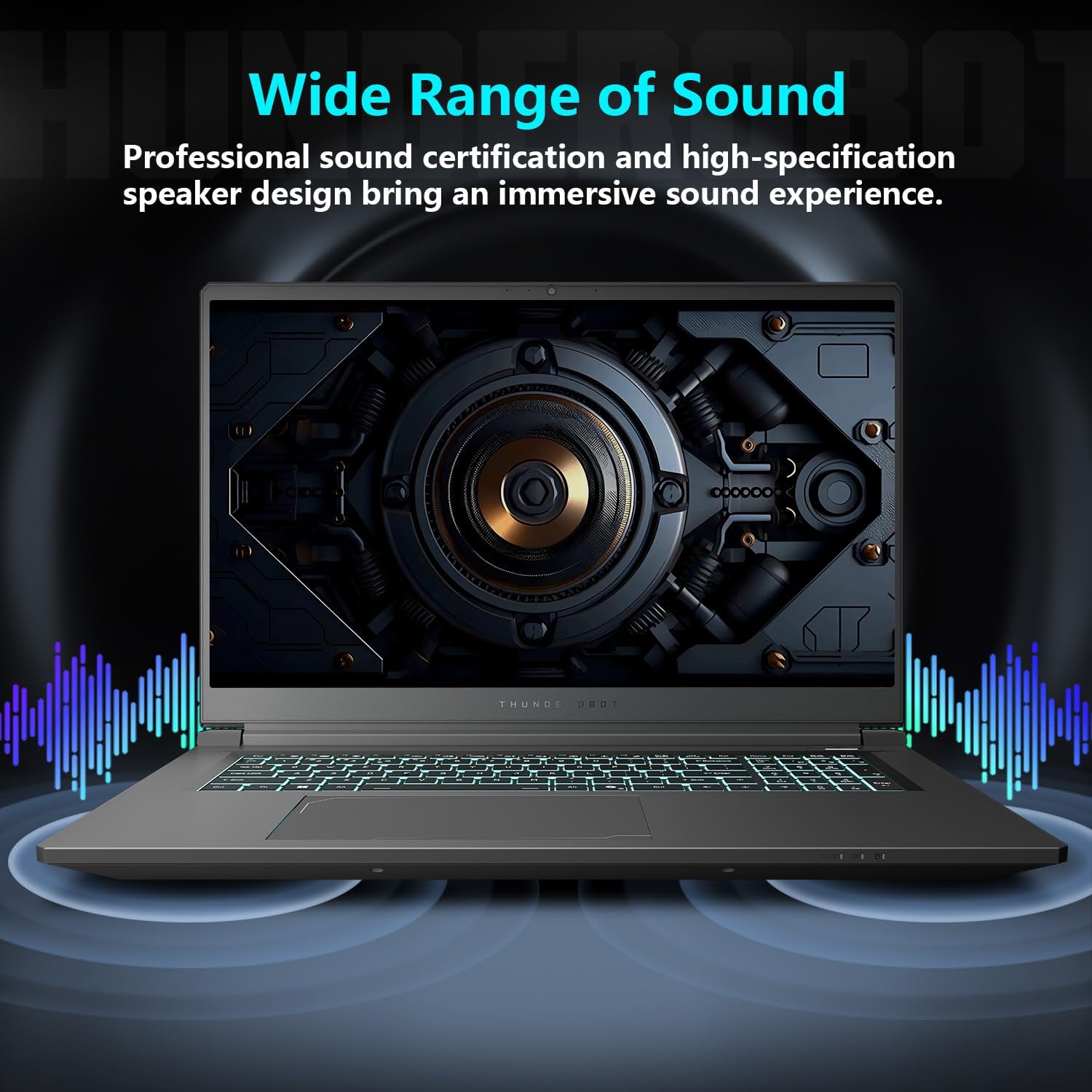
The laptop features professional sound certification and high-specification speaker design for an immersive audio experience. Adjust volume and sound settings via the Windows sound control panel.
Maintenance
Cooling System
The Storm 17 features an advanced cooling system with ultra-thin 0.2mm copper fins (245pcs), dual 12V turbofans (60mm, 164 LCP blades, 19.8CFM), and four omnidirectional air outlets. Regularly ensure that the air vents are clear of dust and obstructions to maintain optimal cooling performance. The Control Center allows for one-click forced cooling.

Battery Care
To prolong battery life, avoid fully discharging the battery frequently. It is recommended to keep the laptop plugged in when performing intensive tasks. The laptop supports 100W Power Delivery (PD) fast charging.
Cleaning
Use a soft, lint-free cloth to clean the screen and exterior surfaces. For stubborn smudges, a slightly dampened cloth with water or a screen-safe cleaner can be used. Avoid harsh chemicals or abrasive materials.
Troubleshooting
This section addresses common issues you might encounter with your Thunderobot Storm 17 laptop.
No Power / Does Not Turn On
- Ensure the AC adapter is securely connected to both the laptop and a working power outlet.
- Verify the power outlet is functional by plugging in another device.
- If the battery is completely drained, allow it to charge for at least 15-30 minutes before attempting to power on.
Display Issues
- If the screen is black, try pressing Fn + F7 (or the corresponding display toggle key) to switch display outputs.
- Ensure display drivers are up to date via Windows Update or the Thunderobot support website.
Connectivity Problems (Wi-Fi/Bluetooth)
- Check if Wi-Fi or Bluetooth is enabled in Windows settings.
- Restart your router/modem for network issues.
- Update network drivers if problems persist.
Performance Degradation
- Open the Thunderobot Control Center to check the current performance mode. Switch to a higher performance mode if needed.
- Ensure the laptop's cooling vents are not obstructed.
- Close unnecessary background applications.
For more detailed troubleshooting, refer to the official Thunderobot support resources or the Control Center application.
Specifications
Below are the key technical specifications for the Thunderobot Storm 17 5060 Gaming Laptop:
| Feature | Specification |
|---|---|
| Processor | Intel Core i7-13620H (10 Cores, 16 Threads, up to 4.9GHz) |
| Graphics | NVIDIA GeForce RTX 5060 (Dedicated) |
| RAM | 64 GB DDR5 (4800 MHz) |
| Storage | 2 TB PCIe M.2 SSD |
| Display | 17.3-inch QHD (2560x1600) 165Hz |
| Operating System | Windows 11 Home |
| Wireless Connectivity | Wi-Fi 6 (802.11ax), Bluetooth |
| Ports | 3x USB 3.0 Type-A, 1x USB Type-C, 1x HDMI, 1x RJ-45, 1x Audio Port |
| Dimensions (LxWxH) | 15.59 x 10.86 x 1.05 inches |
| Weight | 11 pounds |
Warranty and Support
Every Thunderobot laptop includes a 12-month warranty, offering expert support, thorough diagnostics, and genuine parts if a repair is needed. Additionally, a 90-day warranty is provided on all warranty replacement parts, ensuring hassle-free repairs. Your complete satisfaction is our commitment.

For further assistance or to download the official PDF user manual, please visit the Thunderobot support website or refer to the document link provided with your purchase.
Official User Manual (PDF): Download Here