1. Introduction
This user manual provides essential information for the safe and efficient operation of your Thunderobot Radiant 16 5060 Gaming Laptop. Please read this manual thoroughly before using the device to ensure proper setup, usage, and maintenance. Keep this manual for future reference.

Image: The Thunderobot Radiant 16 Gaming Laptop, showcasing its display and RGB backlit keyboard.
2. Product Overview
2.1 Key Features
- Processor: Intel Core i7-14650HX (16 Cores, 24 Threads, up to 5.2 GHz)
- Graphics: NVIDIA GeForce RTX 5060
- Display: 16-inch QHD+ (2560x1600) 300Hz display
- Memory: 32GB DDR5 RAM
- Storage: 2TB PCIe M.2 SSD
- Operating System: Windows 11 Home
- Connectivity: Wi-Fi 6, Bluetooth, Multiple USB ports (Type-A, Type-C), HDMI, RJ-45, Audio Port
- Keyboard: RGB Backlit Keyboard with Numeric Keypad
- Cooling: Advanced thermal management with dual turbofans and copper fins
2.2 Components and Ports
Familiarize yourself with the various components and ports of your laptop for optimal usage.

Image: Diagram illustrating the various ports and slots on the Thunderobot Radiant 16 laptop, including USB, HDMI, RJ45, and power input.
- Left Side: USB 3.1 Gen1 Type-A, Audio Port
- Right Side: USB 3.1 Gen1 Type-A, USB 3.1 Gen1 Type-A
- Rear Side: AC Power Supply, USB 3.1 Gen2 Type-C, HDMI 2.1, RJ45
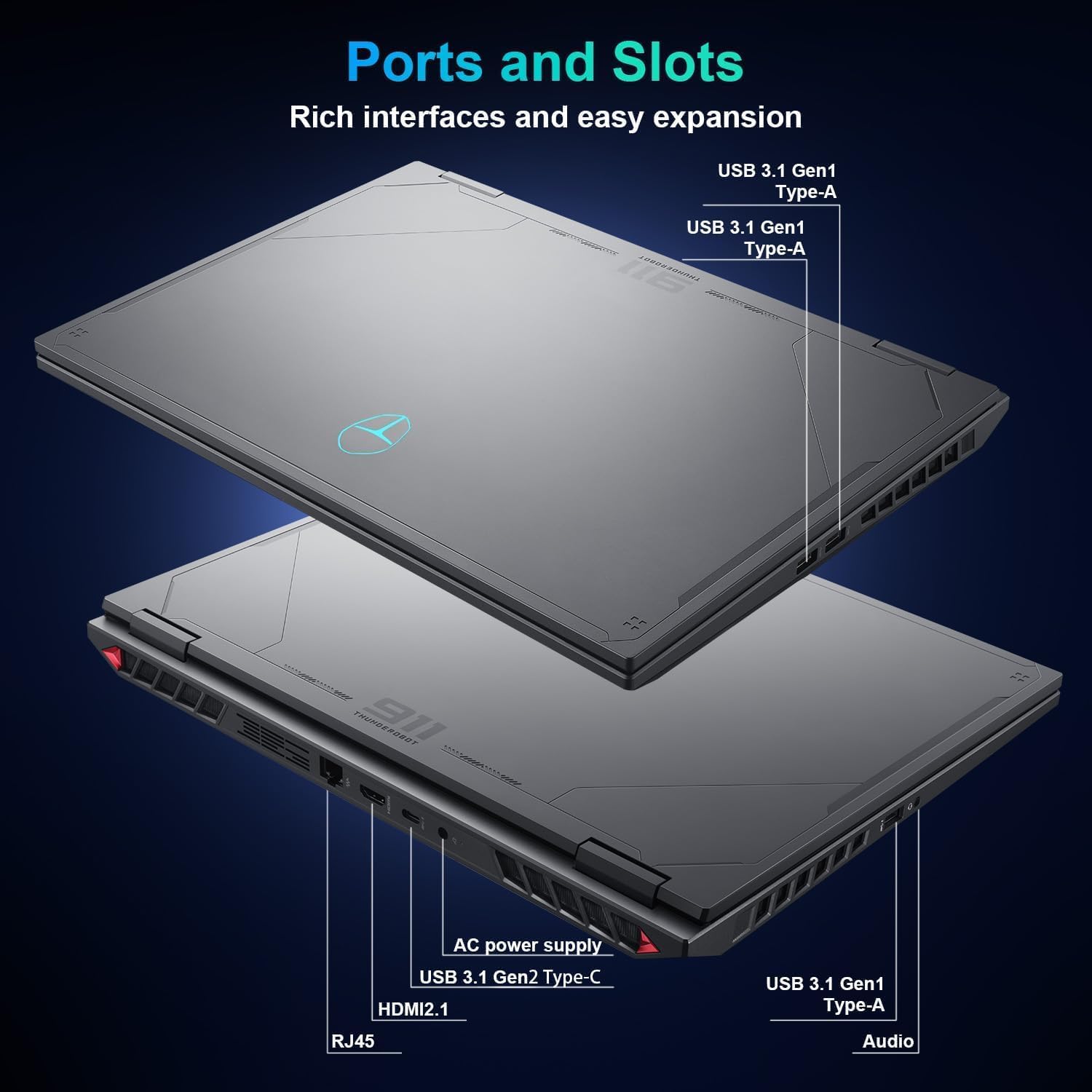
Image: Close-up of the Thunderobot Radiant 16 keyboard, highlighting the RGB backlighting, numeric keypad, and key travel.
- Keyboard: Features three-zone RGB backlighting, 1.8mm key travel, 0.2T micro arc keycaps, sunken full-size arrow keys, and an independent numeric keypad.
3. Setup
3.1 Initial Power-On
- Unpack the laptop and all accessories from the box.
- Connect the AC power adapter to the laptop's power input port and then to a power outlet.
- Open the laptop lid and press the power button, typically located above the keyboard or on the side.
- Follow the on-screen instructions to complete the initial Windows 11 Home setup, including language selection, network connection, and user account creation.
3.2 Connecting Peripherals
Connect external devices such as a mouse, external keyboard, or monitor to the appropriate ports as needed.
4. Operating Instructions
4.1 Display Usage
The 16-inch QHD+ (2560x1600) display offers a 300Hz refresh rate for smooth visuals. Adjust display settings through Windows Display Settings (Right-click on desktop > Display settings) to optimize resolution, refresh rate, and color profiles.

Image: Details of the 16-inch IPS Esports Display, highlighting 300Hz refresh rate, 100% sRGB, 2560x1600 QHD+ resolution, and 500 Nit brightness.
4.2 Keyboard Functions
The RGB backlit keyboard includes a numeric keypad. Use the Fn key in combination with other keys to access special functions (e.g., screen brightness, volume control, keyboard backlight adjustment). Refer to the keyboard legends for specific functions.
4.3 Control Center Software
The Thunderobot Control Center software allows you to manage performance modes, fan speeds, and lighting settings.

Image: Screenshots of the Control Center interface, showing options for performance modes (Berserk, Game, Audio/Video Office), fan adjustment, and system monitoring. Note: System mode switching requires the device to be connected to a power source.
- Performance Modes: Switch between Berserk mode (full performance), Game mode (smooth and online), and Audio/Video Office mode (power-efficient).
- Fan Adjustment: Customize fan speed profiles.
- Lighting Settings: Adjust RGB keyboard backlighting.
- Note: System mode switching in Control Center requires the device to be connected to a power source.
4.4 Audio System
The laptop features Nahimic-powered audio for immersive sound. Adjust audio settings through the Nahimic software or Windows Sound settings.
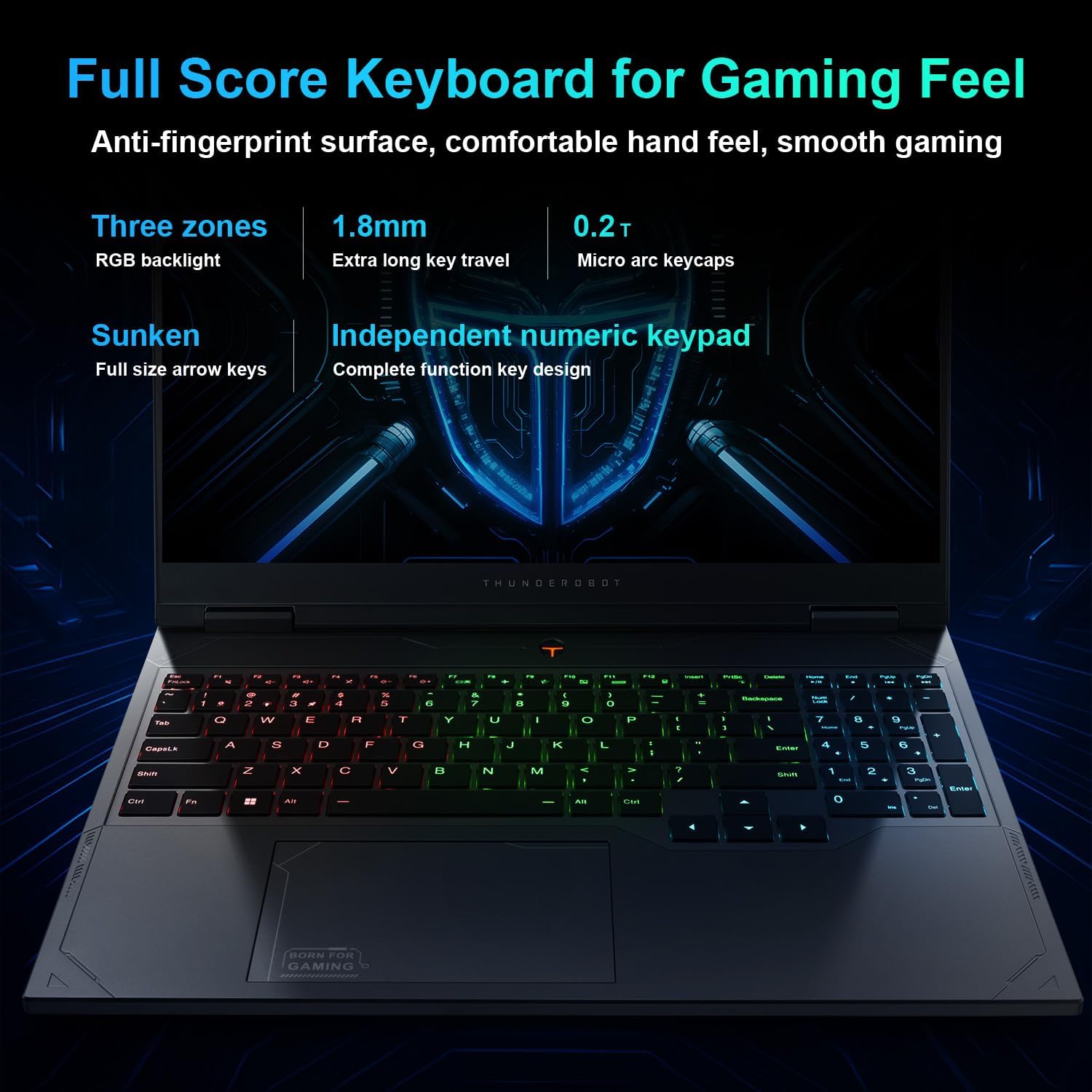
Image: Visual representation of the Nahimic audio system, emphasizing rich bass and crystal highs for immersive soundscapes.
5. Maintenance
5.1 Cleaning
- Use a soft, lint-free cloth to clean the screen and exterior surfaces.
- For stubborn marks, dampen the cloth slightly with water or a screen-safe cleaner.
- Avoid spraying liquids directly onto the laptop.
- Use compressed air to clear dust from keyboard keys and ventilation grilles.
5.2 Thermal Management
The laptop is equipped with an advanced cooling system. Ensure ventilation openings are not obstructed during use. Regularly clean dust from the fan vents to maintain optimal cooling performance.
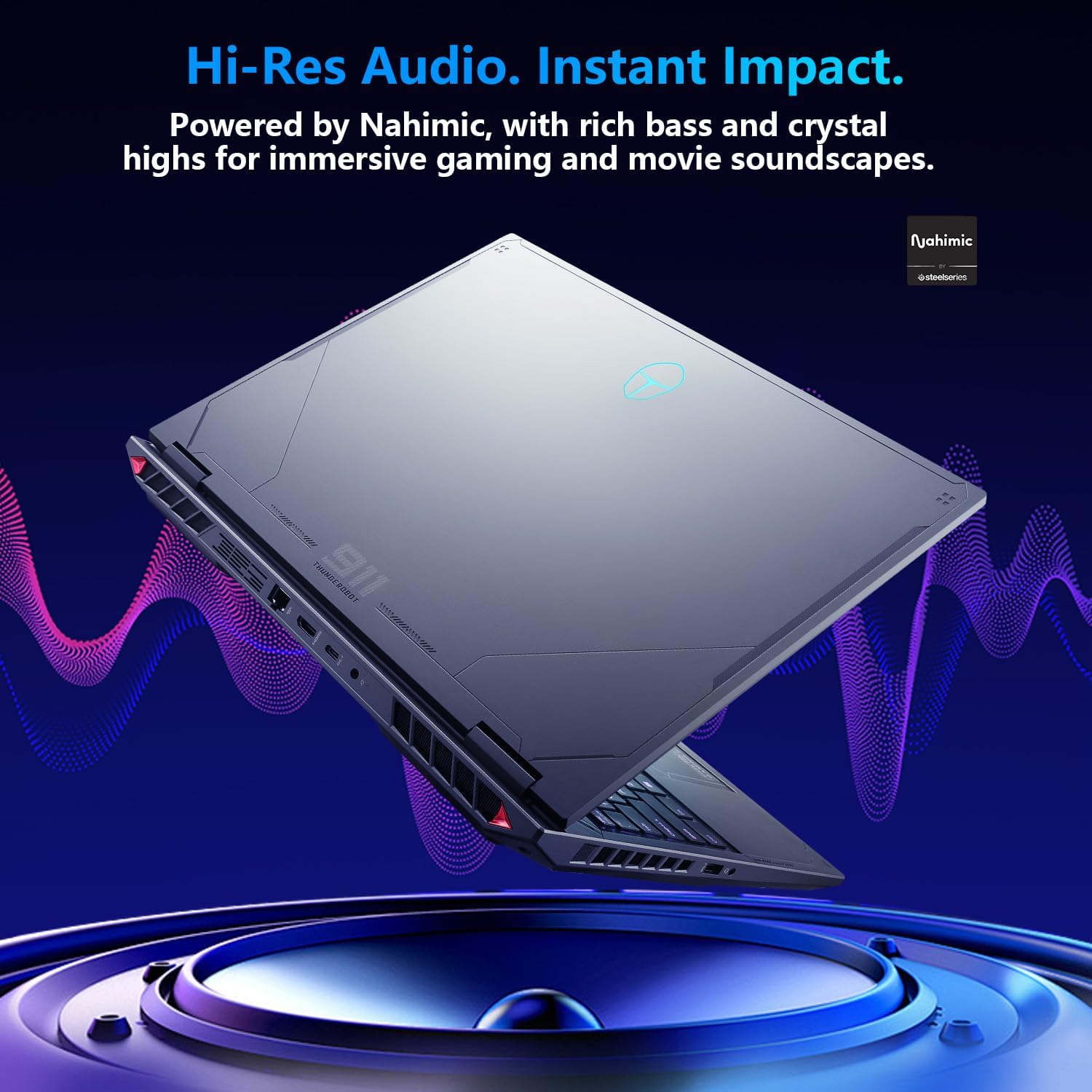
Image: Diagram illustrating the laptop's thermal management, including ultra-thin copper fins and dual turbofans for rapid cooling.
5.3 Battery Care
- For optimal battery life, avoid fully discharging the battery frequently.
- Store the laptop in a cool, dry place if not used for extended periods.
- Use only the original power adapter provided with the laptop.
6. Troubleshooting
6.1 Common Issues and Solutions
| Problem | Possible Solution |
|---|---|
| Laptop does not power on. | Ensure the power adapter is securely connected to both the laptop and a working power outlet. Check if the power outlet is functional. Try pressing the power button for 10-15 seconds. |
| Display is blank or black. | Check if the laptop is powered on. Connect an external monitor to verify if the issue is with the laptop's display. Adjust screen brightness using function keys. |
| Wi-Fi connection issues. | Ensure Wi-Fi is enabled in Windows settings. Restart your router and the laptop. Check for updated Wi-Fi drivers. |
| Keyboard or touchpad not responding. | Restart the laptop. Check for any physical obstructions. Ensure touchpad is not disabled via function keys. |
| System is slow or unresponsive. | Close unnecessary applications. Check Task Manager for high CPU/RAM usage. Ensure sufficient free space on the SSD. Run a system scan for malware. |
7. Specifications
The following table outlines the key technical specifications of the Thunderobot Radiant 16 5060 Gaming Laptop.
| Feature | Detail |
|---|---|
| Brand | Thunderobot |
| Model Name | Radiant 16 |
| Standing Screen Display Size | 16 Inches |
| Max Screen Resolution | 2560x1600 Pixels (QHD+) |
| Processor | Intel Core i7-14650HX (16 Cores, up to 5.2 GHz) |
| RAM | 32 GB DDR5 (4800 MHz) |
| Hard Drive | 2 TB SSD (PCIe x 4) |
| Graphics Coprocessor | NVIDIA GeForce RTX 5060 |
| Operating System | Windows 11 Home |
| Wireless Type | 802.11ax (Wi-Fi 6) |
| Number of USB 3.0 Ports | 4 (3x Type-A, 1x Type-C) |
| Item Weight | 12 pounds |
| Product Dimensions | 14.09 x 10 x 0.82 inches |
| Color | Gray |
| Power Source | AC & Battery |
| Special Feature | Numeric Keypad |
8. Warranty and Support
Your Thunderobot Radiant 16 laptop comes with a 12-month warranty. This warranty covers expert support, thorough diagnostics, and genuine parts for any necessary repairs. Additionally, a 90-day warranty is provided on all warranty replacement parts to ensure hassle-free repairs.
8.1 What's in the Box
- THUNDEROBOT Radiant Laptop
- AC Power Adapter
- User Manual (this document)
8.2 Contact Support
For technical assistance, warranty claims, or further inquiries, please visit the official Thunderobot support website or contact their customer service.
Online Resources: Thunderobot Official Store on Amazon


