1. Introduction
Welcome to the Thunderobot Storm 17 5070 Gaming Laptop user manual. This document provides essential information for setting up, operating, maintaining, and troubleshooting your new laptop.
The Thunderobot Storm 17 5070 is a high-performance gaming laptop designed for immersive gaming and demanding tasks. It features a 17.3-inch QHD 165Hz display, an Intel Core i7-13620H processor, NVIDIA GeForce RTX 5070 graphics, 32GB DDR5 RAM, and a 1TB PCIe M.2 SSD.

Front view of the Thunderobot Storm 17 5070 Gaming Laptop, showcasing the display and RGB backlit keyboard.
2. What's in the Box
- THUNDEROBOT Storm 17 Laptop
- Power Adapter
- User Manual (this document)
3. Initial Setup
3.1. Connecting the Power Adapter
Connect the power adapter to the DC-in port on your laptop and then plug it into a power outlet. It is recommended to fully charge the battery before initial use.
3.2. First Boot
Press the power button to turn on the laptop. Follow the on-screen instructions to complete the Windows 11 Home setup process. This includes setting up your region, language, network connection, and user account.
4. Operating Your Laptop
4.1. Keyboard and Touchpad
The laptop features an RGB backlit keyboard with a numeric keypad.
- To adjust keyboard backlighting, use the dedicated function keys (Fn + Space).
- The touchpad supports multi-touch gestures for navigation.

Close-up view of the Thunderobot Storm 17's RGB backlit keyboard, highlighting the full-size direction keys.
4.2. Display
The 17.3-inch QHD (2560x1440) display offers a 165Hz refresh rate.

Image illustrating the 17.3-inch QHD 165Hz display with 2K resolution, 100% sRGB, and 1000:1 contrast ratio.
4.3. Ports and Connectivity
The laptop provides various ports for external devices and network connections.
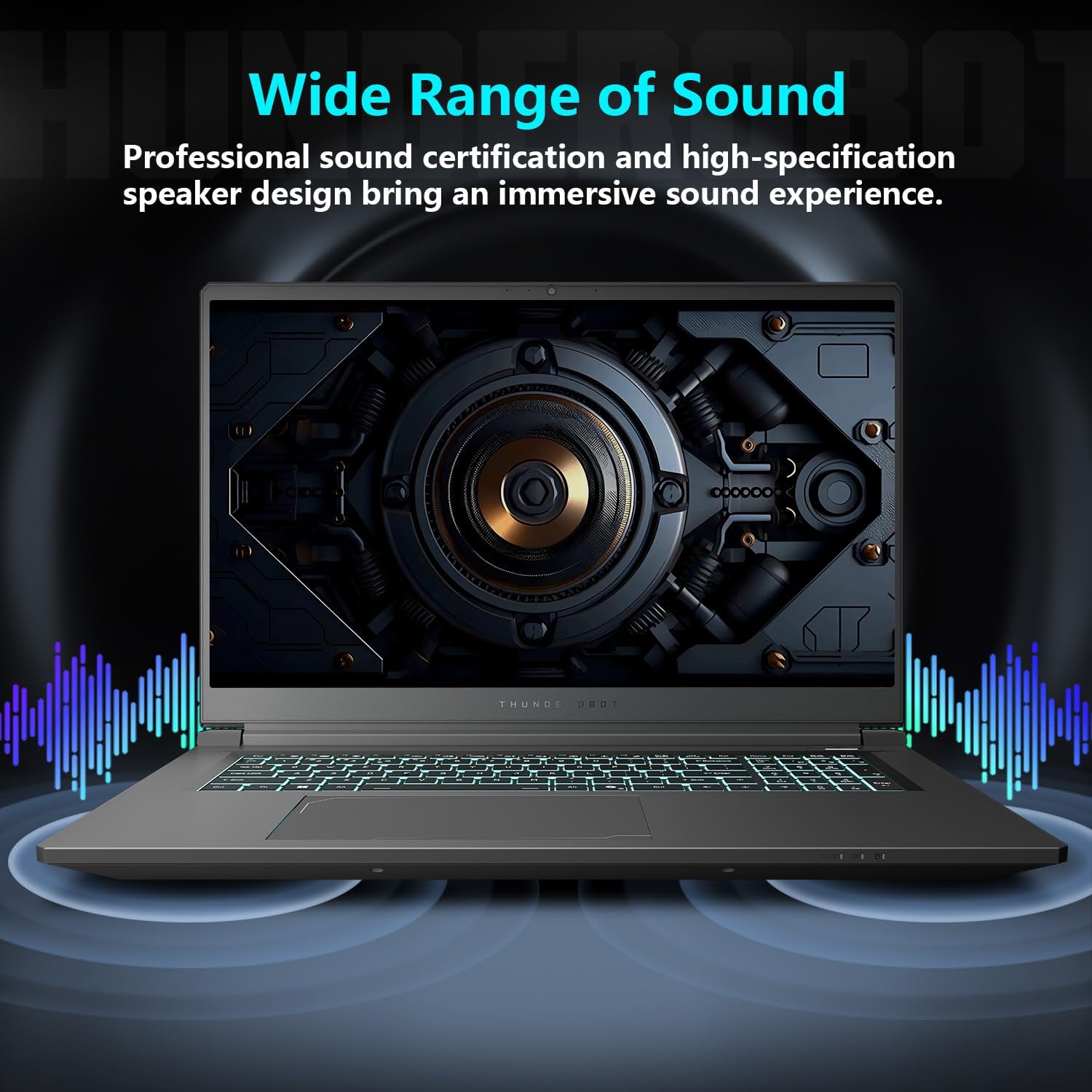
Diagram showing the various ports and slots on the Thunderobot Storm 17 laptop, including USB, HDMI, RJ-45, and audio jack.
Available ports include:
- 3 x USB 3.2 Gen 1 Type-A
- 1 x USB Type-C
- 1 x HDMI Port
- 1 x RJ-45 Ethernet Port
- 1 x Audio Port (3.5mm Combo Audio Jack)
- 1 x Mini DisplayPort
- 1 x Kensington Lock Slot
- DC-in Jack
The laptop supports Wi-Fi 6 for high-speed wireless connectivity and Bluetooth for connecting peripherals.
4.4. Control Center
The Thunderobot Control Center software allows you to manage performance modes, keyboard customization, and charging settings.

Screenshot of the Thunderobot Control Center interface, showing options for system performance, LED keyboard customization, and FlexiCharger settings.
- System: Adjust performance profiles (e.g., full performance release).
- LED Keyboard: Customize RGB backlighting.
- FlexiCharger: Manage battery charging behavior.
- Flexikey: Customize key and mouse functions.
Note: System mode switching in Control Center requires the device to be connected to a power source.
5. Maintenance
5.1. Cooling System
The Storm 17 features an efficient cooling system with ultra-thin copper fins, dual turbofans, and four omnidirectional air outlets.

Diagram illustrating the internal cooling components of the Thunderobot Storm 17, including high-speed fans, pure copper heat pipes, and heat dissipation covers.
- Ensure air vents are clear of obstructions to maintain optimal airflow.
- Use the one-click forced cooling function in the Control Center for intensive tasks.
5.2. General Care
- Keep the laptop clean by wiping surfaces with a soft, dry cloth.
- Avoid exposing the laptop to extreme temperatures or direct sunlight.
- Handle the laptop with care to prevent physical damage.
6. Troubleshooting
This section addresses common issues you might encounter.
6.1. Laptop Does Not Power On
- Ensure the power adapter is securely connected to both the laptop and a working power outlet.
- Verify the power outlet is functional by plugging in another device.
- If the battery is completely drained, allow it to charge for a few minutes before attempting to power on.
6.2. Poor Performance
- Check the performance mode in the Control Center and ensure it is set to a high-performance profile when needed.
- Close unnecessary background applications.
- Ensure the cooling system is not obstructed and fans are operating correctly.
- Update graphics drivers and system software.
6.3. Battery Life is Short
- Adjust power settings in Windows to optimize battery usage.
- Reduce screen brightness.
- Close applications running in the background that consume significant power.
- Use the FlexiCharger settings in the Control Center to manage battery health.
7. Technical Specifications
| Feature | Specification |
|---|---|
| Model Name | Storm 17 |
| Processor | Intel Core i7-13620H (10 Cores, 16 Threads, up to 4.9GHz) |
| Graphics | NVIDIA GeForce RTX 5070 (8GB GDDR6) |
| Display | 17.3-inch QHD (2560x1440) 165Hz |
| RAM | 32GB DDR5 (4800 MHz) |
| Storage | 1TB PCIe M.2 SSD |
| Operating System | Windows 11 Home |
| Wireless Connectivity | Wi-Fi 6 (802.11ax), Bluetooth |
| Ports | 3x USB 3.2 Gen 1 Type-A, 1x USB Type-C, 1x HDMI, 1x RJ-45, 1x Audio Jack, 1x Mini DisplayPort, 1x Kensington Lock, 1x DC-in |
| Battery | 53Wh, supports 100W PD fast charging |
| Dimensions (LxWxH) | 15.59 x 10.86 x 1.05 inches |
| Weight | 11 pounds |
8. Warranty and Support
Every Thunderobot laptop includes a 12-month warranty, covering expert support, diagnostics, and genuine parts for repairs. A 90-day warranty is provided on all warranty replacement parts.
For technical support or warranty claims, please visit the official Thunderobot website or contact customer service.
Online Resources:
- Official Thunderobot Store: Thunderobot Store on Amazon
- User Manual (PDF): Download PDF Manual


