1. Introduction
This manual provides essential information for the safe and efficient operation of your Thunderobot Zero 18 Pro 5090 Gaming Laptop. Please read this manual thoroughly before using the device and retain it for future reference.
The Thunderobot Zero 18 Pro 5090 is a high-performance gaming laptop featuring an 18-inch QHD+ 240Hz 2.5K Hummingbird Display, powered by an Intel Core Ultra 9 275HX processor and an NVIDIA GeForce RTX 5090 graphics card. It comes equipped with 64GB DDR5 RAM and a 4TB PCIe M.2 SSD, designed for demanding applications and immersive gaming experiences.
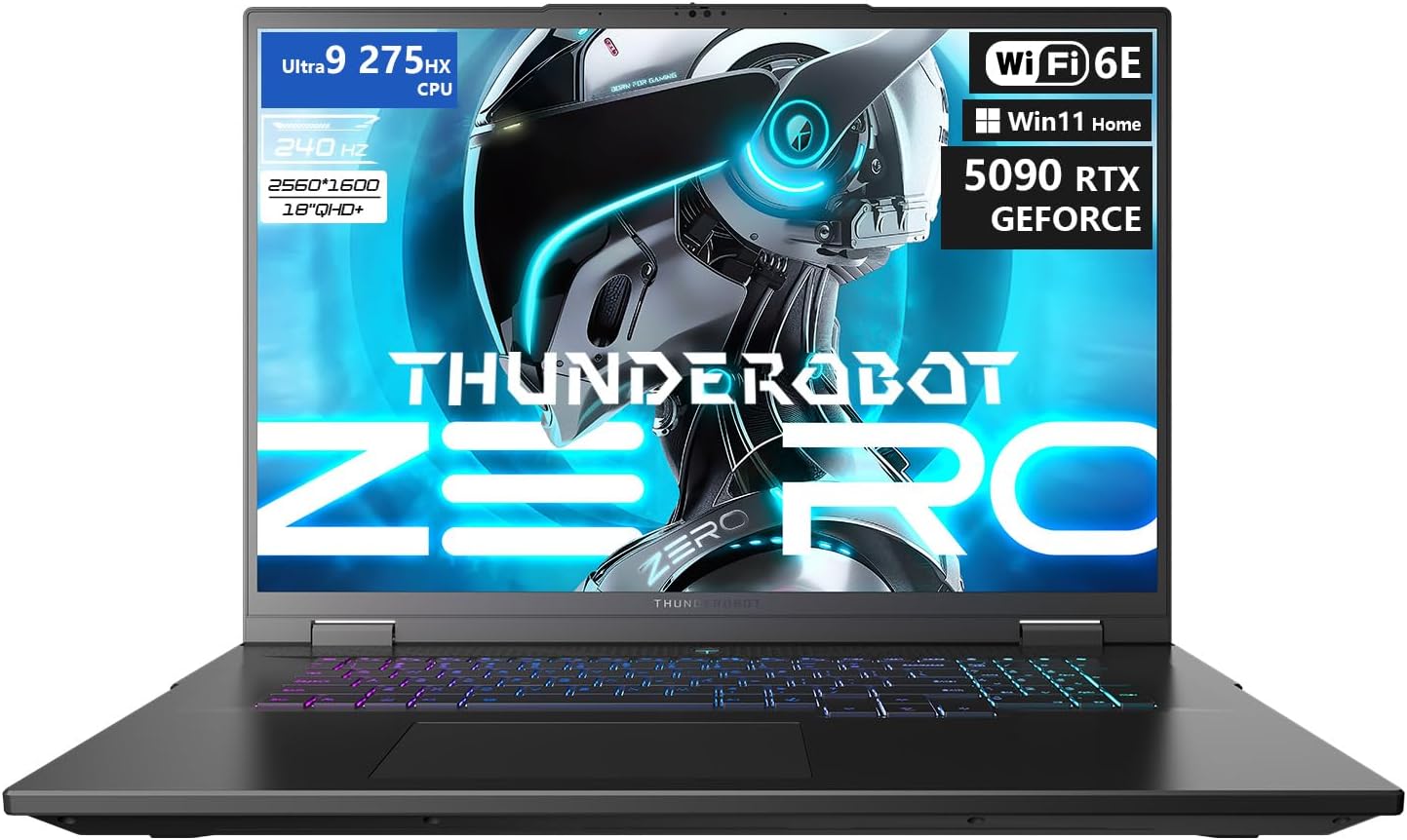
Image 1.1: Front view of the Thunderobot Zero 18 Pro 5090 Gaming Laptop, showcasing its large display and keyboard.
2. Key Features
- Processor: Intel Core Ultra 9 275HX (24 Cores, 24 Threads, up to 5.40GHz)
- Graphics: NVIDIA GeForce RTX 5090
- Display: 18-inch QHD+ (2560x1600) 240Hz Hummingbird Eye-Care Display with anti-glare, anti-reflection, and anti-blue light features.
- Memory: 64GB DDR5 RAM
- Storage: 4TB PCIe M.2 SSD
- Connectivity: Wi-Fi 6E, Bluetooth, 3x USB Type-A, 2x USB Type-C (including Thunderbolt 5), HDMI, RJ-45, Audio Port.
- Keyboard: Per-Key RGB Backlit Keyboard with Numeric Keypad.
- Cooling System: Advanced heat dissipation with 3 Night Owl fans and 7 high-efficiency heat pipes.
- Operating System: Windows 11 Home.
3. Setup Guide
3.1 Unpacking
Carefully remove the laptop and all accessories from the packaging. Ensure all components listed in the 'What's in the Box' section are present.
- Thunderobot Zero 18 Laptop
- Power Adapter and Cable
- Documentation (this manual, warranty card)
3.2 Initial Power On
- Connect the power adapter to the laptop's power port and then to a wall outlet.
- Open the laptop lid.
- Press the power button, typically located above the keyboard or on the side.
- Follow the on-screen instructions to complete the Windows 11 Home setup process. This includes setting up your user account, network connection, and privacy settings.
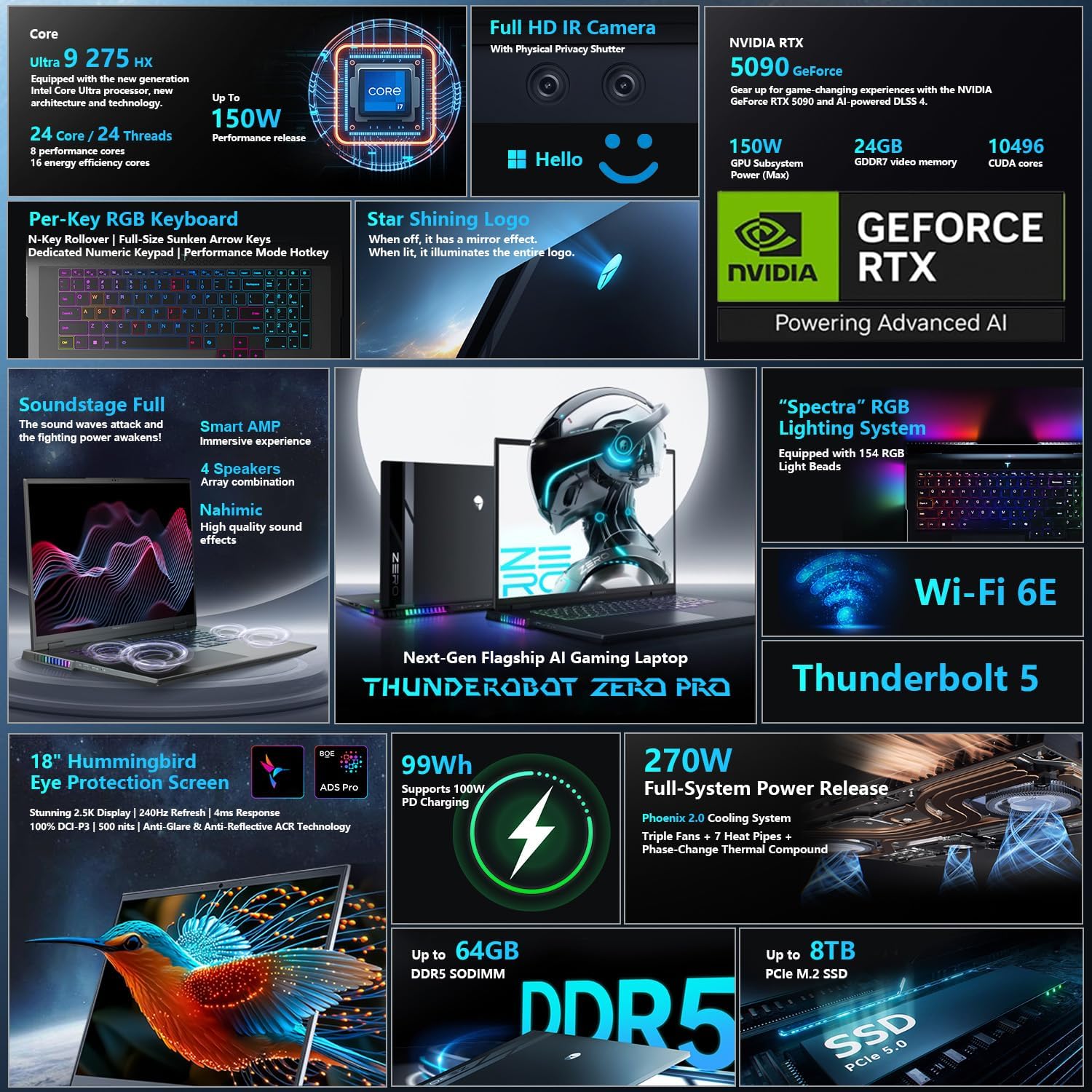
Image 3.1: The laptop connected to its power adapter, ready for initial setup.
4. Operating Instructions
4.1 Keyboard and Touchpad
The laptop features a Per-Key RGB Backlit Keyboard and an independent numeric keypad. Use the touchpad for cursor control and multi-touch gestures. Refer to the system settings for customizing touchpad gestures.
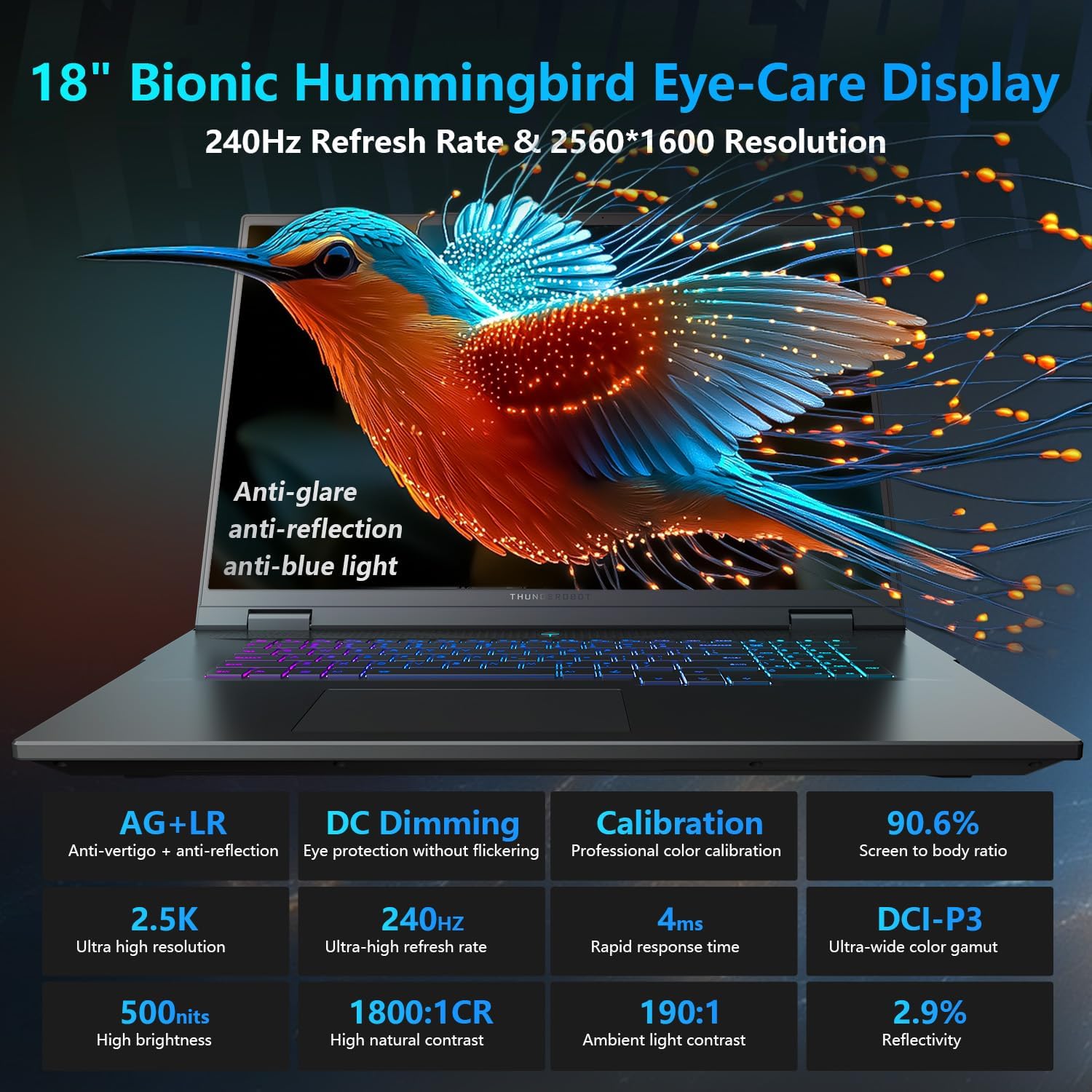
Image 4.1: Close-up of the Per-Key RGB Backlit Keyboard and touchpad.
4.2 Display Settings
The 18-inch QHD+ 2.5K Hummingbird Eye-Care Display offers a 240Hz refresh rate. You can adjust display settings such as resolution, refresh rate, and color profiles through Windows Display Settings or the NVIDIA Control Panel.
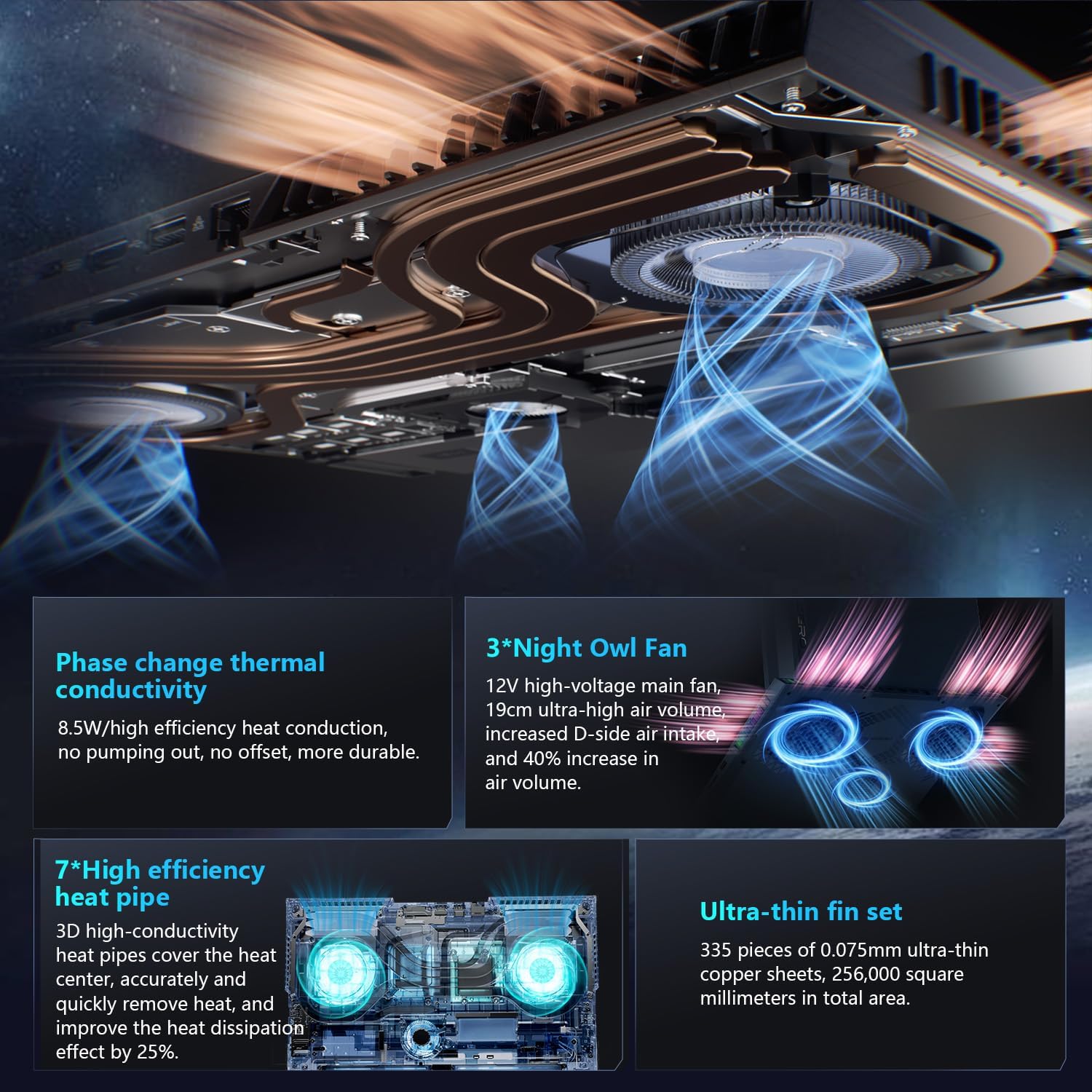
Image 4.2: The laptop display showing a vibrant image, highlighting its visual capabilities.
4.3 Connectivity
The laptop provides various ports for connecting external devices:
- 3 x Superspeed USB Type-A ports
- 2 x Superspeed USB Type-C ports (one with Thunderbolt 5 support)
- 1 x HDMI port (for external displays)
- 1 x RJ-45 Ethernet port
- 1 x Audio Port (3.5mm headphone/microphone combo jack)
Wireless connectivity includes Wi-Fi 6E for high-speed internet and Bluetooth for connecting wireless peripherals.
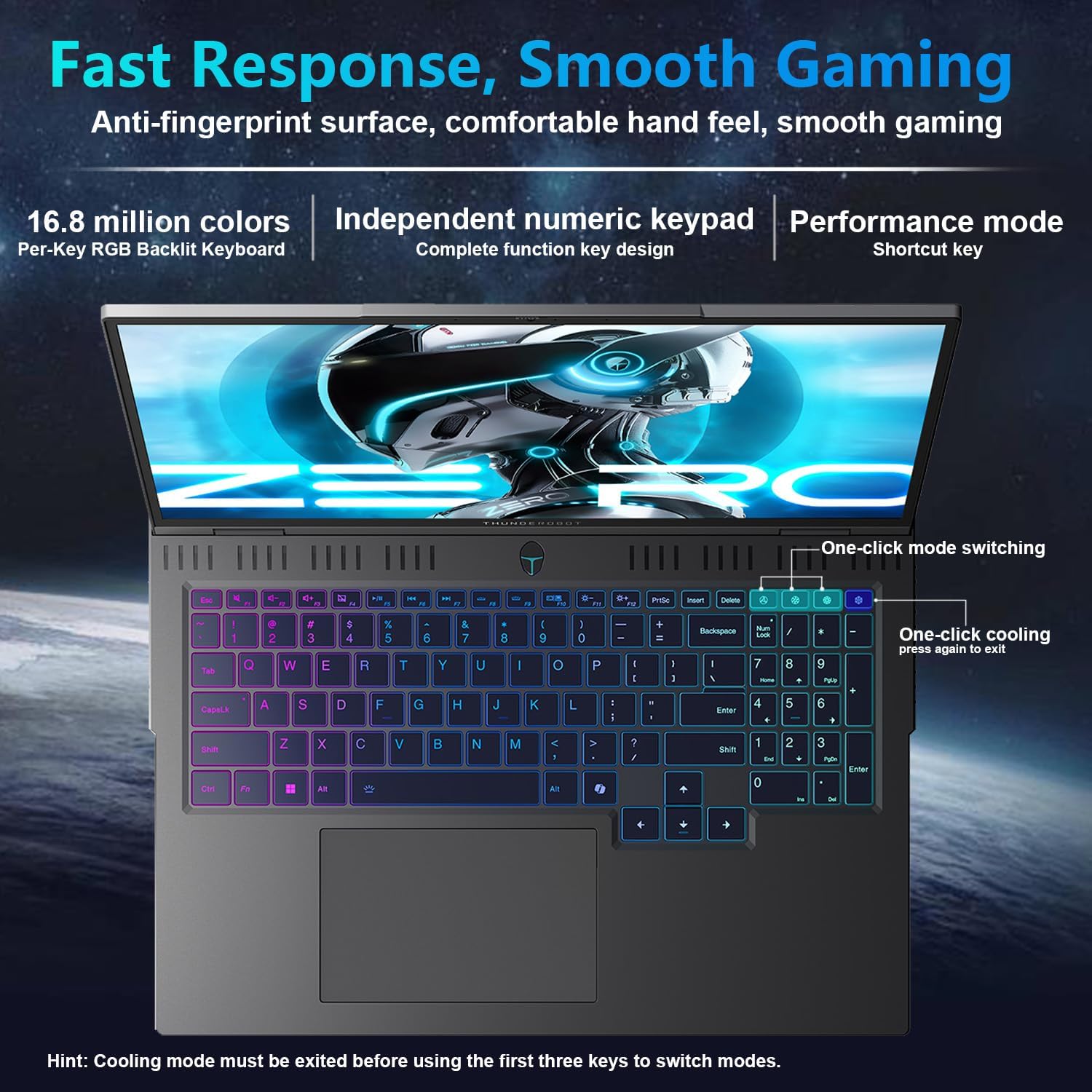
Image 4.3: Side view of the laptop illustrating the various input/output ports.
4.4 AI Intelligent Control Center
The AI Intelligent Control Center software allows for performance tuning, intelligent light adjustment (RGB), and comprehensive system customization. This includes monitoring CPU/GPU fan speed, managing lighting effects, and switching between performance modes (Quiet, Balance, Turbo). Ensure the device is connected to a power source for full system mode switching capabilities.

Image 4.4: Screenshot of the AI Intelligent Control Center interface, showing various customization options.
5. Maintenance
5.1 Cleaning
Regularly clean the laptop's screen, keyboard, and chassis with a soft, lint-free cloth. For stubborn smudges, use a screen cleaner specifically designed for electronics. Avoid using harsh chemicals or abrasive materials.
5.2 Heat Dissipation
The Thunderobot Zero 18 Pro features an advanced cooling system. To ensure optimal performance and longevity, keep the ventilation grilles clear of obstructions. Avoid operating the laptop on soft surfaces like beds or carpets that can block airflow. Periodically check for dust accumulation in the vents and clean them gently with compressed air if necessary.
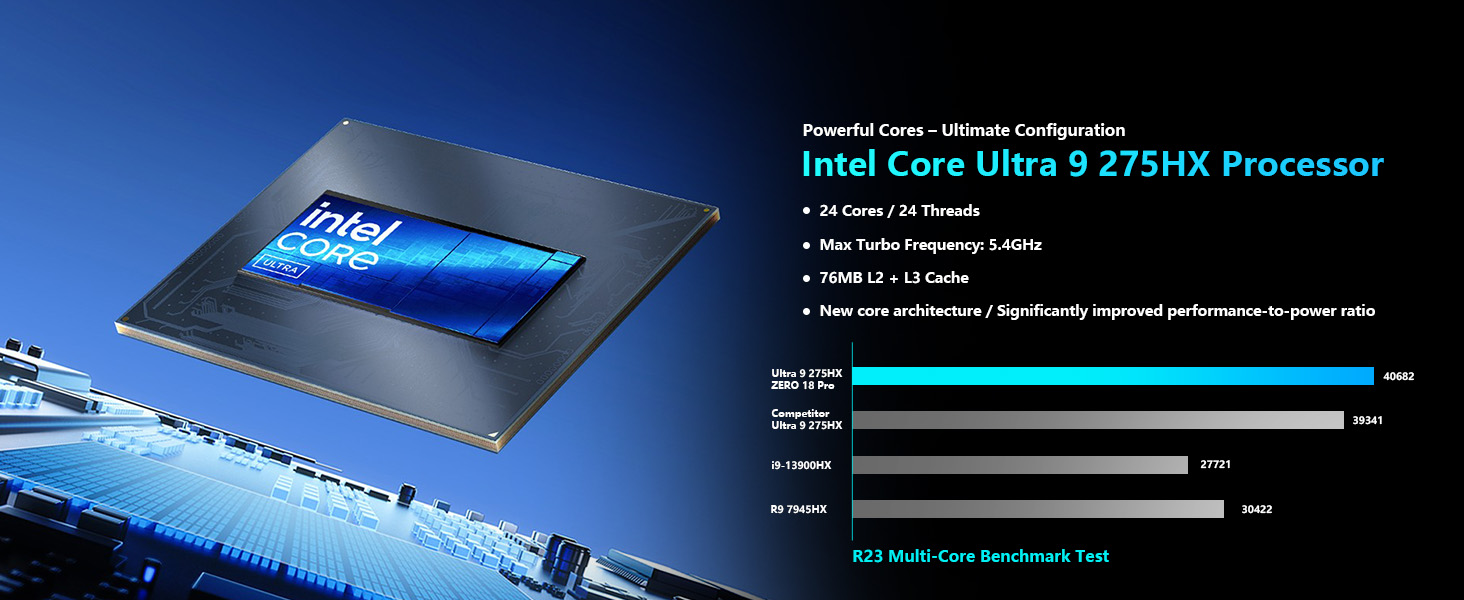
Image 5.1: Diagram illustrating the internal cooling system with fans and heat pipes.
6. Troubleshooting
- No Power: Ensure the power adapter is securely connected to both the laptop and a working power outlet. Try a different outlet.
- Display Issues: If the screen is blank, try connecting an external monitor to verify if the issue is with the laptop's display or the graphics card. Restart the laptop.
- Performance Slowdown: Check for excessive background applications, update drivers, or ensure the cooling system is not obstructed. Use the AI Intelligent Control Center to switch to a performance mode.
- Connectivity Problems: For Wi-Fi issues, restart your router and the laptop. For wired connections, check the Ethernet cable. Ensure Bluetooth devices are properly paired.
- Keyboard/Touchpad Unresponsive: Restart the laptop. If the issue persists, check for driver updates.
For persistent issues, consult the Thunderobot support website or contact customer service.
7. Specifications
| Feature | Detail |
|---|---|
| Brand | Thunderobot |
| Model Name | ZERO 18 Pro |
| Screen Size | 18 Inches |
| Screen Resolution | 2560 x 1600 pixels (QHD+) |
| Max Screen Resolution | 2560x1600 Pixels |
| Processor | Intel Core Ultra 9 275HX (up to 5.4 GHz) |
| RAM | 64 GB DDR5 (4800 MHz) |
| Hard Drive | 4 TB SSD (PCIe x 4) |
| Graphics Coprocessor | GeForce RTX 5090 (Dedicated) |
| Wireless Type | 802.11ax (Wi-Fi 6E) |
| Operating System | Windows 11 Home |
| Item Weight | 15 pounds |
| Product Dimensions | 16.04 x 11.78 x 1.41 inches |
| Color | Black |
| Special Feature | Numeric Keypad |
8. Warranty and Support
Every Thunderobot laptop includes a 12-month warranty, offering expert support, thorough diagnostics, and genuine parts if a repair is needed. Additionally, a 90-day warranty is provided on all warranty replacement parts, ensuring hassle-free repairs. Your complete satisfaction is our commitment.
For technical support, warranty claims, or service inquiries, please visit the official Thunderobot support website or contact their customer service department. Keep your purchase receipt and product serial number handy for faster service.
Image 8.1: Graphic detailing Thunderobot's warranty and service commitment.


