Introduction
This manual provides detailed instructions for the installation, operation, and maintenance of your Commercial Electric 12-inch LED Flush Mount Smart CCT and RGB Selectable Light. This fixture is designed to provide versatile lighting options, including adjustable color temperature (CCT), RGB color selection, and a night light feature, all powered by the Hubspace smart home platform. Please read this manual thoroughly before installation and use to ensure proper function and safety.
Safety Information
- WARNING: Risk of electric shock. Disconnect power at the circuit breaker or fuse box before installation or servicing.
- This product must be installed in accordance with the applicable installation code by a person familiar with the construction and operation of the product and the hazards involved.
- Use only with 120V, 60Hz circuits.
- Do not attempt to modify the fixture. Any modifications may void the warranty and create a safety hazard.
- Ensure all connections are secure and properly insulated.
- Do not install near heat sources or in areas with excessive moisture.
Setup and Installation
Follow these steps to properly install your LED flush mount light fixture.
- Prepare for Installation: Turn off power at the circuit breaker. Ensure the power is completely off before proceeding.
- Mounting Bracket Installation: Attach the mounting bracket to the junction box using the provided screws. Ensure it is securely fastened.
- Wiring Connections: Connect the fixture's wires to the household wiring.
- Connect the black wire from the fixture to the black (hot) wire from the junction box.
- Connect the white wire from the fixture to the white (neutral) wire from the junction box.
- Connect the green or bare copper ground wire from the fixture to the ground wire from the junction box.
- Secure all connections with wire nuts and electrical tape.
- Attach Fixture to Bracket: Carefully align the fixture with the mounting bracket and secure it using the provided screws. Ensure the fixture is flush with the ceiling.
- Restore Power: Once installation is complete, restore power at the circuit breaker.
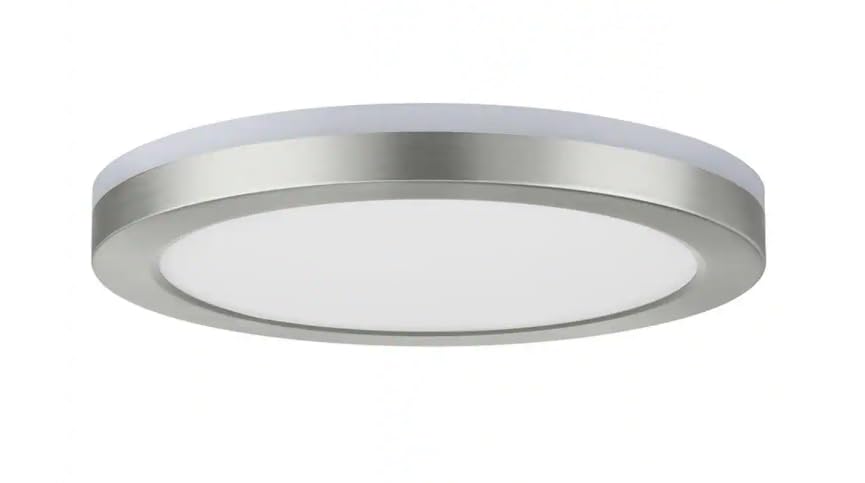
Image: The Commercial Electric 12-inch LED Flush Mount Light, showcasing its brushed nickel finish and low-profile design when installed on a ceiling.
Operating Instructions
This smart flush mount light is powered by Hubspace, allowing for advanced control via the Hubspace app or voice assistants.
1. Connecting to Hubspace
- Download the Hubspace App: Search for "Hubspace" in your mobile device's app store and download the application.
- Create an Account: Open the app and follow the prompts to create a new account or log in to an existing one.
- Add Device: In the Hubspace app, tap the "+" icon to add a new device.
- Power Cycle the Light: Turn the light fixture off and on three times at the wall switch. The light should begin to blink, indicating it's in pairing mode.
- Complete Pairing: Follow the in-app instructions to connect the light to your Wi-Fi network. Ensure your Wi-Fi network is 2.4GHz.
2. Light Control Features
- Main Light (CCT Selectable): Adjust the color temperature of the main light from warm white to cool white (e.g., 2700K to 5000K) using the Hubspace app. You can also dim the brightness.
- RGB Backlight: Select from a wide spectrum of colors for the RGB backlight feature, creating ambient lighting effects. Control color and brightness via the app.
- Night Light: Activate the dedicated night light mode for a soft, low-intensity illumination, ideal for nighttime use.
- Scheduling and Scenes: Use the Hubspace app to set schedules for your light to turn on/off or change settings automatically. Create custom scenes for different moods or activities.
3. Voice Control
Once connected to Hubspace, you can link your light to compatible voice assistants like Google Home or Amazon Alexa for hands-free control.
- Google Home: Link your Hubspace account in the Google Home app. Then use commands like, "Hey Google, turn on the ceiling light," or "Hey Google, set the ceiling light to red."
- Amazon Alexa: Enable the Hubspace skill in the Alexa app. Use commands such as, "Alexa, dim the flush mount," or "Alexa, change the flush mount to blue."
Maintenance
- Cleaning: Ensure power is off before cleaning. Wipe the fixture with a soft, dry, or slightly damp cloth. Do not use abrasive cleaners or solvents.
- LED Longevity: The integrated LED components are designed for long life and do not require replacement.
Troubleshooting
| Problem | Possible Cause | Solution |
|---|---|---|
| Light does not turn on. | No power; loose wiring; faulty switch. | Check circuit breaker. Ensure all wiring connections are secure. Test the wall switch. |
| Light flickers or dims unexpectedly. | Loose wiring; incompatible dimmer switch (if applicable); Wi-Fi interference. | Check wiring. Ensure you are using the Hubspace app for dimming. Check Wi-Fi signal strength. |
| Cannot connect to Hubspace app. | Incorrect Wi-Fi network (not 2.4GHz); light not in pairing mode; incorrect password. | Ensure your Wi-Fi is 2.4GHz. Power cycle the light to enter pairing mode. Double-check Wi-Fi password. |
| Voice control not working. | Hubspace account not linked; incorrect device name; internet connectivity issues. | Verify Hubspace account is linked to your voice assistant. Use the exact device name. Check internet connection. |
Specifications
- Brand: Commercial Electric
- Model Number: 1011101171
- Product Dimensions: 12 x 12 x 1.33 inches
- Item Weight: 3 pounds
- Material: Plastic
- Style: Modern
- Light Fixture Form: Ceiling (Flush Mount)
- Room Type: Bedroom, Living Room, Office, Bathroom, etc.
- Power Source: Hardwired (120V, 60Hz)
- Smart Platform: Hubspace
- Features: Smart CCT (Color Correlated Temperature) Selectable, RGB Color, Night Light
Warranty and Support
This Commercial Electric product is backed by a manufacturer's warranty. For specific warranty details, please refer to the warranty card included with your product or visit the Commercial Electric website. For technical support, troubleshooting assistance, or to inquire about replacement parts, please contact Commercial Electric customer service. Keep your purchase receipt for warranty claims.


