
1. Introduction
This manual provides essential information for the safe and efficient use of your Samsung HW-Q930F/XL 9.1.4ch Soundbar System. Please read these instructions thoroughly before operating the device and retain them for future reference.
The Samsung HW-Q930F/XL is a 580W 9.1.4 channel soundbar system featuring True Full Surround Sound, Wireless Dolby Atmos, Q-Symphony, and SpaceFit Sound Pro. It includes a soundbar with center, up-firing, side-firing, and front wide-firing speakers, a wireless subwoofer, and two wireless rear speakers. Connectivity options include HDMI ARC, Optical, Bluetooth, and Wi-Fi, with built-in Alexa for voice control.
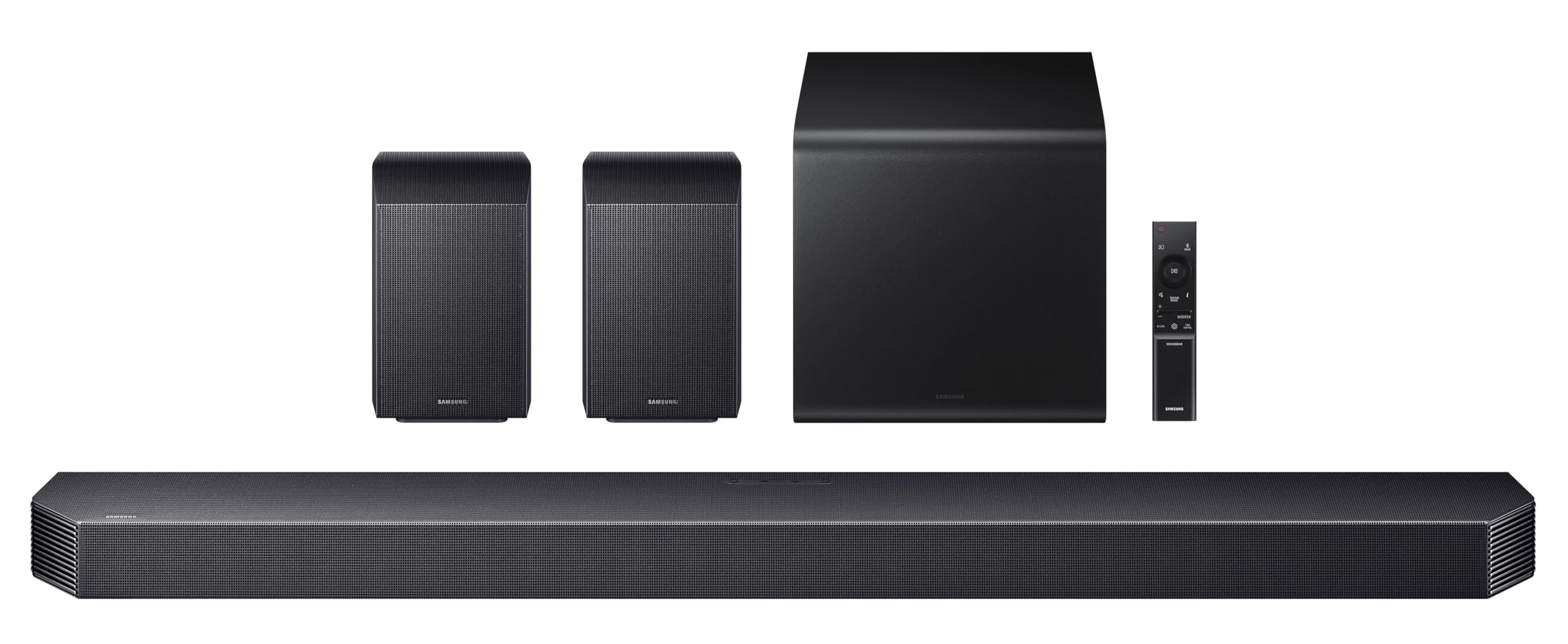
Figure 1: Overview of the Samsung HW-Q930F/XL Soundbar System components.
2. Safety Information
Always follow basic safety precautions when using this product to reduce the risk of fire, electric shock, and injury.
- Do not expose this apparatus to rain or moisture.
- Do not block any ventilation openings. Install in accordance with the manufacturer's instructions.
- Do not install near any heat sources such as radiators, heat registers, stoves, or other apparatus (including amplifiers) that produce heat.
- Protect the power cord from being walked on or pinched, particularly at plugs, convenience receptacles, and the point where they exit from the apparatus.
- Only use attachments/accessories specified by the manufacturer.
- Refer all servicing to qualified service personnel.
3. Package Contents
Verify that all items are present in your product box. If any item is missing or damaged, contact your retailer.
- Soundbar Unit
- Wireless Subwoofer
- 2x Wireless Rear Speakers
- Remote Control (with 2 AAA batteries)
- Power Cable for Soundbar
- Power Cable for Subwoofer
- Power Cables for Rear Speakers
- HDMI Cable
- Wall Mount Kit (optional)
- User Manual (this document)

Figure 2: All components included in the Samsung HW-Q930F/XL Soundbar System package.
4. Setup
4.1 Physical Placement
Position the soundbar centrally below your TV. The wireless subwoofer and rear speakers can be placed in various locations for optimal surround sound. Ensure clear line of sight for wireless connections.
- Soundbar: Place on a flat surface in front of the TV or wall-mount below it.
- Subwoofer: Position on the floor, ideally in a front corner of the room for enhanced bass.
- Rear Speakers: Place behind your listening position, to the left and right, facing towards the center.

Figure 3: Recommended placement for the soundbar, subwoofer, and rear speakers for an immersive audio experience.
4.2 Connecting to TV
You can connect your soundbar to your TV using an HDMI cable (recommended for Dolby Atmos) or an Optical cable.
4.2.1 HDMI ARC Connection
- Connect one end of an HDMI cable to the HDMI OUT (TV ARC) port on the soundbar.
- Connect the other end to the HDMI IN (ARC) port on your TV.
- Ensure your TV's Anynet+ (HDMI-CEC) function is enabled.

Figure 4: Connect the soundbar to your TV using the HDMI eARC port for the best audio quality and control.
4.2.2 Optical Connection
- Connect one end of a digital optical cable to the DIGITAL AUDIO IN (OPTICAL) port on the soundbar.
- Connect the other end to the DIGITAL AUDIO OUT (OPTICAL) port on your TV.
4.3 Power Connection
Connect the power cables to the soundbar, subwoofer, and rear speakers, then plug them into a wall outlet.
4.4 Wireless Speaker Pairing
The subwoofer and rear speakers should automatically connect wirelessly to the soundbar when powered on. If they do not connect, or if the blue LED indicator on the back of the subwoofer/rear speakers is blinking, follow these steps:
- Turn off the main Soundbar unit.
- Press and hold the ID SET button on the back of the wireless subwoofer/rear speakers for at least 5 seconds. The indicator LED will blink blue.
- Turn on the Soundbar.
- The indicator LED on the subwoofer/rear speakers will turn solid blue when connected.

Figure 5: Location of the ID SET button on the back of the wireless subwoofer for manual pairing.

Figure 6: Location of the ID SET button on the back of the wireless rear speakers for manual pairing.
5. Operating Instructions
5.1 Basic Operation
- Power: Press the Power button on the remote or soundbar to turn the system on/off.
- Volume: Use the Volume +/- buttons on the remote or soundbar to adjust the volume.
- Input: Press the Source button on the remote or soundbar to cycle through available inputs (HDMI, Optical, Bluetooth, Wi-Fi).
5.2 Sound Modes
The soundbar offers various sound modes to optimize your audio experience:
- Adaptive Sound: Analyzes content and optimizes sound in real-time for clarity.
- Game Pro: Enhances gaming audio with directional sound effects.
- Surround Sound Expansion: Expands the soundstage for a wider, more immersive experience.
- Standard: Delivers the original sound without processing.

Figure 7: Active Voice Amplifier Pro enhances dialogue clarity, while Adaptive Sound optimizes audio based on content.

Figure 8: Tap Sound allows quick audio mirroring from compatible devices, and Game Pro mode optimizes audio for gaming.
5.3 Advanced Features
- Wireless Dolby Atmos: Experience immersive, three-dimensional audio without additional cables.
- Q-Symphony: Synchronizes the soundbar with compatible Samsung TVs to create a richer, fuller soundstage using both TV and soundbar speakers.
- SpaceFit Sound Pro: Calibrates the sound to your room's acoustics for optimized audio performance.
- Active Voice Amplifier Pro (AVA Pro): Automatically detects distracting noises and enhances dialogue for clear conversations.
- Voice Control (Alexa Built-in): Use voice commands to control the soundbar, play music, get information, and more.
- Music Streaming: Supports Google Cast, Spotify Connect, and Apple AirPlay for seamless audio streaming from your devices.
Figure 9: True 9.1.4ch Full Surround and Wireless Dolby Atmos deliver expansive, overhead sound.

Figure 10: Q-Symphony integrates TV speakers with the soundbar, while SpaceFit Sound Pro optimizes sound for your room.

Figure 11: The soundbar supports various voice assistants and music streaming services.
5.4 Using the Remote Control
The included remote control allows you to manage all soundbar functions. Insert the two AAA batteries (included) into the remote before use. You can also use a compatible Samsung Smart TV remote to control key soundbar functions.
5.5 SmartThings App
Download the Samsung SmartThings app to your smartphone for advanced control and settings customization. The app allows you to adjust sound settings, manage connections, and perform software updates.

Figure 12: Control your soundbar with the SmartThings App and connect wirelessly to compatible TVs via Wi-Fi or Bluetooth.
6. Maintenance
6.1 Cleaning
To clean the soundbar, subwoofer, and rear speakers, use a soft, dry cloth. Do not use liquid cleaners or abrasive materials, as they may damage the finish.
6.2 Software Updates
Periodically check for software updates via the SmartThings app or Samsung's official website to ensure optimal performance and access to new features.
7. Troubleshooting
If you encounter issues with your soundbar system, refer to the following common problems and solutions:
| Problem | Possible Solution |
|---|---|
| No power | Ensure all power cables are securely connected to the soundbar, subwoofer, rear speakers, and wall outlets. Check the power outlet with another device. |
| No sound | Check the input source on the soundbar matches the TV output. Verify volume levels on both the soundbar and TV. Ensure cables are connected correctly. |
| Wireless subwoofer/rear speakers not connecting | Perform manual pairing as described in Section 4.4. Ensure no obstructions are blocking the wireless signal. Move the units closer if necessary. |
| Remote control not working | Check and replace batteries. Ensure there are no obstructions between the remote and the soundbar. |
| Poor sound quality | Adjust sound modes (e.g., Adaptive Sound). Ensure SpaceFit Sound Pro is enabled. Check for proper speaker placement. |
| Alexa not responding | Ensure the soundbar is connected to Wi-Fi and linked to your Amazon account. Check the microphone is not muted. |
8. Specifications
| Feature | Detail |
|---|---|
| Model Name | HW-Q930F/XL |
| Total Output Power | 580 Watts |
| Audio Channels | 9.1.4 ch |
| Audio Features | Wireless Dolby Atmos, Dolby 5.1ch, Dolby Digital Plus, Dolby True HD, ATMOS Music |
| Connectivity | 1 HDMI In, 1 HDMI Out (ARC/eARC), 1 Optical In, Bluetooth, Wi-Fi |
| Wireless Subwoofer | Included |
| Wireless Rear Speakers | Included |
| Voice Assistant | Alexa Built-in |
| Special Features | Q-Symphony, SpaceFit Sound Pro, Active Voice Amplifier Pro, Adaptive Sound, Game Pro Mode, Tap Sound, Google Cast, Spotify Connect, AirPlay |
| Dimensions (W x H x D) | Soundbar: 111.1W x 6H x 12D cm |
| Weight | Soundbar: 5.3 kg (approx.) |
| Power Source | Corded Electric |
9. Warranty and Support
9.1 Warranty Information
This Samsung Soundbar System comes with a 1-year manufacturer warranty from the date of purchase. Please retain your proof of purchase for warranty claims.
9.2 Installation Support
Samsung offers free installation services. A Samsung Installation Team will contact you for demonstration/installation within 24-48 hours of delivery or at your chosen delivery schedule. If you miss their service call, please contact Samsung customer support within 72 hours of delivery to reschedule.
9.3 Customer Support
For further assistance, troubleshooting, or service requests, please visit the official Samsung support website or contact their customer service hotline. Refer to the contact information provided in your product packaging or on the Samsung website.


